
Import B2B & B2C Sales, Sales Returns, and Settlements Data from Amazon
With TallyPrime Release 7.1 and later, along with the Amazon Data Import Plug‑In, you can seamlessly import Amazon B2B and B2C sales, sales returns, and settlement data. This reduces manual effort, simplifies and accelerates reconciliation, and helps ensure accurate accounting of your Amazon transactions.
Using predefined mapping templates and automated processing, the plug‑in can automatically handle:
- Negative values in sales return transactions
- Multiple transaction types within the same Amazon data file
- Tax treatment for discounts
- Settlement entries
- TDS and TCS deductions made by Amazon
Prerequisites
- An active Tally Software Services (TSS) license
Enable the Amazon Plug-In
- Go to the Tally Solutions website.
- Enter your Tally Serial Number and click Enable Now.
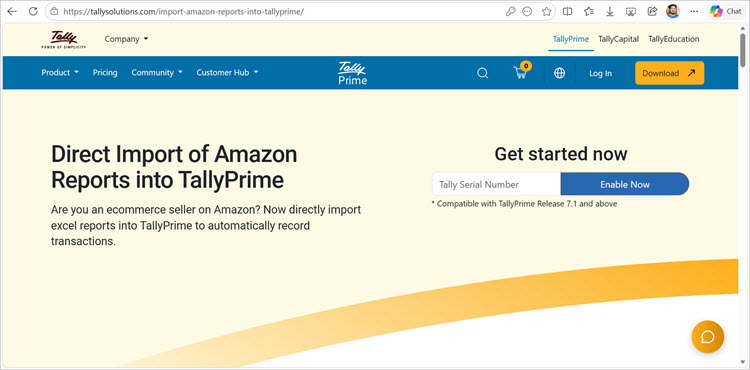
- Enter the OTP and enter your Tally.NET ID and Password to complete verification.
- Open TallyPrime to refresh your license.
- Press F1 > Settings > License > Manage License > F5 (Update).

- Enter your Tally.NET ID and Password.
- Press F1 > Tally Plug-Ins to view the Amazon Plug‑In.
On enabling the plug-in, you will get the files Sample Ledgers.xls, StockItem.xls, and Read Me.pdf in the path appresources > plugins > AmazonDataImport under the TallyPrime installation folder.
After the plug-in is enabled, you can import the predefined ledgers present in the file Sample Ledgers and start importing the transaction details from Amazon.
Import Predefined Ledgers & Stock Items
Before importing transactions data into TallyPrime, you need to ensure that the relevant ledgers are stock items are created.
Import Ledgers
- Go to the TallyPrime installation folder.
- Navigate to appresources > plugins > AmazonDataImport.
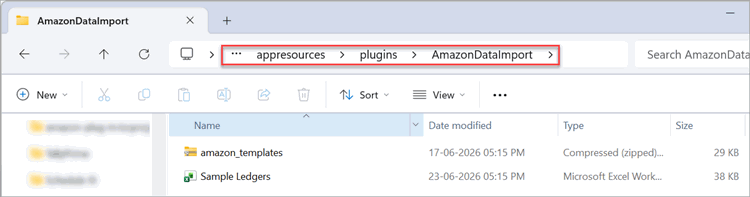
- Open the Sample Ledgers Excel file.
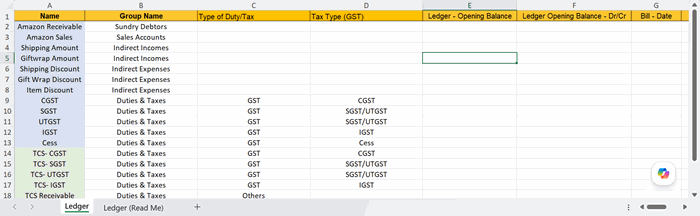
- Review the list of ledgers.
- If any ledgers already exist in your company, delete them from the Sample Ledger excel file, and save the excel file.
This prevents existing ledgers from being overwritten.
- In TallyPrime, press Alt+O > Masters.
- Select Excel (Spreadsheet) as File Format.
- In File to Import, select the updated Sample Ledgers Excel file.
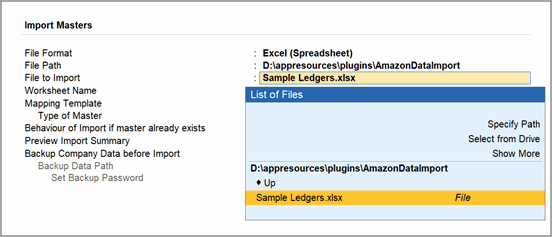
- Select Ledger as Worksheet Name.
- Under Mapping Templates, choose Default Template.
- Select Ledger as Type of Master.
- Select Behaviour of Import if master already exists as Modify with New Data as you have already verified the list of ledgers. You may select Combine Opening Balances or Ignore Duplicates, is needed.
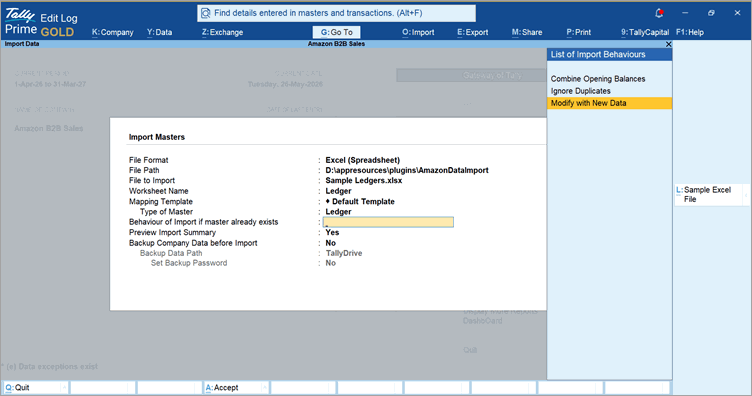
- Set Preview Import Summary as Yes.
- Press Ctrl+A to accept.
- Verify the summary.
- Press I (Import).
The predefined ledgers are successfully created, enabling you to proceed with importing your Amazon transactions data to TallyPrime.
Import Stock Items
- Enter the required item details in the StockItem.xls file available in the AmazonDataImport folder.
The plug-in will handle the data as per the format of StockItem.xls. - Import the file in a similar manner as you imported the sample ledgers.
If you already have stock items in TallyPrime and the item names used on Amazon are different, you can map them by adding the Amazon item names as aliases in the corresponding stock item masters or enter them in the StockItem.xls file and import.
Import Amazon B2B & B2C Sales and Sales Returns Data
Before importing sales or returns data into TallyPrime, you need to download the data from Amazon.
- Download the file with B2B and B2C sales, and sales returns data from Amazon Seller Central.
- If the file is not in Excel format, convert it to an Excel file (.xls).
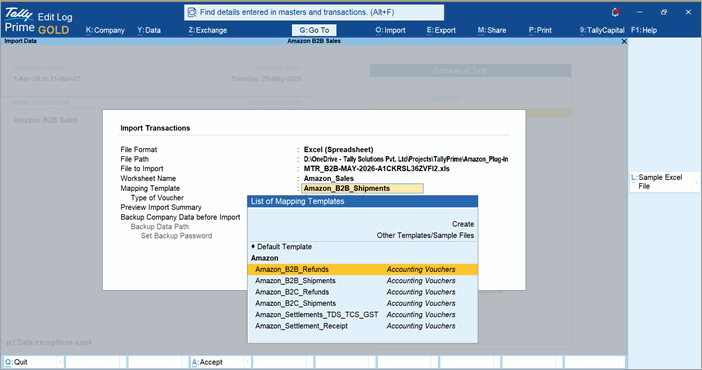
- In TallyPrime, press Alt+O > Transactions.
- Select Excel (Spreadsheet) as File Format.
- In File to Import, select the downloaded file.
- Select Worksheet Name as Amazon_Sales.
- In the Mapping Template select,
- Amazon_B2B_Shipments or Amazon_B2C_Shipmentsfor sales.
- Amazon_B2B_Refunds or Amazon_B2C_Refunds for sales returns.
- Press Ctrl+A.
- Verify the summary.
- Press I (Import).
Your Amazon data for B2B or B2C sales or returns data is in TallyPrime.
Import Settlement Data for Receipts and Tax-Related Entries
Before importing settlement data into TallyPrime, you need to download the settlement file from Amazon and create an Excel file.
- Download the settlement file (.txt) from Amazon.
- Open the .txt file and copy the entire data.
- Paste into an Excel file and save.
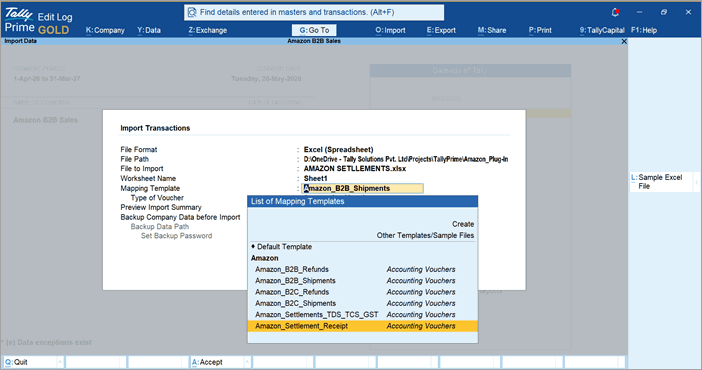
- In TallyPrime, press Alt+O > Transactions.
- Select Excel (Spreadsheet) as the File Format.
- Choose the downloaded file for File to Import.
- In File to Import, select the Excel file you created.
- Select Worksheet Name as Sheet1.
- In the Mapping Template select,
- Amazon_Settlement_Receipt for receipts.
- Amazon_Settlements_TDS_TCS_GST for tax-related entries.
- Press Ctrl+A.
- Verify the summary.
- Press I (Import).
Your Amazon data for receipts and tax entries are in TallyPrime.


