
View All Employees, Single Employee and Employee Group Report in TallyPrime
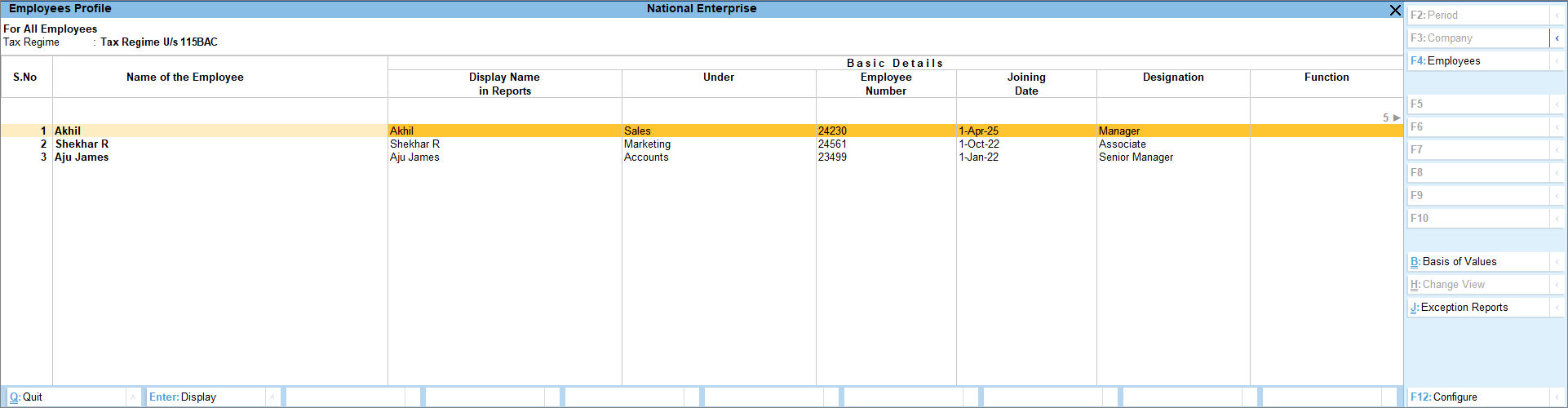
The All Employees report provides details of every employee as defined in the Employee Master. You can filter the report by selecting a specific employee or an employee group to view the relevant information.
View All Employees Report
- Press Alt+G (Go To) > type or select Employee Profile under Payroll > and press Enter.
- Select All Items under Name of Employee Category and Name of Employee / Group.
- To view the report according to the tax regime chosen by the employee, use F4 (Employee) or Ctrl+B (Basis of Values) and select the required regime.
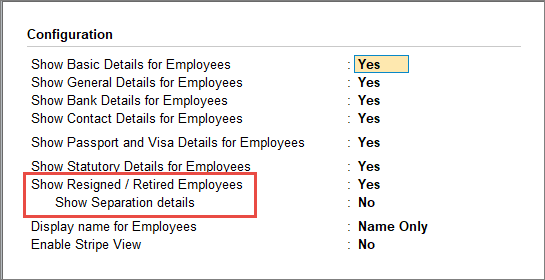
- Include lists of resigned or retired employees.
- Press F12 (Configure) > and enable Show Resigned / Retired Employees.
- To display Date of Resignation/Retirement, PF Date of Relieving, and Reason for Leaving, press F12 (Configure) > enable Show Separation details.
You can also access exception reports such as Passport Expiry, Visa Expiry, Contract Expiry, Employees Without PAN, Employees Without PRAN, and Employees Without Email IDs by pressing Ctrl+J (Exception Reports).
View Single Employee Report
- Press Alt+G (Go To) > type or select Employee Profile under Payroll > and press Enter.
- Select the required category from the List of Employee Categories.
- Select the employee name from the List of Employees / Group.
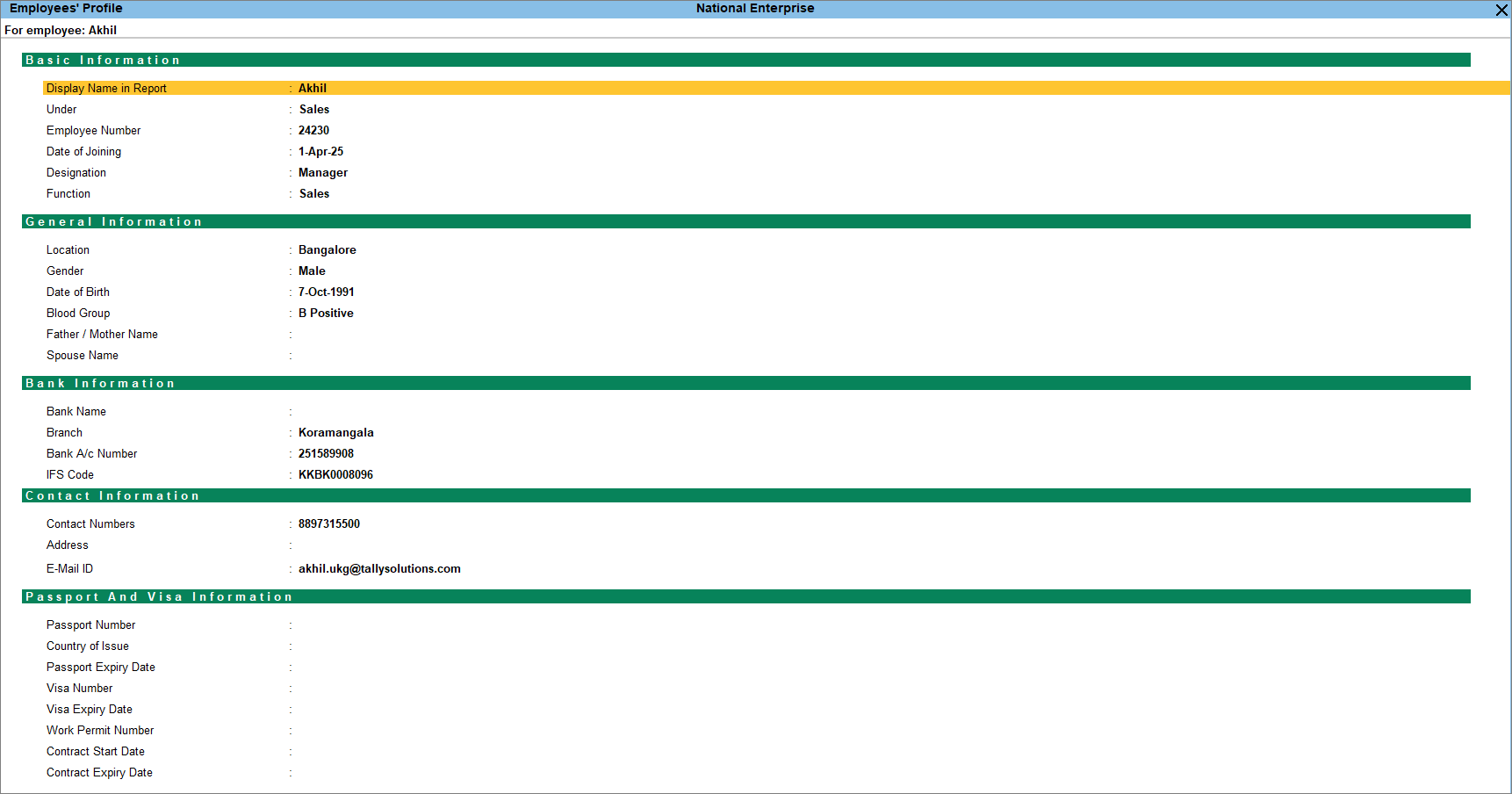
- To view details for a different employee, press F4 (Employee) and select the employee name.
The report presents comprehensive details for the selected employee, including Basic, General, Bank, Separation, Contact, Passport and Visa, and Statutory information.
View Group Employee Report
- Press Alt+G (Go To) > type or select Employee Profile under Payroll > and press Enter.
- Select the required category from the List of Employee Categories.
- Select the required group from the List of Employees / Group.
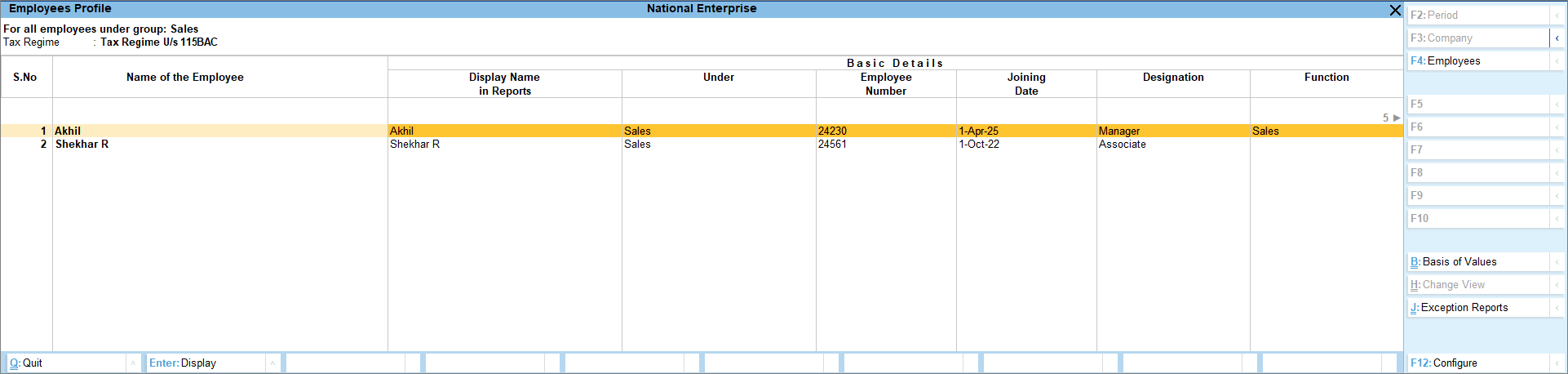
- To view the report according to the tax regime chosen by the employee, use F4 (Employee) or Ctrl+B (Basis of Values) and select the required regime.
You can also access exception reports such as Passport Expiry, Visa Expiry, Contract Expiry, Employees Without PAN, Employees Without PRAN, and Employees Without Email IDs by pressing Ctrl+J (Exception Reports).


