
Export Form 1 as per Latest MCA Notification (Workaround for S.O. 2751(E))
As per the latest MCA notification, buyers from MSMEs now have to upload the details and summaries of their bills. This includes the bills that were paid in time as well as the ones that were delayed. You can easily fill in these details using TallyPrime.
In the earlier format, only the bills unpaid beyond 45 days had to be uploaded on the MCA portal. However, as per MCA notification S.O. 2751(E), dated 15th July 2024, the summary of your parties (Sundry Creditors) has to be captured under the following categories, with the total number and amount of bills:
- Paid within 45 days
- Paid after 45 days
- Outstanding for 45 days or less
- Outstanding for 45 days or more
Follow these three simple steps to accurately upload and file your half-yearly returns:
Step 1: Download MS Excel Template from MCA Portal
In the first step, you have to download the Excel template from the MCA portal.
- Log in to the MCA portal, and go to MCA Services > Company e-Filing > Compliance Services > MSME Half yearly return of Micro or Small Enterprise.
- Scroll to the bottom of the page, and click Download Excel Template.
The MS Excel template will be downloaded, where you can update the details of your MSME bills.

Step 2: Export Details of MSME Bills from TallyPrime
In TallyPrime, you can easily configure Outstanding MSME Bills as per the latest MCA notification, and then export the details.
- Press Alt+G (Go To) > Outstanding MSME Bills.
- Press F2 (Period) to set the required period, that is, 1-Apr to 30-Sep or 1-Oct to 31-Mar.
- Press F12 (Configure) to set the required options.
-
Enable the Show Opening Amount option.
-
Enable the Show due on option.
-
Set Based on Credit Days provided in as MSME Credit Period.
-
Enable the Show no. of days till Due Date to option.
- Set Sorting Method for Bills as Party (A – Z) or Party (Z – A), which will help you in creating the summary of your parties.
-
- Press Ctrl+B (Basis of Value), and set the Type of Bills as All Bills.
Now you can easily view the pending amount as per the due dates, as well as the overdue bills.
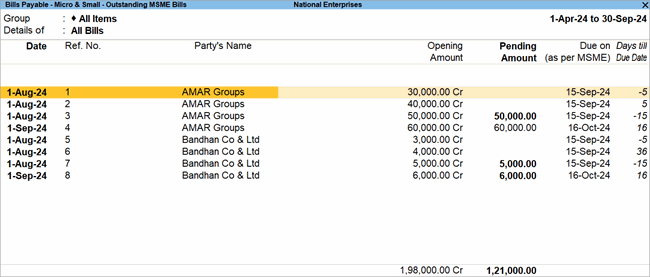
- Press Ctrl+E to export the details in MS Excel format.
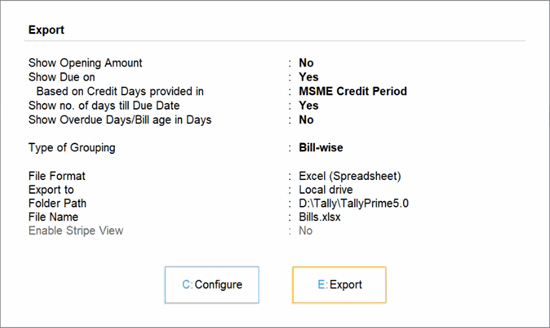
- Press E (Export) to proceed to export.
An MS Excel file will be exported with the details of your MSME bills.
Step 3: Prepare the Excel Template for Filing
After exporting the Excel sheet from TallyPrime, you can further configure the PAN details of your MSME bills. This will help you in preparing the MS Excel template for filing on the MCA portal.
- In the exported Excel sheet, add the PAN of the parties using Tally ODBC.
- Select the Ledger table.
- Select the $Name and $IncomeTaxNumber columns.
The name and the PAN of the parties will be listed in the Excel sheet.
- Use VLOOKUP to link the party bills with the PAN.
- Filter the Pending Amount and Days till Due Date, as per the following values.
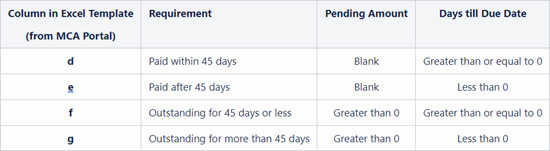
- Open the Excel Template that was downloaded from the MCA portal.
- Refer to (or copy) the values in the exported Excel and update the columns (d, e, f, and g) in the Excel template.
- Use COUNTIF and SUMIF to derive the summary for each party.
You can also choose to file the summary of only those creditors for whom payment was delayed.

Once the details are updated in the Excel template, it is ready to be uploaded on the MCA portal.
In the upcoming release of TallyPrime, you will be able to directly export the latest Form 1 details from TallyPrime, which will make the filing process even simpler.


