
View & Upload MSME Form 1 Annexure
From 15th July 2024, companies must use the revised MCA webform to file the MSME Form 1 Annexure by uploading data through a specified Excel template. The new format summarizes each supplier and shows both overdue and paid bills for the allowed credit period. As per the new format, you have to download an Excel template, specify the required data, and upload the same on the revised portal.
For TallyPrime 6.0 or earlier, the MSME Form 1 Annexure will not be available. To file your MSME returns successfully using TallyPrime or TallyPrime Edit Log, it is recommended that you upgrade to Release 6.1.
View MSME Form 1 Annexure
- Press Alt+G (Go To) > type or select MSME Form 1 Annexure.
Alternatively, Gateway of Tally > Display More Reports > Statutory Reports > MSME Reports > MSME Form 1 Annexure.
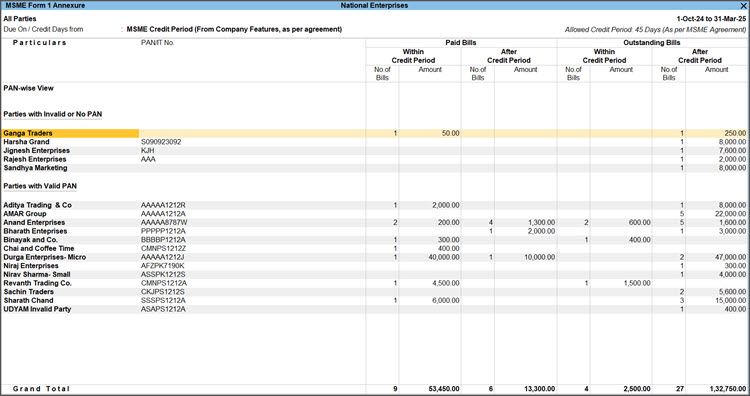
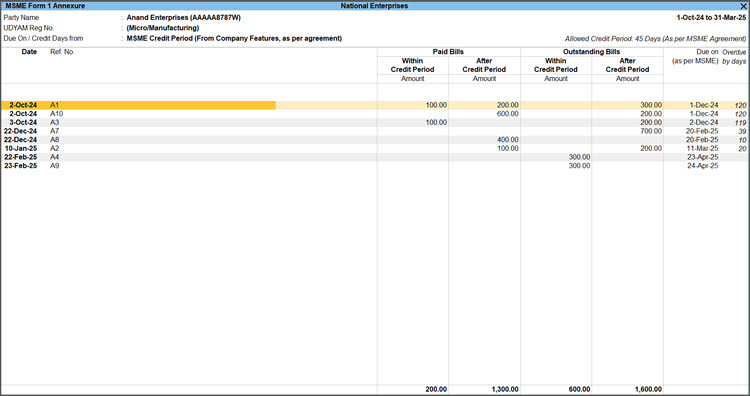
- Select a MSME party and drill down to view the party details along with the paid bills, outstanding bills, due date and overdue period (in days).
Report details
-
Due On / Credit Days from: You can configure the MSME Credit Period based on the Configured Credit Period in the Company Feature, Bill-wise Details, or whichever is earlier from the Basis of Values. This helps configure the report data as per credit terms defined in Company Features or individual transactions, ensuring compliance with the MSME norms.
-
Allowed Credit Period: The Allowed Credit Period for any party is 45 days, as set by the Govt. You can update the same in your F11 (Company Feature) > More Details > Credit Days Allowed for Micro & Small Parties. However, you can set any number of days as per your business requirement.
-
Paid Bills and Outstanding Bills: The Paid Bills and Outstanding Bills columns highlight the no. of Bills and the amount already paid or pending to be paid. All these values will appear with respect to the credit period that you have set.
-
Parties with Invalid or No PAN/Valid PAN: The MSME Form 1 Annexure displays all the MSME parties in PAN-wise View as default. In the PAN-wise view, the parties are divided in two groups based on the availability and validity of their PAN. In the PAN-wise view, the MSME suppliers with same PAN are merged and displayed as single PAN Supplier. You can drill down to view the different MSME suppliers listed under each PAN.
Configure additional details
By default, the MSME Form 1 Annexure report in TallyPrime appears PAN-wise. However, you can configure the report as per your business needs.
-
Press F8 to view the report with Ledger-wise bills or Bill-wise, as needed.
You can switch to these views even from Change View. -
Press Ctrl+B (Basis of Value) to configure the report with specific values.
-
-
All Parties: Displays all the parties, with or without PAN, based on which you can view your overall cash flow within the credit period. You can track your pending and paid bills for all of your parties.
-
Parties with Valid PAN: Displays the MSME Parties with Valid PAN, so that, you can export the MSME Form 1 Annexure with valid PAN details.
-
Parties with Invalid or No PAN: Displays the MSME Parties with Invalid or No PAN, so that, if necessary, you can update the parties with valid PAN details.


-
-
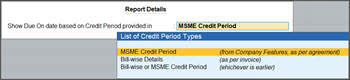
Show Due On date based on Credit Period provided in:
-
MSME Credit Period (from Company Features, as per agreement): Configures the data in the report as per the credit period mentioned in the F11 (Company Features). As per the Government norms or MCA Department norms, the Credit days Allowed for Micro & Small Parties should be of 45 days and you can set it from the F11 (Company Features) screen.
-
Bill-wise Details (as per invoice): Configures the data as per the credit period mentioned in the Bill-wise Details screen while passing a transaction.
-
Bill-wise or MSME Credit Period (Whichever is earlier): Configures the data either according to the MSME Credit Period or Bill-wise Details, whichever day is earlier.
-
- Exclude Bills Paid & Outstanding within Credit Period: Yes, to remove the bills that are already paid and pending within the credit period.
- Exclude Parties having only Bills Paid & Outstanding within Credit Period: Yes, to remove the parties having only bills, both paid and pending, not exceeding the credit period.
-
-
Press F12 to configure the report based on your business requirements.
-
Show Type of Enterprise: To see the activities the parties are engaged in or the domain of the parties, for example, manufacturing, services, and so on.
-
Show UDYAM Reg No.: To see the UDYAM Reg No. of each party.
-
Default period on opening the report: Default period on opening the report: By default this option is set to Earlier period. You can select either Earlier Period or Current Period option to configure the report to display the transactions based on your Current date. Say, your data is in between the period of April to September. By default, the report will display transactions from October of last year to March of the current year.
-
Export and Upload MSME Form 1 Annexure
The export of the MSME Form 1 Annexure report is supported only in PAN-wise Summary View. MSME parties only with Valid PAN are sent to the MCA excel template. If you have parties with Invalid or No PAN, you should update the party details with correct PAN to include such parties.
-
Export the MSME Form 1 Annexure report.
-
Press Alt+E (Export) > MSME Form 1 Annexure.
If you have a party with invalid/No PAN, an information screen will pop up highlighting that the parties with invalid or no PAN will not be exported to MSME Form 1 Annexure template.
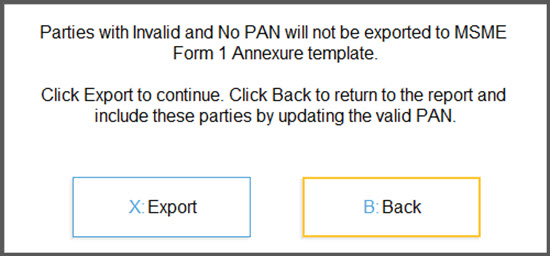
You can press B (Back) to go back to the MSME Form 1 Annexure report and update the PAN details for the parties. - Press C (Configure) to configure the MCA Template File Name and Folder Path.
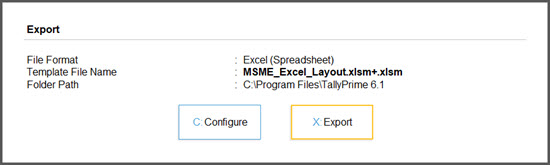
- Press E (Export).
After export, a message will prompt you to update the reasons for delay in payment to MSME parties. If a payment is made or pending beyond 45 days, providing a reason in the MCA template is mandatory.
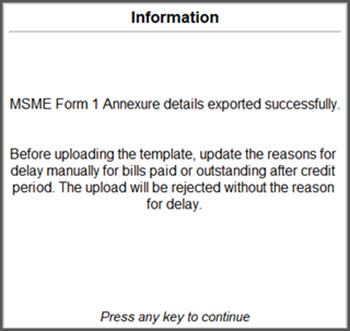
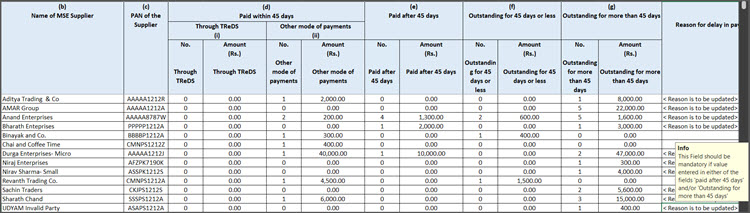
As the message gets displayed in TallyPrime, you will see the MCA template opening on your screen by default with the pre-filled details. In the template, you have to verify if there is any value under the Paid after 45 days or Outstanding for more than 45 days columns.
In case you have any values in these columns, you can see the text <Reason to be updated> appearing under the Reason for delay in payment/amount outstanding column.
-
- Update the reasons under the Reason for delay in payment/amount outstanding column, as applicable against each MSME party.

-
Press Ctrl+S to save the file.
-
Log in to the MCA portal and upload the MSME Form 1 Annexure template.
A message confirming the successful upload of the file will be displayed.
If there are no values existing under the Paid after 45 days or Outstanding for more than 45 days columns, a message appears in TallyPrime, informing the successful export of the MSME Form 1 Annexure report.
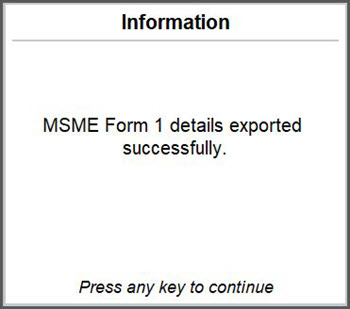
You can use the sample data to test this feature in TallyPrime, without affecting your company data. On downloading the Data folder, you will have the Sample data, Excel file, and ReadMe file.
The ReadMe file has the instructions on using the sample data.


