
Check Upcoming Due Dates for Payables to MSME Suppliers in TallyPrime
As a buyer, you need to identify and track the payments related to MSME suppliers or service providers to avoid exceeding the date agreed upon between you and the supplier. You need to consider all bills from MSMEs and cannot afford to miss out on any bill. The penal interest chargeable for delayed payment to an MSME enterprise is three times the bank rate notified by the Reserve Bank of India.
In case of delayed payments, MSME can file a complaint with MSME Samadhaan to get the payment along with interest.
- Press Alt+G (Go To) > type or select Group Outstanding > Sundry Creditors.
Alternatively, Gateway of Tally > Display More Reports > Statement of Accounts > Outstandings > Payables.

- View bills of micro and small parties.
- Press Ctrl+B (Basis of Values).
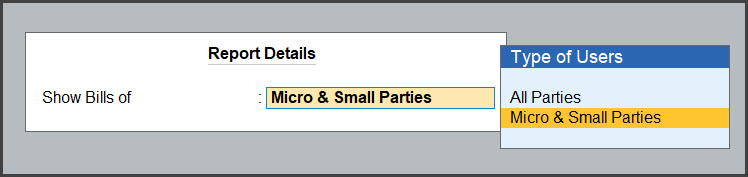
- For Show Bills of, select Micro & Small Parties.
- View Type of Bills as needed.
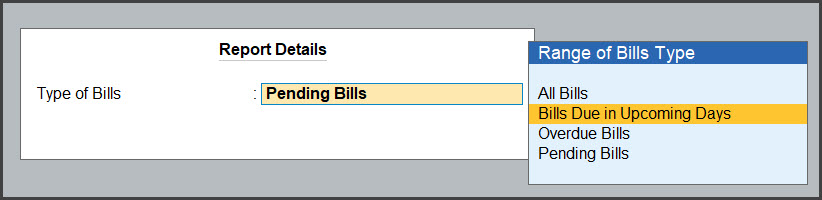
For Type of Bills, select one of the following as needed.- All Bills, to view all the payable bills.
- Bills Due in Upcoming Days, to see bills that upcoming in a specific number of days. You can specify the number of days in Show bills due in the next.
- Overdue Bills, to see only the bills that are overdue.
- Pending Bills, to only the pending bills.
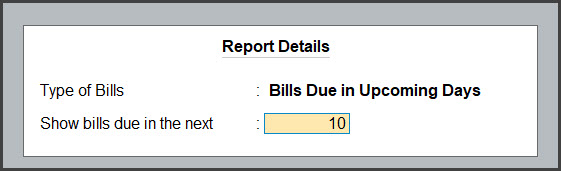
- In the Show bills due in the next field, enter the number of days to see bills that become due within the given number of days. This option appears only when you select Bills Due in Upcoming Days.
- Press Ctrl+A to save.
- Press F12 (Configure) and set the required due date options to view report details.
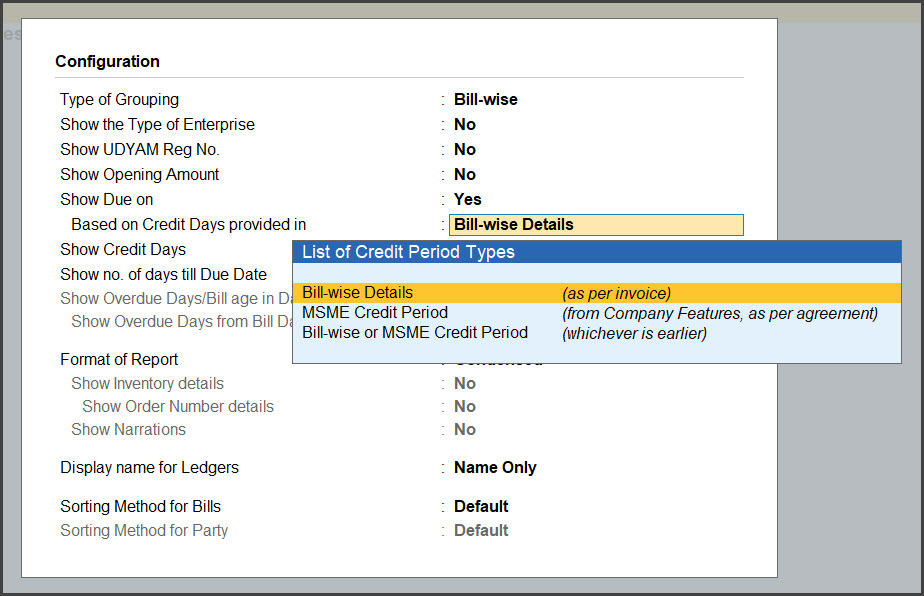
- Show Due on: Set this option to Yes, to view the date on which a bill becomes due for payment. The due date is considered based on the credit days set for the party. It can be the credit days specified in the invoice or in Credit Days Allowed for Micro & Small Parties under F11.
- Show no. of days till Due Date: Set this option to Yes to view number of days until the due date for each bill in Days till Due Date column.
- Show Overdue Days/Bill age in Days: Set this option to Yes to view the number of overview days in Overdue by Days column.
- Show Overdue days from Bill Date: Set this option to Yes to view the number of days since the day of billing in the Age of Bill in Days column.

Is this information useful?
YesNo


