Table of Contents


Edit Log Activities in TallyPrime

For TallyPrime 2.1 & later

If you are on TallyPrime 2.1/TallyPrime Edit Log 2.1 or later, you can track changes to any company-related activities, transactions, and masters.

What is Captured in Edit Log Report

TallyPrime Edit Log TallyPrime
  1. Company Data migrated from TallyPrime: Migration from TallyPrime Release 2.0.1 or an older version to TallyPrime Edit Log Release 2.1 or its successors.
  2. Company Data migrated: Migration from a TallyPrime Edit Log release to another TallyPrime Edit Log release.
  3. Company Data migrated from Tally.ERP 9 or earlier: Migration from Tally.ERP 9 or an older version to TallyPrime Edit Log Release 2.1 or its successors.
  4. Company Data migrated: Migration from a release of TallyPrime Edit Log to later releases of TallyPrime Edit Log.
  5. Company Data moved from TallyPrime: Moved from TallyPrime Release 2.1 to TallyPrime Edit Log Release 2.1, irrespective of the status of the Edit Log feature – enabled or disabled.
  6. Company Data split: Splitting of Company data will be logged.
  7. Company Data migrated from Tally.ERP 9 or earlier (Not fully recovered): Partial loss of data due to data corruption while migrating data from Tally.ERP 9 to TallyPrime Edit Log Release 2.1 or its successors.
  8. Company Data repaired (Not fully recovered): Partial loss of data during data repair.
  1. Edit Log enabled during Company creation: When enabling Edit Log at the time of Company creation.

  2. Edit Log enabled: When enabling Edit Log at the time of Company alteration.
  3. Edit Log disabled: When disabling Edit Log at the time of Company alteration.
  4. Company Data migrated from TallyPrime Edit Log: Migration from TallyPrime Edit Log to a lower version of TallyPrime.
  5. Company Data migrated: Migration from a TallyPrime release to another TallyPrime release.
  6. Company Data migrated from Tally.ERP 9 or earlier: 
    Migration from Tally.ERP 9 or an older version to TallyPrime Release 2.1 or its successors
  7. Company Data migrated: When the data is migrated from earlier versions of TallyPrime (with Edit Log enabled).
  8. Company Data moved from TallyPrime Edit Log: Migration from TallyPrime Edit Log Release 2.1 to TallyPrime Release 2.1.
  9. Company Data split: Splitting of Company data will be logged.
  10. Company Data migrated from Tally.ERP 9 or earlier (Not fully recovered): Partial loss of data due to data corruption while migrating data from Tally.ERP 9 to TallyPrime Release 2.1 or its successors.
  11. Company Data repaired (Not fully recovered): Partial loss of data during data repair.

If the Security Control is not enabled in your Company, then the activities will be logged with username as Unknown (Security not enabled).

Edit Log Activities

Nature of Activity Activity Label in Edit Log
Creation
  1. Created: When you create a transaction or master, the activity is logged.
  2. Created due to Import: When you import transactions or masters to the Company data, the activity is logged.
  3. Created due to Sync: When you synchronise a transaction or a master for the first time from the client system to server system, the activity is logged.
  4. Created due to Migration: Migrating the data to a specific release leads to the creation of some masters to support the functionalities provided in that particular release.
Alteration
  1. Altered: Apart from any direct alteration of transactions or masters, Edit Log will be created whenever you reaccept a voucher or master. Marking a master as Verified or removing the status Verified also creates Edit Log. 
    Note: You may re-accept a voucher or master by pressing Ctrl+A. However, the Activity may be displayed as Altered due to internal changes in application that occurred due to the activity of resaving. 
  2. Altered due to Voucher Renumbering: Insertion or deletion of a voucher affects the voucher number of subsequent vouchers. This leads to the creation of Edit Log.
  3. Altered due to Import: Import of data leads to creation of Edit Log, if there are any differences in the imported transaction or master. 
  4. Altered due to Split: Changes made to the masters such as Opening Balances, Bill-wise details, and others during Split will create Edit Log.
  5. Altered due to Sync: Edit Log is created if there are any changes between the transaction or master in the client system and server system.
  6. Altered due to Migration: Transactions and masters that are altered to support the new or improved functionality provided in that release will have Edit Log.
Deletion
  1. Deleted: When you delete a master, the activity is logged.
  2. Deleted due to Sync: When a deleted master is synchronised from the client system to server system, TallyPrime creates an Edit Log for the activity.
Resave
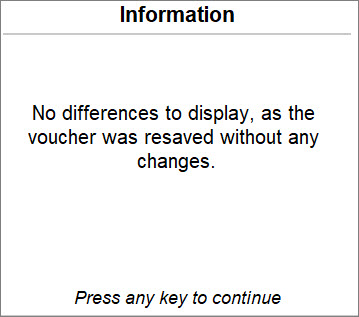
  1. Resaved (No changes): When a transaction or master is saved without making any changes, the activity is logged.
  2. Resaved due to Import (No changes): When a transaction or master gets resaved at the time of import without any changes, the activity gets logged.
  3. Resaved due to Sync (No changes): After synchronisation, if there is no change in the master in the server system as compared to the client system, then the activity is logged.
  4. Resaved due to Voucher Renumbering: When a Company data for which Voucher Type with method of voucher number as Automatic (Manual Override) is migrated and it is changed to Automatic or Multi-User Auto. Thereafter, if the voucher numbers do not change, then the vouchers get resaved.
Previous Record

You may make a lot of changes in a transaction or a master when Edit Log is disabled in the Company. 

Previous Record refers to the consolidated data of the activities performed in TallyPrime when the Edit Log is disabled or in a migrated Company data where Edit Log was not enabled.

The activity called Previous Record gets logged in transactions and masters when they are altered, resaved, deleted for the first time after:

  • Edit Log is enabled in TallyPrime Release 2.1 or later.
  • The Edit Log is enabled > disabled for sometime > and enabled again. 
  • The data is migrated from TallyPrime Release 2.1 or later with Edit Log disabled to TallyPrime Edit Log Release 2.1 or later.
  • The data is migrated from TallyPrime Release 2.0.1 or earlier or Tally.ERP 9 to TallyPrime Edit Log.
  • The data is moved from TallyPrime Release 2.0.1 or earlier or Tally.ERP 9 to TallyPrime and the user enables Edit Log.

Previous Record:

  • Provides you with the details of a transaction or master at the time Edit Log is enabled.
  • Does not contain Username and Date & Time, as Edit Log was disabled when the activity was performed

Note:

When you perform the first activity in the imported transaction or master, two activities will get logged.

  1. Previous Record
  2. The activity that you have performed: Altered, Deleted, or Resaved (No changes).
Activities with Status: Optional and Status: Cancelled

There can be activities such as creation, resaving, or alteration with Status: Optional and Status: Cancelled. 

The statuses are provided for such vouchers because these transactions do not affect your financial reports, until they are made regular. 

Method of voucher numbering

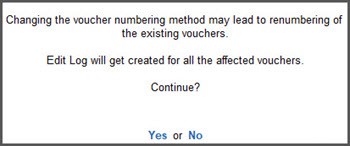
In TallyPrime Edit Log and TallyPrime Release 3.0 with Edit Log enabled, whenever you change the Method of voucher numbering, TallyPrime displays a message.

vch-numbering-editlog

When the method of voucher number is changed, there is a possibility that some vouchers will get renumbered. So, the Vch. No. in those transactions gets altered, which leads to the creation of an Edit Log for those vouchers.

Note: You need to consider the impact on taxation and compliance, if any, before changing a voucher numbering method. If the number of vouchers are too many, TallyPrime will take some time to renumber all vouchers.

Moreover, you will get the same message as above, if you enable Set/Alter additional numbering details to Yes and change the voucher type configurations.

If the Security Control is not enabled in your Company, then the activities will be logged with username as Unknown (Security not enabled).

Differences Between Edit Log Versions

When you drill down on a version in the Edit Log report for any transaction or master, you can view the differences between the selected version and the immediate previous version.

TallyPrime Release 6.0 onwards, you can also view the changes made in Bank Date, Instrument Number, and Instrument Date. Moreover, you will also get to know if a UPI is changed.
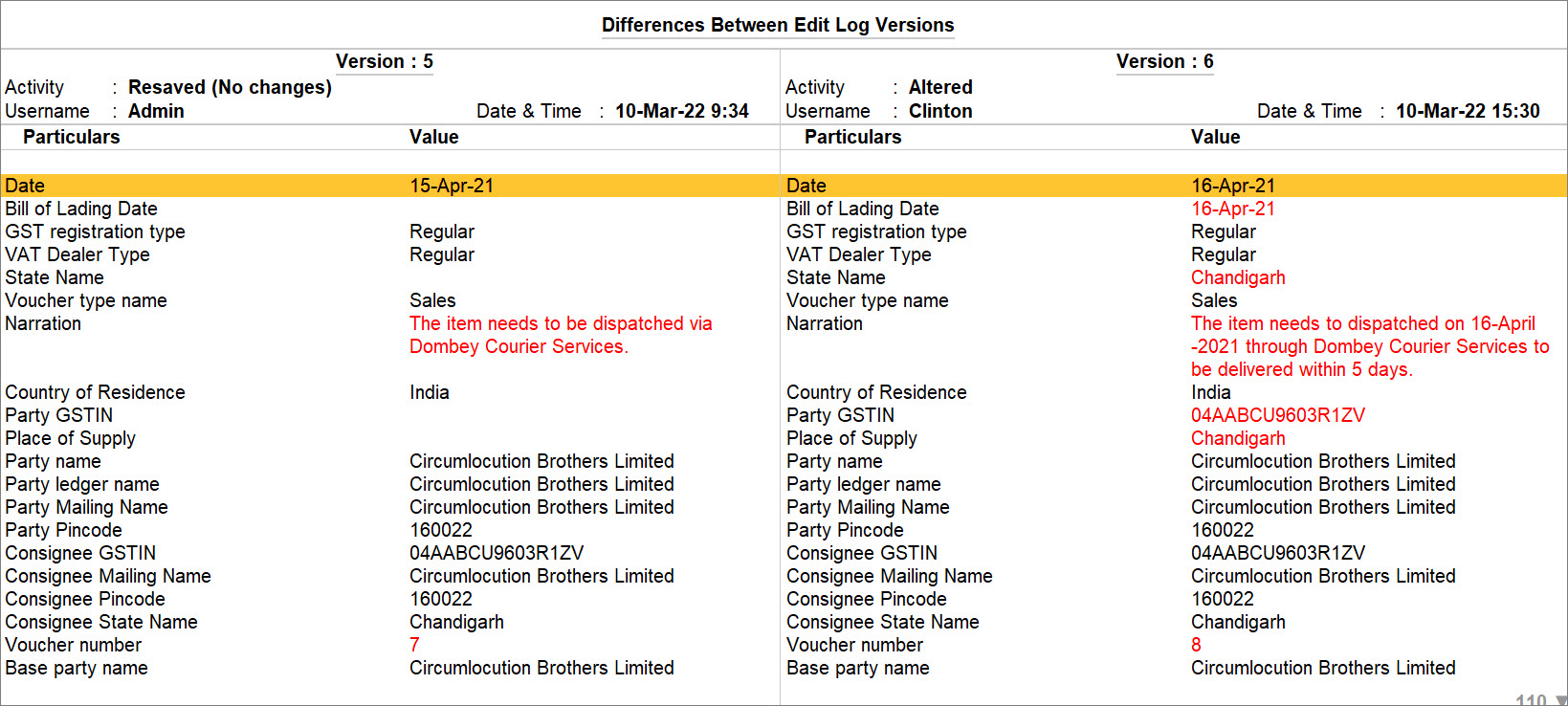
Differences Between The Edit Log Versions

The values in the reports are organised based on the fields and their hierarchy.

The field values that have changes between the versions are marked in red, regardless of the users changing the values or internal changes. 

Keyboard Shortcut for Edit Log Report 

Keys/Action Result
+/– Move between the next and previous versions

PgDn/PgUp

Scroll within the report

Shift+F5 View the details of the changes

Shift+Enter/Enter/double-click

Explode a line
F12

Configure the report

Edit Log Activities 

Activity: Created

The version on the left-hand side is empty and no field value is shown in red.
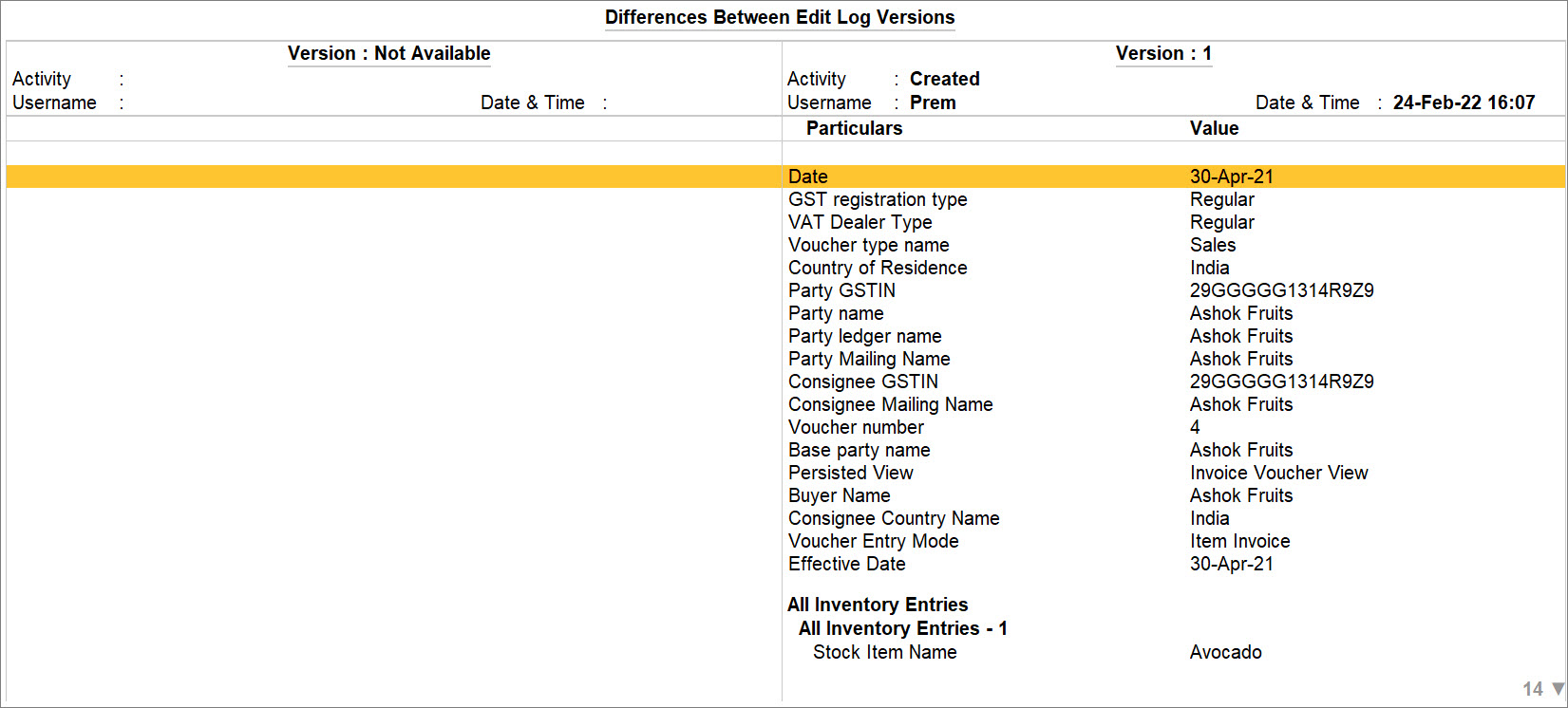
Edit Log Report for Created Activity

Activity: Deleted

The version on the right-hand side is empty and no field value is shown in red.
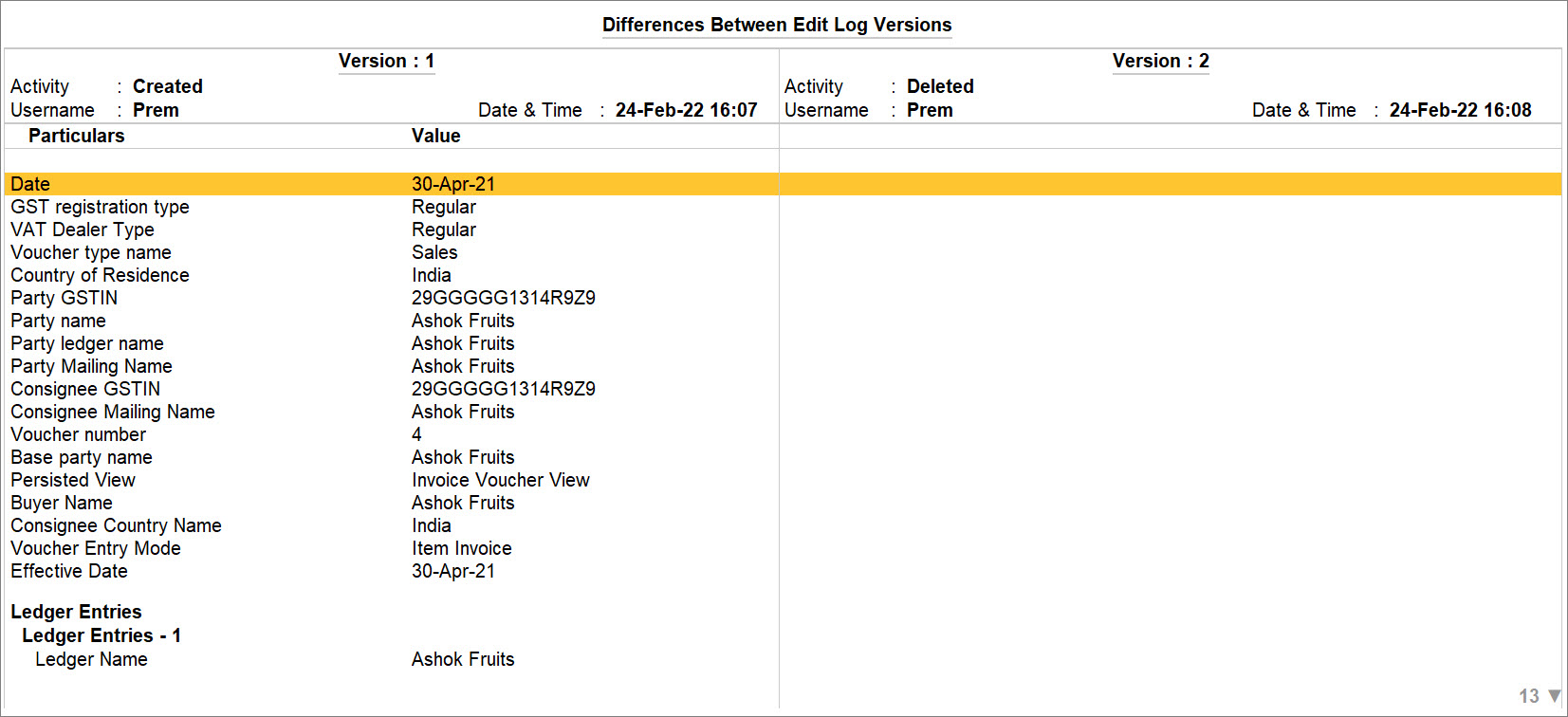
Edit Log Report for the Deleted Transactions or Masters

Activity: Resaved (No changes)

Drill Down to Differences Between Edit Log Versions for Resaved No Changes Activity

Additional Scenarios in Edit Log Versions

Type Action/Reason Impact
User action Voucher Type changed during alteration Order of fields in the Differences Between Edit Log Versions report will change.
Change in order of ledgers Order of ledgers in the Differences Between Edit Log Versions report will change.
Altered ledgers and then altered vouchers Changes due to ledger alteration will be shown in the report for the transaction in which the ledger is used. For example, if you change the address in a particular party ledger and then alter a transaction with the ledger, then the values affected due to ledger alteration will start appearing in the Differences Between Edit Log Versions report of the transaction.
Changed the number of decimal places for units Field values get marked in red, even when the value remains the same. This happens because even if you set the number of decimal places to 2, TallyPrime internally calculates the values with 4 decimal places. 
Configuration-based values Occurrence of disabled field in report Regardless of enabling or disabling certain features, values related to such features will appear with appropriate default values. For example, even if you have not enabled GST or VAT, then also you will see fields related to GST or VAT. This happens because, irrespective of the status of the feature – enabled or disabled, transactions and masters have those values as a part of the data.
Use of TDLs Display of User-Defined Fields If there is any TDL that modifies the field labels and the TDL is not present when loading the report, then the values will be shown without labels.
Data behaviour Values that are only shown in the voucher but not part of the data A few fields such as discount percentage and alternate units shown on the voucher for reference are not included in the report.
Nature of Data Data presentation in the report The way you see data in the report may change from the way you see in the voucher or master screen. This happens because the way data stored in TallyPrime differs from the way it is presented.


Is this information useful?
YesNo
TallyHelpwhatsAppbanner
Is this information useful?
YesNo
TARA