
e-Way Bill Rejected due to Document Type or Sub Type Errors
Cause
You may encounter the following errors if the Document Type, Sub Type, or both are not updated or are invalid.
- Invalid Sub-supply Type
- Invalid Supply Type
- Invalid Document Type
- Document Type does not match with transaction & Sub trans Type
- Invalid Document type for the given Supply Type
Resolution
- Open the voucher in alteration mode.
- Set Provide GST/e-Way Bill details: Yes.
- In the Additional Details screen, update the Sub Type and Document Type.
- Press F12 (Configure) > Show Sub Type: Yes and Show Document Type: Yes.
- Enter the correct Sub Type and Document Type.
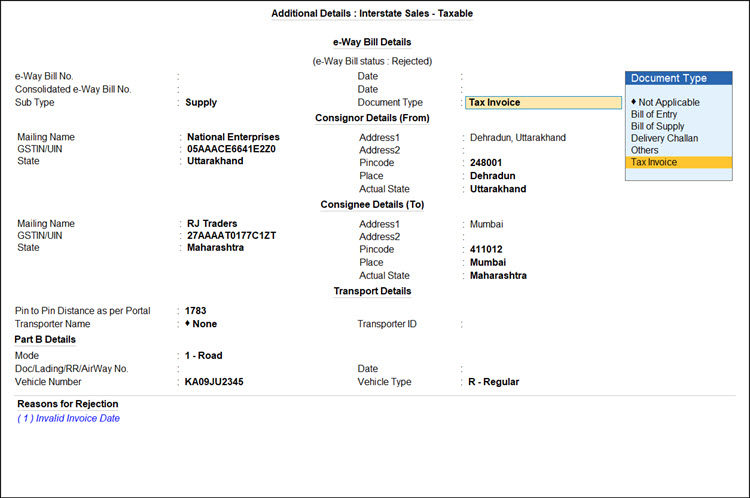
- Press Ctrl+A to save and generate e-Way Bill.
To know more about document types master and their mapping, visit the Supply Type – Document Type Mapping and refer the Document Type column.
Is this information useful?
YesNo


