
Record Excise Sales with GST for Tobacco Products in TallyPrime
As per CGST Notification No. 20, dated 31st December 2025, the Government has mandated the following changes, effective 1st February 2026:
- GST Compensation Cess is not applicable on cigarettes and other tobacco products.
Click to know the updated duties on cigarettes and tobacco, applicable per 1,000 cigarette sticks.
| Category | Excise Duty | NCCD | Health Cess |
| Cigarettes up to 65 mm in length | 5 | 230 | Rs. 2,050 |
| Cigarettes between 65mm and 70mm | 5 | 290 | Rs. 3,600 |
| Filter cigarettes up to 65mm in length** | 5 | 510 | Rs. 2,100 |
| Filter cigarettes between 65mm and 70mm** | 5 | 510 | Rs. 4,000 |
| Filter cigarettes between 70mm and 75mm** | 5 | 630 | Rs. 5,400 |
| Other cigarettes containing tobacco | 10 | 850 | Rs. 8,500 |
| Cigarettes of tobacco substitutes | 5 | 690 | Rs. 8,500 |
Before you begin | Prerequisites
- Ensure that Enable Goods and Services Tax (GST) is set to Yes in F11 (Features).
- Ensure that Enable Excise is set to Yes in F11 (Features) and that Manufacturer is selected as the Registration Type in the Excise Details screen.
- Create the relevant GST tax ledgers.
- SGST and CGST for local sales, and
- IGST for interstate sales.
- Create the following Duty Heads.
- Basic Excise Duty
- Duty Code: CENVAT
- Calculation method: On Assessable Value
- NCCD
- Duty Code: NCCD
- Calculation method: On Assessable Value
- Basic Excise Duty
- Create the following Excise ledgers by setting the Type of Duty/Tax to CENVAT, selecting the respective ledger name as the Duty Head, and entering 0% as the Percentage of calculation.
- Basic Excise Duty Ledger
- NCCD Ledger
One-time Setup of Stock Item Master

- Update the GST details in the Stock Item.
- Update the Excise details in the Stock Item.
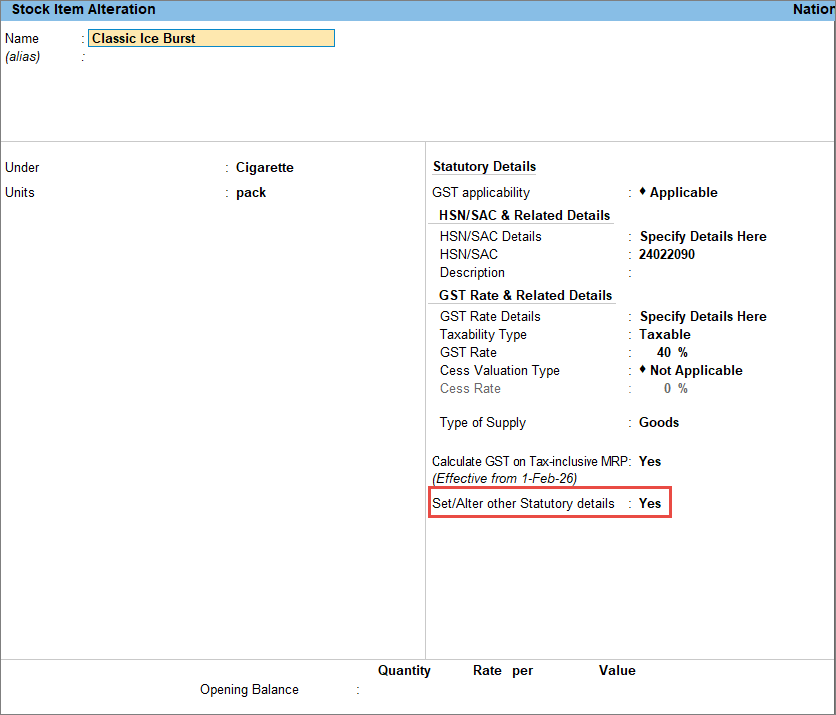
- In the Stock Item Alteration screen, enable Set/Alter other Statutory details.
- In the Tax Details screen:
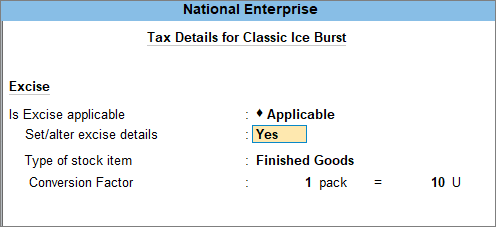
- Set Is Excise Applicable to Applicable.
- Set Set/alter excise details to Yes.
- In the Excise Tariff Details screen, enter the following:
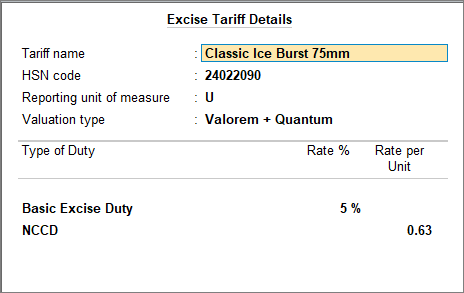
- Tariff name: Enter the name as applicable.
- HSN code: Enter the 8-digit HSN code.
- Reporting unit of measure: Select the Reporting unit of measure as applicable.
- Valuation type: Select Valorem + Quantum from the List of Valuation Types.
- Enter the Rate% for Basic Excise Duty and the Rate per Unit for NCCD based on the cigarette length and Conversion Factor.
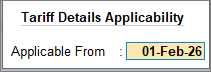
- In the Tariff Details Applicability screen, update Applicable From as 1st Feb, 2026.
- In the Excise Tariff Details screen, enter the following:
- Type of stock item: Select Finished Goods from the list of Natures of Stock Item.
- Conversion Factor: Enter the number of units per pack applicable to the respective stock item. For example, 1 pack = 10 units.
Once the GST and Excise details in the Stock Item master are updated, you can record the sales transaction.
Record the Sales Transaction
- In the sales voucher, enter the stock item, quantity, and rate of sale.
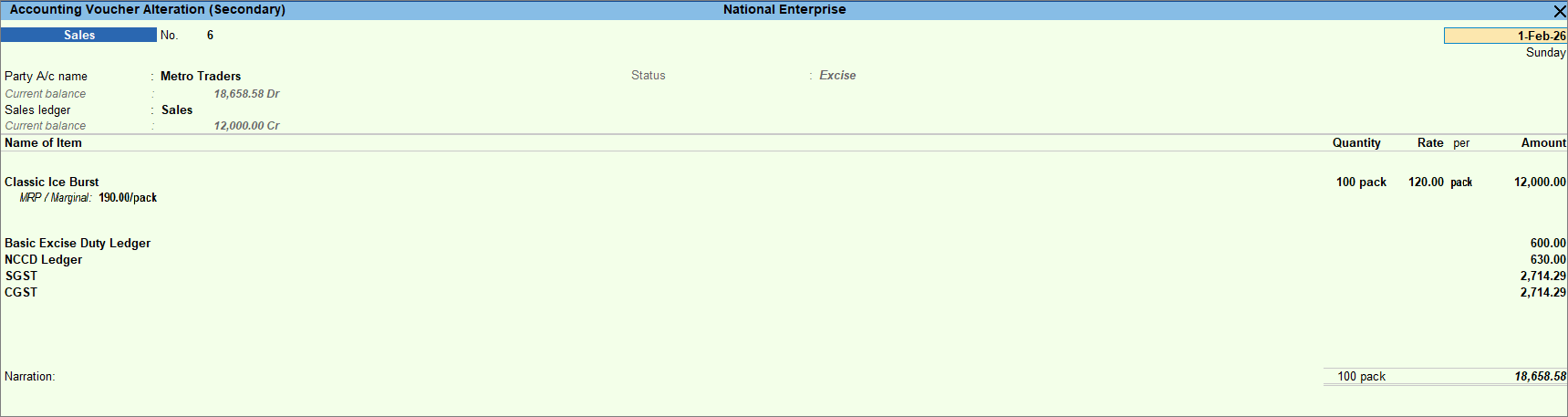
- Select the Excise tax ledgers.
- Basic Excise Duty Ledger
- NCCD Ledger
The tax amount appears as per the rates configured in the Stock Item.
- Select the appropriate GST tax ledger.
- Press Ctrl+O (Related Reports) to view the below Tax Analysis report.
- GST – Tax Analysis: to view the GST tax breakup.
- Excise – Tax Analysis: to view the Excise tax breakup.
- Press Ctrl+A to save the voucher.
Is this information useful?
YesNo


