
File GSTR-3B Using GSTR Offline Tool
GSTR offline tool enables you to import GSTR-3B MS Excel/CSV into it and generate a JSON file compatible to GST portal from it. All your GST data from TallyPrime will appear seamlessly on the portal, after which you can proceed to easily file your return.
Download GSTR Offline Tool → Export GSTR-3B in Excel/CSV from TallyPrime → Generate GSTR-3B JSON from Offline Tool → Upload GSTR-3B JSON on the GST Portal and File Return

- Before exporting your GSTR‑3B data to the MS Excel template from TallyPrime, you should use a fresh template every time you export.
- Verify the details before filing the returns, because the details cannot be revised after submission.
- When you export GSTR‑3B Excel/CSV from TallyPrime, ensure that the file GSTR3B_Excel_Utility_V4.9.xlsm is available in the location specified in Template File Path.
In TallyPrime Release 2.1, the File Name is prefilled as GSTR3B_Excel_Utility_V4.7.xlsm.
You must change it to GSTR3B_Excel_Utility_V4.9.xlsm before uploading to the offline tool.
If the template GSTR3B_Excel_Utility_V4.9.xlsm is not available in the Template File Path, an error will occur on the GST portal. - JSON format is compatible with the GST portal, so you must ensure that you have a JSON file for uploading to the portal.
Download GSTR Offline Tool
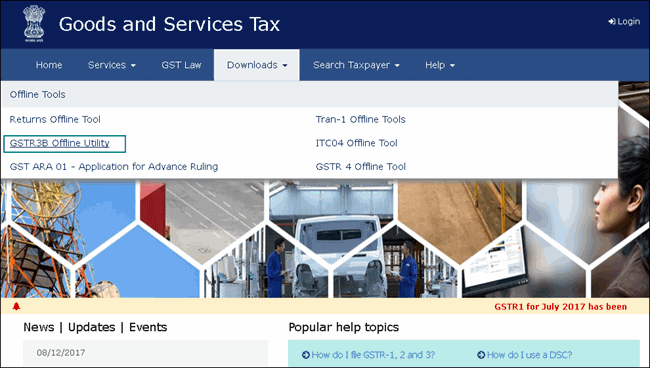
- In the GSTR-3B report in TallyPrime, press Alt+V (Open GST Portal) to view the GST portal.
- Click Downloads > Offline Tools > GSTR3B Offline Utility.
- Click Download.
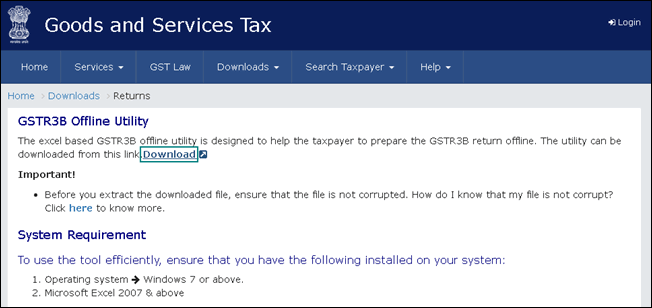
- A zip file containing the GST Excel Utility tool gets downloaded.
Tip: For important information about the tool and the system requirements, you can refer to the Downloads page on the GST portal.
-
Extract the GSTR3B_Excel_Utility_V4.9.xlsm file from the GSTR3B_Excel_Utility.zip file and copy it to the location where TallyPrime is installed.
This will ensure that TallyPrime can export the GST details to the template without any hassles.
Export GSTR-3B Returns to the MS Excel Template
When you export GSTR‑3B in Excel/CSV, the #Value! error may appear. This happens when you use English (United States) as the keyboard language, as it does not support the rupee symbol.
Refer to the Filing GSTR-3B Returns: Errors & Resolutions section for more details.
- In the GSTR-3B report, select the return period by pressing F2 (Period).
If you have multiple GST registrations, then you can press F3 (Company/Tax Registration) and select the relevant GST registration to export GSTR-3B. - Press Alt+E (Export) and select GST Returns from the menu.
- Select Excel (Spreadsheet) as the File Format.
- Enter the export location in the File Path field.
This should be the TallyPrime folder, where you have also saved the GSTR3B_Excel_Utility_V4.9.xlsm file. - Press E (Send) to export data to the MS Excel template.
After export, the MS Excel template will open with the updated details.
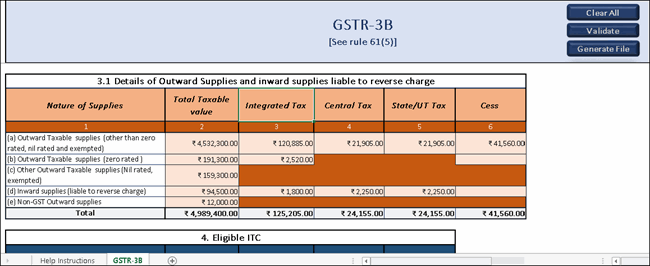
Generate a JSON File on the GSTR Offline Tool Using the e-return MS Excel/CSV Template
- In the GSTR Offline Tool.exe > Import Files.
- Import the MS Excel or CSV File of GSTR-3B.
- Click Validate to view the status of the sheet.
If the status appears as Validation Failed, then correct the errors that are mentioned in the Excel/CSV template, and then click Validate.
For more details on the information captured in each column of the e-return template, click here. - Click Generate File.
A JSON file will be generated in the GSTR folder on your Desktop.
Upload GSTR-3B JSON on the GST Portal and File Return
Once you have generated the GSTR-3B JSON file, you can upload it on the GSTR-3B to file your return.
Questions & Answers
- Is it necessary to have a GSTR Offline tool to file GSTR-3B on the GST portal?
No. You can file GSTR-3B on the GST portal through multiple other ways: -
Can I prepare GSTR-3B online on the GST portal and make the payment later? If yes, then how do I do it?
Yes. You can retain the draft for 15 days and then go on to make the payment. It is important to note that the GSTR-3B gets filed only after a successful payment of your net liability, if applicable.


