
Record Branch Transfer with e-Way Bill Details
If you are transferring goods across branches within the same state, record a Delivery Note with the details. To record branch transfer with e-Way Bill details for transfer of goods to a different state, you will need to record a Delivery Note and a corresponding Sales Invoice against the Delivery Note. For invoice values more than the threshold limit set for interstate and intrastate transfers, you can also generate the e-Way Bill.
If you are using multiple vehicles for transporting, you can update any one of the Motor Vehicle No. under Dispatch Details, and rest of the Motor Vehicle Nos. in the narration of the voucher.
Before you begin | Prerequisites
- Ensure the GST Details and the e-Way Bill threshold limits are set for your Company.
- Create necessary Tax ledgers, such as CGST, SGST, and IGST.
- Update Party Ledgers with appropriate address details.
- For e-Way Bill generation, ensure that you have set up your e-Way Bill profile on the portal and keep the e-Way Bill login credentials ready.
- To generate e-Way Bill for intrastate transactions, press F11 (Features) > Enable Goods and Services Tax (GST): Yes > under e-Way Bill Details, set Applicable for intrastate: Yes.
- To generate e-Way Bill on saving the voucher, open a Sales voucher or Delivery Note > F12 (Configure) > Send e-Way Bill details after saving Voucher: Yes.
Record Delivery Notes with e-Way Bill for Branch Transfers
- Press Alt+G (Go To) > Create Voucher > F10 (Other Vouchers) > type or select Delivery Note.
- Enter the Party A/c name.
- Update the Order Details, if applicable.
- Enter the Dispatch Details depending on the mode of transport and other details such as Destination, Agent details, Vehicle No. and so on.
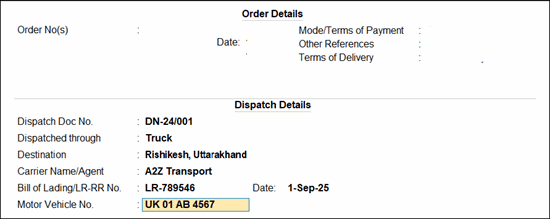
- In the Delivery Note, select the Sales ledger.
- Provide the stock item details, including item allocations, as applicable.
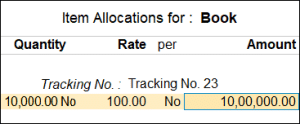
- Select the required tax ledgers.
- Set Provide GST/e-Way Bill details to Yes and update the e-Way Bill details in the Additional Details screen.
- Provide other necessary details such as narration, if needed and press Ctrl+A to save.
- If you have set the option to generate e-Way Bill after saving the voucher, press Y or Enter to send the voucher for e-Way Bill generation.
Alternatively, you can also generate the e-Way Bill from Exchange menu.
Record Intrastate Branch Transfers with e-Way Bill Details
- In the Delivery Note, under Dispatch Details, enter the correct destination (location within the same state).
- Select the CGST and IGST tax ledgers.
- Set Provide GST/e-Way Bill details to Yes.
- Update the necessary e-Way Bill details.
- Ensure that the address Consignor Details (From) and Consignee Details (To) are within the same state.
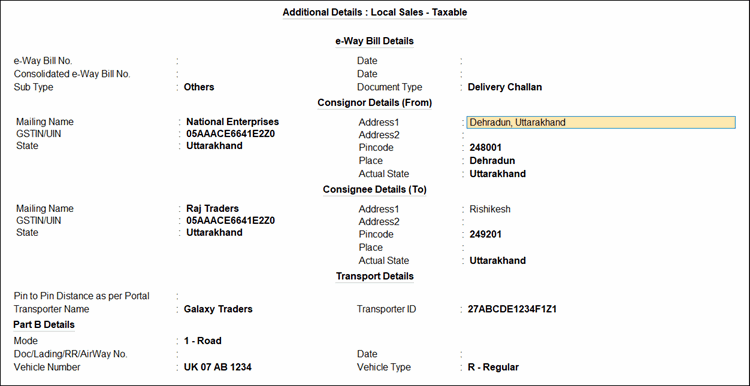
- If you have set the option to generate e-Way Bill after saving the voucher, press Y or Enter to send the voucher for e-Way Bill generation.
Alternatively, you can also generate the e-Way Bill from Exchange menu.
Record Interstate Branch Transfers with e-Way Bill Details
- In the Delivery Note, under Dispatch Details, enter the correct destination (location in a different state).
- Select the IGST tax leger.
- Set Provide GST/e-Way Bill details to Yes.
- Update the necessary e-Way Bill details.
- Ensure that the address Consignor Details (From) and Consignee Details (To) are in different states.
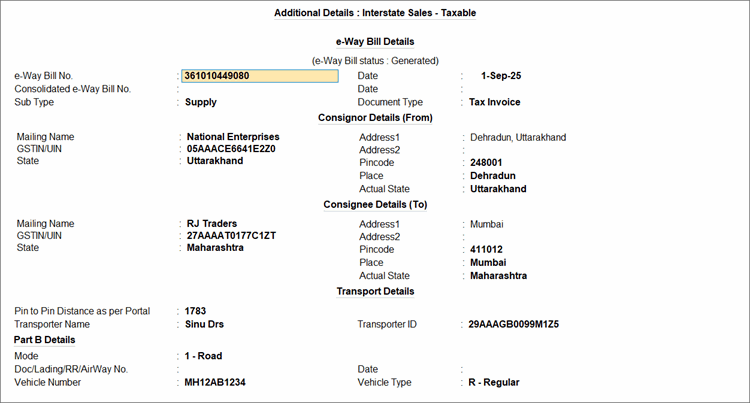
- If you have set the option to generate e-Way Bill after saving the voucher, press Y or Enter to send the voucher for e-Way Bill generation.
Alternatively, you can also generate the e-Way Bill from Exchange menu. - Record a sales invoice against the delivery note to account for the value of goods delivered and update your Books.
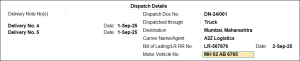
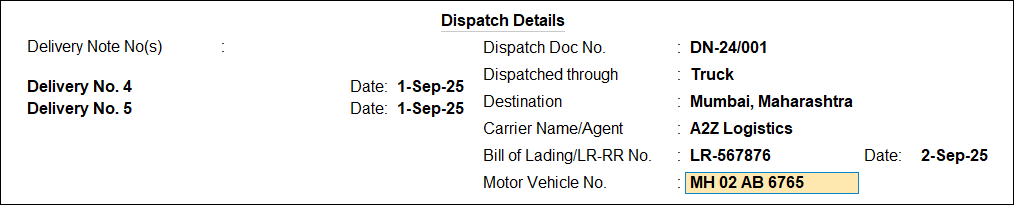
- In the Dispatch Details screen, select the correct Delivery Note number and enter the required dispatch details to ensure compliance.
- In the sales voucher, provide other necessary details, if needed and press Ctrl+A to save.
- In the Dispatch Details screen, select the correct Delivery Note number and enter the required dispatch details to ensure compliance.
Is this information useful?
YesNo


