
Reset IMS Inward Action Status
While working with multiple invoices, you may have accidentally set Action Status incorrectly, like Accepting those that should be marked as Pending or Rejected. Manually identifying and correcting such errors can be time-consuming.
To simplify this, TallyPrime offers a Reset IMS Action feature.
-
Press Alt+Z (Exchange) > All GST Options > Reset IMS Action Status.
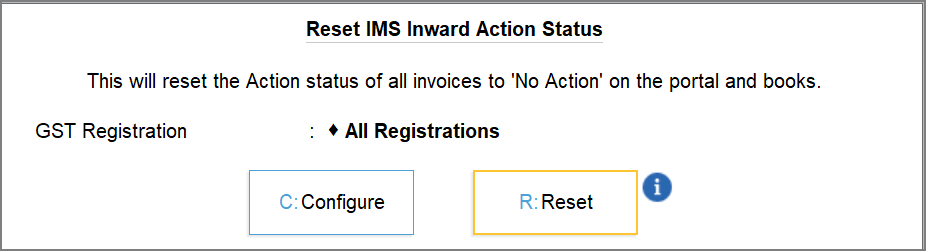
The Reset IMS Action Status screen appears.

-
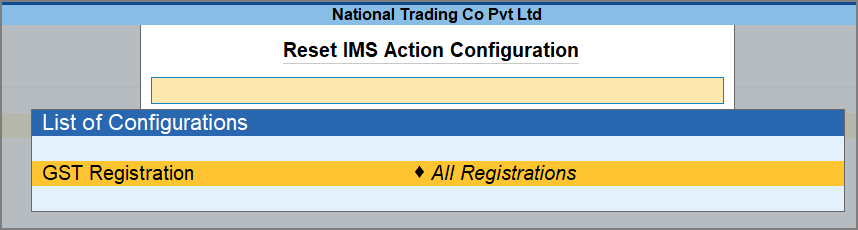
Press C (Configure) to select the required GST Registration.
By default, All Registrations will be selected.

-
In the Reset IMS Action Status screen, press R (Reset).
Once the reset is successful, the latest invoices will be automatically downloaded with the latest IMS Action Status.
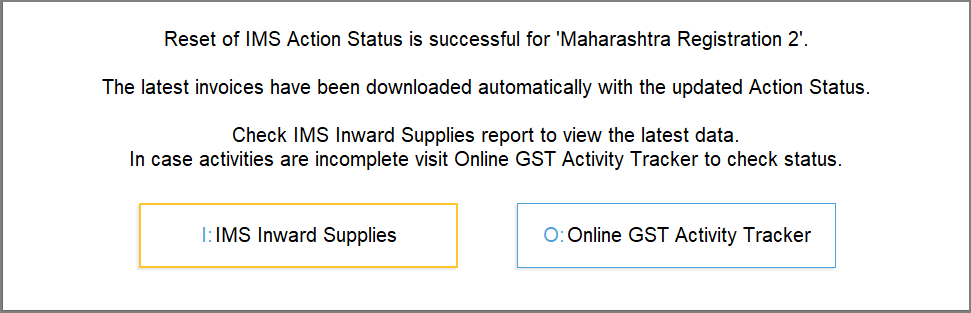
Sometimes, the reset of the IMS Action status may not happen instantly due to server issues or high traffic on the GST portal. You can refresh the GST status after a few minutes.
For real-time updates of the reset activity, check the Online GST Activity Tracker report.
Questions & Answers
- How can I reset the IMS data for invoices older than the books beginning date?
You can update the books beginning date and clear old IMS data by using Reset GSTN Data option.


