
Zero Rated Purchases (VAT)
You can record zero rated purchases under VAT or say, purchases of zero rated goods by selecting the nature of transaction Purchase – Zero Rated.
This nature of transaction is provided for Andhra Pradesh, Assam, Dadra & Nagar Haveli and Daman & Diu, Goa, Gujarat, Haryana, Himachal Pradesh, Jharkhand, Jammu & Kashmir, Kerala, Ladakh, Madhya Pradesh, Maharashtra, Odisha, Puducherry, Tamil Nadu, Telangana, and Uttarakhand.
- Gateway of Tally > Vouchers > press F9 (Purchase).
Alternatively, press Alt+G (Go To) > Create Voucher > press F9 (Purchase). - Enter the Supplier Invoice No. and Date.
- Select the party ledger in the field Party A/c name.
- Select the purchase ledger grouped under Purchase Accounts with the Nature of transaction set to Purchase – Zero Rated by selecting the required Party Entity/Org. Type.
As in other transactions, you can create the ledger on the fly by pressing Alt+C. Alternatively, press Alt+G (Go To) > Create Master > type or select Ledger > and press Enter. - Select the required stock item. Enter the Quantity and Rate.
- Set the option Provide VAT details to Yes. In the Statutory Details screen.
- Select the Form to issue as shown below:

Note: The options in the above screen appear based on the State selected in the Company VAT Details screen.
- Enter the other relevant details.
- Press Enter to save and return to the purchase invoice. The purchase invoice appears as shown below:
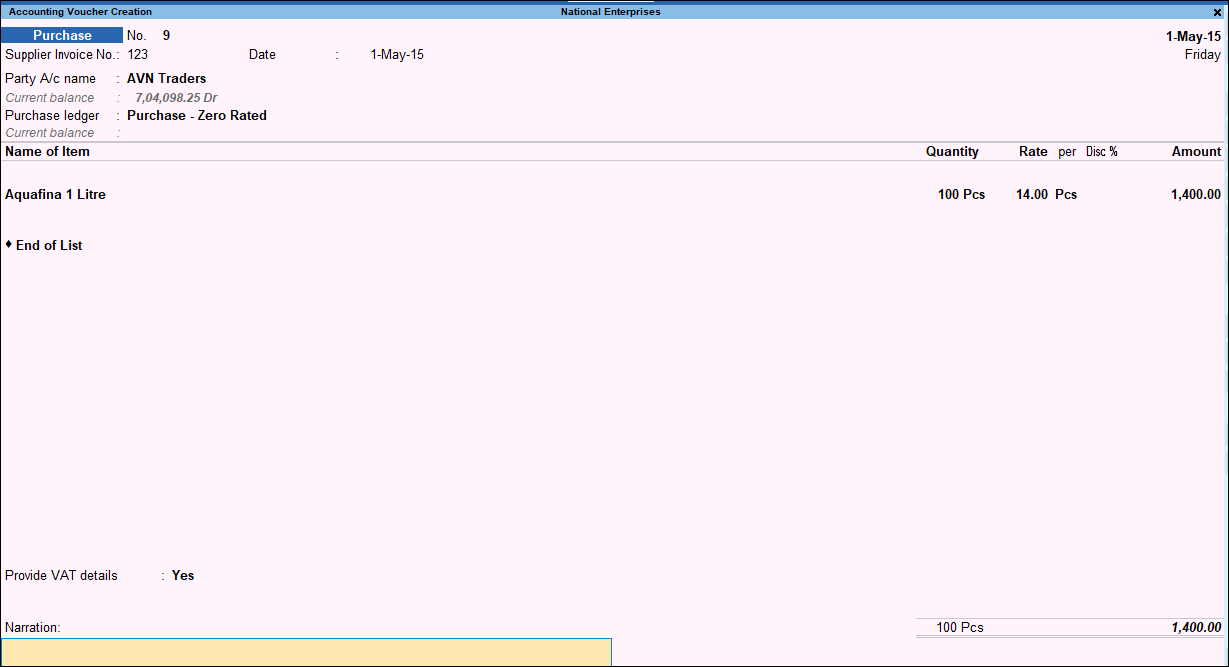
- Select the Form to issue as shown below:
- Accept the screen. As always, you can press Ctrl+A to save.
The value of this transaction gets captured in the relevant fields of state-specific VAT/CST forms and annexures.
Is this information useful?
YesNo


