
Record Salary Payments in TallyPrime (Payroll)
In TallyPrime, you can use Payroll and Payment vouchers to record payments for different salary components paid to employees.
Depending on your payroll process, you can record the following:
- Direct salary payment using a Payroll Voucher
- Payment of salary after accrual
- Payment of arrear salary
- Payment of variable pay, bonus, and reimbursements
- Payment of salary advances

Ensure that:
- You have enabled Payroll.
- You have created the following:
- Employee Master
- Bank Ledger
- If you record payments for user-defined pay heads such as Reimbursement, Variable Pay, Bonus, or Canteen Deduction, you have created the relevant pay heads.
- To track the salary advance paid to an employee, the Salary Advance Deduction Pay Head is created.
- Salary is defined for the employee or employee group.
- You include the Salary Advance Deduction Pay Head in the salary structure.
Record Salary Payments using Payroll Voucher
- Press Alt+G (Go To) > Create Voucher > press Ctrl+F4 (Payroll).
- Press Ctrl+F (Autofill) button.
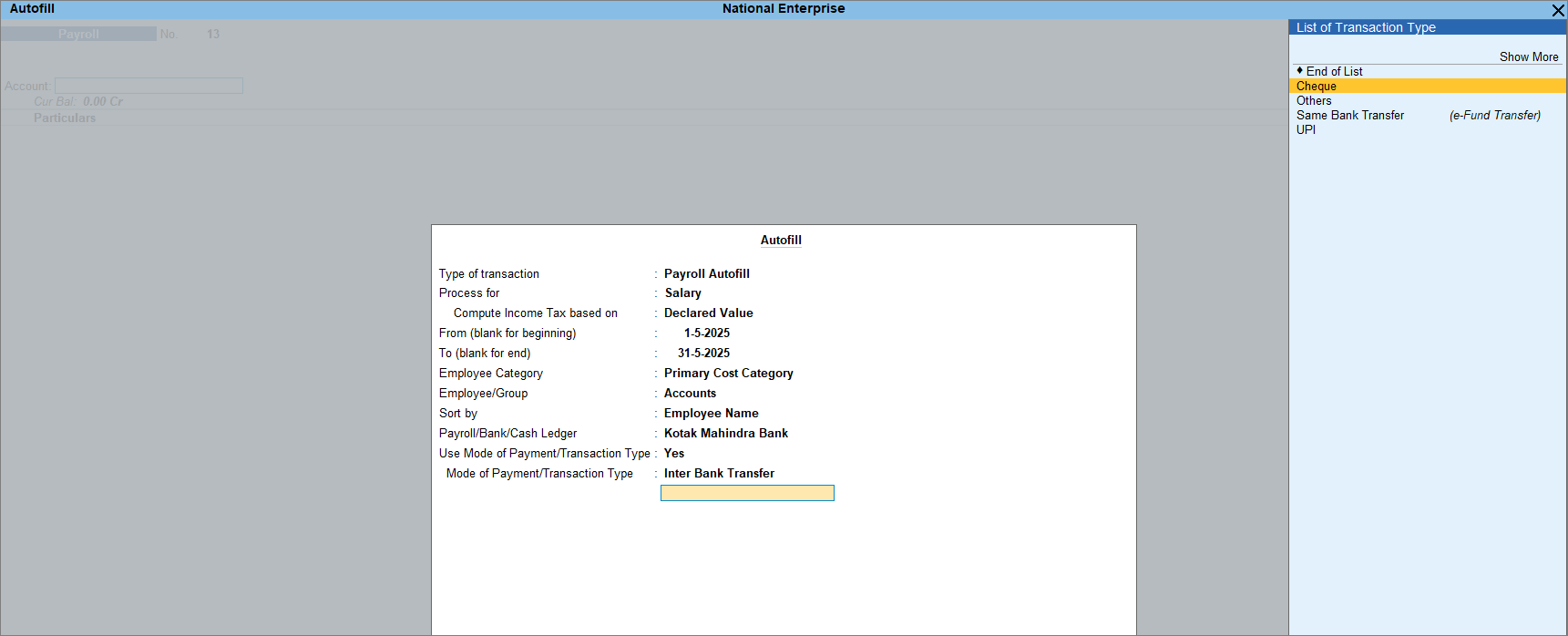
- In the Autofill screen, enter the transaction details.
- Type of transaction: Select Payroll Autofill from the list.
- Process for: Select Salary from the list.
- Enter the From (blank for beginning) and To (blank for end) dates.
- Provide the employee details.
- Employee Category: This option is enabled when employees or employee groups are created under a category.
You can also create a new category or select an existing one. - Employee/Group: Select the employee or employee group for whom the salary is to be processed.
- Sort by: Select the sorting method for displaying employee details in the voucher, such as Employee Name or Employee Number.
- Employee Category: This option is enabled when employees or employee groups are created under a category.
- Payroll/Bank/Cash Ledger: Select the Bank account.
- Use Mode of Payment/Transaction Type: This option appears when you select an employee group or All Items in the Employee/Group field.
Enable it to select the mode of payment. - Mode of Payment/Transaction Type: Select the relevant mode of payment type from the List of Transaction Type.
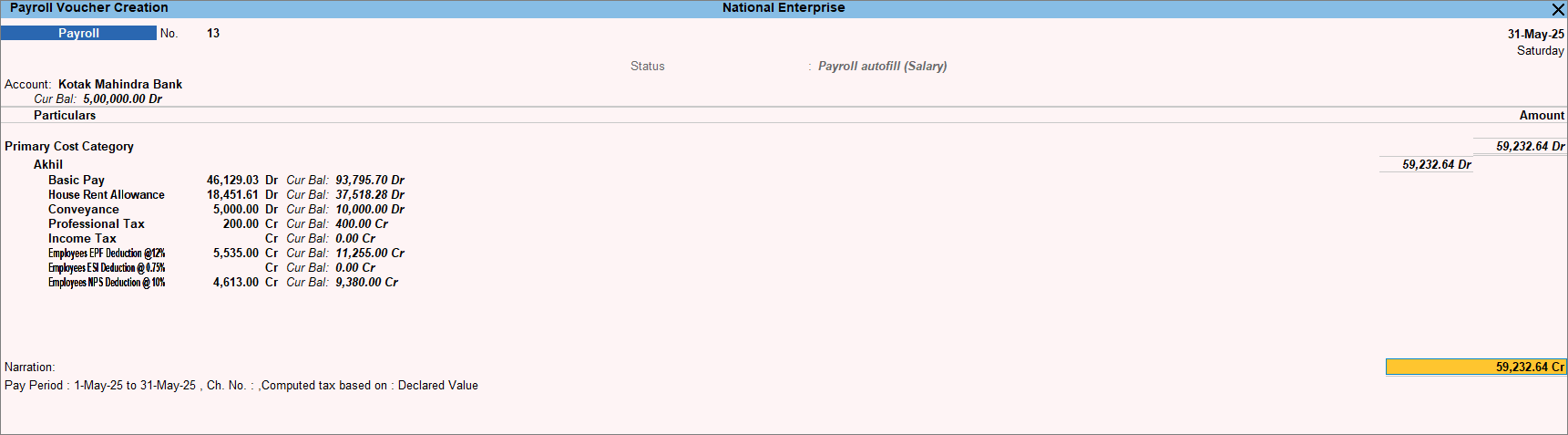
- Press Ctrl+A to save the voucher.
Record Payment of Accrued Salary
In the Payment voucher:
- Press Ctrl+F (Autofill) button.

- Select the Salary Payable ledger used for salary accrual in the Payroll Ledger field.
- Enter the payment details.
- Bank/Cash Ledger: Select Bank ledger to record the payment entry.
The amount is automatically filled in the Payment Voucher screen from the Salary Payable ledger. - Use Mode of Payment/Transaction Type: This option appears when you select an employee group or All Items in the Employee/Group field.
Enable it to select the mode of payment. - Mode of Payment/Transaction Type: Select the relevant mode of payment type from the List of Transaction Type.
- Set Employee-wise Bank Allocations: Enable this option to specify each employee’s bank account details.
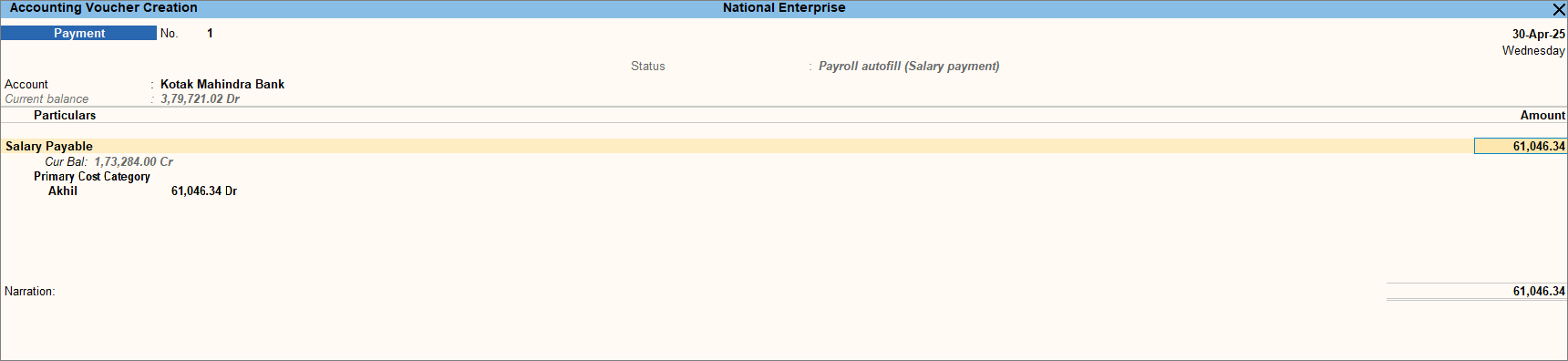
- Bank/Cash Ledger: Select Bank ledger to record the payment entry.
- Press Ctrl+A to save the voucher.
Similarly, you can record the payment of arrear salary.
Record Payment of Variable Pay, Bonus & Reimbursement
In the Payroll voucher:
- Press Ctrl+F (Autofill) button.
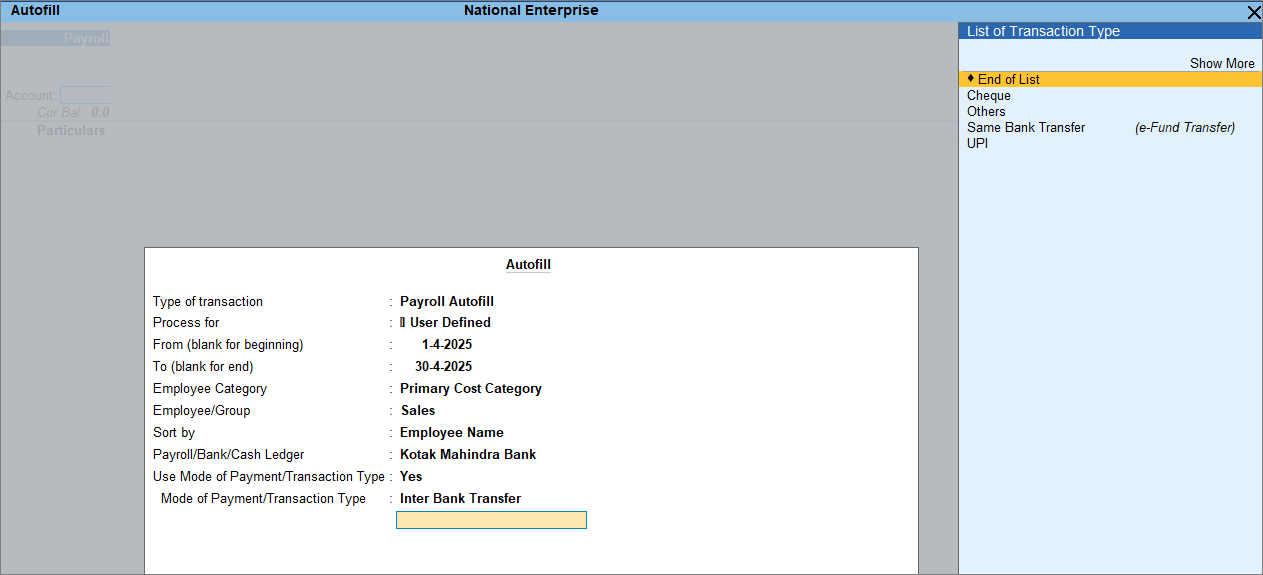
- In the Autofill screen, select User Defined under Process For.
Ensure you include only the relevant ledgers in the employee’s salary structure when recording payments for user-defined pay heads. - Payroll/Bank/Cash Ledger: Select a Bank ledger.
If all user-defined ledgers are included in the employee’s salary structure, the ledgers are automatically selected while recording. - Enter the value against the pay heads created as user-defined.
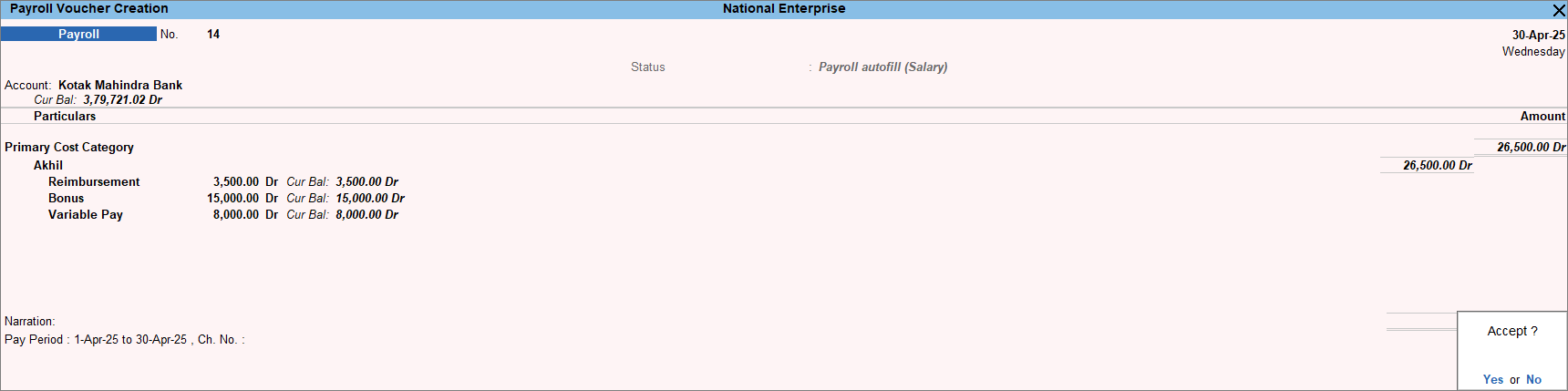
- Press Ctrl+A to save the voucher.
Similarly, you can record payments for Bonus, Reimbursement and Canteen Expenses.
Record Payment of Salary Advances
- Press Alt+G (Go To) > Create Voucher > press F5 (Payment).
- Debit the Salary Advance Deduction ledger and enter the amount.
- In the Cost Centre Allocations screen, select the relevant Employee Category, if created.
- Select the employee name from the List of Cost Centres.
- Credit the Bank ledger.
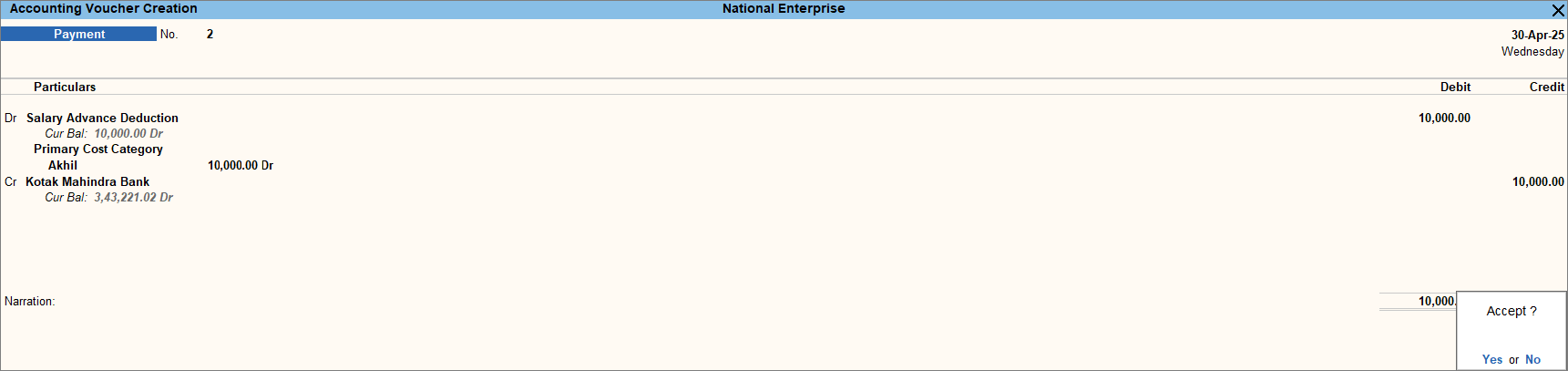
- Press Ctrl+A to save the voucher.
Track salary advances in the Employee Pay Head Breakup report after payment, and recover the amount from the employee accordingly.
Is this information useful?
YesNo


