
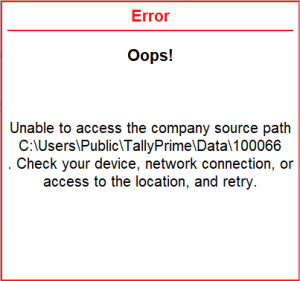
Unable to access the company source path.
Cause 1: Tally Scheduler does not have access to the network data path.
Resolution:
It is recommended to schedule backup on the same system (data server) where the company data is stored. However, if you want to schedule backup from client machine, the Tally Scheduler service running on the client machine must have the necessary Windows read/write permissions to access the company data on the server.
If you have a local service account/account which has access to the network source path then change the ‘log on as’ of Tally Scheduler service.
You can configure the Service to run under a specific user account.
-
Press Win+R, type
services.msc, and click OK. -
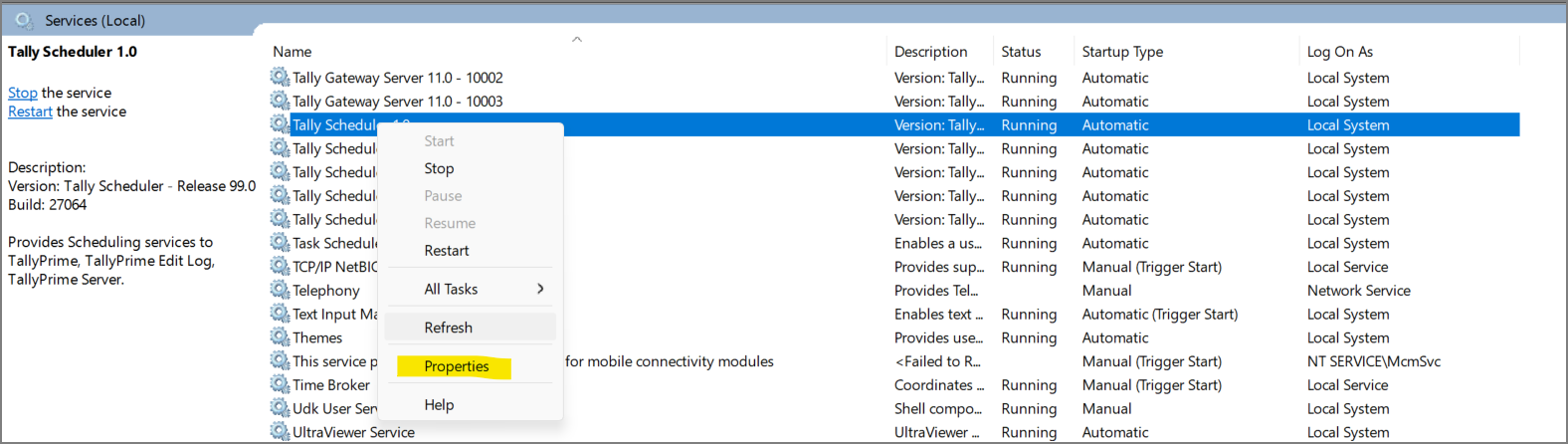
Locate Tally Scheduler <version> – <port number> in the list of services.
-
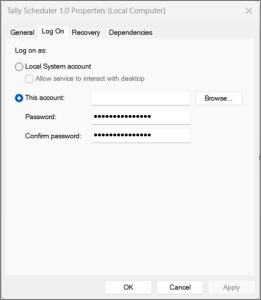
Click on Log On and then This Account and provide the details.
-
Click OK and then Apply.
Tally Scheduler will run on the configured account. To lean more, refer to Log on as a service – Windows 10 | Microsoft Learn.
In case you do not have a service account, click here to learn how to create a service account. Configuring these permissions for a local service account usually requires administrator rights on the network. You can contact your administrator to give you the permissions.
Cause 2: You do not have Read permission to the company source path.
Resolution:
Grant Read permission
-
Navigate to the folder used as the Backup Data Path.
-
Right-click the folder and select Properties.
-
Go to the Security tab and check if your user account has Read permission.
-
If Read permission is not enabled, click Edit, allow Read, and click OK.
-
Retry taking backup
Cause 3: The company could have been deleted or the company folder could have been renamed.
Resolution:
Ensure the company that you are backing up actually exists by navigating to company data path.
Press Alt+Y (Data) > Configuration > Company Data Path.


