
Create Pay Head for Statutory Contributions in TallyPrime
If your organisation follows statutory compliance, then you need to create pay heads for statutory contributions where the employer contributes towards EPF, ESI, EPS, NPS, EDLI and so on.
Create Pay Head for EPF Contribution
- Press Alt+G (Go To) > Create Master > Pay Heads > and press Enter.
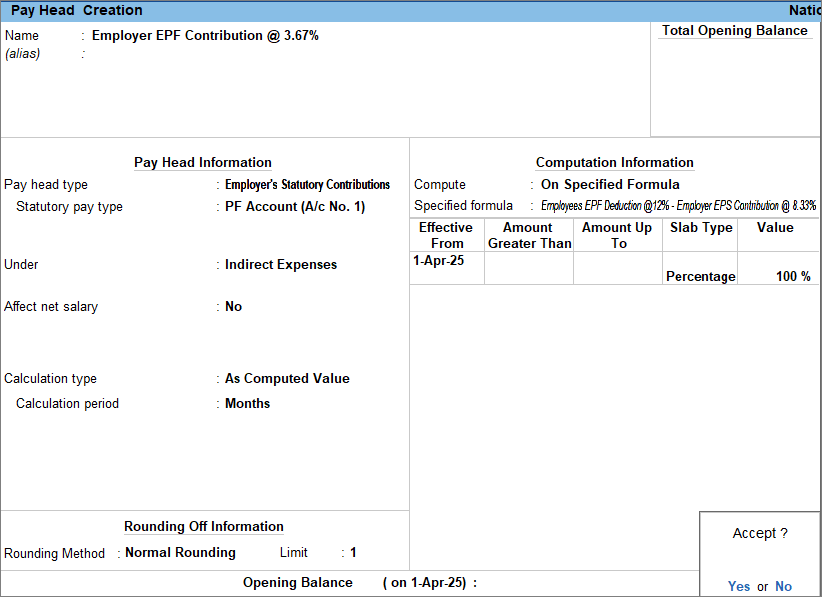
- Enter the Pay Head details.
- Name: Enter the name of the pay head as Employer EPF Contribution @ 3.67%
- Pay head type: Select Employer’s Statutory Contributions from the List of Pay Head Types.
- Statutory pay type: Select PF Account (A/c No.1) from the list of Employer’s Statutory Contributions.
- Under: Select Indirect Expenses from the List of Groups.
- Affect net salary: Set the option to No.
Enabling this option determines whether the pay head affects the employee’s final take-home salary.
- Enter the Pay Head calculation details.
- Calculation type: By default, this is set to As Computed Value.
- Calculation period: By default, this is set to Months.
- Rounding Method: Select Normal Rounding from the List of Rounding Methods, and type 1 as the rounding Limit. To know more, click here.
Ensure that the system rounds EPF wages (Basic + DA) as required for PF returns. The system rounds wages to the nearest value based on the rounding configuration defined for the EPF Pay Head, and calculates PF on the rounded wages.
- Enter the details for Computation Information.
- Compute: Select On Specified Formula from the list of Methods of Computation.
In the Computation on Specified Formula screen, select Employees EPF Deduction @ 12%. Then select Subtract Pay Head from the List of Formulae and select Employer EPS Contribution @ 8.33%. - Specified Formula: Displays the pay head selected in the Computation on Specified Formula screen.
- Effective From: Select the date from which you want to calculate the pay head.
- Slab Type: Select Percentage from the list of Types of Slabs.
- Value: Enter the percentage that will be used to calculate Employer EPF Contribution.
- Compute: Select On Specified Formula from the list of Methods of Computation.
- Press Ctrl+A to save the pay head master.
Create Pay Head for ESI Contribution
- Press Alt+G (Go To) > Create Master > Pay Heads > and press Enter.
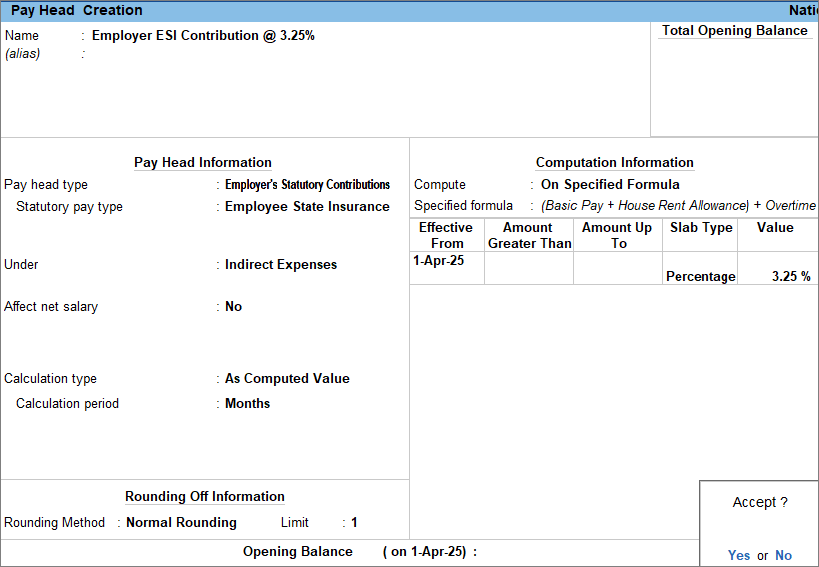
- Enter the Pay Head details.
- Name: Enter the name of the pay head as Employer ESI Contribution @ 3.25%
- Pay head type: Select Employer’s Statutory Contributions from the List of Pay Head Types.
- Statutory pay type: Select Employee State Insurance from the list of Employer’s Statutory Contributions.
- Under: Select Indirect Expenses from the List of Groups.
- Affect net salary: Set the option to No.
Enabling this option determines whether the pay head affects the employee’s final take-home salary.
- Enter the Pay Head calculation details.
- Calculation type: By default, this is set to As Computed Value.
- Calculation period: By default, this is set to Months.
- Rounding Method: Select Normal Rounding from the List of Rounding Methods, and type 1 as the rounding Limit. To know more, click here.
- Enter the details for Computation Information.
- Compute: Select On Specified Formula from the list of Methods of Computation.
In the Computation on Specified Formula screen, select Basic Pay, House Rent Allowance & Overtime. - Specified Formula: Displays the pay head selected in the Computation on Specified Formula screen.
- Effective From: Select the date from which you want to calculate the pay head.
- Slab Type: By default, it is set to Percentage.
- Value: Enter the percentage that will be used to calculate Employer ESI Contribution.
- Compute: Select On Specified Formula from the list of Methods of Computation.
- Press Ctrl+A to save the pay head master.
Create Pay Head for EPS Contribution
- Press Alt+G (Go To) > Create Master > Pay Heads > and press Enter.
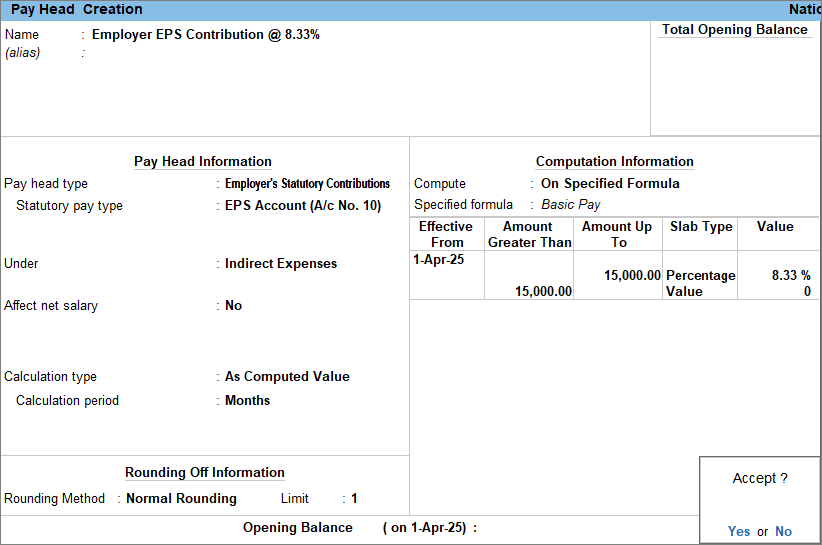
- Enter the Pay Head details.
- Name: Enter the name of the pay head as Employer EPS Contribution @ 8.33%
- Pay head type: Select Employer’s Statutory Contributions from the List of Pay Head Types.
- Statutory pay type: Select EPS Account (A/c No. 10) from the list of Employer’s Statutory Contributions.
- Under: Select Indirect Expenses from the List of Groups.
- Affect net salary: Set the option to No.
Enabling this option determines whether the pay head affects the employee’s final take-home salary.
- Enter the Pay Head calculation details.
- Calculation type: By default, this is set to As Computed Value.
- Calculation period: By default, this is set to Months.
- Rounding Method: Select Normal Rounding from the List of Rounding Methods, and type 1 as the rounding Limit. To know more, click here.
- Enter the details for Computation Information.
- Compute: Select On Specified Formula from the list of Methods of Computation.
In the Computation on Specified Formula screen, select Basic Pay. - Specified Formula: Displays the pay head selected in the Computation on Specified Formula screen.
- Effective From: Select the date from which you want to calculate the pay head.
- Amount Up To: Enter the capped amount to be considered for EPS calculation, currently it is Rs. 15,000.
- Slab Type: Select Percentage from the list of Types of Slabs.
- Value: Enter the percentage that will be used to calculate Employer EPS Contribution.
- Amount Greater Than: It is auto-filled with the same amount as entered in Amount Up To.
Similarly, enter the Amount Up to, Slab Type and Value details for the next slab.
- Compute: Select On Specified Formula from the list of Methods of Computation.
- Press Ctrl+A to save the pay head master.
Create Pay Head for NPS Contribution
Employer contributions to NPS are credited to the Tier I account. Such contributions qualify for deduction under Section 80CCD(2) of the Income Tax Act, 1961, up to 10% of Basic Pay and Dearness Allowance (DA).
- Press Alt+G (Go To) > Create Master > Pay Heads > and press Enter.
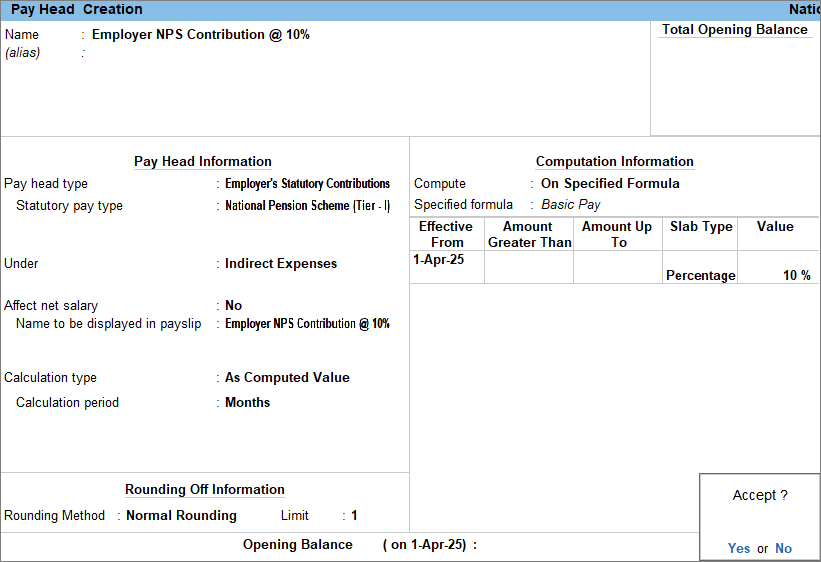
- Enter the Pay Head details.
- Name: Enter the name of the pay head as Employer NPS Contribution @ 10%
- Pay head type: Select Employer’s Statutory Contributions from the List of Pay Head Types.
- Statutory pay type: Select National Pension Scheme (Tier – I) from the list of Employer’s Statutory Contributions.
- Under: Select Indirect Expenses from the List of Groups.
- Affect net salary: Set the option to No.
Enabling this option determines whether the pay head affects the employee’s final take-home salary. - Name to be displayed in payslip: Enter the pay head name to display on the payslip. By default, the system displays the name you create for the pay head.
- Enter the Pay Head calculation details.
- Calculation type: By default, this is set to As Computed Value, but you can also select Flat Rate or As User Defined Value.
If the Calculation Type is set to As User Defined Value, then select NPS Process in the Process For field of the Payroll Auto Fill sub-screen while recording the payroll voucher. - Calculation period: By default, this is set to Months.
- Rounding Method: Select Normal Rounding from the List of Rounding Methods, and type 1 as the rounding Limit. To know more, click here.
- Calculation type: By default, this is set to As Computed Value, but you can also select Flat Rate or As User Defined Value.
- Enter the details for Computation Information.
- Compute: Select On Specified Formula from the list of Methods of Computation.
In the Computation on Specified Formula screen, select Basic Pay. - Specified Formula: Displays the pay head selected in the Computation on Specified Formula screen.
- Effective From: Select the date from which you want to calculate the pay head.
- Slab Type: Select Percentage from the list of Types of Slabs.
- Value: Enter the percentage that will be used to calculate Employer NPS Contribution.
- Compute: Select On Specified Formula from the list of Methods of Computation.
- Press Ctrl+A to save the pay head master.
Create Pay Head for EDLI Contribution
- Press Alt+G (Go To) > Create Master > Pay Heads > and press Enter.
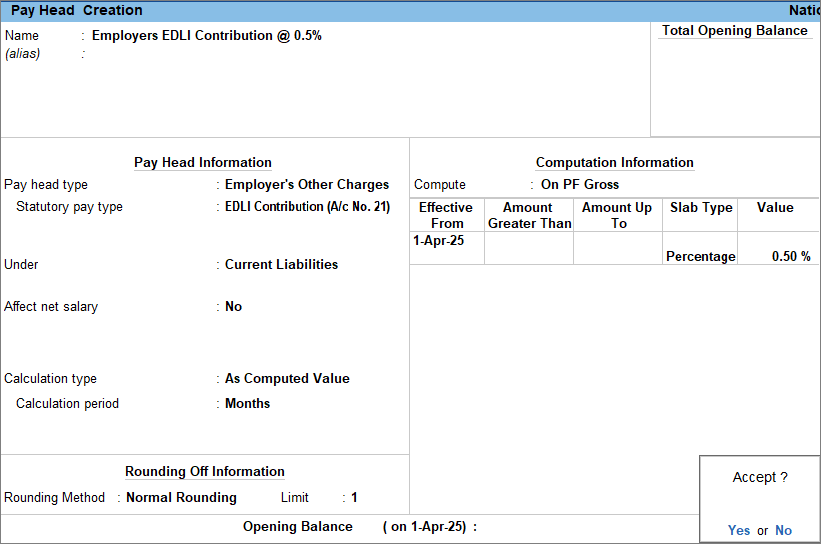
- Enter the Pay Head details.
- Name: Enter the name of the pay head as Employer EDLI Contribution @ 0.5%
- Pay head type: Select Employer’s Other Charges from the List of Pay Head Types.
- Statutory pay type: Select EDLI Contribution (A/c No. 21) from the list of Employer’s Statutory Contributions.
- Under: Select Current Liabilities from the List of Groups.
- Affect net salary: Set the option to No.
This pay head is not included in the salary details for the employees because this is an employer-related expense.
- Enter the Pay Head calculation details.
- Calculation type: By default, this is set to As Computed Value, but you can also select Flat Rate or As User Defined Value.
- Calculation period: By default, this is set to Months.
- Rounding Method: Select Normal Rounding from the List of Rounding Methods, and type 1 as the rounding Limit. To know more, click here.
- Enter the details for Computation Information.
- Compute: By default, the system sets this to On PF Gross.
PF Gross refers to the value of pay heads used for the A/c. No. 1 (Employee PF) Pay Head. - Effective From: Select the date from which you want to calculate the pay head.
- Slab Type: Select Percentage from the list of Types of Slabs.
- Value: Enter the percentage that will be used to calculate Employer EDLI Contribution.
- Compute: By default, the system sets this to On PF Gross.
- Press Ctrl+A to save the pay head master.
Create PF Admin Charges Pay Head
- Press Alt+G (Go To) > Create Master > Pay Heads > and press Enter.
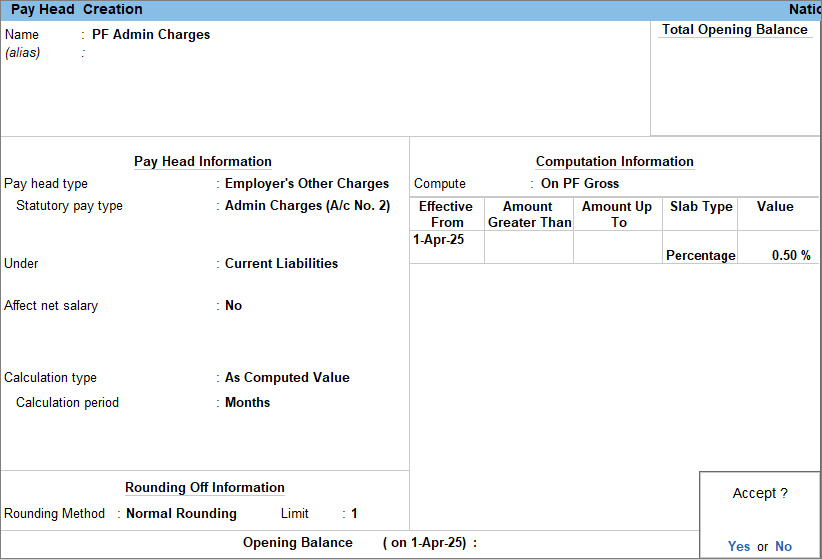
- Enter the Pay Head details.
- Name: Enter the name of the pay head as PF Admin Charges.
- Pay head type: Select Employer’s Other Charges from the List of Pay Head Types.
- Statutory pay type: Select Admin Charges (A/c No. 2) from the list of Employer’s Statutory Contributions.
- Under: Select Current Liabilities from the List of Groups.
- Affect net salary: Set the option to No.
The system does not include this pay head in the employee’s Salary Details because it is an employer-related expense.
- Enter the Pay Head calculation details.
- Calculation type: By default, this is set to As Computed Value, but you can also select Flat Rate or As User Defined Value.
- Calculation period: By default, this is set to Months.
- Rounding Method: Select Normal Rounding from the List of Rounding Methods, and type 1 as the rounding Limit. To know more, click here.
- Enter the details for Computation Information.
- Compute: By default, the system sets this to On PF Gross.
PF Gross refers to the value of pay heads used for the A/c. No. 1 (Employee PF) Pay Head. - Effective From: Select the date from which you want to calculate the pay head.
- Amount Up To: Enter the capped amount to be considered for PF Admin Charges, currently it is Rs. 15,000.
- Slab Type: By default, it is set to Percentage.
- Value: Enter the percentage that will be used to calculate PF Admin Charges.
- Compute: By default, the system sets this to On PF Gross.
- Press Ctrl+A to save the pay head master.
When PF admin charges are revised, TallyPrime records the updated charges along with their effective date in the pay head master. The revised charges apply from the specified effective date.
- Press Alt+G (Go To) > Alter Master > Pay Heads > and press Enter.
- Select the PF admin charges pay head and press Enter.
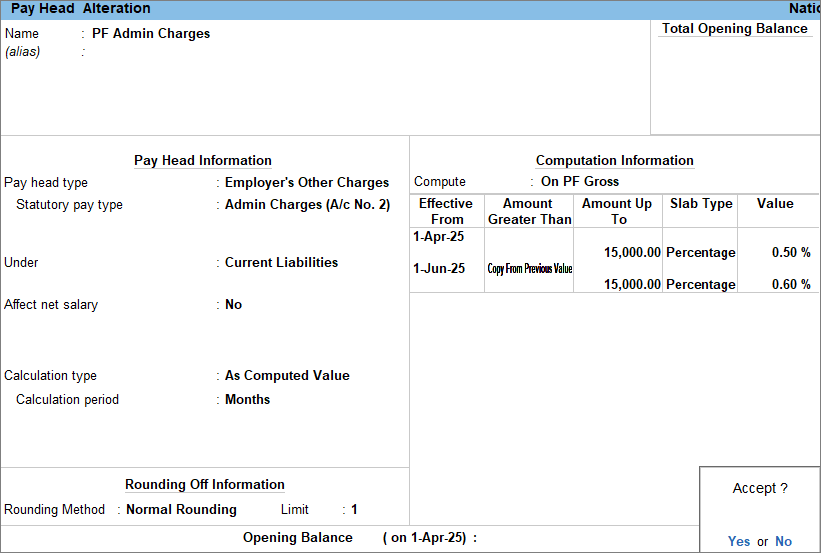
- In the Computation Formula section, update the details.
- Effective Date: Enter the date from which the revised charges will be applicable.
- Amount Greater Than: Select Copy From Previous Value from the list of Start Type to copy the details from the previous entry.
You can select Start Afresh to enter new details. - Amount Up To: Select the displayed value or enter a new value.
- Value: Enter the revised PF admin charges details in the Value column.
- Press Ctrl+A to save the pay head master.
Is this information useful?
YesNo


