
Override Exemption Value in TallyPrime (Payroll)
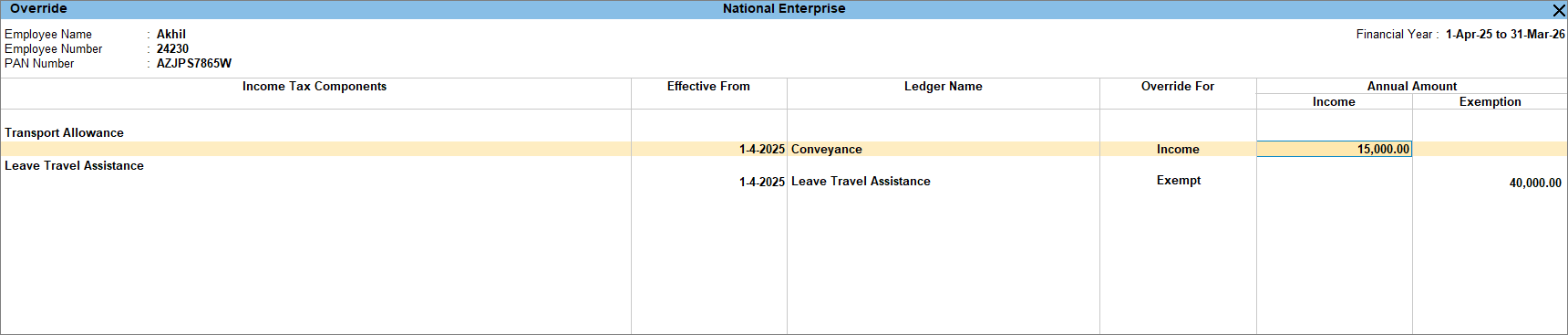
The Override Exemption Value screen allows you to manually override income or exemption values for specific allowances. When an income value is overridden, the system ignores the voucher value for income tax computation and instead considers the value specified in the override.
Before you begin | Prerequisites
- Ensure you have enabled Payroll in TallyPrime.
- Employee master is created.
- Relevant income tax components (allowances) are available.
- Required ledgers or pay heads are created.
To override exemption value,
- Press Alt+G (Go To) > Alter Master > Income Tax Exempt and press Enter.
- Select the employee from the List of Employees/Employee Groups.
- Select the Income Tax Components from the list.
- In Effective From, specify the date from when the Override details are applicable.
- In the Ledger Name, select the required ledger /pay head from the List of Ledgers.
- In Override For, select from Exempt, Income or Both.
- Enter the appropriate amount in the Income Amount field.
- Enter the appropriate amount in the Exemption Amount field.
- Press Ctrl+A to save.
Is this information useful?
YesNo


