
Scheduled Backup Failed
Cause 1: After upgrading from TallyPrime Release 7.0 to Release 7.1, the scheduled backup might fail and appear under Action Required on the Schedule Backup report. It happens when the scheduled companies are not migrated to Release 7.1.
Resolution 1:
- Migrate all the companies to TallyPrime Release 7.1.
- Open the Schedule Backup report.
- Select the task and press F6 (Backup Now).
The backup will be taken successfully, and going forward the schedule will run as per the scheduled time.
Scheduled Backup works only when both the TallyPrime exe and the company data are on the same release.
Cause 2: Scheduled backups can fail if your computer enters Sleep or Hibernate mode, or if the hard disk is turned off due to power settings. In these cases, the Tally Scheduler service stops running and cannot execute the scheduled backup.
Resolution 2:
- Go to Control Panel > Power Options and select the High Performance power plan.
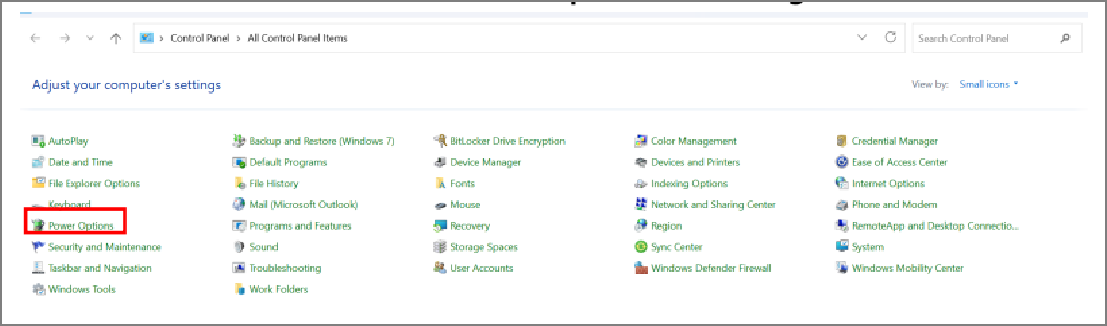
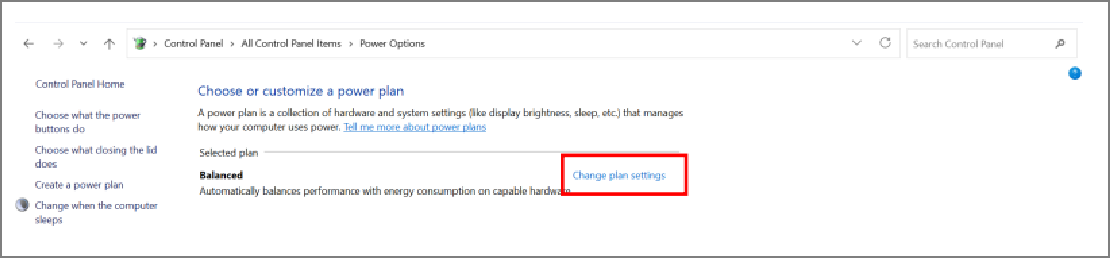
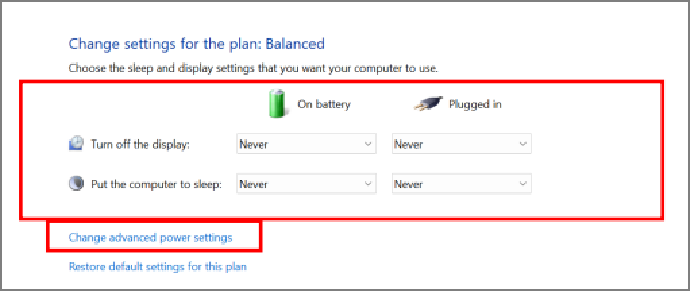
- Click Change plan settings and set Turn off the display and Put the computer to sleep to Never.
- Click Change advanced power settings > Hard disk > Turn off hard disk after, and set the value to 0 (Never).
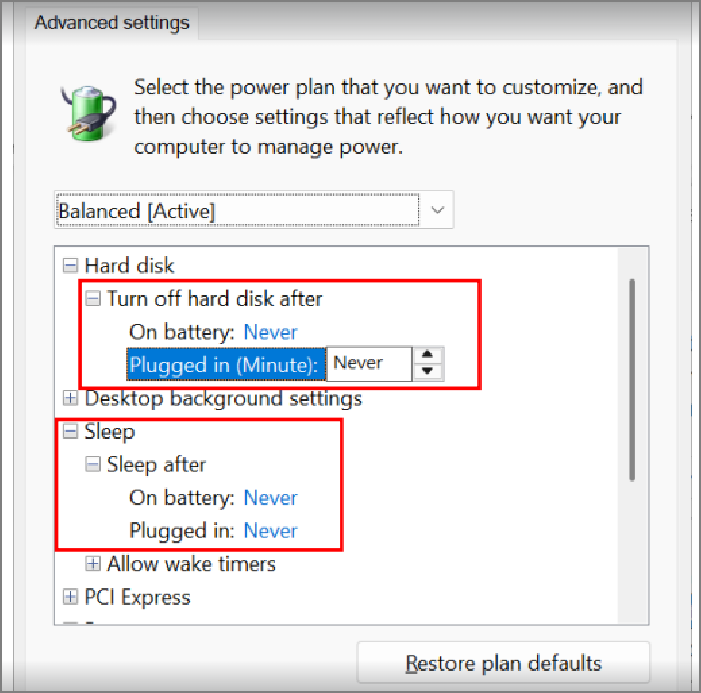
This ensures that the Tally Scheduler service continues to run and scheduled backups are completed successfully.


