
Create Pay Heads for Statutory Deductions in TallyPrime
In payroll, certain statutory components, such as PF, ESI, NPS, Professional Tax, and Income Tax are deducted from the employee’s salarhence, you need to create pay heads for statutory deductions.
Create Pay Head for PF Deduction
- Press Alt+G (Go To) > Create Master > Pay Heads > and press Enter.
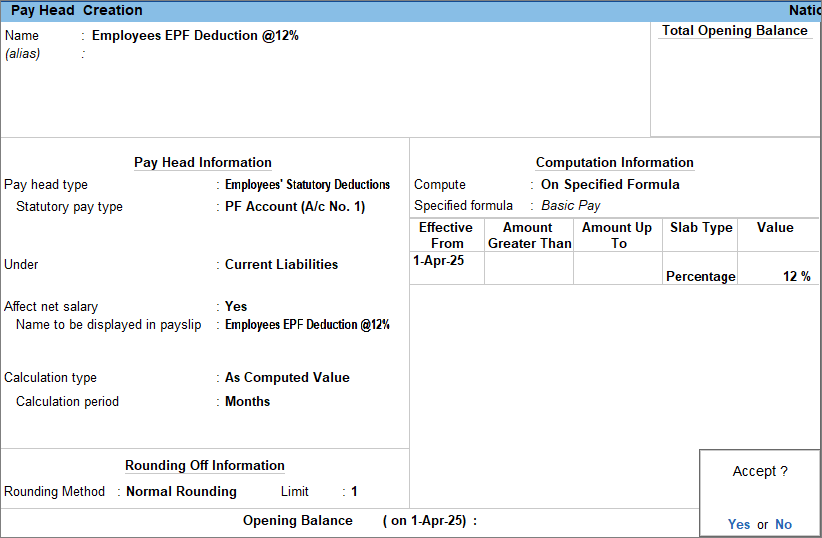
- Enter the Pay Head details.
- Name: Enter the name of the pay head as Employees EPF Deduction @ 12%
- Pay head type: Select Employees’ Statutory Deductions from the List of Pay Head Types.
- Statutory pay type: Select PF Account (A/c No. 1) from the list of Employees’ Statutory Deductions.
- Under: Select Current Liabilities from the List of Groups.
- Affect net salary: Set the option to Yes.
Enabling this option determines whether the pay head affects the employee’s final take-home salary. - Name to be displayed in payslip: Enter the pay head name to be shown in the payslip. By default, the name you create for the pay head will be displayed.
- Enter the Pay Head calculation details.
- Calculation type: By default, this is set to As Computed Value.
- Calculation period: By default, this is set to Months.
- Rounding Method: Select Normal Rounding from the List of Rounding Methods, and type 1 as the rounding Limit. To know more, click here.
- Enter the details for Computation Information.
- Compute: Select On Specified Formula from the list of Methods of Computation.
In the Computation on Specified Formula screen, select Basic Pay. - Specified Formula: Displays the pay head selected in the Computation on Specified Formula screen.
- Effective From: Select the date from which you want to calculate the pay head.
- Slab Type: Select Percentage from the list of Types of Slabs.
- Value: Enter the percentage that will be used to calculate Employee EPF Deduction.
- Compute: Select On Specified Formula from the list of Methods of Computation.
- Press Ctrl+A to save the pay head master.
Similarly, you can create a pay head for Voluntary Provident Fund Deduction.
Create Pay Head for ESI Deduction
- Press Alt+G (Go To) > Create Master > Pay Heads > and press Enter.
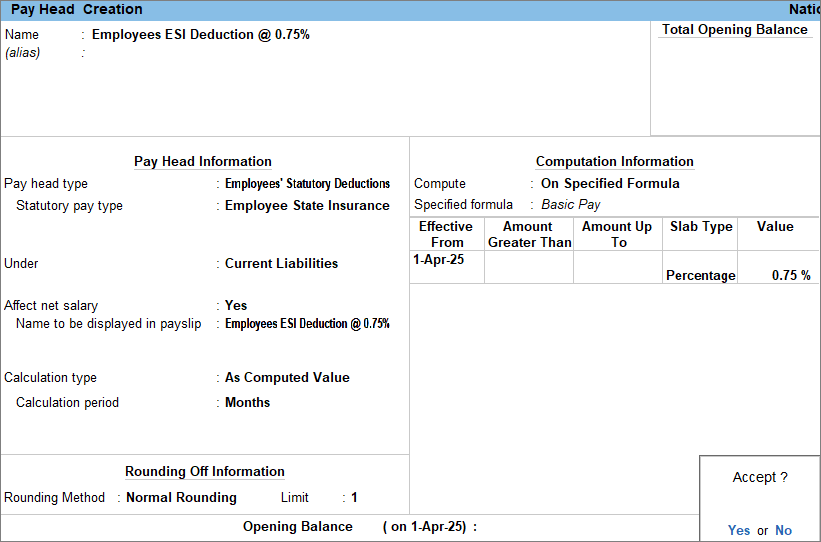
- Enter the Pay Head details.
- Name: Enter the name of the pay head as Employees ESI Deduction @ 0.75%
- Pay head type: Select Employees’ Statutory Deductions from the List of Pay Head Types.
- Statutory pay type: Select Employee State Insurance from the list of Employees’ Statutory Deductions.
- Under: Select Current Liabilities from the List of Groups.
- Affect net salary: Set the option to Yes.
Enabling this option determines whether the pay head affects the employee’s final take-home salary. - Name to be displayed in payslip: Enter the pay head name to be shown in the payslip. By default, the name you create for the pay head will be displayed.
- Enter the Pay Head calculation details.
- Calculation type: By default, this is set to As Computed Value.
- Calculation period: By default, this is set to Months.
- Rounding Method: Select Normal Rounding from the List of Rounding Methods, and type 1 as the rounding Limit. To know more, click here.
- Enter the details for Computation Information.
- Compute: Select On Specified Formula from the list of Methods of Computation.
In the Computation on Specified Formula screen, select Basic Pay. - Specified Formula: Displays the pay head selected in the Computation on Specified Formula screen.
- Effective From: Select the date from which you want to calculate the pay head.
- Slab Type: Select Percentage from the list of Types of Slabs.
- Value: Enter the percentage that will be used to calculate Employee ESI Deduction.
- Compute: Select On Specified Formula from the list of Methods of Computation.
- Press Ctrl+A to save the pay head master.
Create Pay Head for NPS Deduction
Since employees’ contribution towards this scheme is structured into two tiers, two pay heads have to be created.
Employees’ NPS Deduction – Tier I
- Press Alt+G (Go To) > Create Master > Pay Heads > and press Enter.
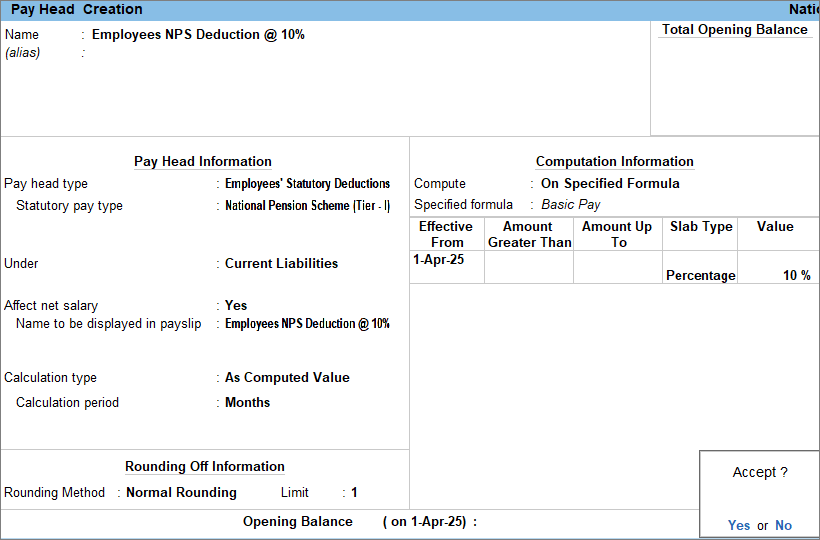
- Enter the Pay Head details.
- Name: Enter the name of the pay head as Employees NPS Deduction @ 10%.
- Pay head type: Select Employees’ Statutory Deductions from the List of Pay Head Types.
- Statutory pay type: Select National Pension Scheme (Tier – I) from the list of Employees’ Statutory Deductions.
- Under: Select Current Liabilities from the List of Groups.
- Affect net salary: Set the option to Yes.
Enabling this option determines whether the pay head affects the employee’s final take-home salary. - Name to be displayed in payslip: Enter the pay head name to be shown in the payslip. By default, the name you create for the pay head will be displayed.
- Enter the Pay Head calculation details.
- Calculation type: By default, this is set to As Computed Value, but you can also select Flat Rate or As User Defined Value.
If the Calculation Type is set to As User Defined Value, then select NPS Process in the Process For field of the Payroll Auto Fill sub-screen while recording the payroll voucher. - Calculation period: By default, this is set to Months.
- Rounding Method: Select Normal Rounding from the List of Rounding Methods, and type 1 as the rounding Limit. To know more, click here.
- Calculation type: By default, this is set to As Computed Value, but you can also select Flat Rate or As User Defined Value.
- Enter the details for Computation Information.
- Compute: Select On Specified Formula from the list of Methods of Computation.
In the Computation on Specified Formula screen, select Basic Pay. - Specified Formula: Displays the pay head selected in the Computation on Specified Formula screen.
- Effective From: Select the date from which you want to calculate the pay head.
- Slab Type: Select Percentage from the list of Types of Slabs.
- Value: Enter the percentage that will be used to calculate Employee ESI Deduction.
- Compute: Select On Specified Formula from the list of Methods of Computation.
- Press Ctrl+A to save the pay head master.
Employees’ NPS Deduction – Tier II
While creating the Employees’ NPS Deduction – Tier II pay head, set the Statutory Pay Type to National Pension Scheme (Tier II). All other steps remain the same as for Employees’ NPS Deduction – Tier I.
Create Pay Head for Professional Tax
- Press Alt+G (Go To) > Create Master > Pay Heads > and press Enter.
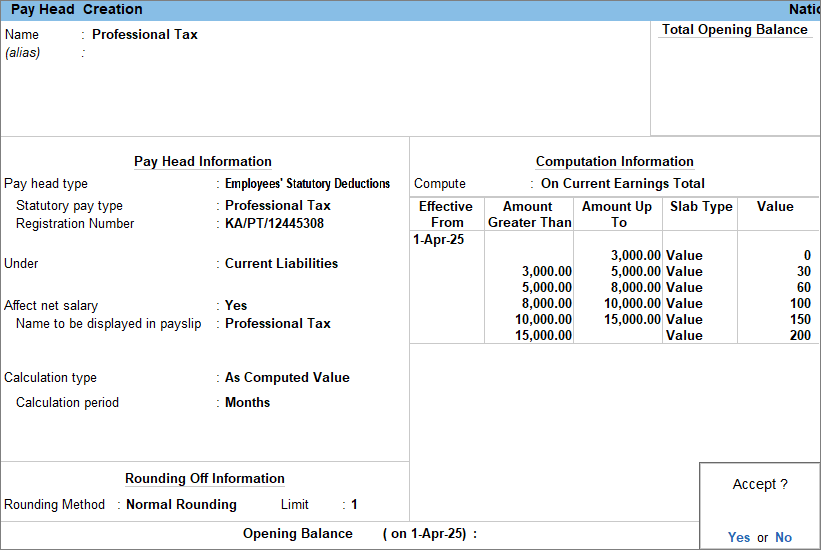
- Enter the Pay Head details.
- Name: Enter the name of the pay head as Professional Tax.
- Pay head type: Select Employees’ Statutory Deductions from the List of Pay Head Types.
- Statutory pay type: Select Professional Tax from the list of Employees’ Statutory Deductions.
- Registration Number: Enter the Professional Tax Registration Number.
- Under: Select Current Liabilities from the List of Groups.
- Affect net salary: Set the option to Yes.
Enabling this option determines whether the pay head affects the employee’s final take-home salary. - Name to be displayed in payslip: Enter the pay head name to be shown in the payslip. By default, the name you create for the pay head will be displayed.
- Enter the Pay Head calculation details.
- Calculation type: By default, this is set to As Computed Value.
- Calculation period: Select Month or Period to specify the frequency of PT deduction as monthly or based on a certain period respectively.
When the Period is set as the Computation Period, Professional Tax appears as a separate process under Payroll Auto Fill. You can then compute Professional Tax for a specified period, for example, once every six months, as applicable in Tamil Nadu. - Rounding Method: Select Normal Rounding from the List of Rounding Methods, and type 1 as the rounding Limit. To know more, click here.
- Enter the details for Computation Information.
- Compute: Select On Current Earnings Total from the list of Methods of Computation.
- Effective From: Select the date from which you want to calculate the pay head.
- Amount Greater Than: Enter the required value.
- Amount Up To: Enter the required value.
- Slab Type: Select Value from the list of Types of Slabs.
- Value: Enter the amount for Professional Tax for each slab.
- Press Ctrl+A to save the pay head master.
Create Pay Head for Income Tax
- Press Alt+G (Go To) > Create Master > Pay Heads > and press Enter.
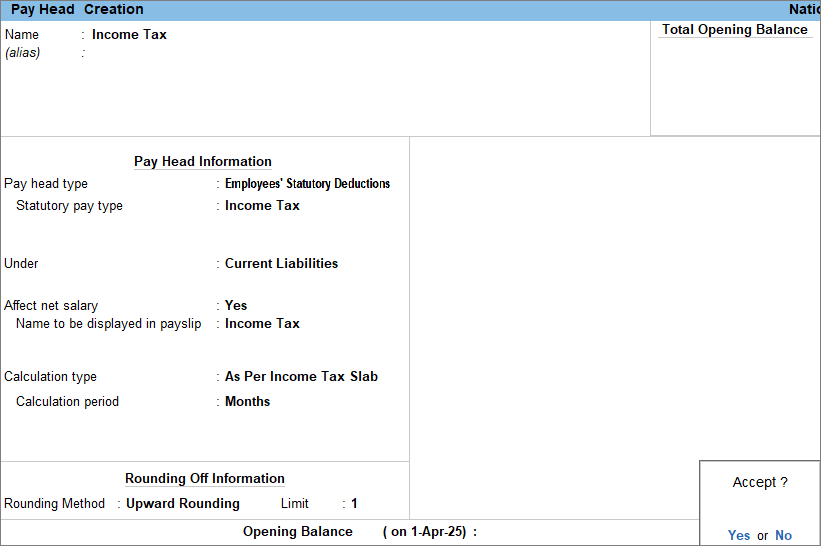
- Enter the Pay Head details.
- Name: Enter the name of the pay head as Income Tax.
- Pay head type: Select Employees’ Statutory Deductions from the List of Pay Head Types.
- Statutory pay type: Select Income Tax from the list of Employees’ Statutory Deductions.
- Under: Select Current Liabilities from the List of Groups.
- Affect net salary: Set the option to Yes.
Enabling this option determines whether the pay head affects the employee’s final take-home salary. - Name to be displayed in payslip: Enter the pay head name to be shown in the payslip. By default, the name you create for the pay head will be displayed.
- Enter the Pay Head calculation details.
- Calculation type: By default, this is set to As Per Income Tax Slab.
- Calculation period: By default, this is set to Months.
- Rounding Method: By default, it is set as Upward Rounding. To know more, click here.
- Press Ctrl+A to save the pay head master.
Configure Income Tax component for pay heads
You can configure the Income Tax component for all existing pay heads and specify the ledgers used for payroll payments from the Pay Head Configuration screen.
- Press Alt+G (Go To) > Alter Master > type or select Income Tax Pay Heads Details > and press Enter.
Pay heads that are already configured for income tax appear in bold, while those not configured appear in italics. - To configure or re-configure the income tax component, press Enter on any of the pay heads.
The Income Tax Configuration screen appears.
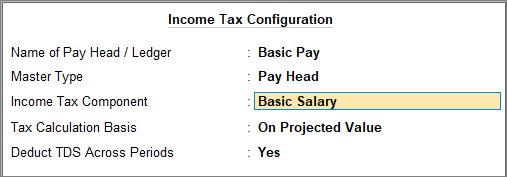
- In the Income Tax Configuration screen, update the following details:
- Name of Pay Head / Ledger: By default, this field displays the pay head/ledger name.
- Master Type: Indicates whether this is a pay head or a ledger.
- Income Tax Component: From the List of Income Tax Components, select the required Income Tax Component for correct tax computation.
- Tax Calculation Basis: Select the appropriate Tax Calculation Basis from On Projected Value and On Actual Value.
- On Projected Value: Select this option to use the pay head or ledger value from Salary Details, or from the voucher for user-defined pay heads, and project it for the remaining period.
- On Actual Value: This option projects the latest pay head value for the remaining months.
- Deduct TDS Across Periods: To deduct the entire TDS in the same month, set this option to No. If you want to spread the TDS deduction across the remaining period, set this to Yes.
- Press Ctrl+A to save.
Similarly, all other pay heads can also be configured for income tax.


