
Income Tax Declarations in TallyPrime (Payroll)
As per the Income Tax Act, certain deductions are allowed from the gross salary while computing an employee’s taxable income.
Before configuring income tax declarations, you can set the tax regime for all employees. Employees opting for the new tax regime under Section 115BAC must forgo certain deductions and exemptions. To simplify calculations, TallyPrime predefines the applicability of deductions and exemptions for each tax regime. Therefore, even if a value is declared, it will not be considered if it is not eligible under the selected regime.
Exemptions (Section 10): Allowances such as HRA, LTA, Transport Allowance, Children Education Allowance, and Children Hostel Expenditure Allowance are exempt from income tax.
Deductions under Chapter VI-A:
- Investments (Sections 80C, 80CCF, 80CCG, etc.): Allowed up to specified limits when computing taxable income.
- Others (Sections 80D, 80DD, 80E, etc.): Includes deductions for expenses like mediclaim and interest on education loans.
Income Tax Declaration
The employee can provide the Exemption and Deduction details to the employer, and these details can be entered in the system as employee Declaration by following the process given below:
- Press Alt+G (Go To) > Alter Master > type or select Income Tax Declarations > and press Enter.
In case the master is inactive, you will be prompted to enable the Payroll feature for your Company. Select Yes or press Y to proceed.
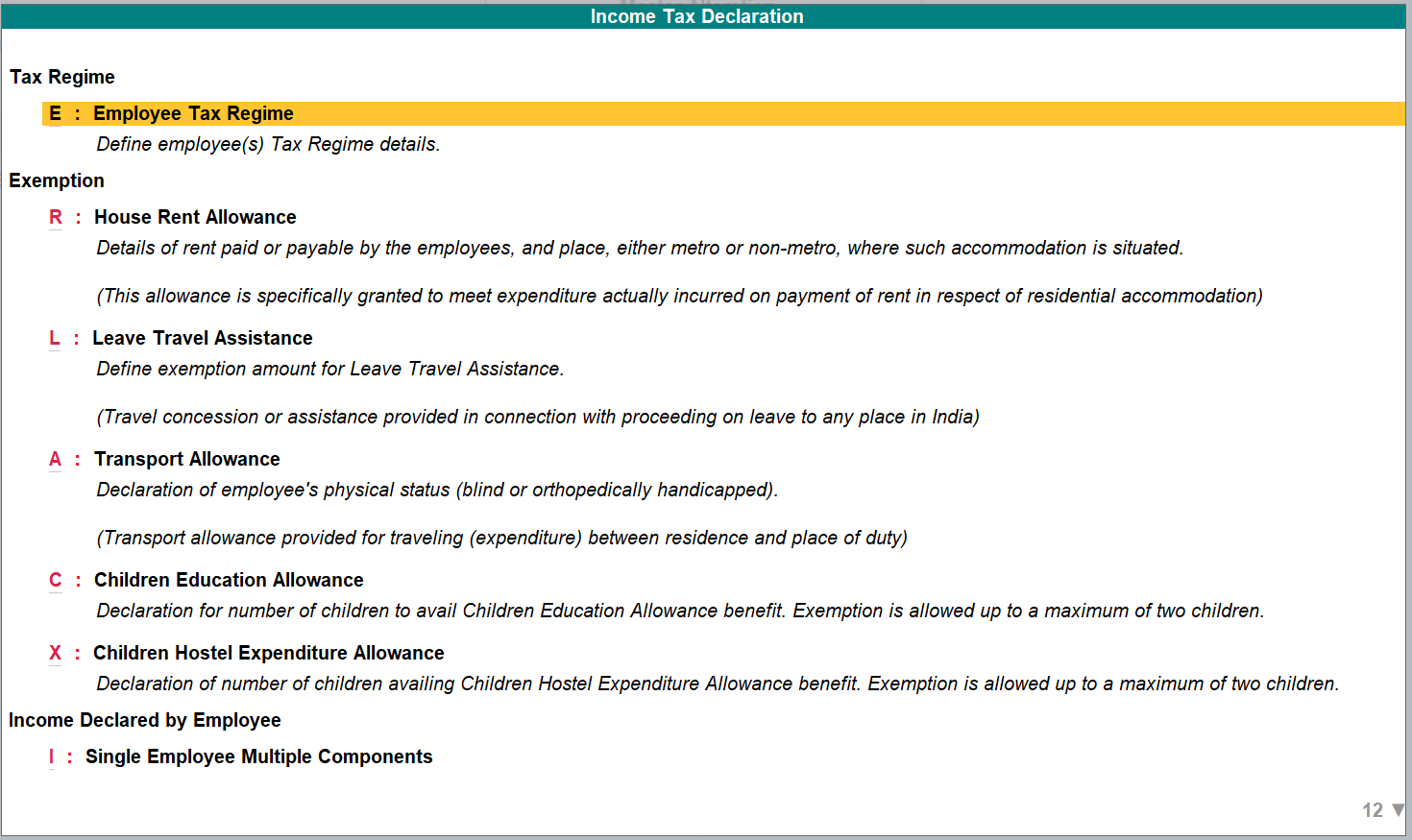
- You can select the required exemption and investments, and enter the employee declarations details.
Employee Tax Regime
You can set the tax regime details for all employees or different employee groups.
- From the Income Tax Declaration screen, select Employee Tax Regime, and press Enter.
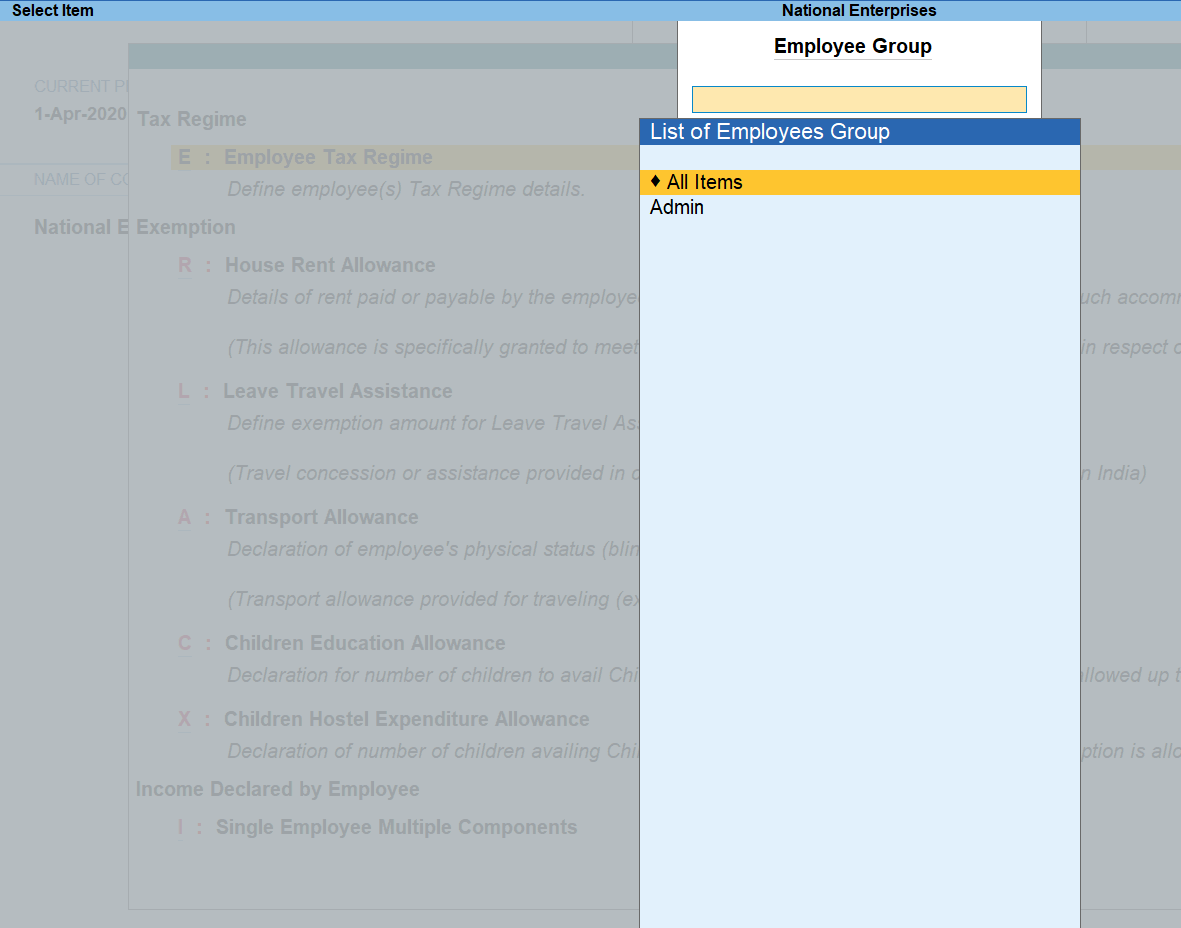
- Select All Items to set tax regime for all employees or any employee group to set the details for employees in that particular group.
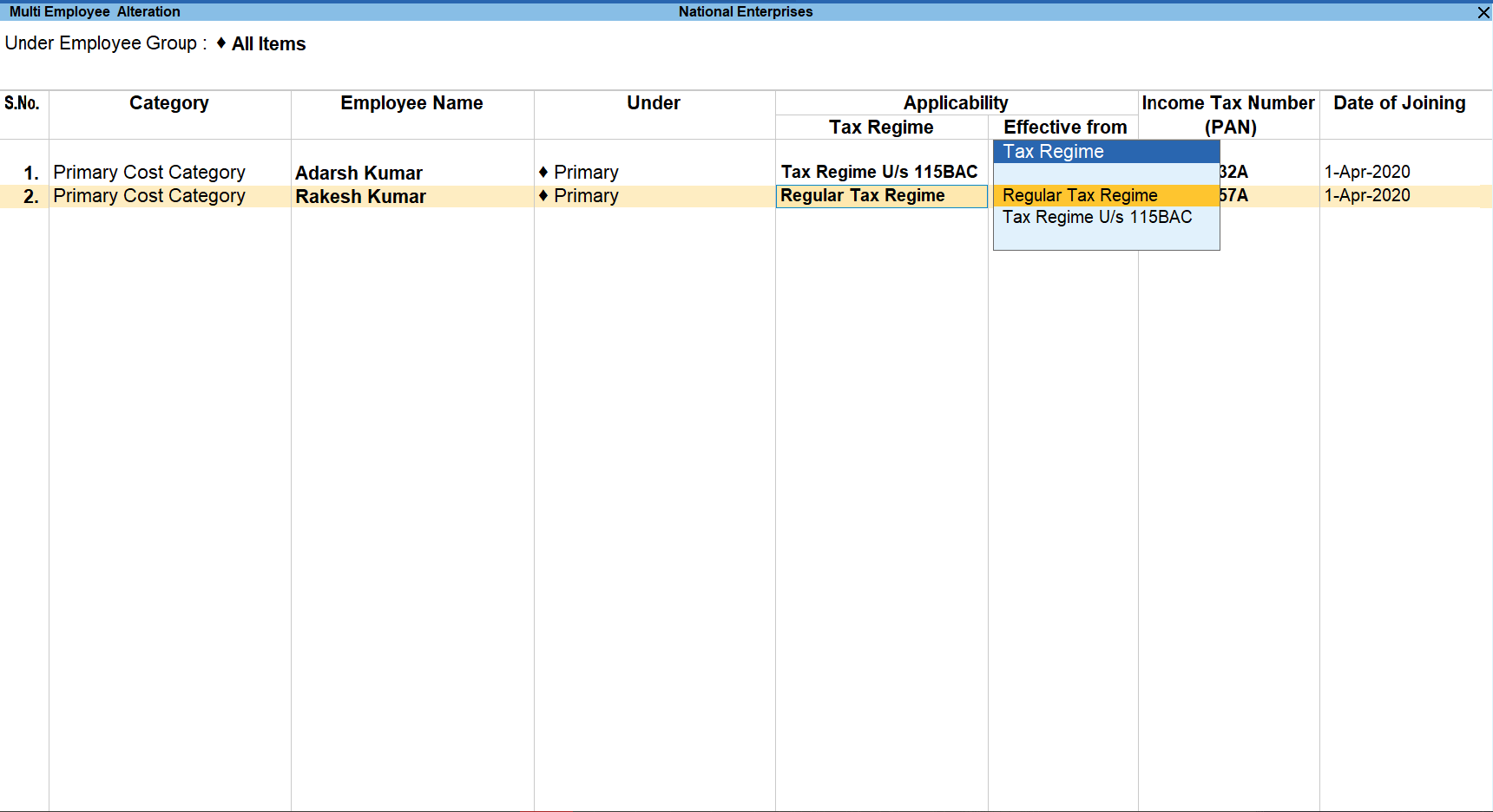
- Select the tax regime for each employee in the group.
The Effective From date for the tax regime is updated automatically. For the regular regime, it is set to the later of the books beginning date or the employee’s joining date. For the tax regime under Section 115BAC, it is set to the later of 01-04-2020 or the employee’s joining date. If the tax regime is changed, the revision date is recorded in the employee’s tax regime history.
Declare House Rent Allowance
- From the Income Tax Declaration screen, select House Rent Allowance, and press Enter.

- Select the required Employee, All Employees, or an Employee Group in the Employee Name/Group field.
- Select Any, Regular Tax Regime, or Tax Regime U/s 115BAC in the Tax Regime field.
- In the House Rent Declaration screen:
- Effective From: Enter the date from which rent payment begins.
- Monthly Rent Declared: Specify the rent amount declared by the employee.
- Monthly Rent Proof: Enter the rent amount supported by submitted proof.
- Place of Residence: Select Metro or Non-Metro based on the city.
- Name of Landlord: Enter the landlord’s name.
- PAN of Landlord: Provide the landlord’s PAN or select Government or Non-resident, as applicable.
Note: Metro should be selected for Delhi, Mumbai, Kolkata and Chennai. For all others cities, Non-Metro should be selected.
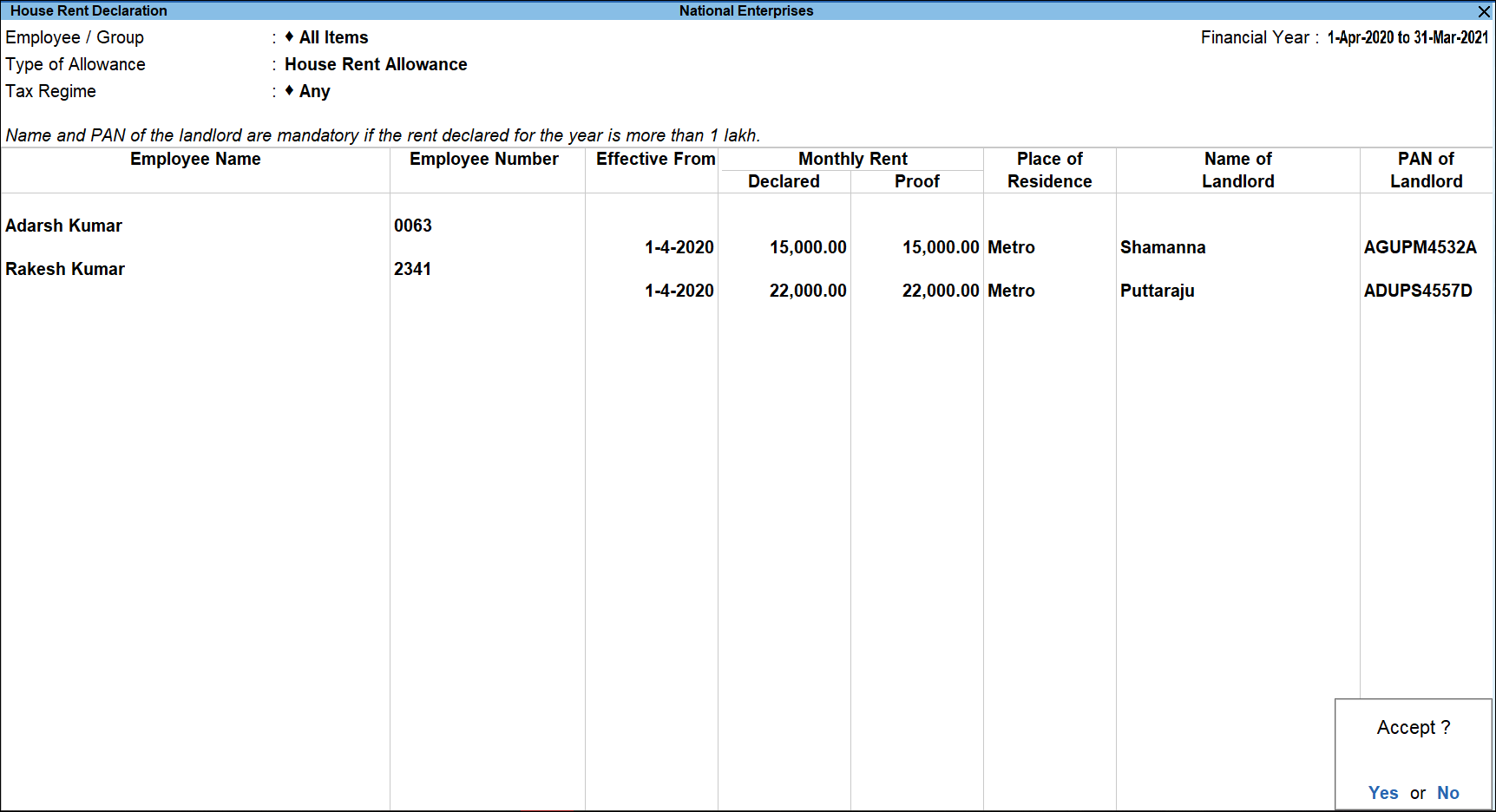
- Press Ctrl+A to save.
Similarly, the HRA details can be entered for an individual(one employee).
Leave Travel Assistance
- From Income Tax Declaration screen, select Leave Travel Assistance and press Enter.
- Select the required Employee.
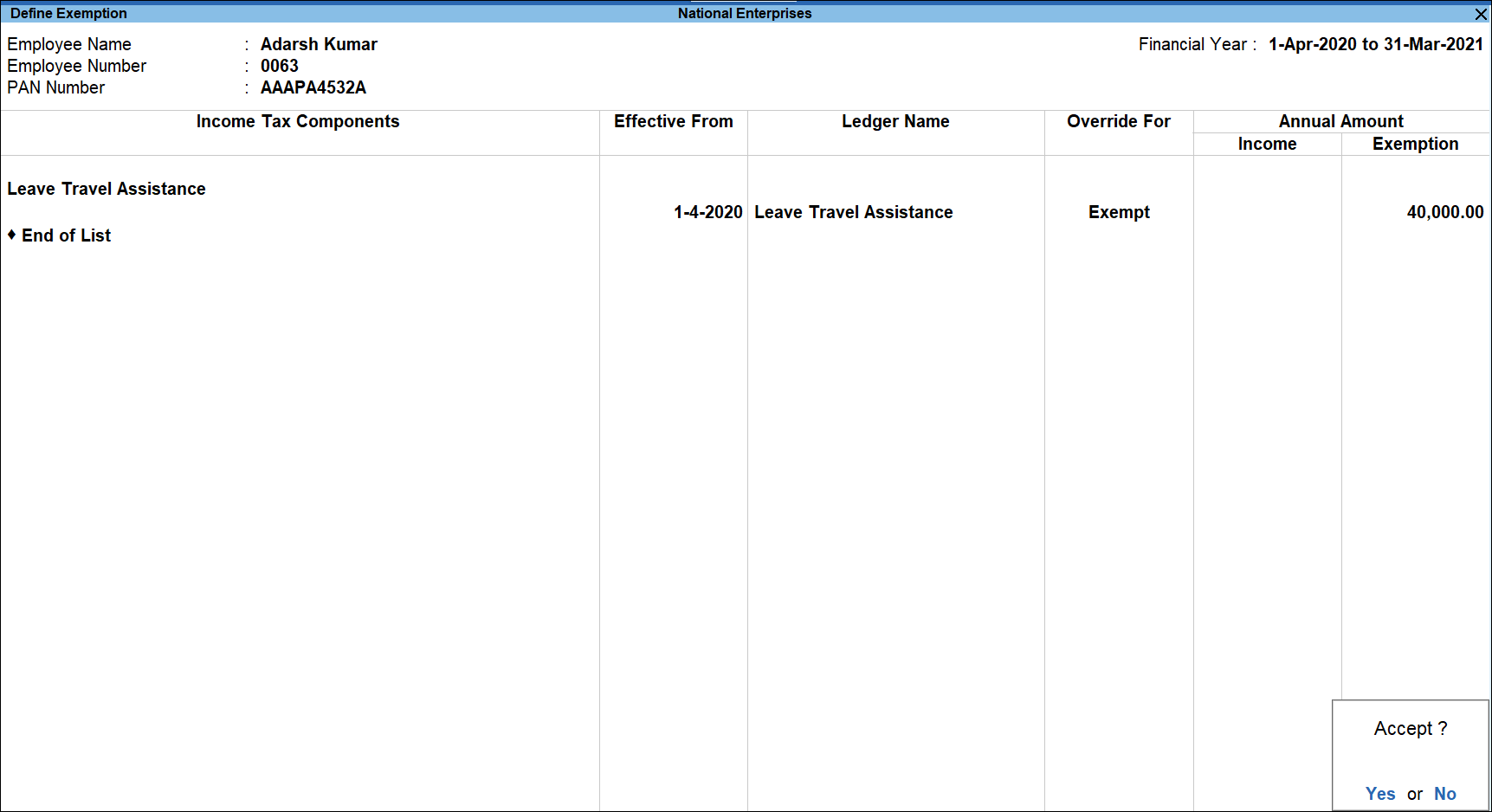
- In the Define Exemption screen,
- Effective From: Specify the date when the LTA becomes applicable.
- Ledger Name: Select the Leave Travel Assistance ledger.
- By default, the Override for field is set to Exempt.
- In the Exemption field, specify the LTA amount that is exempted from Income Tax.
- Press Ctrl+A to save.
Declare Transport Allowance
- From Income Tax Declaration screen, select Transport Allowance and press Enter.
- Select the required Employees or All Employees, or an Employee Group in the Employee Name or Group filed.
- Select Any or Regular Tax Regime or Tax Regime U/s 115BAC in the Tax Regime field.
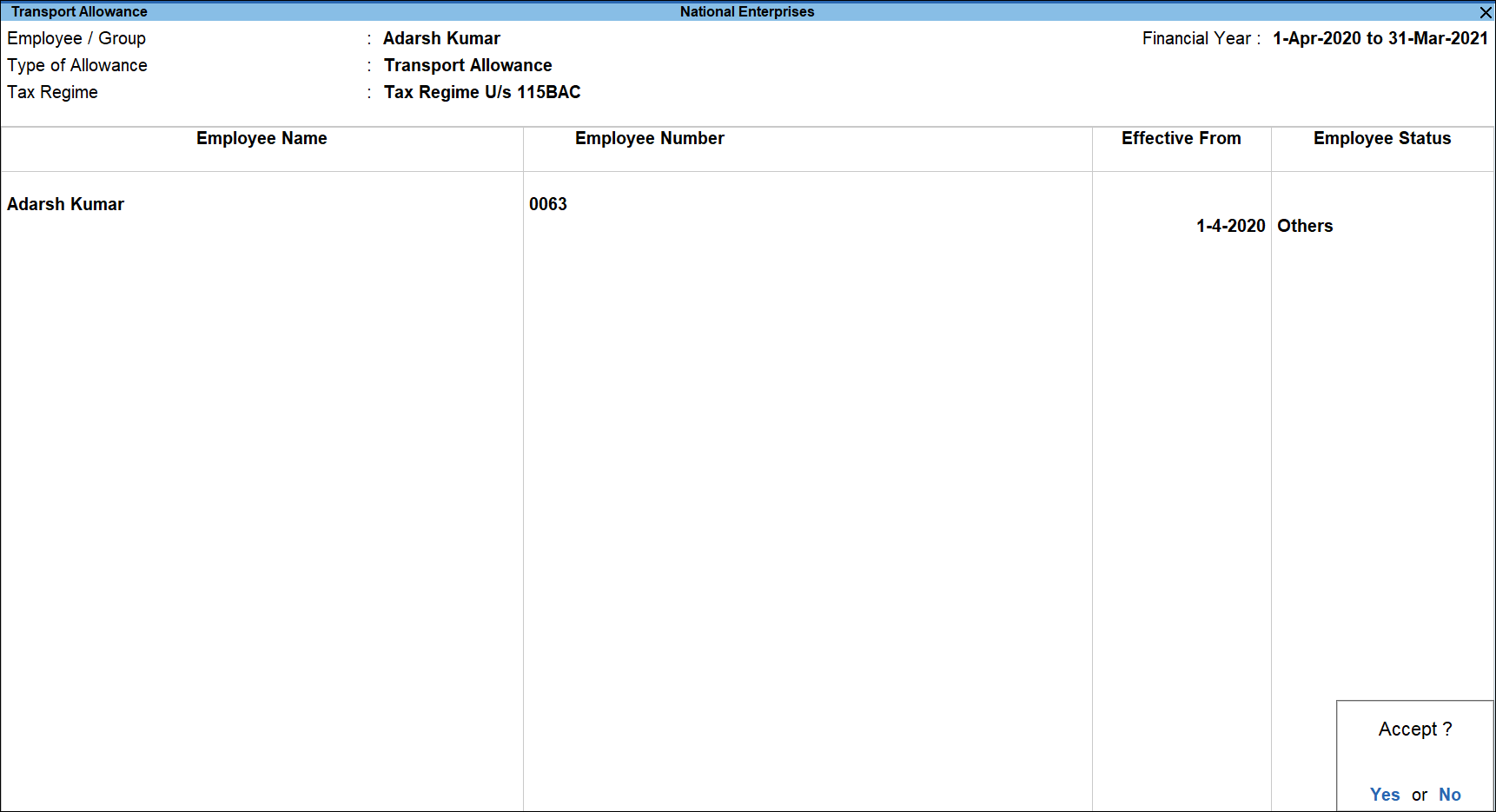
- In the Transport Allowance screen,
- In the Effective From field, specify the date from which the Transport Allowance is applicable.
- Select the Employee Status as Physically Challenged or Others.
Note: Employee Status will be used for Transport Allowance exemption limit.
- Press Ctrl+A to save.
Declare Children Education Allowance
- From Income Tax Declaration screen, select Children Education Allowance and press Enter.
- Select the required Employees or All Employees or an Employee Group.
- Select Any or Regular Tax Regime or Tax Regime U/s 115BAC in the Tax Regime field.
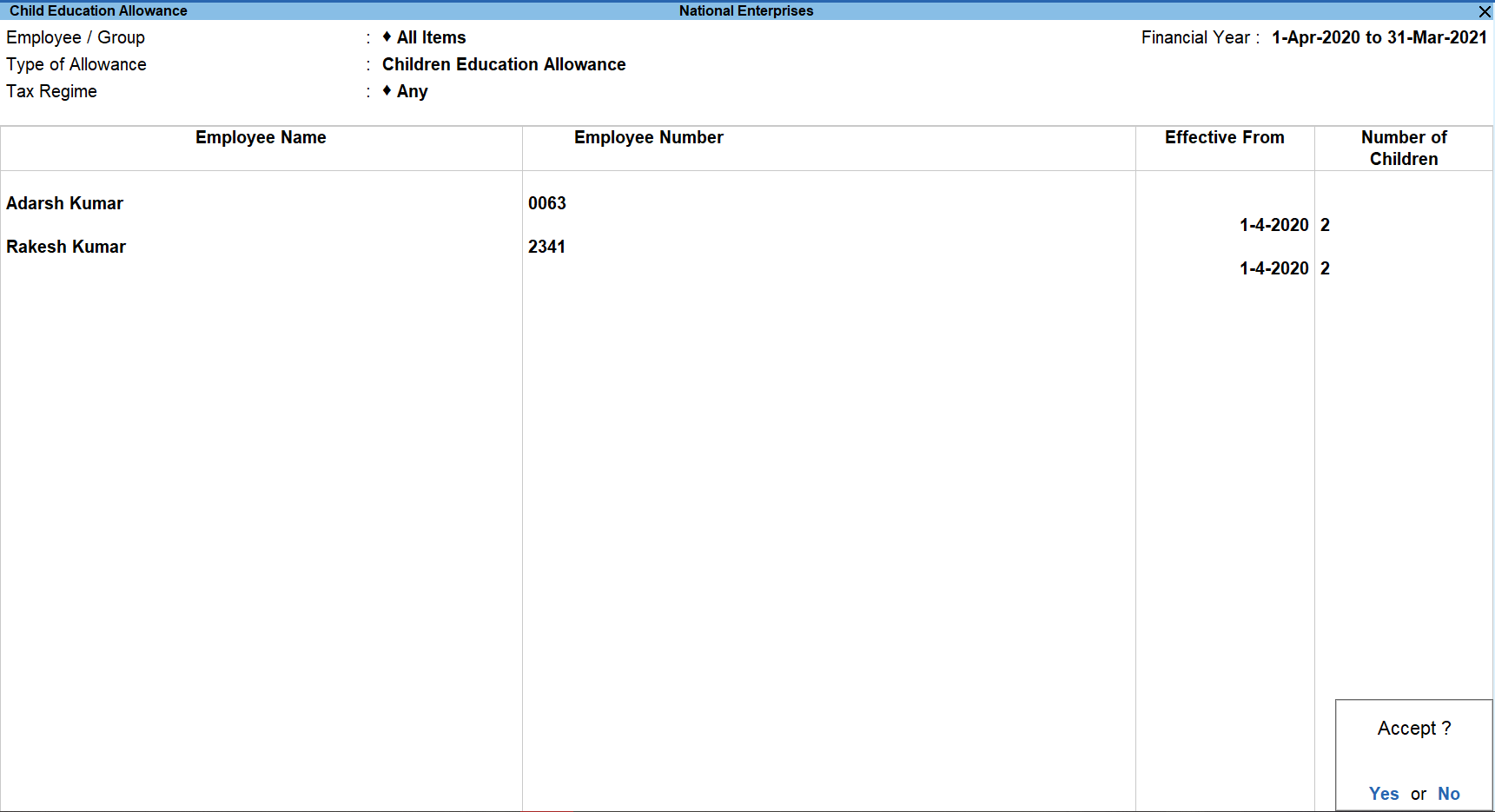
- In the Children Education Allowance screen,
- In the Effective From field, specify the date from which the Children Education Allowance is applicable.
- In the Number of Children field, enter the number of children each employee wants to cover under this declaration. You can enter a value of 1 or 2 in this field.
- Press Ctrl+A to save.
Declare Children Hostel Expenditure Allowance
- From Income Tax Declaration screen, select Children Hostel Expenditure Allowance and press Enter.
- Select the required Employees or All Employees, or an Employee Group.
- Select Any or Regular Tax Regime or Tax Regime U/s 115BAC in the Tax Regime field.
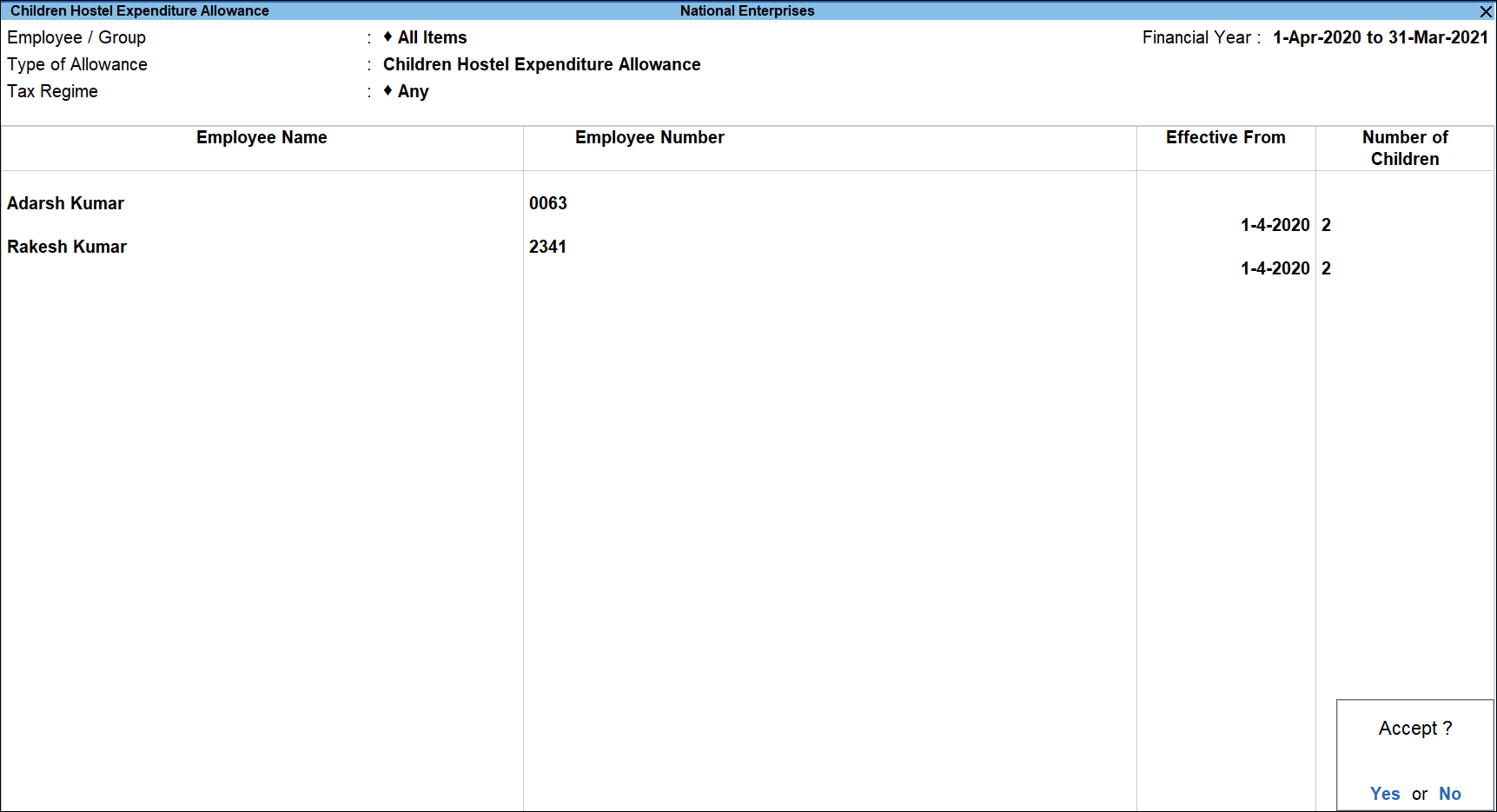
- In the Children Hostel Expenditure Allowance screen,
- In the Effective From field, specify the date from which the Children Hostel Expenditure Allowance is applicable.
- In the Number of Children field, enter the number of children that the employee wants to cover in this declaration. You can enter a value of 1 or 2 in this field.
- Press Ctrl+A to save.
Income Declared by Employee – Single Employee Multi Component
Under this head, you can define employee(s) declarations and proofs/eligible amount for the other incomes such as House Property, other sources and Interest on housing Loan, if the premises is self occupied.
- Select Income Declared by Employees – Single Employee Multi Component, and press Enter.
- From the List of Employees, select the required employee.
- Select the Particulars of Income Other than Salary – Income from House Property from the List of Other Income.
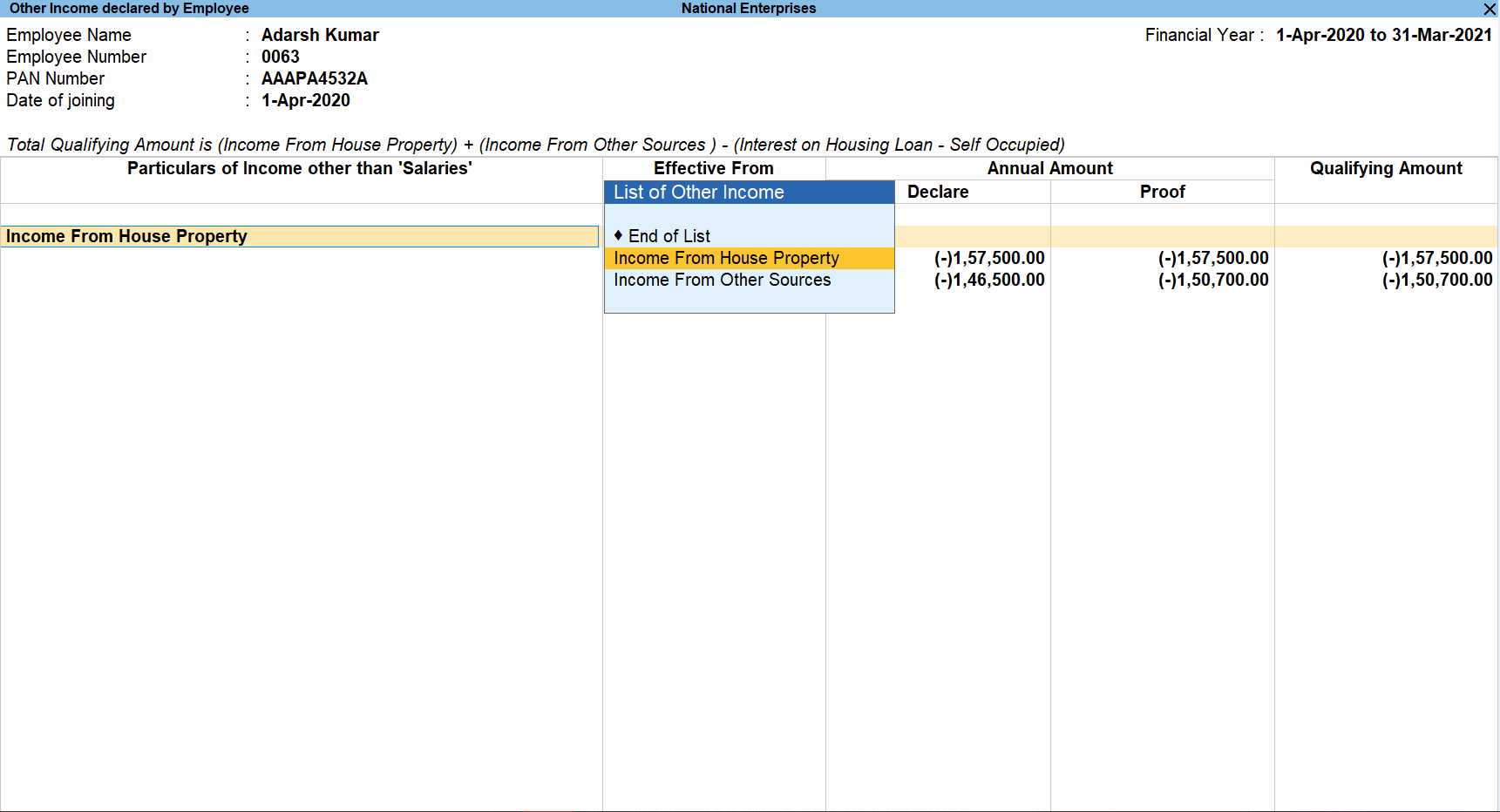
- Specify the Effective From date.
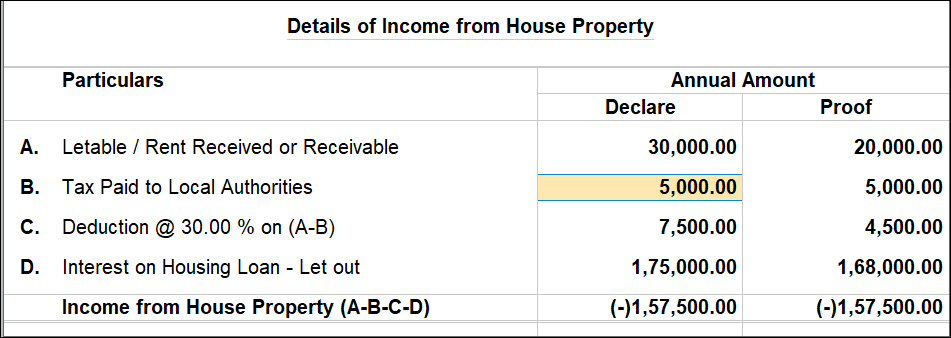
- Specify the Details of Income from House Property.
The system computes the income from house property based on the information provided.
Similarly, you can select the other incomes to be declared.
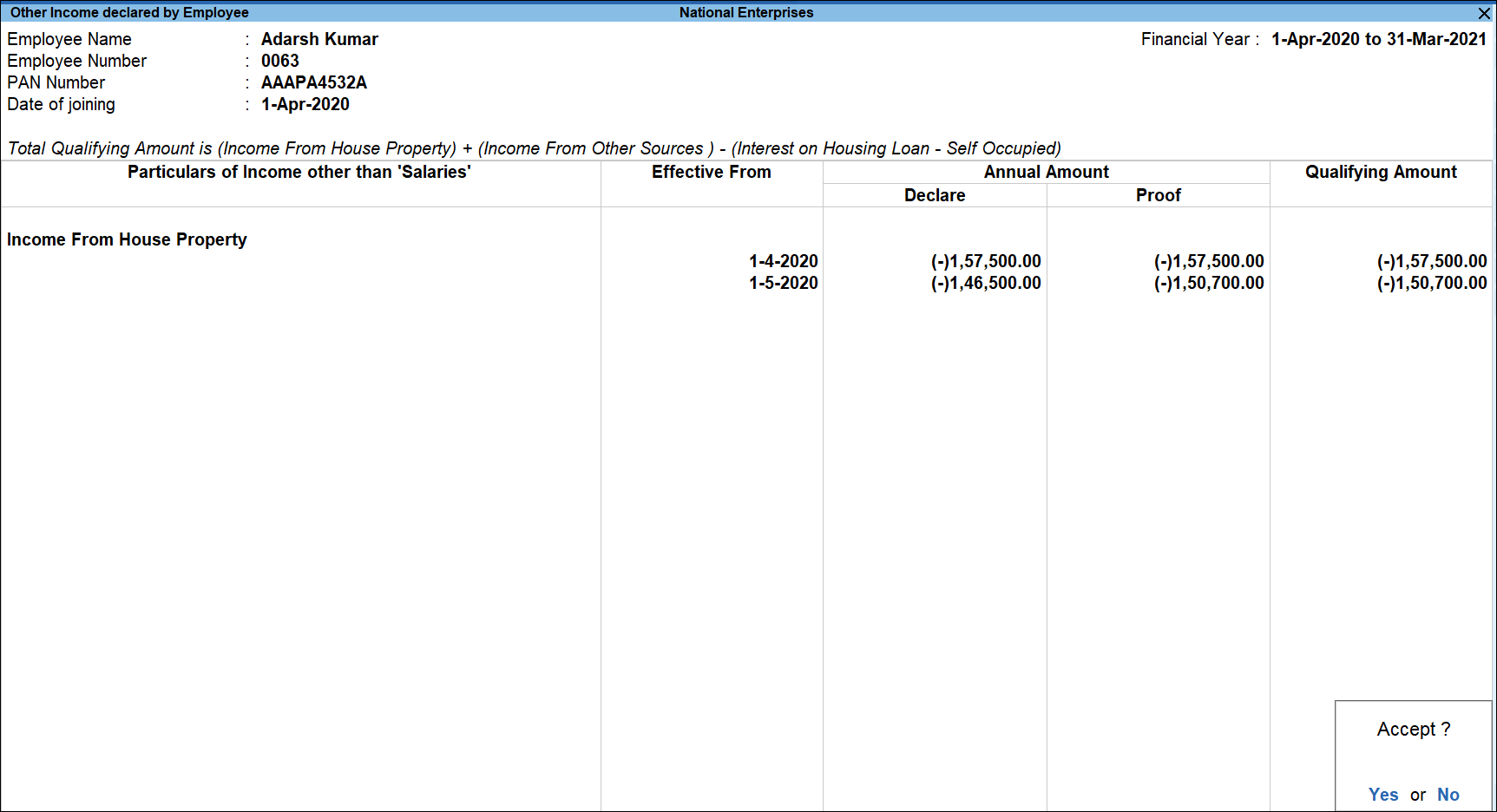
- Press Ctrl+A to save.
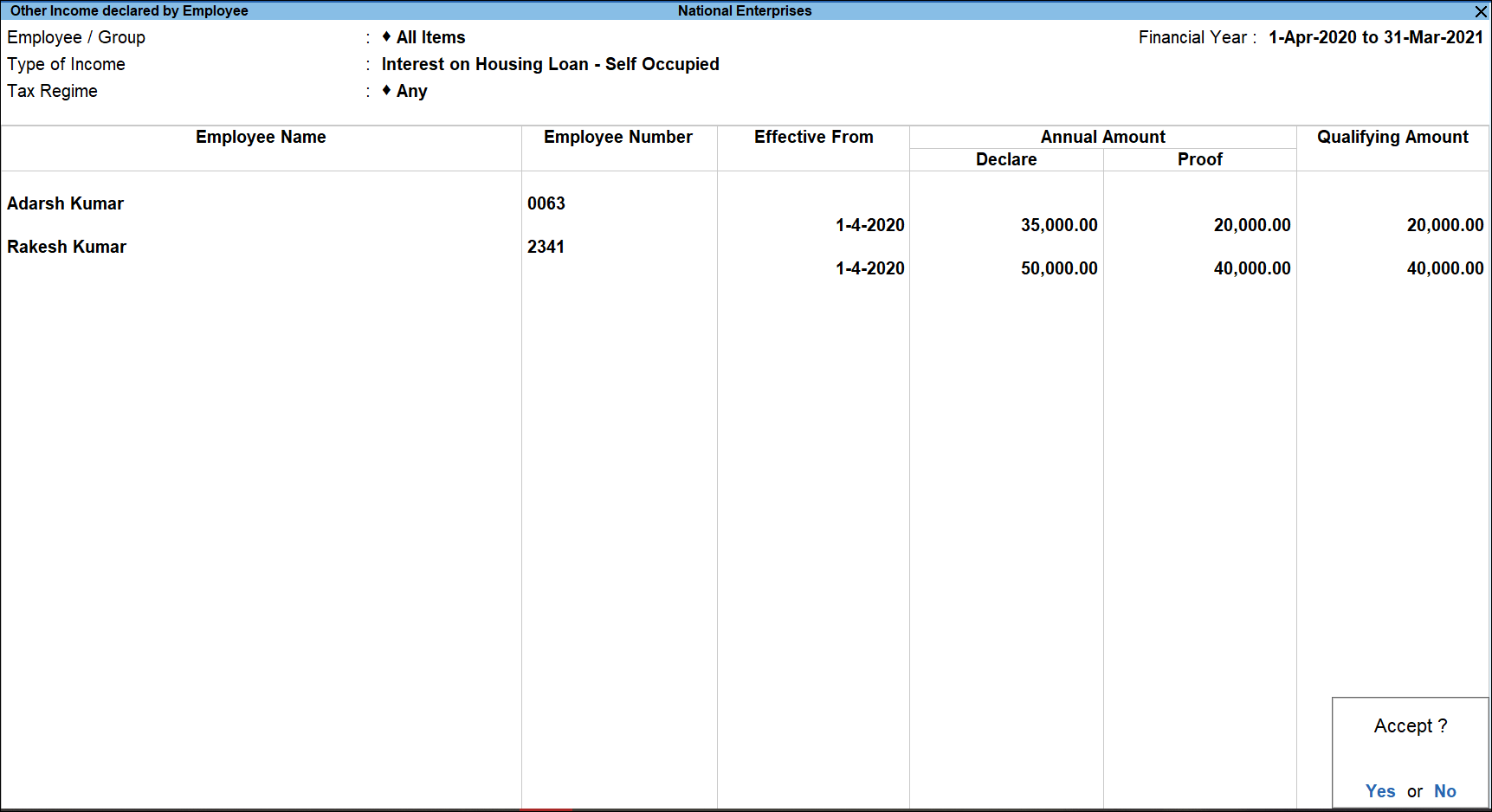
Income Declared by Employee – Multi Employees Single Component
- Select Income Declared by Employees – Multi Employees Single Component, and press Enter.
- From the List of Employees, select the appropriate Employee Group.
- Select Any or Regular Tax Regime or Tax Regime U/s 115BAC in the Tax Regime field.
- Select the Type of Income from the List of Incomes.
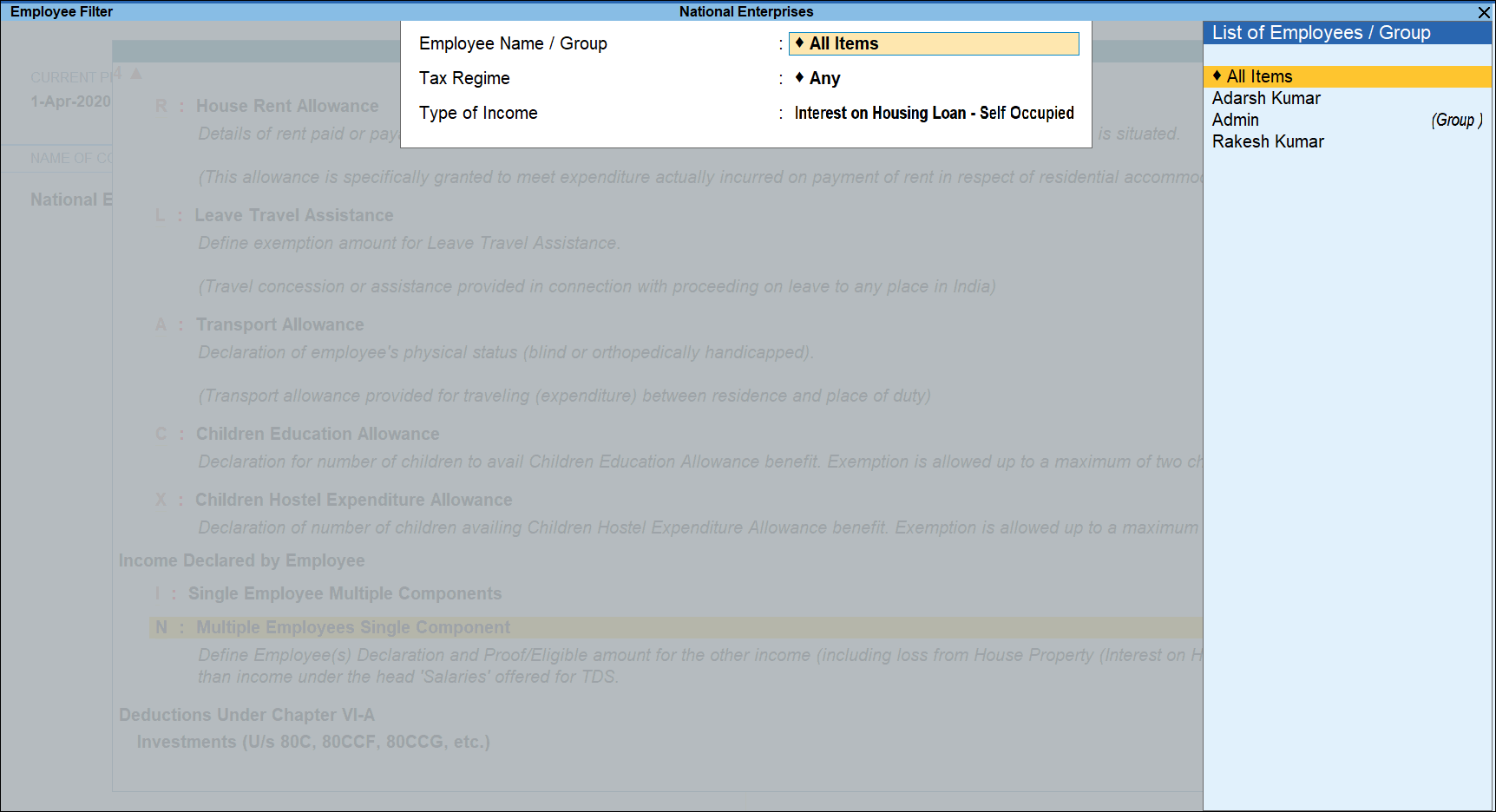
- Specify the Effective From date.
- In Annual Amount column, specify the Declare and Proof amount. The system will then display the Qualifying Amount.
- Press Ctrl+A to save.
Declare Investments U/s 80C, 80CCF, 80CCG, etc. – Single Employee Multi Component
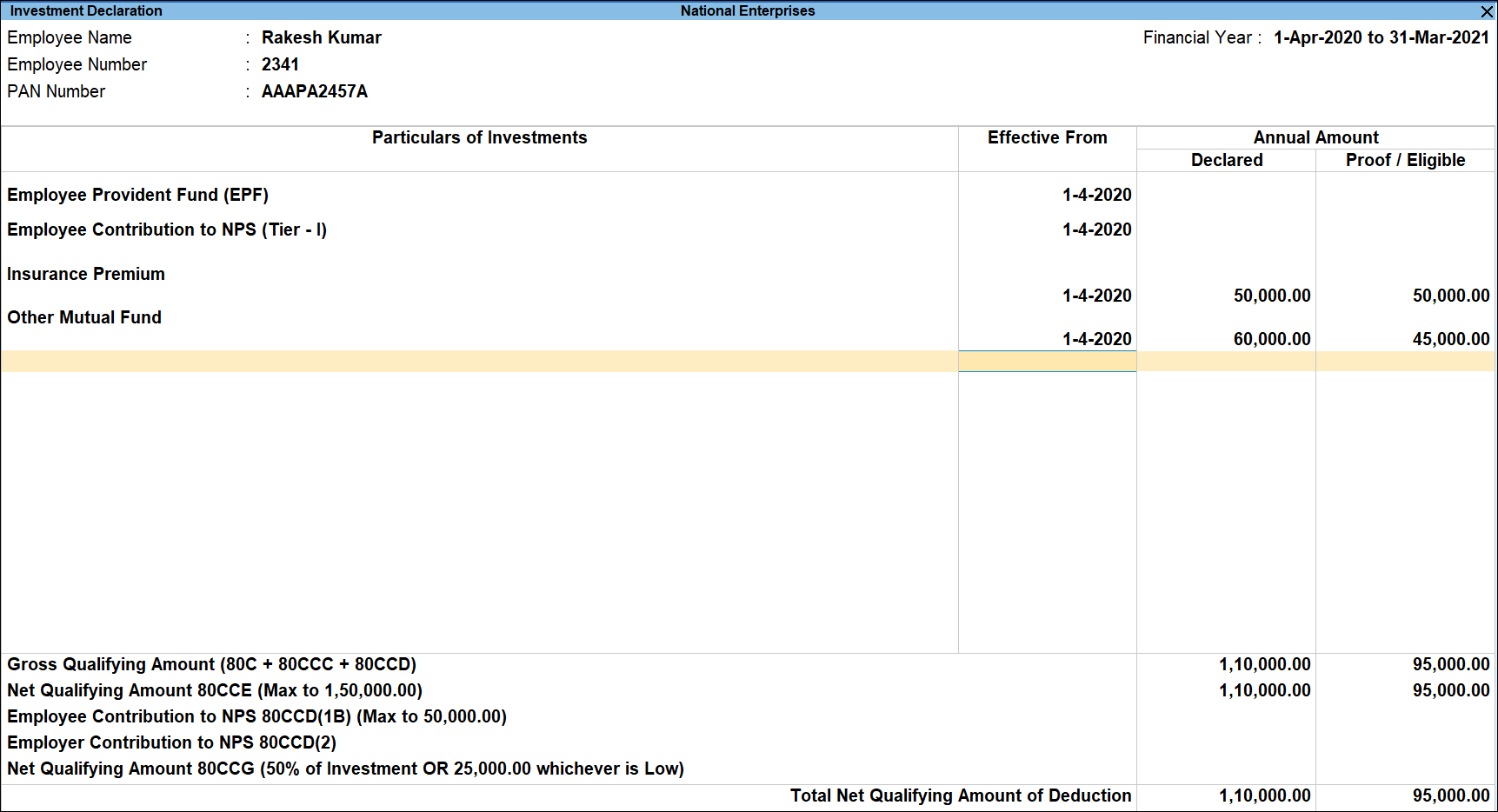
- From Income Tax Declaration screen, select Single Employee Multi Component under Investments (U/s 80C, 80CCF etc.) and press Enter.
- From the List of Employees, select the employee, and press Enter.
- In the Investment Declaration screen,
- Under Particulars of Investments, select the required Investments from the List of Investments.
- In the Effective From field, specify the date when these investments become applicable.
- In the Declared Amount field, specify the amount declared for the respective investment.
- In the Proof/Eligible Amount field, specify the details of the amount associated with the proof submitted by the employee.
- Press Ctrl+A to save.
Declaring Investments U/s 80C, 80CCF, 80CCG, etc. – Multi Employees Single Component
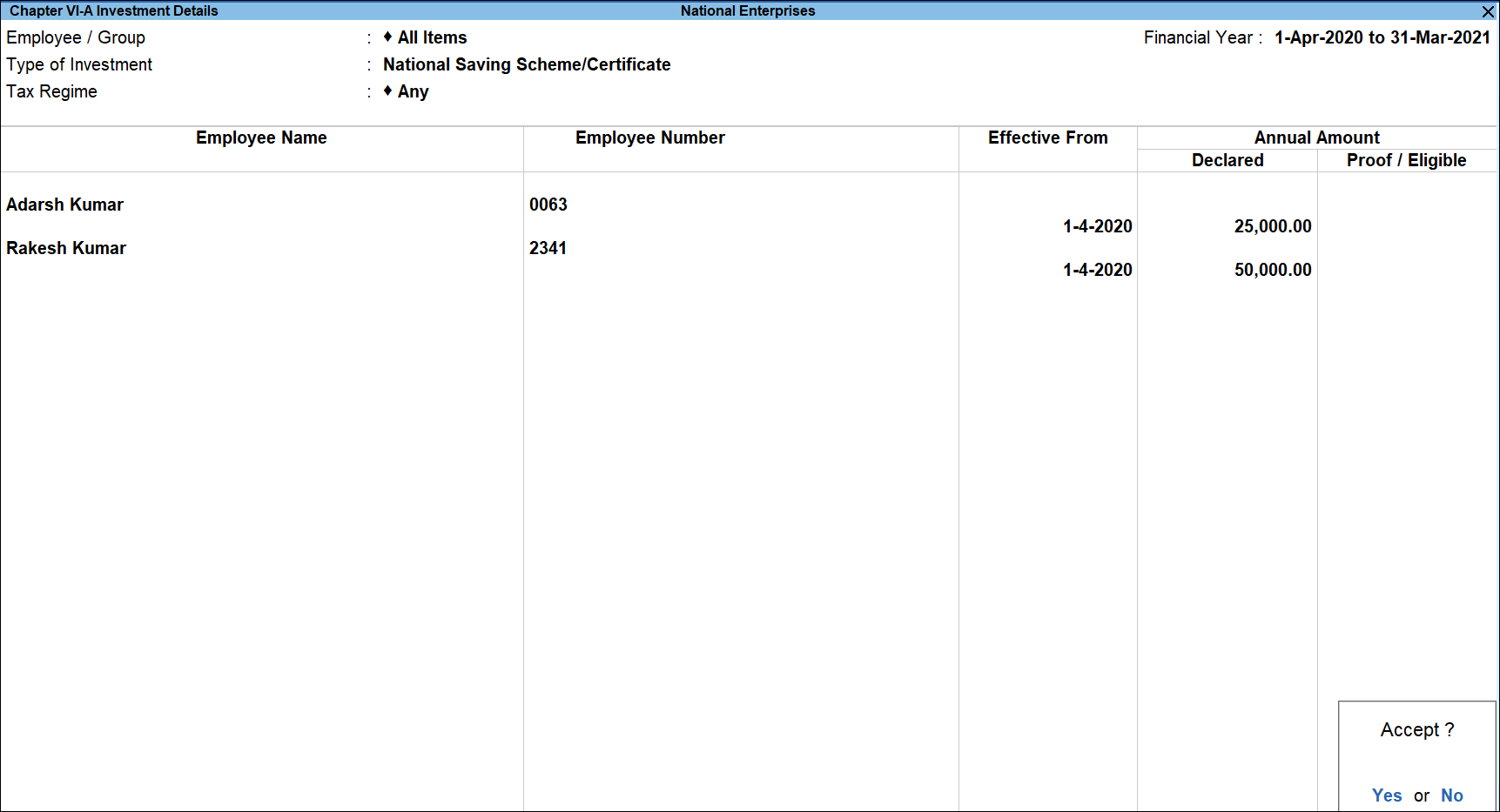
- From Income Tax Declaration screen, select Multi Employees Single Component under Investments (U/s 80C, 80CCF etc.) and press Enter.
- Select the All Items from the List of Employees, and press Enter.
- Select Any or Regular Tax Regime or Tax Regime U/s 115BAC in the Tax Regime field.
- Select the required Investment from the List of Investments and press Enter.
- In the Investment Declaration screen,
- In the Effective From field, specify the date when these investments become applicable.
- In the Declared Amount field, specify the amount declared for the selected investment.
- In the Proof/Eligible Amount field, specify the details of the amount associated with the proof submitted by the employees.
- Accept the screen. As always, you can press Ctrl+A to save.
Declaring Other Deductions under Chapter VI-A – Single Employee Multi Component
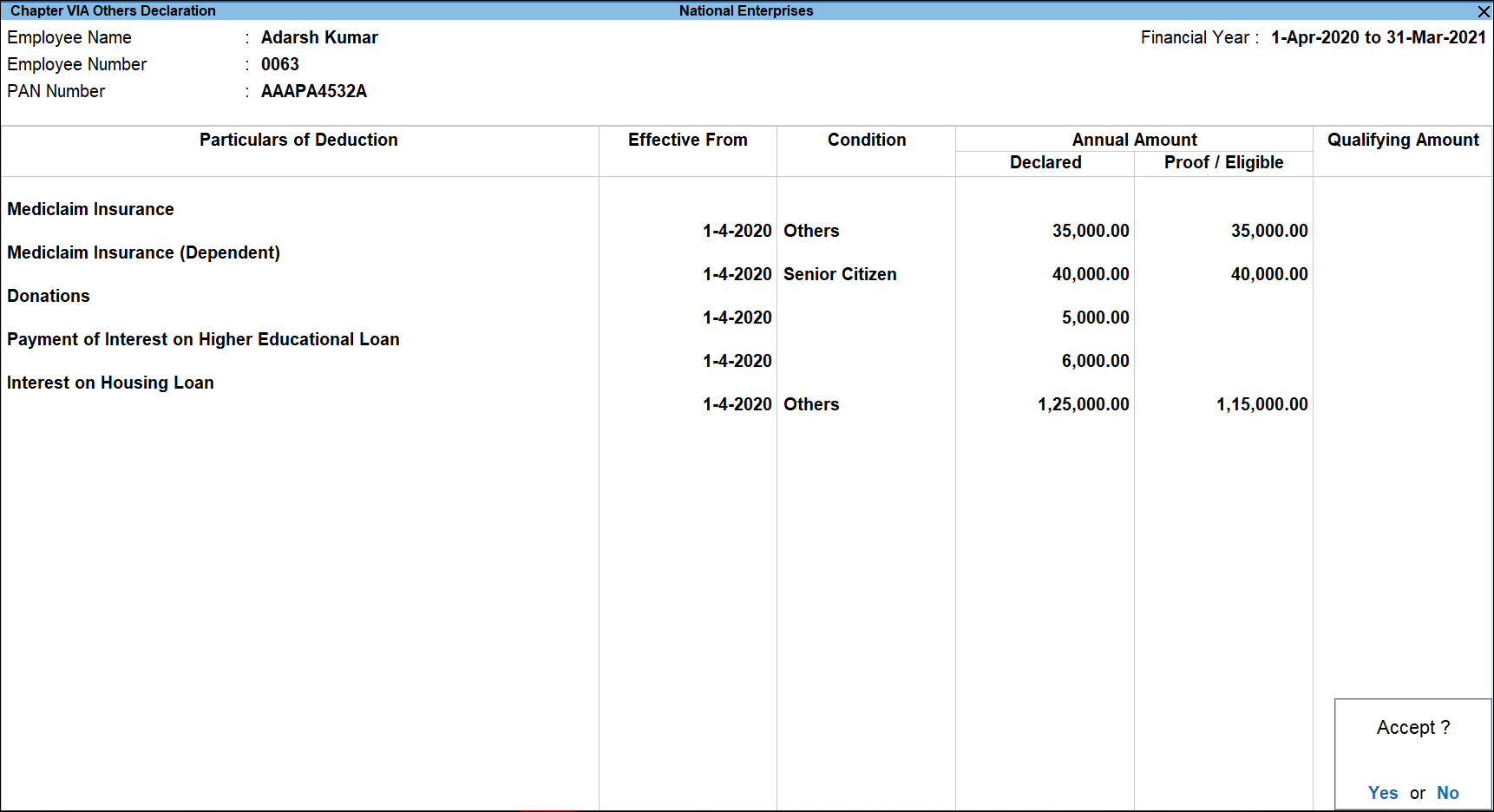
- From Income Tax Declaration screen, select Single Employee Multi Component under Others (U/s 80D, 80DD, 80E etc.) and press Enter.
- From the List of Employees, select the appropriate employee, and press Enter.
- In the Chapter VIA Others Declaration screen,
- Under Particulars of Deduction, select the required Deduction from the List of Investments.
- In the Effective From field, specify the date when the deductions are applicable.
- In the Condition field, select the appropriate value from the list (such as Others, Senior Citizen or Severe Disability) based on the information provided.
- In the Declared Amount field, specify the amount declared for the respective investment.
- In the Proof/Eligible Amount field, specify the details of the amount associated with the proof submitted by the employee.
- The Qualifying Amount field displays the actual amount which is allowed as deduction from actual salary.
Note: For Mediclaim Insurance taken for dependent parents in addition to self, the maximum Qualifying Amount is Rs.40,000 [Self (if Senior Citizen) Rs.20000 + Parents (Senior Citizens) Rs. 20000).
- Press Ctrl+A to save.
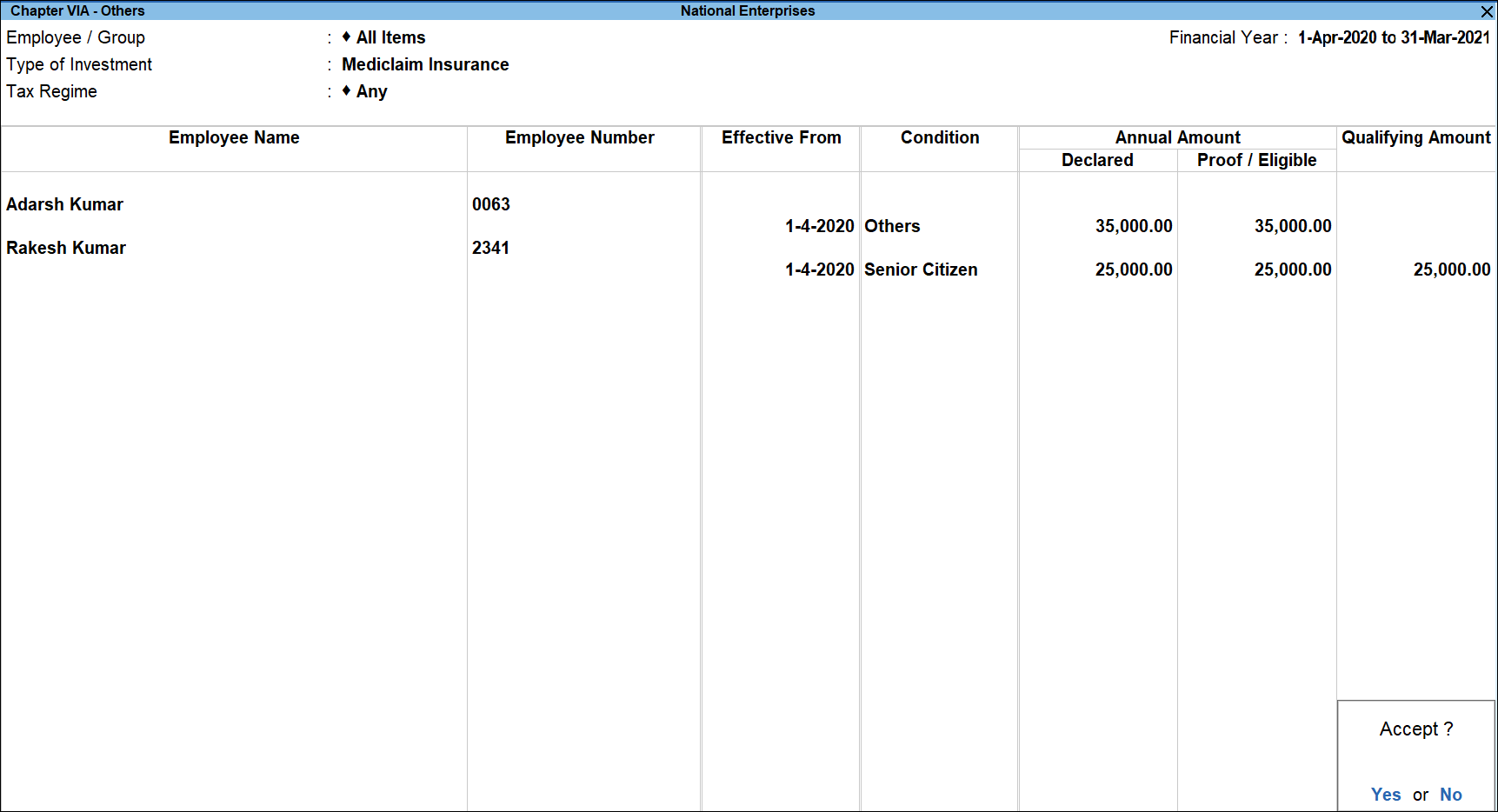
Declaring Other Deduction under Chapter VI-A – Multi Employees Single Component
- From Income Tax Declaration screen, bring cursor on Multi Employees Single Component under Others (U/s 80D, 80DD, 80E etc.) and press Enter.
- Select the All Items from the List of Employees, and press Enter.
- Select Any or Regular Tax Regime or Tax Regime U/s 115BAC in the Tax Regime field.
- Select the required Investment from the List of Investments, and press Enter.
- In the Chapter VIA – Others screen,
- In the Effective From field, specify the date when these investments become applicable.
- In the Condition field, select the appropriate parameter from the list (such as Others, Senior Citizen or Severe Disability), based on the information provided.
- In the Declared Amount field, specify the amount declared for the selected investment.
- In the Proof/Eligible Amount field, specify the details of the amount associated with the proof submitted by the employees. The Qualifying Amount column is automatically updated based on the exemption eligibility.
- Press Ctrl+A to save.


