
Use GSTR-3B Report in TallyPrime
For TallyPrime 2.1 & earlier
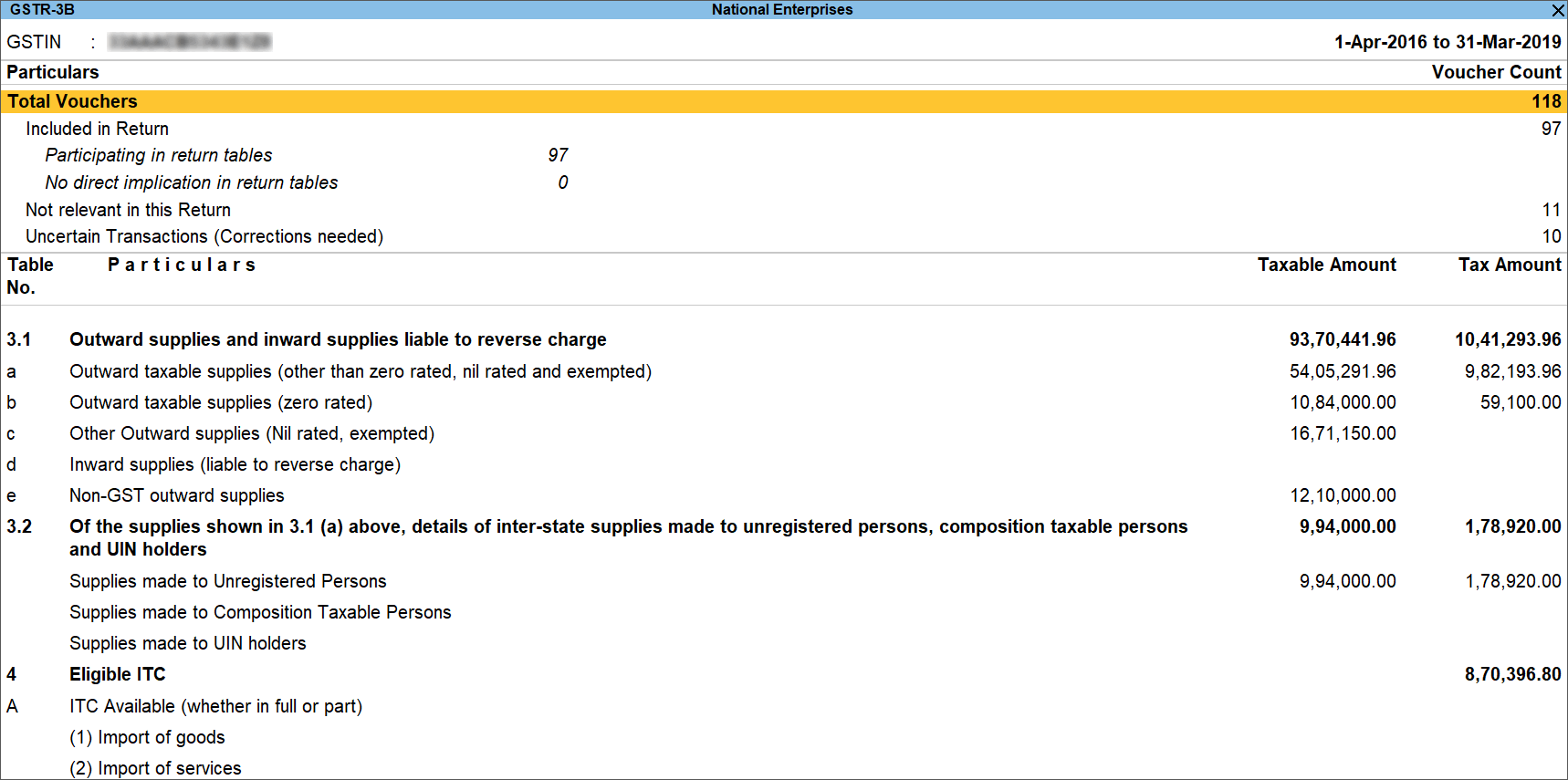
In the GSTR‑3B report, you get a summary section that shows the summary of the vouchers in your books and the return details. You can view the return details in two formats: Return Format and Summary Format.
View GSTR-3B report in TallyPrime
- Press Alt+G (Go To) > type or select GSTR-3B and press Enter.
Alternatively, Gateway of Tally > Display More Reports > Statutory Reports > GST > GSTR-3B.
 0
0 - Press F5 to switch between Return View and Nature View.

- To specify the required reporting period, press F2 (Period).
- For a company whose State is selected as Ladakh, if you set the period as Dec 2019 to Jan 2020, the Period-wise Returns screen appears with the return period and corresponding GSTIN.
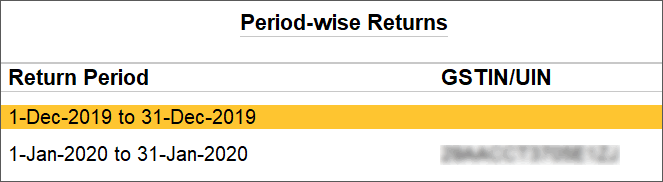
The above screen will appear only if you have provided the following GSTINs in the Company GST Details screen:
- GSTIN/UIN applicable from 1-Jan-2020.
- GSTIN/UIN (prior to 1‑Jan‑2020) applies when the head office became part of Ladakh from 1‑Jan‑2020. A single GSTIN was in use for the head office and branch offices in Jammu and Kashmir until 31‑Dec‑2019. When the location of the head office changed to Ladakh from 1‑Jan‑2020, the GSTIN changed to Ladakh. This required a fresh registration for the branch office in Jammu and Kashmir.
To enter the fresh GSTIN for the branch office in Jammu and Kashmir, press F12 and enable Show GSTIN/UIN (prior to 1‑Jan‑2020) for Jammu & Kashmir.
- GSTIN/UIN (prior to 1‑Jan‑2020) applies when the head office became part of Ladakh from 1‑Jan‑2020. A single GSTIN was in use for the head office and branch offices in Jammu and Kashmir until 31‑Dec‑2019. When the location of the head office changed to Ladakh from 1‑Jan‑2020, the GSTIN changed to Ladakh. This required a fresh registration for the branch office in Jammu and Kashmir.
In the above Periodical View screen, select the Return Period and the report will open for the corresponding GSTIN.
View and Verify Vouchers Recorded
The Particulars section at the top of the report provides an overview of your transactions in the selected return period. You can view the transactions that were considered or excluded from returns, and resolve uncertain transactions.
Returns Summary: This section displays a snapshot of business operations in the given period.
- Total Vouchers: Displays the total number of vouchers. Drill down to view the Statistics report.
- Included in Return: Displays the number of vouchers that are:
- Participating in the return table: Displays the number of vouchers that are part of the return tables.
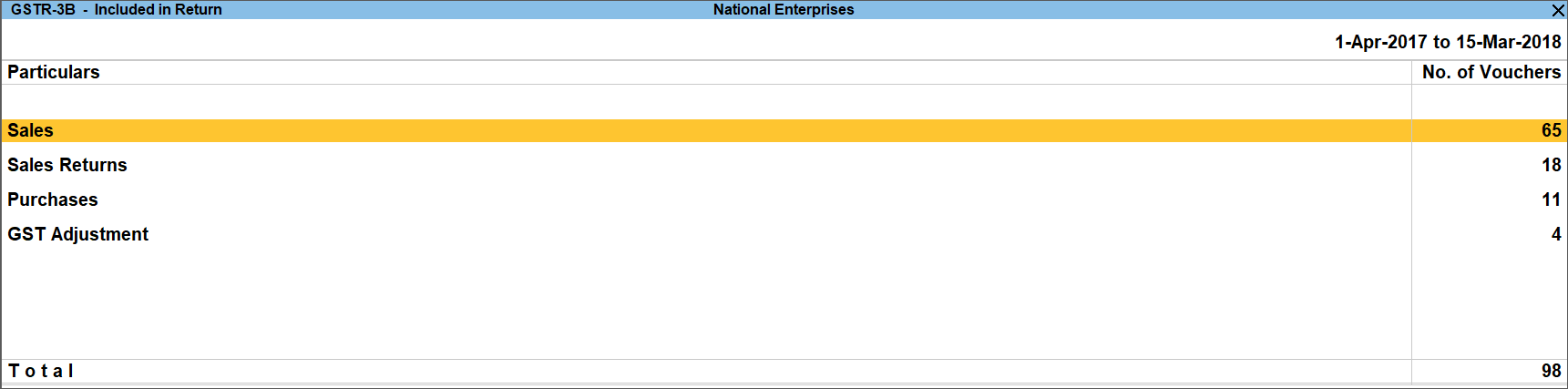
- No direct implication in return tables: Displays the number of vouchers recorded as book entries that do not have an impact on the GSTR-3B returns. Drill down to view the Summary of Included Vouchers.

- Participating in the return table: Displays the number of vouchers that are part of the return tables.
- Not relevant in this Return: Displays the number of transactions that are excluded from the returns.
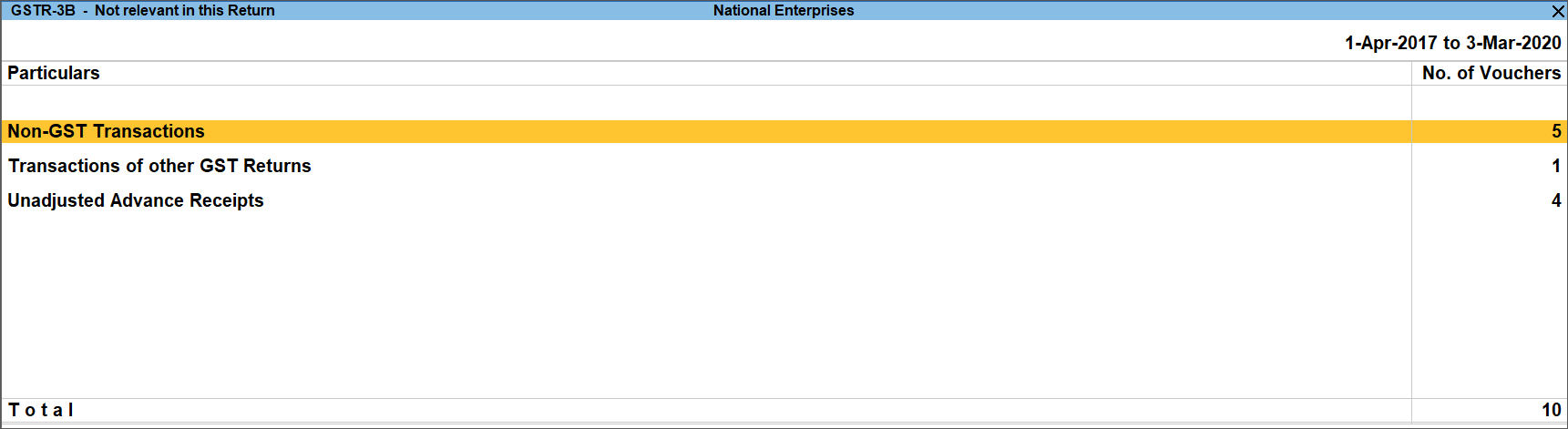
- Uncertain Transactions (Corrections needed): Drill down from any row to view the list of vouchers under the respective category. You can resolve the exceptions for vouchers under Uncertain Transactions (Corrections needed) to include them in the returns. If the computed tax is not equal to the tax entered in the invoice, the transaction appears under Uncertain Transactions (Corrections needed). To set the tax difference that you want to allow, to include the vouchers in the returns:
- Press Ctrl+B (Basis of Values).
- Enter the value in the field Allow Tax Value Difference up to.
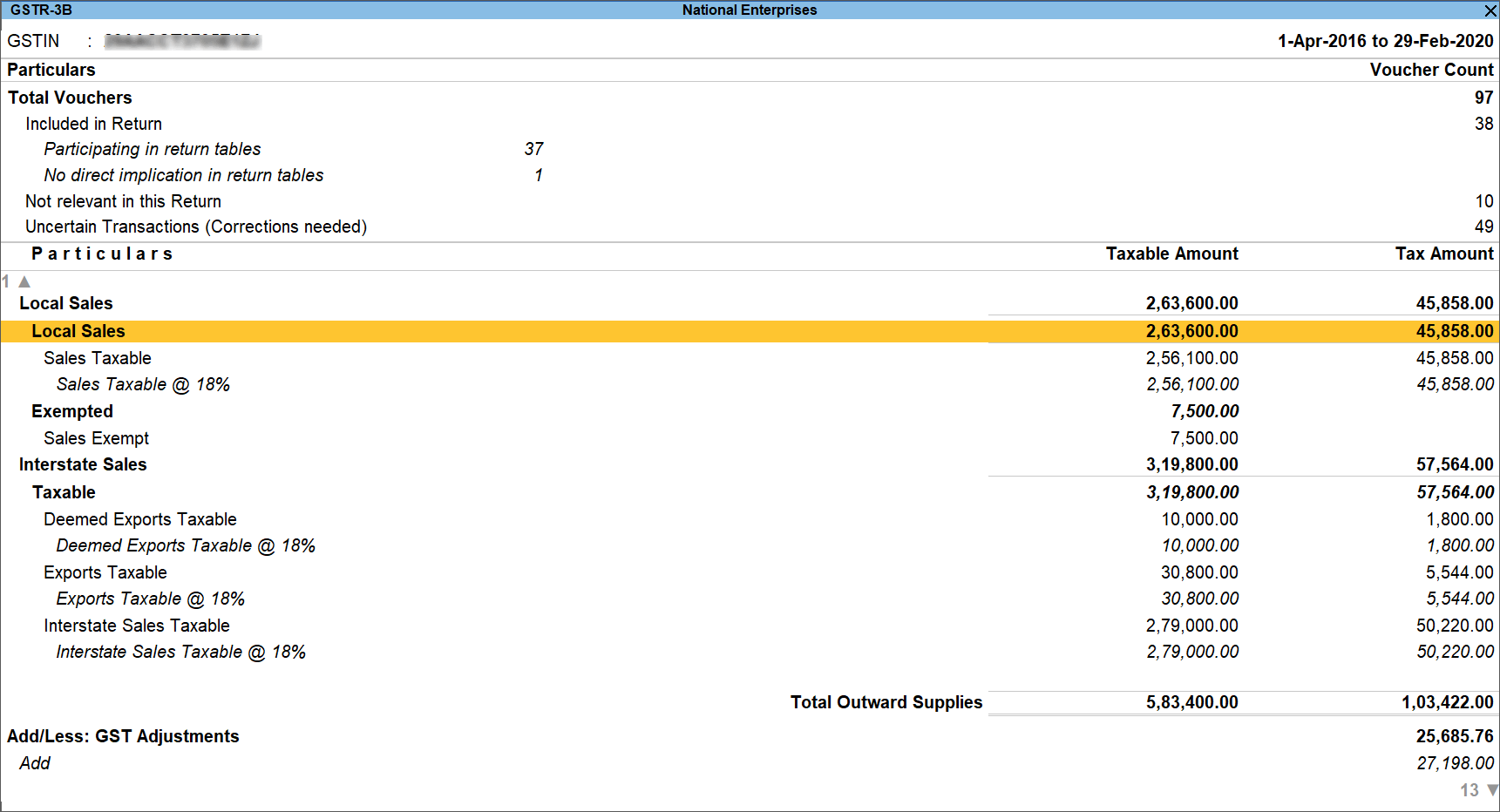
Nature View
- Press F5 (Nature View).

The Nature View provides the tax computation details with the taxable value and tax break-up for local and interstate supplies under taxable, exempt, and nil-rated categories.
The section Ineligible Supplies displays the taxable purchases of within or outside the state, which are ineligible for claiming tax credit. - Press Enter to view the Voucher Register.
Return View
- To go back to the Return View, press F5 (Return View).
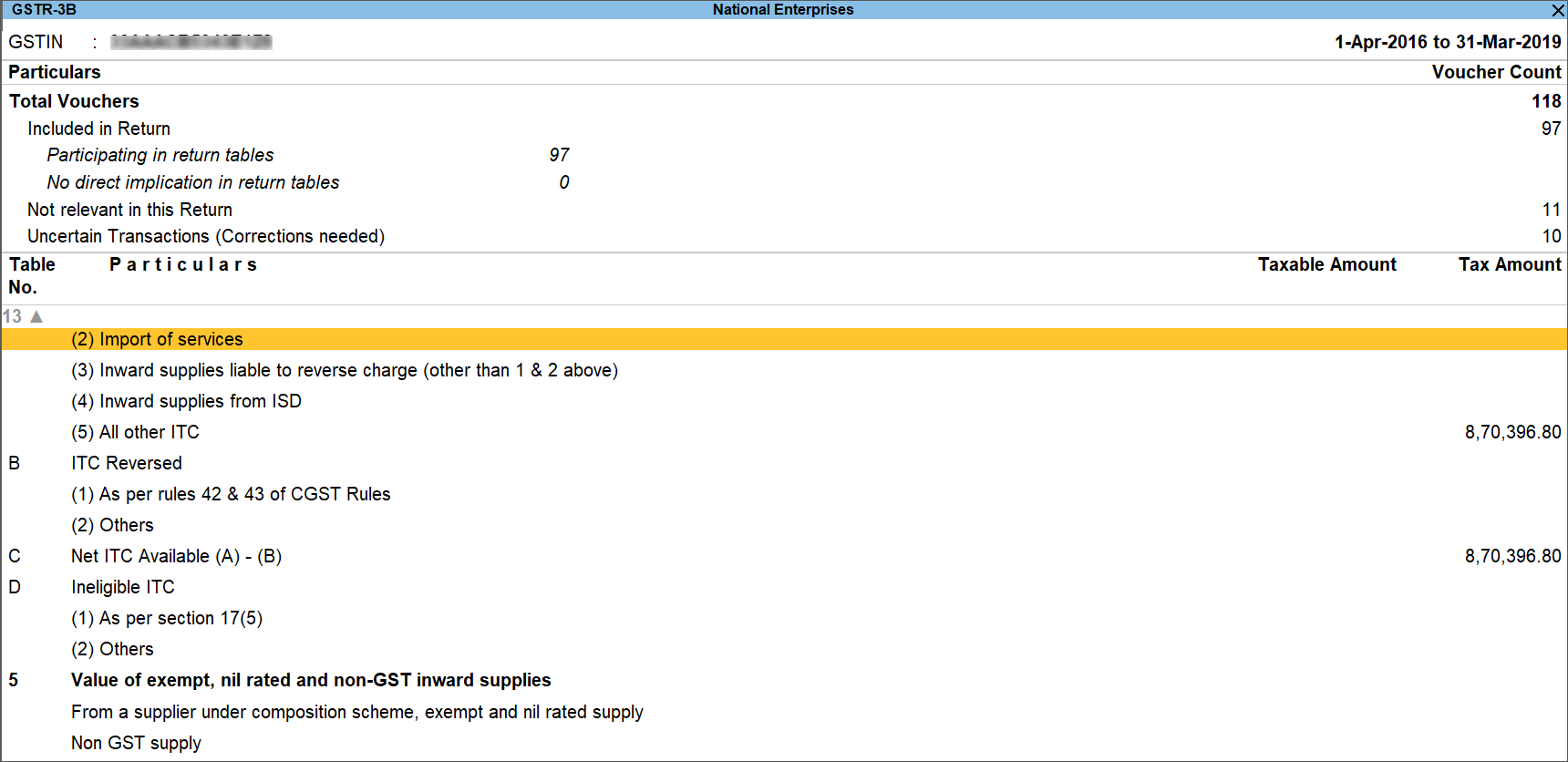
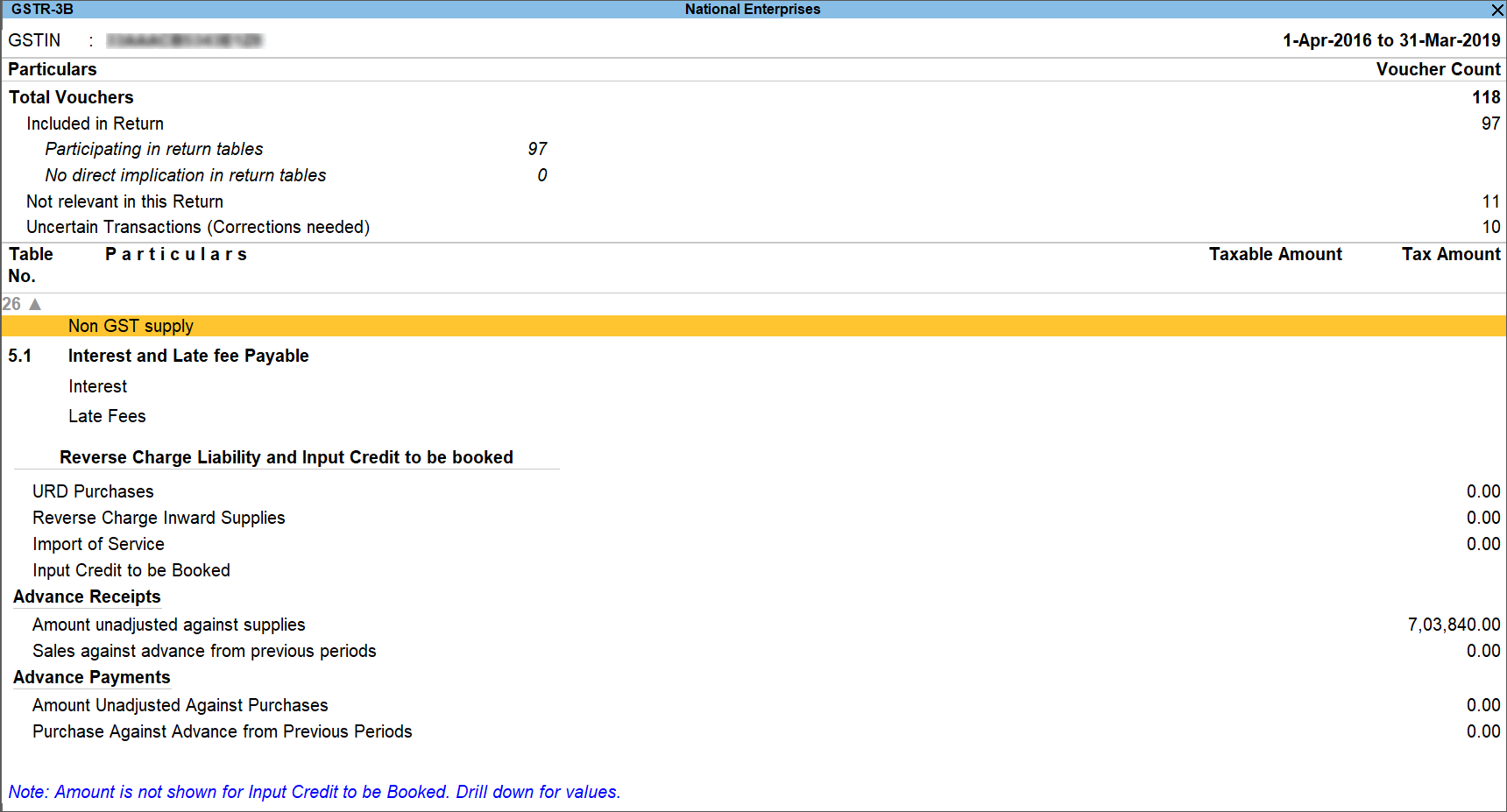
The Return View format displays the values in the actual Form GSTR-3B format.
The values are captured under different sections of the form.


