Error Code 1392
Cause 1:
A temporary file or directory in your computer is corrupted and unreadable.
Resolution 1:
Since the corrupted file/files are temporary, delete the files and check if the issue persists.
Cause 2:
Antivirus interference
Resolution 2:
- In TallyPrime, press Alt+Y (Data) > Repair.
Alternatively, press F1 (Help) > Troubleshooting > Repair. - Select the company for which the error is appearing.
- In the Repair Company Data screen, set Backup Company Data before Repair to No and select Repair to proceed with the data repair.
Note: It is recommended to take backup of your company data to prevent any data loss.
Cause 3:
Presence of malware
Resolution 3:
Scan the computer for malware using Windows Defender.
Windows comes with an in-built antivirus software called Windows Defender. Windows Defender scans your device for viruses, spyware, ransomware, rootkits, and other types of malwares. Using Windows Defender scan and its scanning options, you can scan your system to find malware.
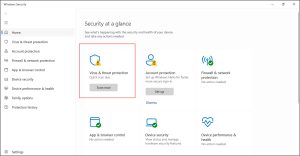
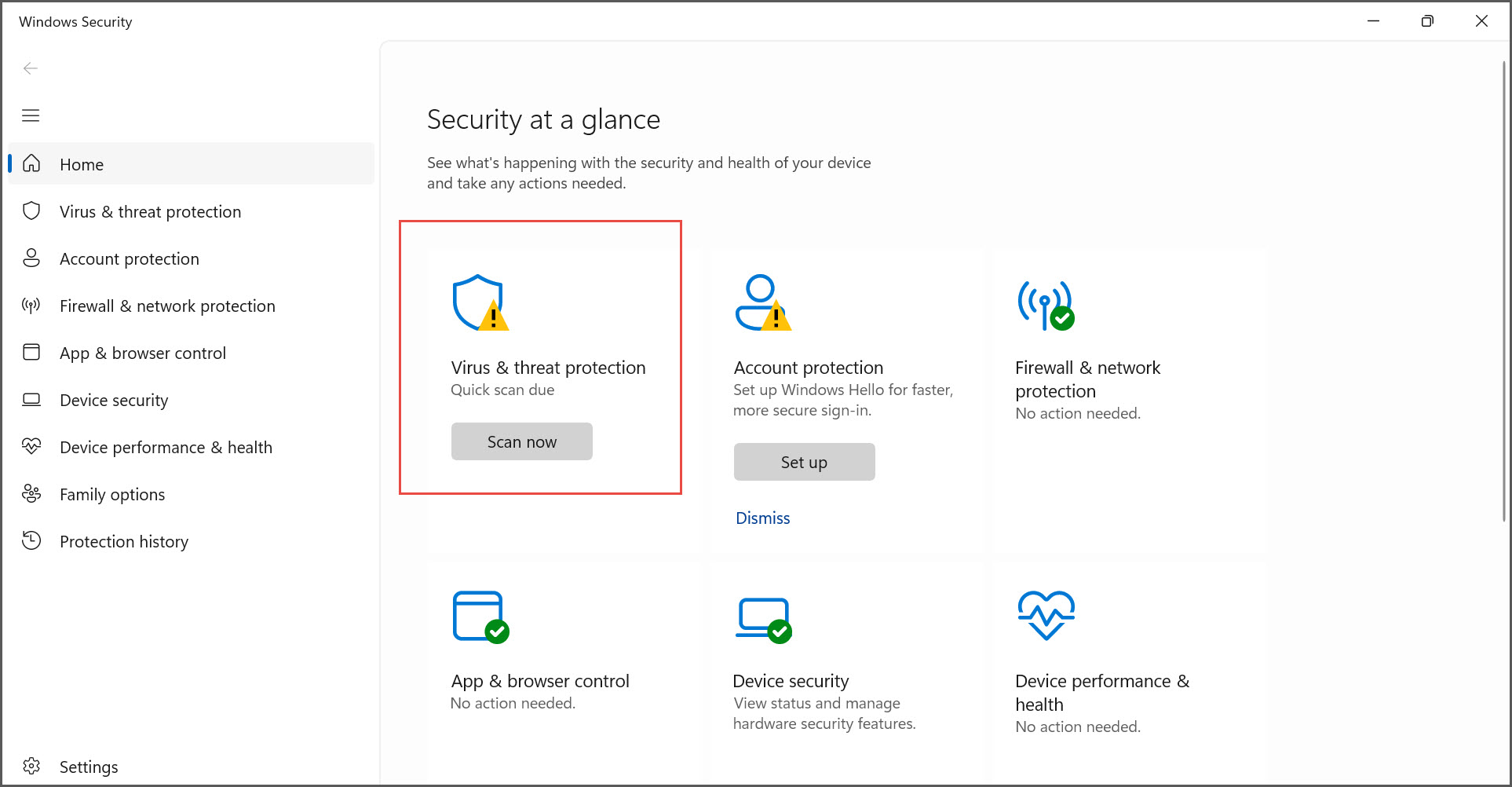
- Click the Windows icon > type Windows Security, and press Enter.
- In the Windows Security screen, select Scan now under Virus & threat protection.
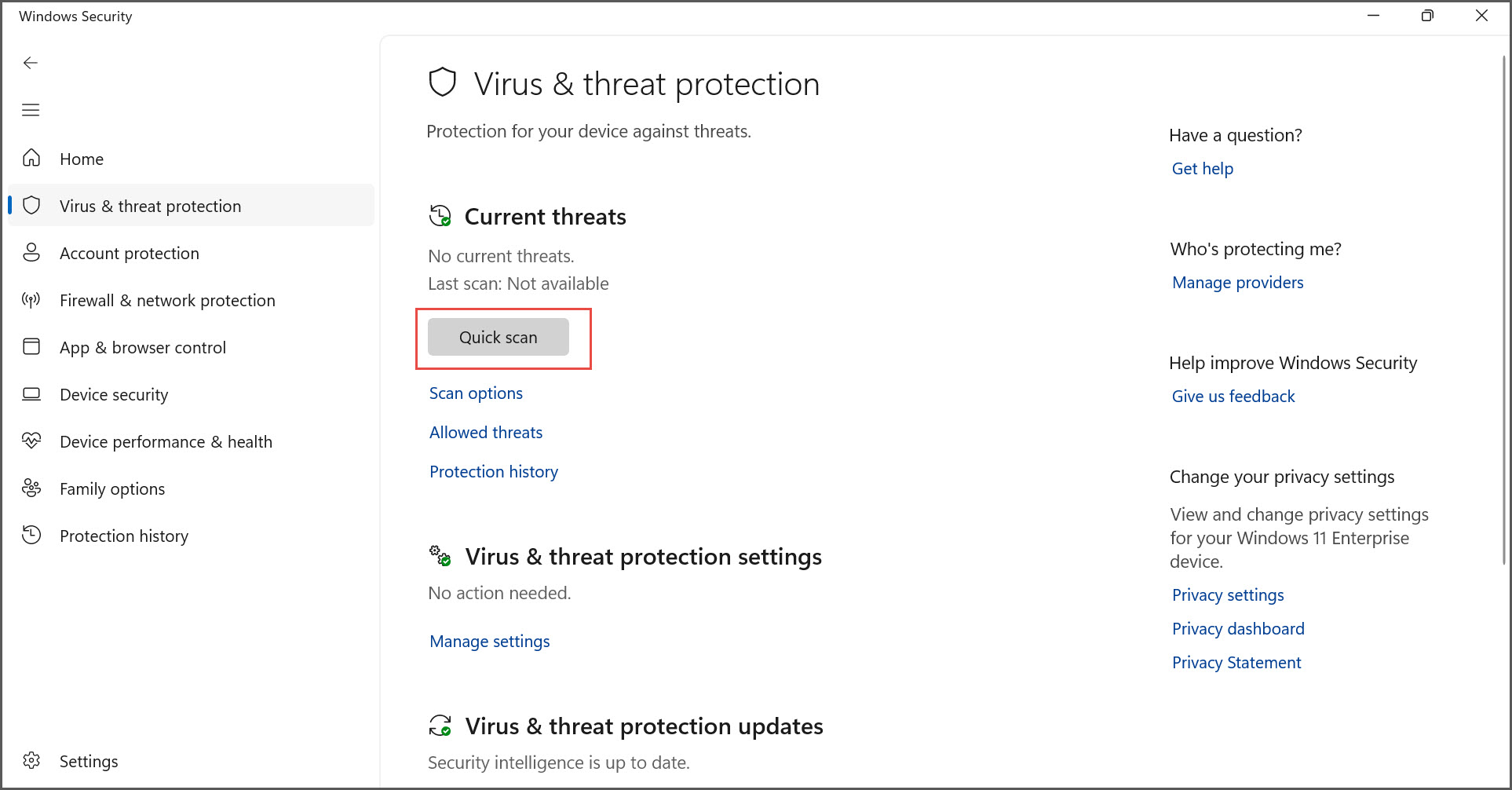
- Click Quick scan to start the scanning process for malware.
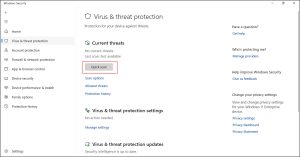
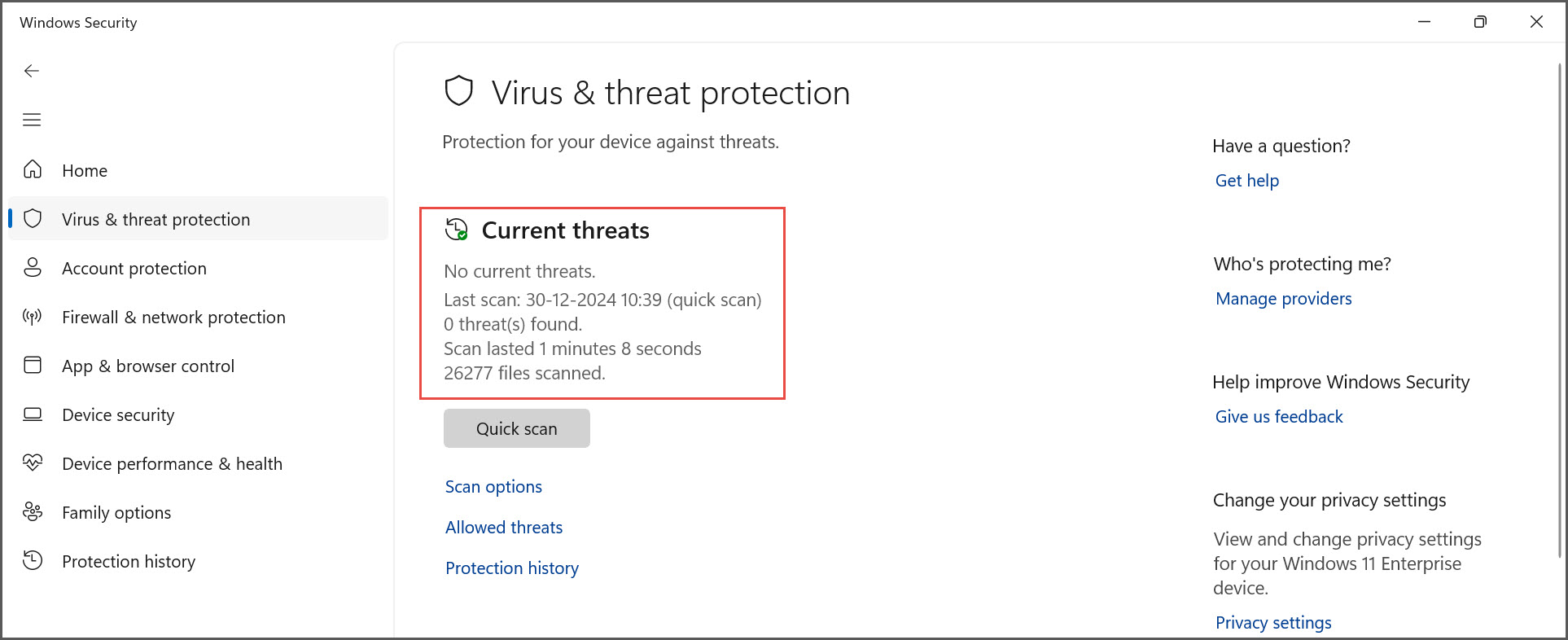
If there is no sign of malware, you will see the following message on the screen.
Cause 4:
Bad sectors on the hard disk
Resolution 4:
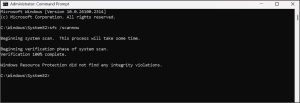
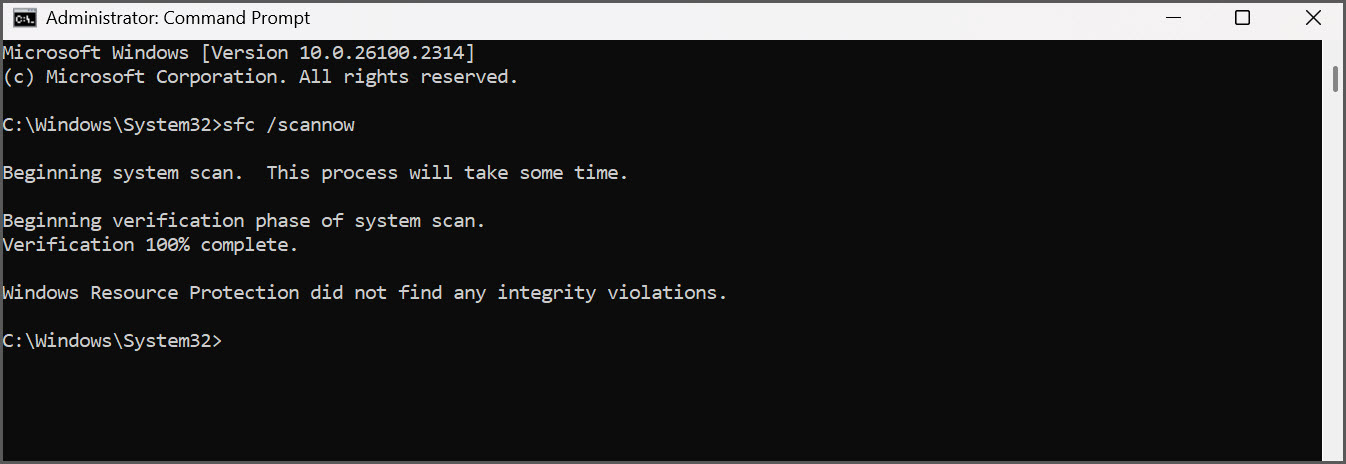
You need to perform an SFC scan to check your hard disk.
SFC (System File Checker) is a utility in Windows that allows users to scan and restore corrupted Windows system files. The SFC command scans the integrity of all protected system files and replaces incorrect (corrupted or modified) files.
- Click the Windows icon > type Command Prompt, and press Enter.
- Right-click Command Prompt > Run as administrator > Yes.
- In the Command Prompt, type sfc /scannow.
Do not close the window until the verification is 100% complete.
You can see the scan results after the verification process is complete.