
Create Earnings Pay Head in TallyPrime
Create earning pay heads such as Basic Pay, HRA, DA, and Conveyance to record employee salaries. If employees have worked overtime or submitted reimbursements, create Overtime and Reimbursement pay heads to record these payments.
Before you begin | Prerequisites
- To use an earning pay head for gratuity calculation, set Use for Gratuity to Yes in the Pay Head Creation screen for applicable pay heads such as Basic Salary and DA, which are classified as Indirect Expenses.
Create Pay Head for Basic Pay
- Press Alt+G (Go To) > Create Master > type or select Pay Head > and press Enter.

- Enter the Pay Head details.
- Name: Enter the name of the pay head as Basic Pay.
- Pay head type: Select Earnings for Employees from the List of Pay Head Types.
- Income type: Select income type as Fixed.
- Under: Select Indirect Expenses from the List of Groups.
- Affect net salary: Set the option to Yes.
Enabling this option determines whether the pay head affects the employee’s final take-home salary. - Name to be displayed in payslip: Enter the pay head name to display on the payslip. By default, TallyPrime displays the name you create for the pay head.
- Enter the Pay Head calculation details.
- Use for calculation of gratuity: Enable this option to consider this pay head for Gratuity calculation.
- Calculation type: Select On Attendance from the List of Calculations, as Basic Pay is determined based on the number of days the employee is present.
- Attendance/leave with pay: To record the number of days an employee is present, select Present.
If you have created any other attendance type, you can select accordingly. Select Not Applicable to deduct salary for the number of days an employee is absent (Leave without Pay). - Calculation period: Select the period for calculating Basic Pay from the List of Periods, such as Days, Months, and so on.
- Basis of calculation (per day): Based on the Calculation period, you can select and enter the details as User Defined or As per Calendar Period or User Defined Calendar Type.
- Rounding Method: Select the Rounding Method, if applicable. To know more, click here.
- Press Ctrl+A to save the pay head master.
Create Pay Head for House Rent Allowance
- Press Alt+G (Go To) > Create Master > Pay Head and press Enter.
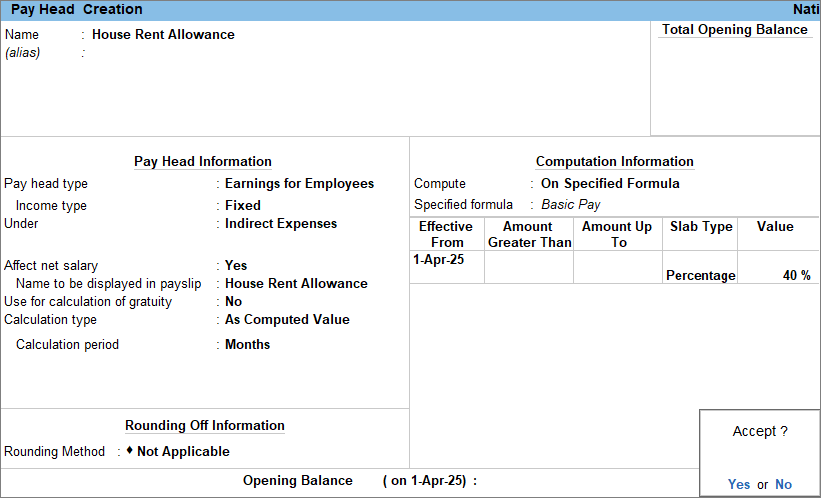
- Enter the Pay Head details.
- Name: Enter the name of the pay head as HRA or House Rent Allowance.
- Pay head type: Select Earnings for Employees from the List of Pay Head Types.
- Income type: Select income type as Fixed.
- Under: Select Indirect Expenses from the List of Groups.
- Affect net salary: Set the option to Yes.
Enabling this option determines whether the pay head affects the employee’s final take-home salary. - Name to be displayed in payslip: Enter the pay head name to display on the payslip. By default, TallyPrime displays the name you create for the pay head.
- Enter the Pay Head calculation details.
- Use for calculation of gratuity: Enable this option to consider this pay head for Gratuity calculation.
- Calculation type: Select As Computed Value from the List of Calculations, as HRA is calculated based on a specified formula.
- Calculation period: By default the calculation period is selected as Months.
- Rounding Method: Select the Rounding Method, if applicable. To know more, click here.
- Enter the details for Computation Information.
- Compute: Select On Specified Formula from the list of Methods of Computation.
- Specified formula: Select the pay head that will be used as the basis for calculating HRA.
- Effective From: Select the date from which the pay head will be calculated.
- Slab Type: Select Percentage from the list of Types of Slabs.
- Value: Enter the percentage used to calculate HRA.
- Press Ctrl+A to save the pay head master.
Similarly, you can create the Pay Head for Dearness Allowance (DA).
Create Pay Head for Conveyance
- Press Alt+G (Go To) > Create Master > Pay Head and press Enter.
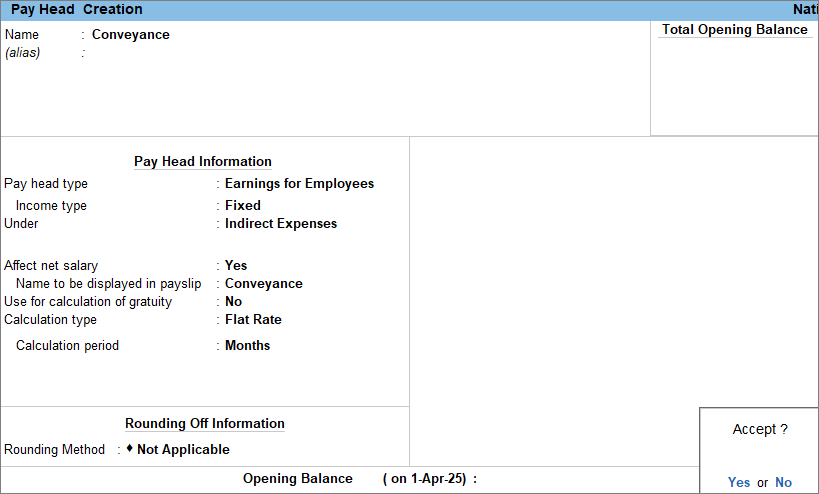
- Enter the Pay Head details.
- Name: Enter the name of the pay head as Conveyance.
- Pay head type: Select Earnings for Employees from the List of Pay Head Types.
- Income type: Select income type as Fixed.
- Under: Select Indirect Expenses from the List of Groups.
- Affect net salary: Set the option to Yes.
Enabling this option determines whether the pay head affects the employee’s final take-home salary. - Name to be displayed in payslip: Enter the pay head name to display on the payslip. By default, TallyPrime displays the name you create for the pay head.
- Enter the Pay Head calculation details.
- Use for calculation of gratuity: Enable this option to consider this pay head for Gratuity calculation.
- Calculation type: Select Flat Rate from the List of Calculations.
- Calculation period: Select the period for calculating Conveyance from the List of Periods, such as Days, Months, and so on.
- Rounding Method: Select the Rounding Method, if applicable. To know more, click here.
- Press Ctrl+A to save the pay head master.
Create Pay Head for Reimbursement
- Press Alt+G (Go To) > Create Master > Pay Heads and press Enter.
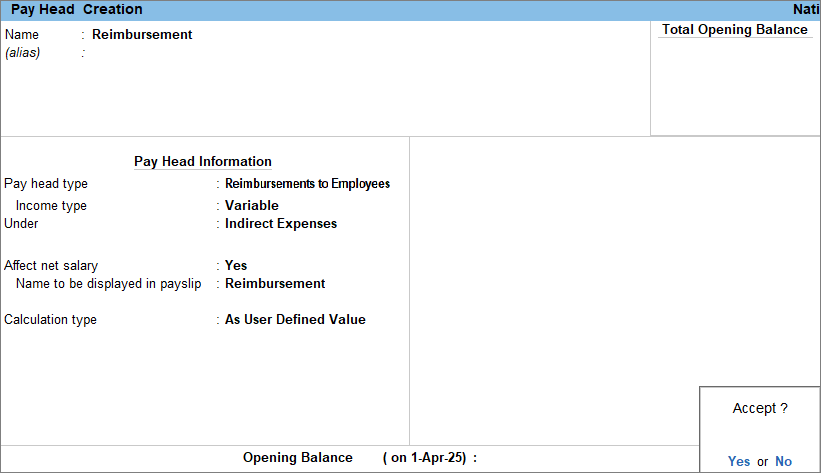
- Enter the Pay Head details.
- Name: Enter the name of the pay head as Reimbursement.
- Pay head type: Select Reimbursements to Employees from the List of Pay Head Types.
- Income type: Select income type as Variable.
- Under: Select Indirect Expenses from the List of Groups.
- Affect net salary: Set the option to Yes.
Enabling this option determines whether the pay head affects the employee’s final take-home salary. - Name to be displayed in payslip: Enter the pay head name to display on the payslip. By default, TallyPrime displays the name you create for the pay head.
- Calculation type: Select As User Defined Value from the List of Calculations.
- Press Ctrl+A to save the pay head master.
Create Pay Head for Overtime
- Press Alt+G (Go To) > Create Master > type or select Pay Head > and press Enter.
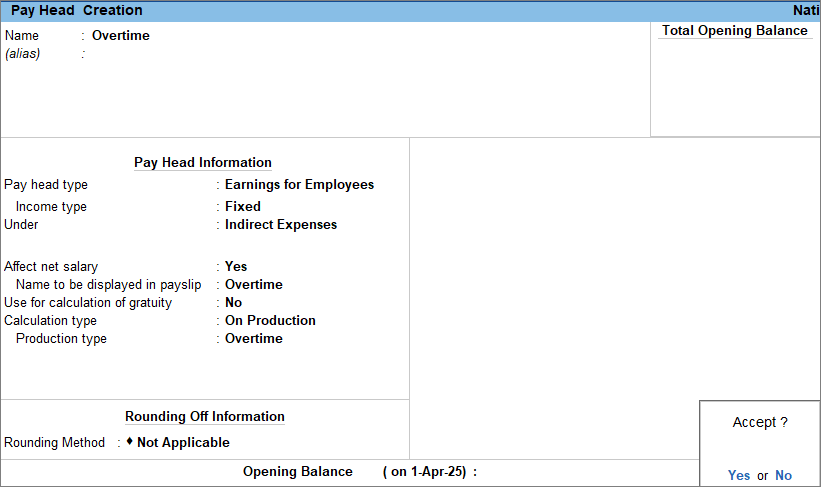
- Enter the Pay Head details.
- Name: Enter the name of the pay head as Overtime.
- Pay head type: Select Earnings for Employees from the List of Pay Head Types.
- Income type: Select income type as Fixed.
- Under: Select Indirect Expenses from the List of Groups.
- Affect net salary: Set the option to Yes.
Enabling this option determines whether the pay head affects the employee’s final take-home salary. - Name to be displayed in payslip: Enter the pay head name to display on the payslip. By default, TallyPrime displays the name you create for the pay head.
- Enter the Pay Head calculation details.
- Use for calculation of gratuity: Enable this option to consider this pay head for Gratuity calculation.
- Calculation type: Select On Production from the List of Calculations.
- Production type: Select Overtime from the List of Production Types.
- Rounding Method: Select the Rounding Method, if applicable. To know more, click here.
- Press Ctrl+A to save the pay head master.
Once you have created the earnings pay head, you can now include these in defining the salary structure.
If your organisation follows statutory compliance and has enabled the statutory feature, enter the relevant details while creating the pay head. To know more, click here.
Is this information useful?
YesNo


