
Define Salary Structure for Employees and Employee Groups in TallyPrime
You can add, delete, or modify pay head components or values for individual employees. To speed up entry, define the salary structure at the Employee Group level using common pay heads and then apply it to employees. You can define the salary structure while creating an employee or employee group, or later by pressing Alt+G (Go To) > Alter Master > Define Salary. While defining the salary structure of another group, you can choose to copy the salary structure from an employee, another employee group, a parent group or start afresh.
Before you begin | Prerequisites
- Create the employees.
- Create earning pay heads, deduction pay heads, statutory contribution pay head, statutory deductions pay head, Variable pay and bonus pay head to define employee salary structures.
- For pay heads with the Calculation Type set to As User Defined Value or As Computed Value, the system skips the Rate field while defining salary details, as it manually computes the amount for each pay cycle.
- Ensure pay heads with Calculation Type set to As Computed Value and Compute set to On Current Earnings Total are placed in the correct sequence while defining salary details.
- When defining salary details, ensure that pay heads with Calculation Type set to As Computed Value and Compute set to On Current Earnings Total are placed before any Deduction or Contribution pay heads.
- Ensure that ESI Contribution Pay Head is added in the salary details after Basic, HRA, Conveyance and Overtime, and Employee Deductions pay heads.
- Create the Salary Advance Deduction Pay Head to track salary advance given to the employees.
Define Salary Details for an Employee
- Press Alt+G (Go To) > Alter Master > type or select Define Salary.

- Enter the employee details.
- Name: Select the employee name from the List of Groups / Employees.
- Effective From: Enter the date from which the salary structure will be effective for the employee.
- Pay Head: Select the pay heads to include in the employee’s salary structure from the List of Pay Heads.
You can also copy the salary structure from another employee and modify it by pressing F12 (Configure) and enabling Allow copy from Employee.
- Press Ctrl+A to save the salary details.
If a salary structure already exists for an employee group or its parent group, you can copy the structure for the employee or create a new one.
Define Salary Details for Employee Group
- Press Alt+G (Go To) > Alter Master > type or select Define Salary.
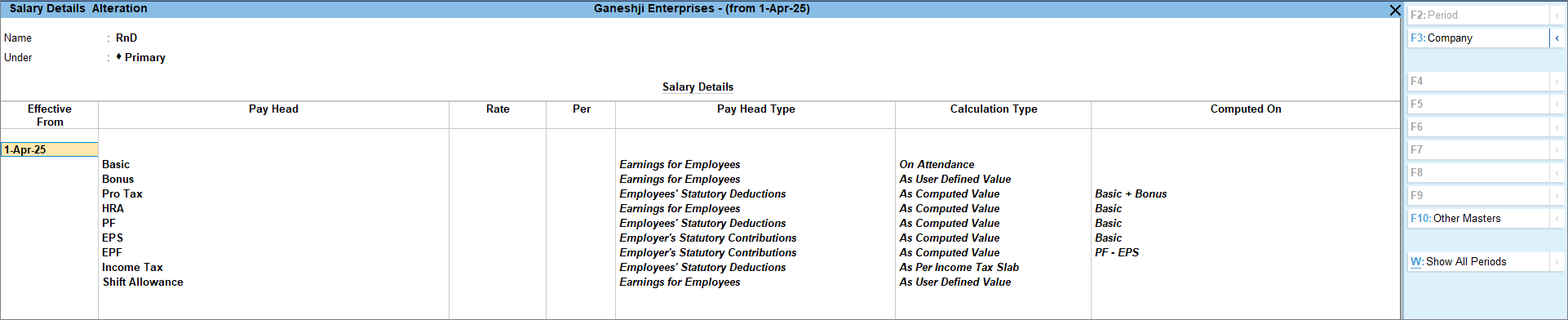
- Enter the employee details.
- Name: Select the Employee Group (for example, RnD) from the List of Groups / Employees.
- Effective From: Enter the date from which the salary structure will be effective for the employee group.
- Pay Head: Select the pay heads to include in the employee group’s salary structure from the List of Pay Heads.
You can also copy the salary structure from another employee and modify it by pressing F12 (Configure) and enabling Allow copy from Employee.
- Press Ctrl+A to save the salary details.
Is this information useful?
YesNo


