
You can open the company and view reports. However, you cannot perform data entry or save any changes while the backup is in progress.
Scheduling a backup for a group company is not supported in TallyPrime right now.
The backup will not run if your system is turned off. When you open TallyPrime next time, a notification will appear indicating that the schedule has failed. You can also view the failed schedule in the Backup Log report.
Yes, scheduled backups will run even if TallyPrime is not running. However, they will not run if your system is shut down, in sleep, or in hibernate mode.
Logging off or locking the system does not affect the scheduler, backups will continue to run as scheduled.
Check the Company-level view of the Schedule Backup report to see if the schedule has been moved.
Also verify if:
-
You have restored an old backup of the company.
-
The schedule was deleted by you or another user.
The Scheduled Backup report only indicates whether the schedule belongs to the Current Scheduler or Other Scheduler. It does not display the system name.
When you copy a company to another system, the scheduled tasks are also copied and appear under Other Scheduler in the new installation.
If you Move the schedule to the current scheduler and the Backup Data Path is the same as the original, both schedulers will back up to the same file.
To avoid this:
- Create a new schedule in the copied company, or
- Alter the existing schedule to specify a different Backup Data Path.
Yes, you can create multiple backup schedules for the same company. For example, creating a daily schedule for a company as well as a separate weekly schedule.
- For backups taken to a local drive, check the Remarks column in the Backup Log report. The file name displays the schedule used.
- For backups taken to TallyDrive, you can identify the backup based on the latest Backup Date & Time.
No, you can create a schedule only on your current scheduler.
Certain actions such as Backup Now, Clear Log, and Alter schedule are restricted for tasks on a different scheduler.
You can only:
- View the Backup Log, and
- Delete the task.
To perform other actions, move the schedule to your current scheduler.
No, deleting a scheduled schedule does not delete the backups. Your existing backups on the local drive or TallyDrive remain intact and can be managed separately.
Your existing backups remain unchanged. Future backups will be taken to the updated Backup Data Path.
From Release 7.0 onwards,
- One-time backup files are named as TDBK1800_<cmp_number>.001, TDBK1800_<cmp_number>.002, and so on.
- Scheduled backup files are named as TSDBK1800_<cmp_number>.001, TSDBK1800_<cmp_number>.002, and so on.
One-time backup file name contains TDBK whereas scheduled backup file name TSDBK.
For TallyPrime Release 6.2 and earlier, Backup files are named TBK1800_<cmp_number>.001 – TBK
Backup logs are retained indefinitely within your company data. They are deleted only when you explicitly use the Clear Log option or delete the backup schedule.
When no changes are made to company data, no backup is taken since the existing backup is already the latest version. This helps save storage and time. Therefore, during Restore you may not see that particular version, but you can restore the latest available one as that will continue to be the latest data.
Currently, we are not allowing to configure the scheduler to backup unchanged data, but you can take a manual backup if required if you want a backup as of current Date & Time.
The backup schedules and logs of the parent company remain unaffected.
The newly created child companies are treated as new entities, and you must create separate backup schedules for them. The existing schedules and logs are not carried forward.
Backup failures are notified within TallyPrime through the Notifications Report. Email and SMS alerts are currently not supported.
If your Tally.NET ID has the required permissions to take backups in the new license, the backup schedules will continue to run as per the defined schedule. The Backup Log will also capture the license change details.
However, if the new license does not include backup rights, all scheduled backups will fail until the backup rights are enabled.
If the company number has changed, the scheduled backup will stop running. The backup schedule will automatically move to the Action Required section in the Schedule Backup report.
To make the schedule work again, you must rename the company folder back to its original company number.
To fix this:
-
Go to the data folder path shown in the error message.
-
Identify the company folder.
-
Right-click the folder and rename it to the original company number.
Once corrected, the schedule will run normally.
Local backups do not require a Backup Password because they are stored only on your own system, external drive, or network location. The data is not uploaded to any cloud or third-party storage, so security remains fully under your control.
If you want to protect your company data, you can use the existing security options:
-
TallyVault to encrypt the company data, or
-
Company Security to restrict access within the company.
When such a company is backed up locally, anyone restoring it must still enter the TallyVault or Company Security password to open and view the data.
No, corrupted data cannot be uploaded to TallyDrive. Your company data is verified for corruption during the backup process. If any records are found to be corrupted, the backup will fail with an error, prompting you to repair the company data before proceeding.
No, TallyPrime does not notify you about upcoming scheduled backups. It is recommended to follow best practices while scheduling backups to avoid failures.
No, there is no security control for the Schedule Backup report. This report is not company-specific and can be accessed without loading any company.
No. During the backup process, TallyPrime verifies and checks your company data for corruption. If the data is damaged or corrupted, the backup fails with an error, and you must Repair the company data before retrying.
Currently, there is no audit trail or recovery option for deleted scheduled tasks. Once a task is deleted, it cannot be restored. It is recommended to maintain a record of active schedules or periodically review the Schedule Backup report to track changes made by authorized users.
This may happen due to one of the following reasons:
-
Your internet connection is slow, causing the backup process to take longer than usual.
-
The company data size is large, so TallyPrime is processing the backup in the background.
-
The company data is currently under encryption or in use by another process, which is delaying the backup.
Wait for a few minutes and check again. If the issue persists, you can cancel and retry the backup once the other processes are completed.
Only TallyPrime company data backups can be uploaded through the Backup or Schedule Backup process in TallyPrime. Uploading other file types (such as images, PDFs, or documents) are not supported.
Yes, you can use TallyDrive even with a promo rental license.
No. Backups are tied to the license used during login. To access TallyDrive of a specific license, you must log in with the respective Tally.NET ID that has access to that license’s TallyDrive.
You can view TallyDrive storage details on the TallyDrive Management report as well as from the About Page in TallyPrime.
To view the details from the About age:
- Press F1 (Help) > About.
- Under the License Information section, check the TallyDrive details.
- By default, the condensed view shows TallyDrive Storage and Validity.
- Press Alt+F5 to view additional details, including Last Updated.
If TallyDrive details are not visible, ensure the following:
- Your system is connected to the internet.
- You have TallyPrime Release 7.0 or later installed.
- A valid license is configured in the latest version of TallyPrime.
- If the license is valid, try reactivating or updating it.
- TallyPrime must be connected to the latest Tally Gateway Server installed on your machine.
To verify:
- Press F1 (Help) > About, and press Alt+F5 for the detailed view.
- Ensure that the build number for TallyPrime and Tally Gateway Server is the same.
If you see Upgrade Available beside the Gateway Server, it will update automatically in the background.
TallyDrive storage details on the About Page are refreshed once every 24 hours.
To get the latest storage details immediately:
- Press F1 (Help) > Settings > License > Manage License.
- Press F5 (Update).
- Enter your Tally.NET ID and password.
- Reopen the About Page to view the latest TallyDrive details.
Backups created on TallyDrive with a trial or rental license remain accessible as long as the license is active. Once the license and TSS expires, the backups will be deleted from TallyDrive after a period of 90 days and you will no longer be able to restore the data for that license.
TallyDrive services are managed entirely by Tally Solutions and hosted on AWS India.
Your data is securely stored across two AWS regions:
-
AWS Asia Pacific (Mumbai)
-
AWS Asia Pacific (Hyderabad)
TallyDrive services are operated by Tally Solutions and is hosted on AWS India. The data are stored in two AWS regions – AWS Asia Pacific (Mumbai) and AWS Asia Pacific (Hyderabad). Security and Compliance certificates related to the cloud service provider can be accessed on the AWS website.
A separate NDA is not required. Confidentiality obligations are adequately addressed in the Terms of Use. Before opting and using the TallyDrive services, user is provided with a link to review and agree to the Terms of Use, which defines the conditions governing the service. Additionally, the Terms of Use is made available to customers at any time on the Tally Solutions website at Terms and condition for auto backup – Tally Solutions
If you unsubscribe, you will stop receiving all TallyDrive-related emails, including important notifications such as Recovery Key emails, backup download alerts, storage expiry reminders, and other critical updates.
It is recommended not to unsubscribe, as you may miss essential information needed to access or restore your backups.
To subscribe again, send an email to support@tallysolutions.com or contact the TallyCare support team.
No, the Backup Password encrypts the backup data and will be required when you restore the same data.
When a backup is deleted from TallyDrive, the License Admin receives an e-mail notification containing the details of:
-
The Tally.NET ID of the user who deleted the backup.
-
The license number used.
-
The company name and number of the deleted backup.
Yes. Other users can access your license storage if you:
-
Enable the permission Download/Restore Company backups from any license.
-
Share your Tally.NET credentials with them.
The company backups created under your previous license remain available until your TSS is active.
After expiry, the backups are deleted automatically 90 days after TSS expiry. For more details, refer to the Terms of Usage.
No, TallyDrive user rights in TallyPrime are granted at the license level. It means that access applies to all company backups available under the same TallyDrive storage, and not for a specific backup.
No, any user who can view a company backup automatically has the right to restore or download it.
No, users are not automatically notified when their access rights are added, changed, or removed.
The Recovery Key is generated for each backup instance. If you select multiple companies (for example, three companies) while creating a backup schedule in one go, the same Backup Password and Recovery Key will apply to all of them.
These remain valid until the Backup Password is changed for any of the companies.
Any user who has the Download/Restore backup permission and has the valid Backup Password can resend the Recovery Key from the TallyDrive Management report.
You can revoke previously sent Recovery Keys by changing or resetting the Backup Password from the Schedule Backup report.
Once the password is changed, all earlier Recovery Keys become invalid, and a new Recovery Key is sent to the selected e-mail addresses and Tally.NET ID.
The Resend Recovery Key option appears only for backups that have a Backup Password.
You can check this information by pressing F12 (Configure) and enabling Show if Backup Password is enabled in the report.
For backups marked as Yes, you can resend the Recovery Key to new e-mail addresses. This is useful when you don’t recall the Backup Password during restore.
Only authorized users who are added to a license through the Customer Portal can download or restore backups from TallyDrive. When a user downloads a backup, the License Admin receives an e-mail notification with the details of the user and the license used.
To prevent unauthorized access, ensure that only trusted users have the Download/Restore Company Backup permission assigned.
Yes. However, only one user session can remain active at a time per instance of TallyPrime.
Yes, you can log in to TallyDrive in Educational Mode through the following flows:
- TallyDrive Login & Logout option from the Backup and Restore menu
- Restore
- Manage TallyDrive
However, performing a backup to TallyDrive is not allowed in Educational Mode.
The list shows all users who have previously logged in using the same license or machine. This allows you to quickly switch between existing sessions without entering the credentials again.
- You may be unable to log in due to one of the following reasons:
- Your Tally.NET ID is not mapped to any license.
- Your access request has not been approved by the License Administrator.
- There are internet connectivity issues on your system.
If you skip the approval screen during login, an approval request is generated automatically and sent to the License Administrator for approval via e-mail. The admin can approve your request for TallyDrive services from the Customer Portal.
Yes. When you log in, TallyPrime displays all active sessions. You can either continue with an existing session from the list or log in with a different Tally.NET ID.
You will be automatically logged out. The next time you open TallyPrime, you must log in again to access TallyDrive.
When scheduling a backup task, you must either select an existing login session or log in with a different Tally.NET ID. The selected ID will be used to execute the scheduled task unless you later modify it to run under another ID.
If you forget to log out of TallyDrive on another machine, your session may remain active there. It is recommended to log out manually after each use to prevent misuse or confusion.
If you are unable to log out from that machine, you can reset the TallyDrive login.
No, an active internet connection is required to log in to TallyDrive.
If your TSS is active, you’ll have:
- 1 GB for a Silver license
- 3 GB for a Gold license
This storage is allocated per license and is automatically activated once your TSS is active.
You can do either. However, during renewal, you must select a minimum storage plan that covers your current usage.
No, extending TallyDrive storage to another Tally.NET ID is not supported.
The storage extension is linked to the specific Tally.NET ID and license used at the time of purchase.
TallyDrive storage is shared across all users under the same license. Backups created by other users contribute to the total usage, though they may not be visible to you unless you have the View All Backups permission.
To be eligible to purchase and extend TallyDrive storage, you must have:
-
A valid TSS.
-
Valid Tally.NET credentials
Backups stored on TallyDrive can be accessed by the Tally.NET users who have the required permissions under your license. To learn more, refer to Manage User Rights for TallyDrive topic.
No, rights are defined at the license level and apply uniformly across all companies linked to that license.
No, you must be an administrator of the same license to approve users to access TallyDrive services.
Approval is license-specific. You will be able to perform TallyDrive-related activities only under the license for which you have been approved.
TallyPrime automatically notifies the admin by e-mail when your approval request to access TallyDrive services is raised. However, it is recommended to inform your admin separately to avoid any delay in receiving access.
Yes, you will receive an e-mail notification when your access to TallyDrive is approved.
However, when your access is removed, you will not receive a separate notification. In such cases, you will be prompted for approval again when you try to log in to TallyDrive.
If you don’t have the necessary rights or approval, you will only see backups for the licenses where you’ve been approved. Backups linked to other licenses will not appear in the TallyDrive Management report or during restore.
If you try to back up data to TallyDrive without the required rights or approval, TallyPrime will display a message informing you that you don’t have the necessary permissions.
You are not able to view the backup, because:
-
You are logged in with a different Tally.NET ID.
-
You don’t have the View Own Backups or View All Backups rights.
-
The backup was taken under a different license.
By default, the Recovery Key is sent to the Tally.NET ID used to login to TallyDrive while taking or scheduling the backup. You can check that first or resend the Recovery Key to the correct e-mail address from the TallyDrive Management report.
Alternatively, change your Backup Password and provide the correct e-mail for Recovery Key. The new password and Recovery Key will apply to existing as well as upcoming versions of the backup during restore, and the old one will no longer work.
- A Backup Password encrypts your backup files and ensures that only authorized users can restore them. It applies only to backups taken to TallyDrive.
- TallyVault is a security feature that encrypts your company data to maintain privacy and confidentiality. When a TallyVault password is set, your company name, masters, and transactions are fully encrypted, and you must provide the password each time you open the company.
If you forget your Backup Password, it cannot be recovered. However, you can use the Recovery Key to restore the backup. If needed, you can also reset the password.
No, you cannot track who has changed the Backup Password.
However, when a password is changed or added to an existing backup task, an e-mail notification is sent to:
- The Tally.NET ID used to perform the action.
- The e-mail address provided for receiving the Recovery Key.
To prevent users from changing the Backup Password, remove their permission to take a backup. As an admin or license owner, you can manage user rights for each Tally.NET ID from the Tally Solutions Customer Portal.
No, TallyPrime does not currently support direct backup to third-party cloud storage services.
However, you can back up your data to a local folder and then sync that folder with a cloud storage service of your choice.
You can resend the Recovery Key from the TallyDrive Management report.
The Recovery Key remains valid until you change or reset the Backup Password.
No. You will not be asked for the Backup Password while downloading a backup. The system only checks whether you have the required Tally.NET permissions to access the file.
The Backup Password is needed only when restoring the backup, because the file is encrypted and TallyPrime requires the password to decrypt and restore your data.
No, old backups are not deleted automatically. However, new backups will fail until sufficient space is available. You can delete backups from TallyDrive to free up space or extend TallyDrive storage.
No, you cannot delete individual backup versions from TallyDrive.
You will need to delete the entire backup file from the TallyDrive Management report.
Your data might have been deleted for one of the following reasons:
- The License Administrator or another user manually deleted the backup from TallyDrive.
If you are the License Administrator, check your e-mail to view details of the user who deleted the backup. - As per the deletion policy, backups are automatically deleted 90 days after your TSS expiry.
For more details, refer to the Terms of Usage here.
Yes, you can, if you are an administrator.
Whenever a company backup is downloaded from TallyDrive, the License Admin receives an e-mail notification containing:
- The company name and number of the downloaded backup.
- The Tally.NET ID of the user who downloaded it.
- The license serial number used for the download.
If you want to restrict users from downloading backups, you can do so by removing their Download/Restore Company Backup permission from the Customer Portal.
Yes, you can, but only for a period of 90 days after your TSS expiry.
After this grace period, the data will be permanently deleted, and you will no longer be able to download or restore it.
Yes, you can as long as your TSS is still active.
However, once your TSS has expired and the grace period of 90 days ends, your backups will be permanently deleted from TallyDrive and cannot be recovered.
Yes, scheduling backups for TPS companies is done from TallyPrime.
You need to have TallyPrime installed and connected to the same TallyPrime Server where the companies are hosted to configure or manage backup schedules.
No, the backup must be stored in a separate destination path to avoid data conflicts or overwriting of live data.
It is recommended to use a dedicated backup folder or drive.
To schedule a backup from TallyPrime, you must have the following permissions for the company hosted on TPS:
- Allow backup
- Allow scheduled backup
To learn more, refer to Set Up TallyPrime Server Monitor to Allow Scheduling Backup.
If your scheduling rights are revoked after creating a schedule, you will see that the schedule has failed in the Schedule Backup report and the backup log of that schedule. Once revoked, the existing scheduled backups will stop running until the rights are reinstated.
You must contact the TPS Administrator to restore your permissions.
Yes, you can delete or alter tasks for companies hosted on different TPS servers in one go, provided you have valid credentials for all the associated TPS instances.
The system will authenticate your access for each server before allowing any changes.
Yes, you can restore backups directly to a TPS destination if you have the required rights to perform the restore operation.
You can view only the schedules that you have created in the TPS Monitor tool.
The schedules created from TallyPrime are listed in the Schedule Backup report and will not appear in TPS Monitor.
Yes, you can continue to take manual backups or schedule backups using the TPS Monitor tool even after scheduling backups through TallyPrime.
However, it is recommended to maintain consistency by using a single scheduling method, preferably through TallyPrime.
Your backup may not appear for one of the following reasons:
- The backup data might have been deleted.
- You may not have the required permission to restore backups from TallyDrive.
Yes, you can restore backups from TallyDrive in Educational Mode. You need to ensure that you have the ‘Download/Restore in education mode’ permission enabled for the required license. If not, you can ask your admin to enable this from Tally Solutions Customer Portal.
You can restore your backups present on TallyDrive for 90 days after your TSS expiry. Post that period, your backups on TallyDrive will be permanently deleted and you will not be able to restore or download that data.
Yes, you can restore your backups even if your extended storage has expired. Your backups will remain available on TallyDrive as long as your TSS is active. If your TSS has also expired, the data on TallyDrive will be deleted 90 days after the expiry.
If you do not have the Backup Password or Recovery Key, you will not be able to restore data from TallyDrive. For future backups, you can remove the existing password so that scheduled backups are created without a password and can be restored without it.
Yes. When any user downloads or restores a company backup from TallyDrive under your license, the License Admin receives an email notification. The email includes details such as the company name, company number of the backup downloaded/restored along with Tally.NET ID of the user, and the license used for the action.
Tally Scheduler is a background service that runs automatically to execute the scheduled backup tasks created by the user. It enables taking online backups of company data to TallyDrive, even when TallyPrime is closed.
Tally Scheduler consumes approximately 3 MB–5 MB of memory when idle. During active backup operations, the memory usage increases based on the number of scheduled tasks being executed.
Tally Scheduler uses your system time to determine when backups should run. All scheduled backups are executed as per your computer’s local time settings.
Yes, you can install it later through the Setup Manager by following the steps given below. Ensure at least one additional free port is available before installation.
- Open setup.exe.
- Click More Actions > Repair to start the process.
After installation, a confirmation message Tally Scheduler service is running will appear.
Yes, you can delete the leftover folders and files if you don’t plan to reinstall TallyPrime.
However, deleting the AppData folder will remove all scheduled task information, which may be useful if you decide to reinstall later.
Yes, you can check the port number assigned to the Tally Scheduler from any of the following locations:
-
About Page:
Press F1 (Help) > About.
The Tally Scheduler section displays the current port number. -
Setup Manager:
-
Open setup.exe.
-
Select the TallyPrime installation (if multiple installations exist).
-
Click Configure.
-
Go to Show More > Show Advanced Options.
The Tally Scheduler port is displayed in this section.
-
-
Windows Services (services.msc):
-
Press Win+R, type
services.msc, and click OK. -
Locate Tally Scheduler in the list of services.
The service name appears as Tally Scheduler <version> – <port number>, showing the current port.
-
Yes, you can change the port number used by Tally Scheduler through Setup Manager:
- Open setup.exe.
- Select the relevant TallyPrime installation.
- Click Configure.
- Go to Show More > Show Advanced Options.
- In the Tally Scheduler port field, double-click or press Enter to edit the port number.
You can manage the Tally Scheduler service, including starting, stopping, restarting, or re-installing, using either Setup Manager or Windows Services (services.msc).
Using Setup Manager
-
Open setup.exe.
-
Select the TallyPrime installation (if multiple exist).
-
Click More actions > Manage Service.
-
From the dropdown, select Tally Scheduler.
-
In the next window, you can:
-
Start the service to run it manually.
-
Stop the service to temporarily pause it.
-
Restart the service to refresh it.
-
Re-install the service if it’s not functioning correctly.
Using Windows Services (services.msc)
-
Press Win+R, type
services.msc, and click OK. -
Locate Tally Scheduler <version> – <port number> in the list of services.
-
Right-click the service and select the desired option:
-
Start to run the service.
-
Stop to pause it.
-
Restart to refresh it.
If you face issues managing the service, ensure you have admin rights and the assigned port is free.
The Service installs and runs using the Local System Account by default.
-
Open the About Page in TallyPrime.
-
Press F1 (Help) > About.
-
Press Alt+F5 to open the detailed view.
-
-
Under the Tally Scheduler section,
The following information related to Tally Scheduler will be displayed
Logged in User showing which user account the Service is currently running under.
-
You can also view it in services.msc.

Yes, you can view the Tally Scheduler details on the About Page in TallyPrime.
To view the details:
-
Press F1 (Help) > About.
A separate section named Tally Scheduler appears on the page.
This section displays the following information:
-
Status – whether the service is running or stopped
-
Port – the port number used by the service
This message appears when the Tally Scheduler is not installed or not running on your system.
To resolve the issue from Setup Manager:
-
Open Setup Manager (setup.exe).
You’ll see a Service Missing message for the affected TallyPrime installation. -
Press Enter and choose to Repair the installation.
This will install the missing Tally Scheduler service.
You can configure the Service to run under a specific user account.
-
Press Win+R, type
services.msc, and click OK. -
Locate Tally Scheduler <version> – <port number> in the list of services.
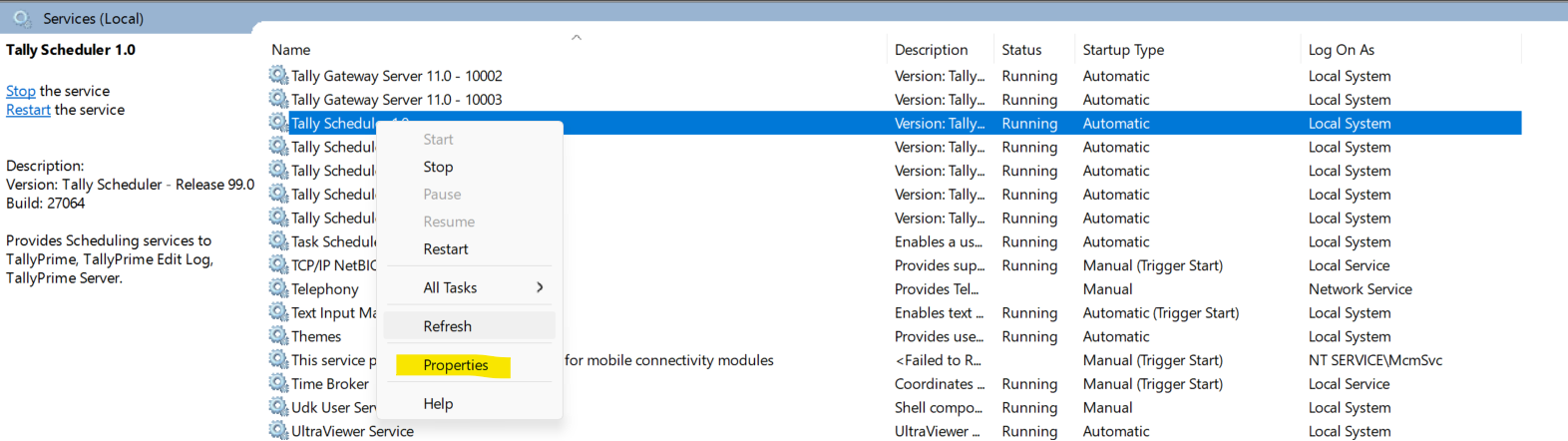
-
Click on Log On and then This Account and provide the details.
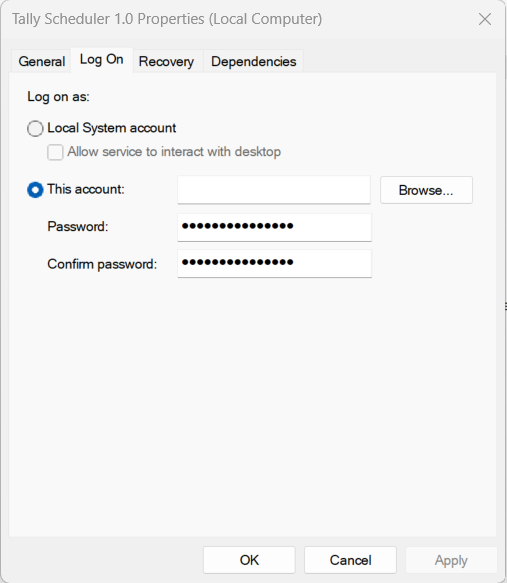
-
Click OK and then Apply.
Tally Scheduler will run on the configured account.
It is recommended to schedule backup on the same system (data server) where the company data is stored. The data server usually stays on for longer hours and has better processing power and storage availability, making it the most reliable machine for taking backups.
Yes, you can schedule a backup from a client system, however, it is recommended to schedule the backup on the same system (data server) where the company data is stored. The Tally Scheduler service running on the client machine must have the necessary Windows read/write permissions to access the company data on the server. Configuring these permissions for a local service account usually requires administrator rights on the network.
Service accounts are special-purpose accounts used by Windows services or applications to access system resources. To learn more about local and service accounts, refer to:
To create a user in Active Directory Domain Services, create a user object in the domain container of the domain where you want to place the user. To learn more, refer to Creating a User – Win32 apps.
To learn how to grant “Log on as a service”, refer to Log on as a service – Windows 10. If you already have an account and only need to enable log on as a service refer to:
Tally Scheduler does not affect computer performance if your system meets the recommended configuration. For technical assistance, you can contact Tally Support through phone, chat, or email.
Tally Scheduler is installed automatically with TallyPrime, provided your system has at least one additional free port. No separate installation is needed.
Yes, you can check the status of the Tally Scheduler using any of the following methods:
-
About Page – Go to F1 (Help) > About. The Tally Scheduler status appears in a dedicated section.
-
Setup Manager – Open setup.exe, select the TallyPrime installation, go to More Actions > Manage Service > Tally Scheduler to view its status.
-
Windows Services (services.msc) – Press Win + R, type
services.msc, and locate Tally Scheduler in the list to check whether it is running.
No, Tally Scheduler gets installed automatically with TallyPrime if at least two ports are free before installation. If two ports are not available, the scheduler will not be installed.
Yes. You can modify the port before starting installation:
- Open setup.exe.
- Click Configure > Show More > Show Advanced Options.
- Locate the Tally Scheduler port field and edit the port number.
No. Administrator rights are required to install Tally Scheduler.
Ensure the following before retrying installation:
-
You have admin rights on your system.
-
The port assigned to Tally Scheduler is free and not used by another service.
-
The file tallyscheduler.exe is whitelisted in your antivirus settings.
If issues persist, contact Tally Support.
Yes, you can specify a port before installing Tally Scheduler:
-
Open the setup.exe.
-
Click Configure.
-
Go to Show More > Show Advanced Options.
-
In the Tally Scheduler port field, double-click or press Enter, and enter the port number you want to use for installation.
If your Tally data is located on a network share, NAS device, or mapped drive, ensure the following
-
Configure the Tally Scheduler Service to run under a Windows account with access (Read/Write) to the NAS or shared folder. The default Local System Account may not have network access.
-
Ensure the Tally Scheduler Service account password is kept updated in the Service Properties (Log On section). If the account is disabled, deleted, or the password changes, the Service will fail to access network data.
-
The NAS/share must be reachable when the Tally Scheduler Service starts. Ensure stable connectivity and that the NAS is powered on during scheduled tasks.
-
The Tally Scheduler Service may not recognize mapped drives (e.g.,
Z:\Data). Always use the UNC path format (e.g.,\\ServerName\ShareName\Data) in Tally’s data path configuration.


