
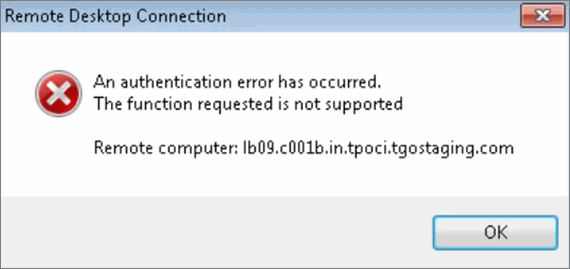
An authentication error has occurred. The function requested is not supported.
Cause
This issue usually occurs on Windows 7 systems where the MSTSC (Remote Desktop) is earlier than version 6.2.
Resolution
Update the MSTSC to a supported version by applying the required Windows update.
-
Check the system type.
-
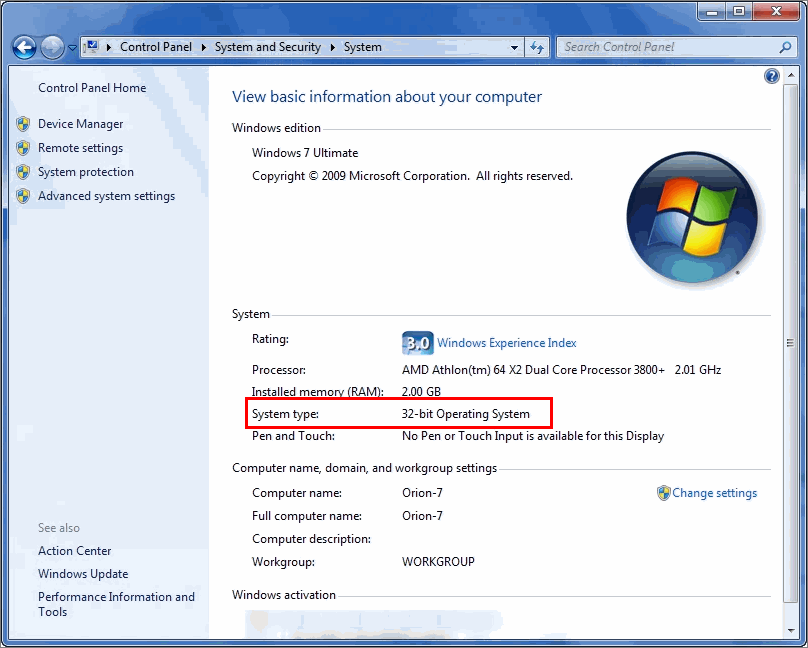
Go to Control Panel > System and Security > System.
-
Check whether the system type is 32-bit or 64-bit.
-
-
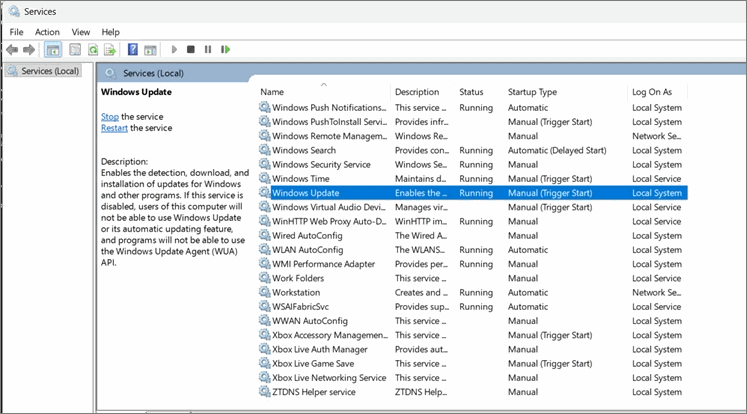
Ensure Windows Update service is enabled.
-
Press Windows+ R.
-
Type services.msc and press Enter.
-
Scroll down and locate Windows Update.
-
Double-click the service.
-
Set Startup type to Manual to enable it.
-
Click Apply > OK.
-
-
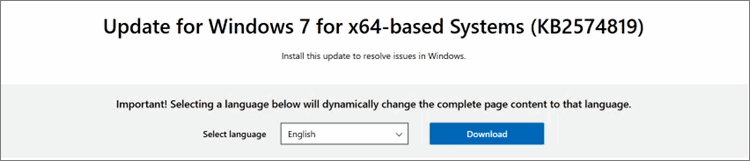
Install the DTLS support update.
-
Click here to download the update.
For example:-
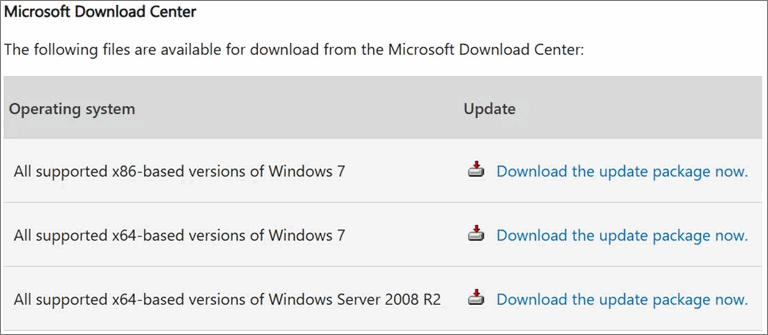
For 32-bit systems: Download All supported x86-based version of Windows 7.
-
For 64-bit systems: Download All supported x64-based version of Windows 7.
-
- Install the update.
- Restart the system when prompted.
-
-
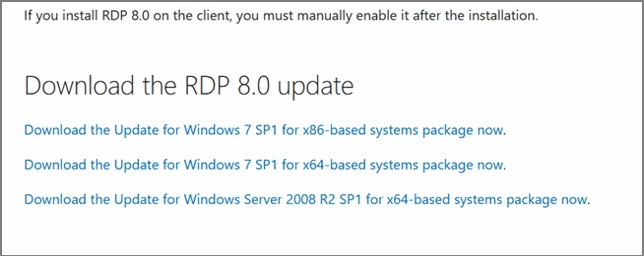
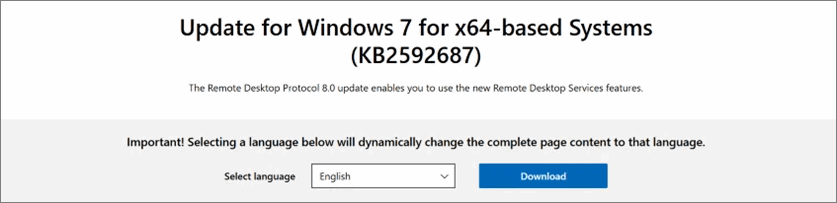
Install the RDP 8.0 update.
-
Click here to download the update.
For example:-
For 32-bit systems: Click Download the Update for Windows 7 SP1 for x86-based systems package now.
-
For 64-bit systems: Click Download the Update for Windows 7 SP1 for x64-based systems package now.
-
- Install the update.
- Restart the system when prompted.
-
-
Verify the MSTSC version.
-
Navigate to C:\Windows\System32 >mstsc.exe.
-
Right-click and select Properties.
-
Go to the Details tab.
-
Ensure the following details are displayed:
-
File version: 6.2.xx.xxx
-
Product version: 6.2.xx.xxx
-
-
-
Connect to the Virtual Machine.
-
Log in from the client and click Connect.
-
Click Yes to confirm.
The connection to the Virtual Machine will be established.
-


