
File GSTR-3B by Exporting JSON File from TallyPrime
For TallyPrime 5.0 & later
TallyPrime ensures that once your GSTR‑3B is ready for filing with correct values, you can file GSTR-3B by exporting JSON file from TallyPrime. After exporting the JSON file, you can upload it on the GST portal and file your return.
In addition, if you are a QRMP dealer, you can export GSTR‑3B for a quarter as well.
Export JSON File from TallyPrime → File GSTR-3B on GST Portal

Ensure that your GSTR‑3B values are accurate and match the GST portal. The ITC in TallyPrime should match the portal’s prefilled values from GSTR‑1 and GSTR‑2A. Once GSTR‑3B is filed, you cannot change the values. Correct values help avoid ITC loss or penalties for excess ITC claimed.
Export JSON File from TallyPrime
- Press Alt+Z (Exchange) > All GST Options > Upload GST Returns > GSTR-3B.
If you are using TallyPrime Release 4.0 or earlier, then in the GSTR-3B report, press Alt+E (Export) > GST Returns. - In Export GSTR-3B screen, select the required period and company or tax registration.
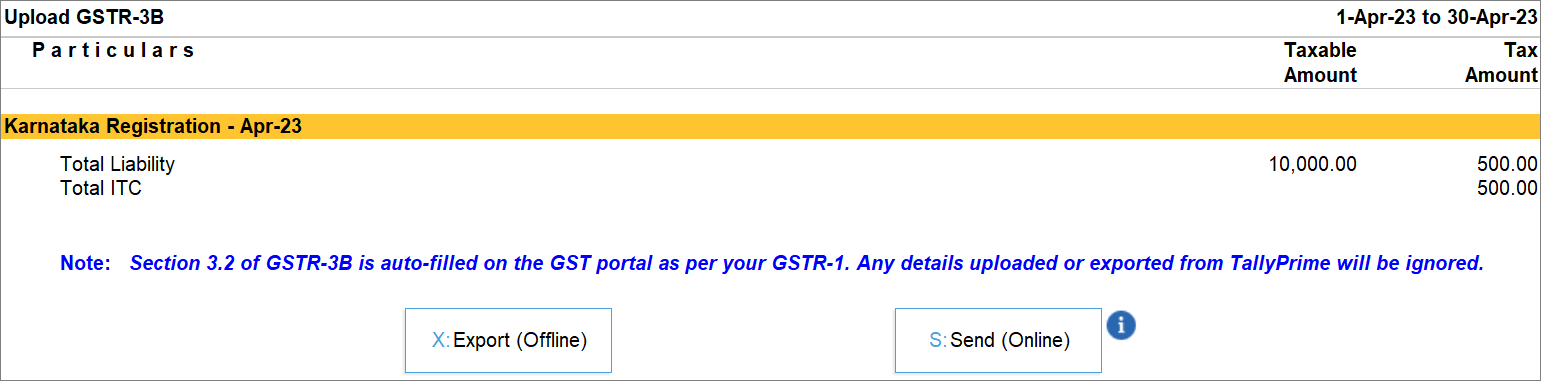
If you are using TallyPrime Release 2.0 to TallyPrime Release 6.2, then the details of Interstate Supplies in Section 3.2 of GSTR-3B will not get auto-filled from GSTR-1.If you have multiple GST registrations, then you can press F3 (Company/Tax Registration) and select the relevant GST registration to export GSTR-3B.
- Select the transactions and/or summaries that you want to export to the portal for filing, and press X (Export).
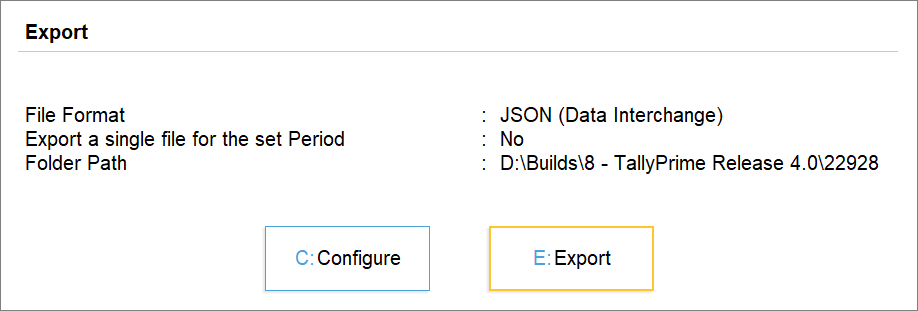
- Configure the JSON export.
- Press E (Send) to export.
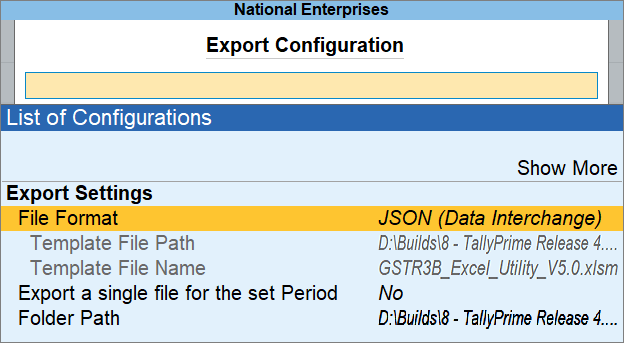
The exported file will be saved in the selected Folder Path, which will automatically open by TallyPrime.
You can then proceed to upload the GSTR-3B JSON file on the GST portal.
Export JSON file for a Quarter (IFF for QRMP Dealers)
From TallyPrime Release 3.0 onwards, you can export JSON file with GSTR-3B values of a quarter.
- Press Alt+Z (Exchange) > All GST Options > Upload GST Returns > GSTR-3B.
If you are using TallyPrime Release 4.0 or earlier, then in the GSTR-3B report, press Alt+E (Export) > GST Returns. - Press X (Export).
- Configure your export for a single JSON file for the quarter.
- Press C (Configure).
- File Format: JSON (Data Interchange).
- Export a single file for the set Period: Yes.
When the File Format is Excel (Spreadsheet), the option is not applicable.
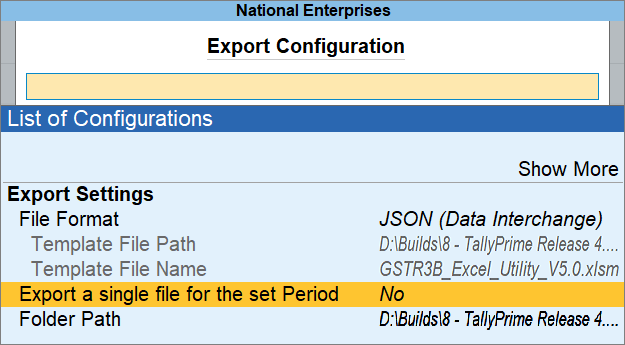
- Press Ctrl+A to save.
- Press E (Export).
The single JSON file for the set Period gets exported.
Upload GSTR-3B JSON on the GST Portal and File Return
Once you export the JSON file, you can go to GST portal to upload the GSTR-3B JSON.
Questions & Answers
-
- Why is it required to export GSTR-3B in the JSON format? Is it not possible to upload the MS Excel or CSV file of GSTR-3B on the GST portal?
JSON format is compatible to the GST portal, and therefore, you need a GSTR-3B JSON file to file your return.
- Can I prepare GSTR-3B online on the GST portal and make the payment later? If yes, then how do I do it?
Yes. You can prepare GSTR‑3B online on the GST portal and make the payment later. You can retain the draft for 15 days and then proceed to make the payment. It is important to note that GSTR‑3B is filed only after a successful payment of your net liability, if applicable.
- Why is it required to export GSTR-3B in the JSON format? Is it not possible to upload the MS Excel or CSV file of GSTR-3B on the GST portal?


