
Create Earnings Pay Head with Statutory Details in TallyPrime
If your organisation follows statutory compliance and has enabled the statutory feature in TallyPrime, then while creating the earning pay heads, enter the relevant statutory details.
Create Pay Head for Basic Pay with Statutory Details
- Create Basic Pay pay head.
- Enter the Pay Head calculation details.
- Set / Alter Income Tax Details: Set the option to Yes.
- In the Income Tax Details screen, enter the following details:
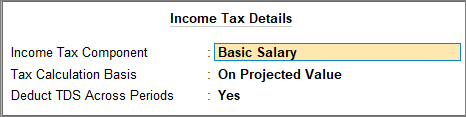
- Income Tax Component: Select Basic Salary from the List of Income Tax Components.
- Tax Calculation Basis: Select On Projection to spread tax computation across the remaining period.
- Deduct TDS Across Periods: Set the option to Yes when Tax Calculation Basis is On Projection. It can be set to Yes or No for On Actuals, as required.
- Press Ctrl+A to save the pay head master.
Create Pay Head for House Rent Allowance with Statutory Details
- Create House Rent Allowance pay head.
- Enter the Pay Head calculation details.
- Set / Alter Income Tax Details: Set the option to Yes.
- In the Income Tax Details screen, enter the following details:
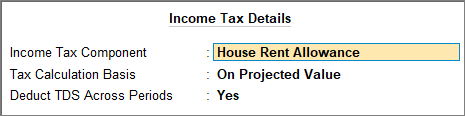
- Income Tax Component: Select House Rent Allowance from the List of Income Tax Components.
- Tax Calculation Basis: Select On Projection if tax computation is spread across the remaining period.
- Deduct TDS Across Periods: Set the option to Yes when Tax Calculation Basis is On Projection. It can be set to Yes or No for On Actuals, as required.
- Press Ctrl+A to save the pay head master.
Similarly, you can create the Pay Head for Dearness Allowance (DA).
Create Pay Head for Conveyance with Statutory Details
- Create Conveyance pay head.
- Enter the Pay Head calculation details.
- Set / Alter Income Tax Details: Set the option to Yes.
- In the Income Tax Details screen, enter the following details:
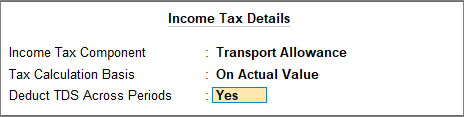
- Income Tax Component: Select Transport Allowance from the List of Income Tax Components.
- Tax Calculation Basis: Select On Actual Value.
- Deduct TDS Across Periods: For On Actuals, set this option to Yes or No as required. If you set it to No, the system deducts the entire tax in the same month.
- Press Ctrl+A to save the pay head master.
Create Pay Head for Reimbursement with Statutory Details
- Create Reimbursement pay head.
- Enter the Pay Head calculation details.
- Set / Alter Income Tax Details: Set the option to Yes.
- In the Income Tax Details screen, enter the following details:
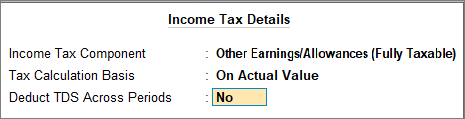
- Income Tax Component: Select Other Earnings/Allowances (Fully Taxable) from the List of Income Tax Components.
- Tax Calculation Basis: Select On Actual Value.
- Deduct TDS Across Periods: By default, this is set to No because the system deducts tax in the same month in which the reimbursement is paid.
- Press Ctrl+A to save the pay head master.
Create Pay Head for Overtime with Statutory Details
- Create Overtime pay head.
- Enter the Pay Head calculation details.
- Set / Alter Income Tax Details: Set the option to Yes.
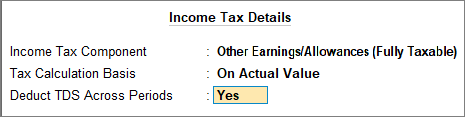
- In the Income Tax Details screen, enter the following details:
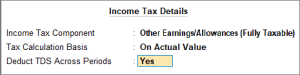
- Income Tax Component: Select Other Earnings/Allowances (Fully Taxable) from the List of Income Tax Components.
- Tax Calculation Basis: Select On Actual Value.
- Deduct TDS Across Periods: By default, it is set to Yes to deduct tax across the remaining period.
- Press Ctrl+A to save the pay head master.
Once you have created the earnings pay head, you can now include these in defining the salary structure.
Is this information useful?
YesNo


