
After migrating data to Release 5.0, users can either configure masters for VAT and start passing transactions, or resolve exceptions in existing transactions and make relevant configurations in the process. Once exceptions are cleared, transactions can be passed.
To configure masters for VAT and start passing transactions
a. Company Configuration
1. Go to F11: Features > F3: Statutory & Taxation .
2. Enable the option Set/alter VAT details .
3. Ensure that the State and VAT TIN are correct.
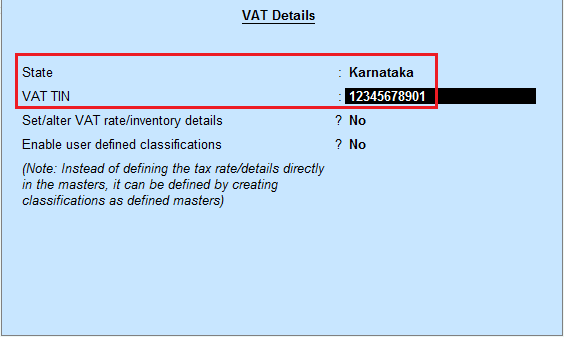
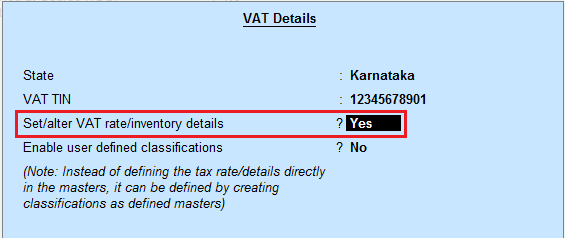
4. Enable the option Set/alter VAT rate/inventory details to configure a common VAT rate at the company level. The VAT rate set here will be applicable to all the items in the company. However, this rate can be overridden at group/item/ledger level.
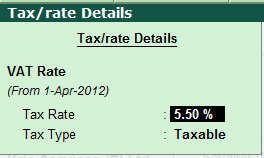
5. Specify the VAT rate .
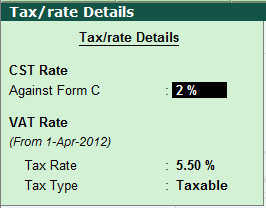
The Tax/rate Details screen appears as shown below:
6. If CST is applicable, press F12 and set the option Enable CST rate details to Yes .
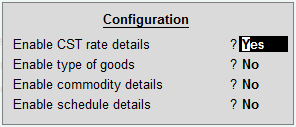
7. By default, CST rate (against Form C) is shown as 2%. This rate can be modified when the CST rate changes. The CST rate appears as shown below:
Note : VAT rates can be configured at company, stock group, stock item and ledger level.
b. Item configuration
From Release 5.1, Tax rate setup tool has been provided for quick and easy setup of VAT rates. Click here for the detailed article on Tax rate setup.
Release 5 users can follow the below mentioned steps
to configure VAT rates at item level or stock group level.
1. Go to Gateway of Tally > Inventory Info > Stock Items > Alter .
2. Ensure that the option VAT Applicable is set to Applicable .
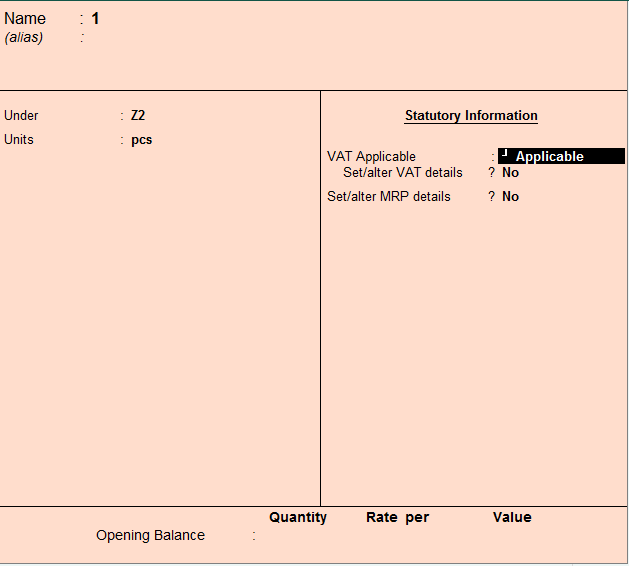
3. To configure VAT rate specific to the item, enable the option Set/alter VAT details and specify the tax rate.
Note : VAT rates can be configured at stock group level also, which will be applicable to all the stock items under the group. For detailed steps, click here .
c. Party configuration
1. Go to Accounts Info > Ledgers > Alter .
2. Specify the State and Country of the party.
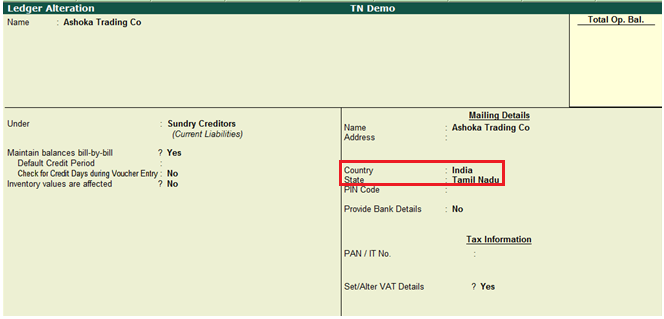
3. Enable Set/alter VAT details .
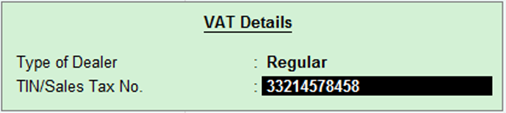
4. Select the Type of dealer and specify the TIN/Sales Tax No .
d. Purchase & Sales ledger configuration
1. Go to Accounts Info > Ledgers > Alter .
2. Set the option Is VAT/CST applicable to Applicable .
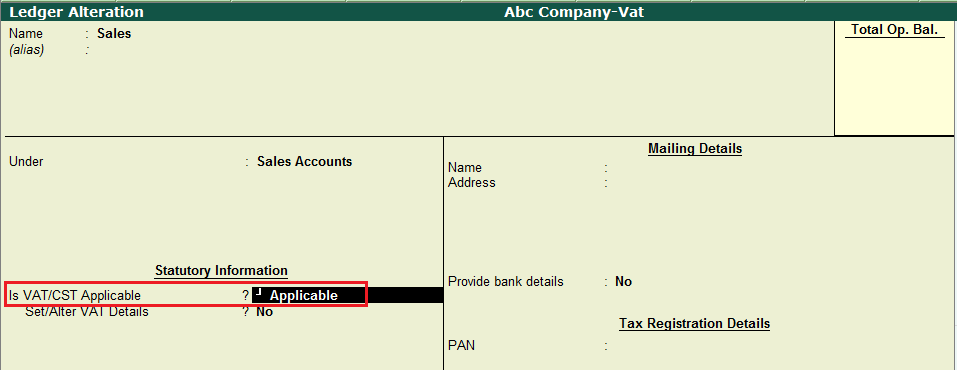
3. To set a specific VAT rate for the purchase/sales ledger, enable the option Set/alter VAT details .
4. Enable the option Allow tax rate/item details and specify the tax rate.
Note : If VAT rates are specified in items/stock groups, there is no need to specify any tax rate in purchase/sales ledger.
e. Duty Ledger configuration
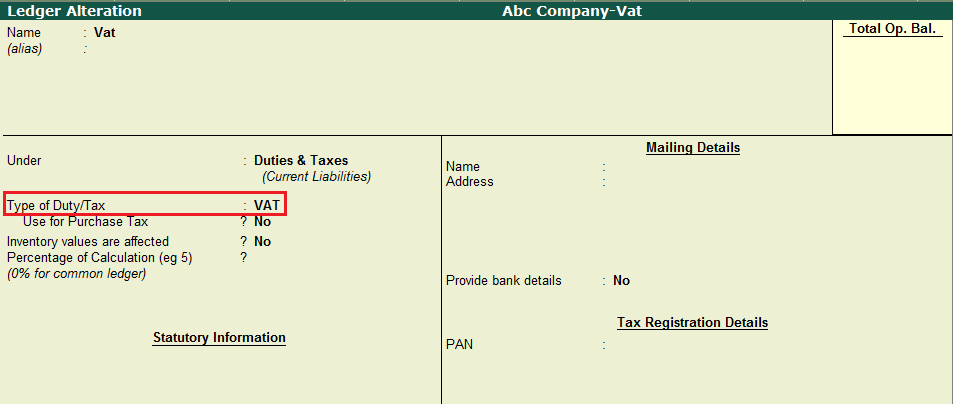
1. Go to Accounts Info > Ledgers > Alter .
2. Select the Type of duty/tax as VAT .
3. Specify the percentage of duty calculation only if different ledgers are created for different VAT rates, in the field Percentage of calculation .
4. If this ledger is to be used as a common duty ledger for all VAT rates, leave the field Percentage of calculation blank.
The completed duty ledger alteration screen appears as shown below:
Note : To learn how to configure CST duty ledger, click here
f. Voucher entry
You are ready to pass VAT transactions in Tally.ERP 9 Release 5
To resolve exceptions in existing transactions first and start passing transactions
1. Go to Gateway of Tally > Display > Statutory Reports > VAT .
2. Select the VAT form. Transactions which are uncertain about being included in VAT calculation appear as Uncertain Transactions .

3. Drill down from Uncertain Transactions to view the report of transactions which have exceptions.
4. Drill down from each exception and make the relevant configurations.
5. When all the uncertain transactions are cleared, user can start passing transactions
Note : This is applicable for users migrating to releases prior to Release 5.2. From Release 5.2, VAT rates are auto migrated from Release 4.9x to the respective stock items.