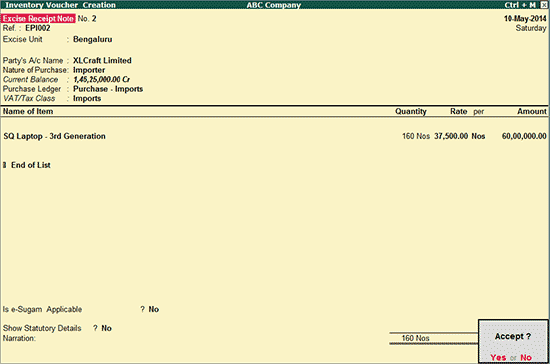
To record an excise purchase invoice for partial clearance of stock,
Go to Gateway of Tally > Accounting Vouchers > F9: Purchase > select Excise Purchase - Importer
Select the party ledger predefined with Importer as the Default Nature of Purchase
Select the Purchase Ledger grouped under Purchase Accounts and predefined with VAT/Tax Class - Imports
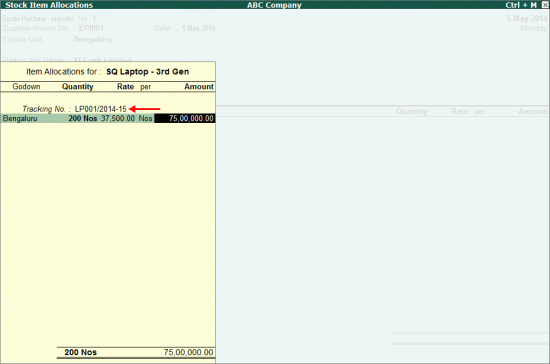
Select the stock item and in the Stock Item Allocation screen,
Enter the Tracking Number (ensure the option Use Tracking Numbers is enabled in F11: Inventory Features) as the goods are being cleared partially. Tracking number can be set to Not Applicable if all the goods imported are cleared at once
Select the importer unit, enter the quantity and rate as shown below:
Press Enter to accept
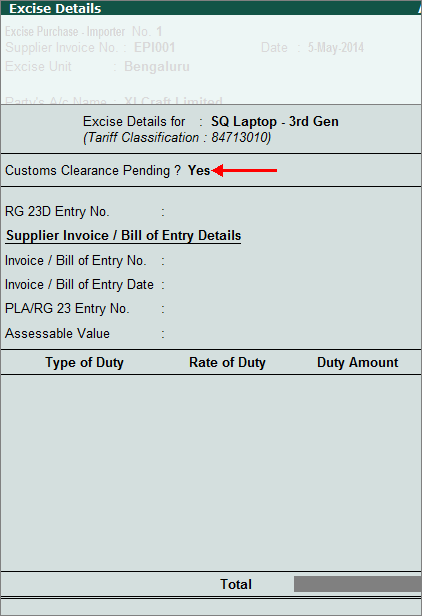
In the Excise Details screen, enable the option Customs Clearance Pending to skip the other fields and indicate that:
The customs clearance is pending and
A separate entry would be recorded after the goods are cleared by paying customs duty
Note:
1. The option Customs Clearance Pending gets displayed if tracking number in entered Stock Item Allocation screen
2. As the goods are not cleared, this transaction will not affect the Stock Summary
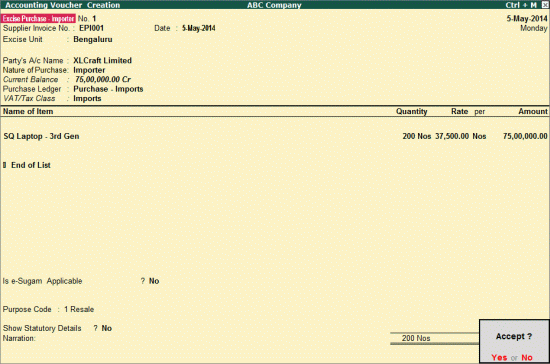
The completed excise purchase invoice appears as shown below:
Press Enter to accept
To record an excise receipt note for partial clearance of stock imported by recording a purchase invoice,
Go to Gateway of Tally > Accounting Vouchers > Press Alt+F9: Receipt Note > Select Excise Receipt Note
Select the party ledger predefined with Importer as the Default Nature of Purchase
Select the Purchase Ledger grouped under Purchase Accounts and predefined with VAT/Tax Class - Imports
Select the stock item and in the Stock Item Allocation screen,
Enter the tracking number specified in excise purchase invoice recorded with pending customs clearance
Select the importer unit, enter the quantity and rate as shown below:
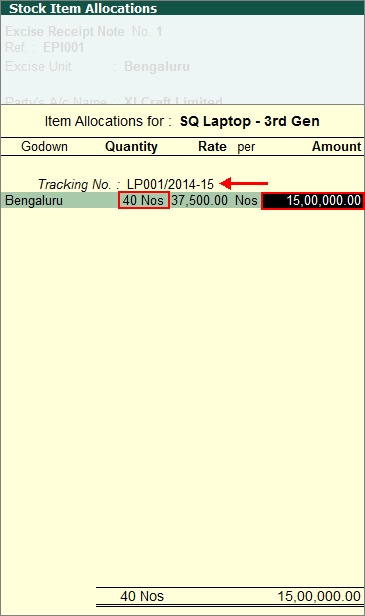
Press Enter to accept
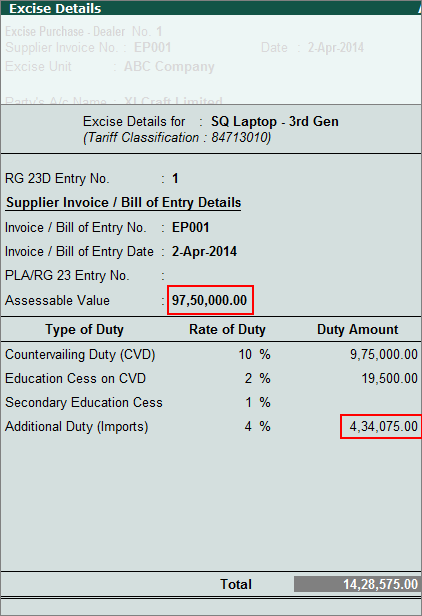
In the Excise Details screen,
The RG 23D Entry No. gets displayed automatically
Note: For the very first excise purchase invoice, the RG 23D Entry Number displays as 1. If any other number has to be provided, enter it manually. For the subsequent stock items selected in the same invoice and for each item selected in subsequent invoices, the RG 23D Entry Number gets incremented by 1 and displays automatically.
PLA/ RG 23D Entry no. need not be entered in case of goods imported
Calculate the Assessable Value manually and enter amount as sum of purchase cost and customs duty (30% of purchase cost)
Calculate the Additional Duty (Imports) and enter the value manually {4% on [Assessable Value (Purchase cost + Customs Duty) + CVD + Education Cess on CVD + Secondary Education Cess on CVD + Education Cess on Customs Duty + Secondary Education Cess on Customs Duty]}
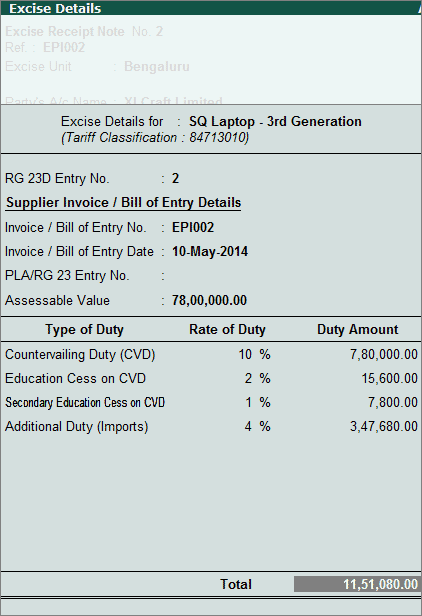
The completed Excise Details screen appears as shown below:
The completed Excise Receipt Note screen appears as shown below:
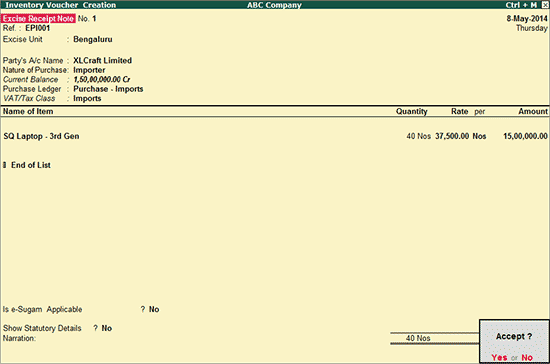
Press Enter to accept
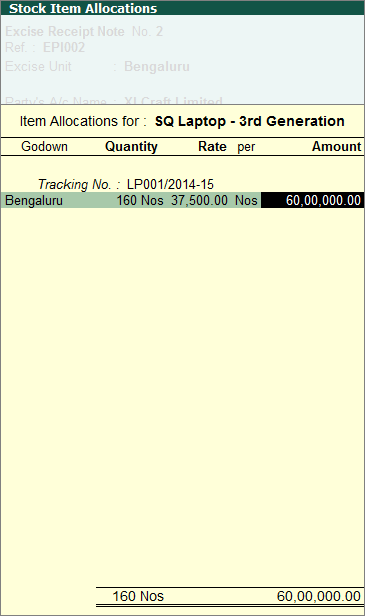
Record another excise receipt note to clear the balance stock
Provide details in Stock Item Allocations screen as shown below:
In Excise Details screen provide details as shown below:
The completed excise receipt note appears as shown below: