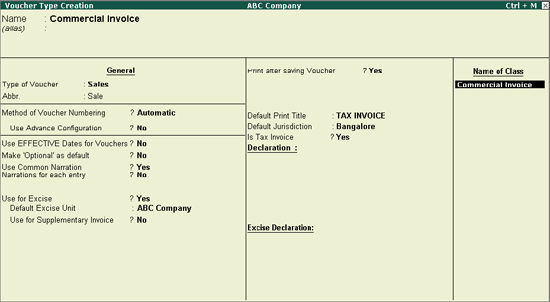
Commercial Invoice is issued by a dealer of excisable goods (First Stage / Second Stage dealer) to the buying dealer/customer where there is no provision to pass the CENVAT credit to the subsequent dealer.
To create the Commercial Invoice Voucher Type,
Go to Gateway of Tally > Accounts Info. > Voucher Type > Create
Enter the name of the Voucher type in Name Field. E.g. Commercial invoice
Select sales as the voucher type in Type of Voucher field
You may abbreviate the Voucher type as per your requirement. E.g. Com- Inv
Select the appropriate Method of Voucher Numbering
Set Use Advanced Configuration to Yes to specify the numbering method, if required
Set Use for Excise to Yes to enter Excise Purchase to capture Assessable Value and Excise Duty breakup
In Default Excise Units field select ABC Company from the List of Excise Units
Set Print after saving Voucher to Yes
Enter TAX INVOICE as the invoice print title in the Default Print Title field
Enter Bangalore as the Default Jurisdiction
Set Yes to Is Tax Invoice
Specify the declaration, if any
Enter class name as Commercial Invoice in the Name of Class field and press enter to view Voucher Type Class screen
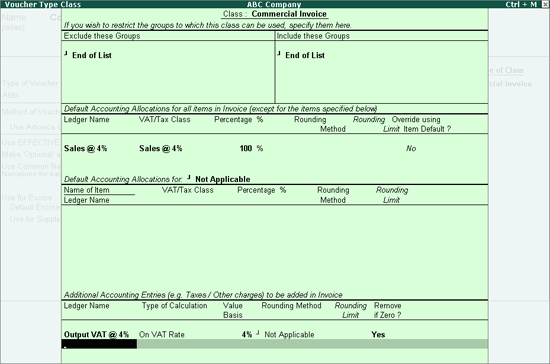
In Voucher Type Class screen
Set Use for Commercial Invoice to Yes
Select End of List in the Exclude these Groups and Include these Groups fields
In Default Accounting Allocations for each Item in Invoice section
Select the Sales Ledger – Sales @ 4% in Ledger Name field
Select the VAT Class in VAT/Tax Class field
Specify 100% in Percentage field
Set Override using Item Defaults to No
Default Accounting Allocations: Set the option Default Accounting Allocations for to Not Applicable (Refer to Voucher Class - Allocation of Stock Item for the usages of this option)
In Additional Accounting Entries (e.g. Taxes/ Other charges) to be added in invoice section
Select Output VAT @ 4% in Ledger Name field and On VAT Rate as the Type of Calculation
Specify 4% in Value Basis field
Select the appropriate Rounding Method
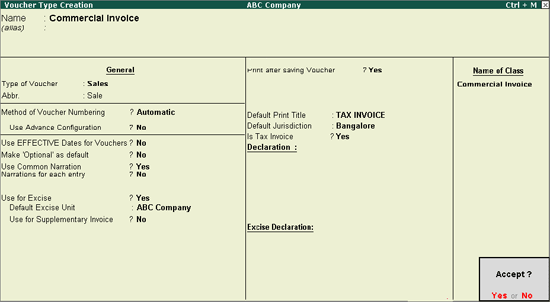
Press Enter to accept and save