While carrying on business a excise dealer may purchase the goods from different type of suppliers including Importer (one who imported the goods). Tally.ERP 9 allows to account the Purchases form Importer.
Example: On 10-5-2009, ABC Company purchased 500 Kgs Cold Rolled Coils @ 325 Per kg from Magnetic Steels.
Cold Rolled Coils were imported @ 200per Kg & paid 30% Customs Duty on such purchases. The Assessable Value to calculate Countervailing Duty was 1,30,000. & the Additional Duty paid on importing 500 kgs of Cold Rolled Coils is Rs. 5787.67.
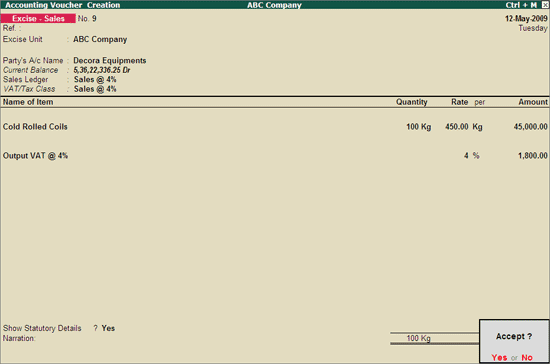
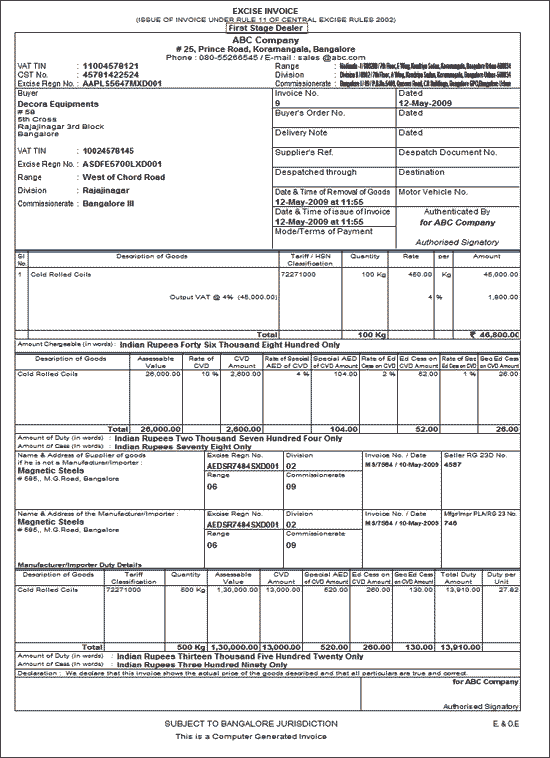
On 12-5-2009, ABC Company sold 100 kgs of Cold Rolled Coils purchased from Magnetic Steels to Decora Equipments @ 450 per kg.
Enter the Name of the Supplier in the Name field e.g . Magnetic Steels
Select Sundry Creditors as the group name in the Under field.
Set Maintain Balances Bill by Bill to Yes and enter the Default Credit Period if any.
Set Inventory Values are affected to No
In the Mailing Details enter the supplier contact details.
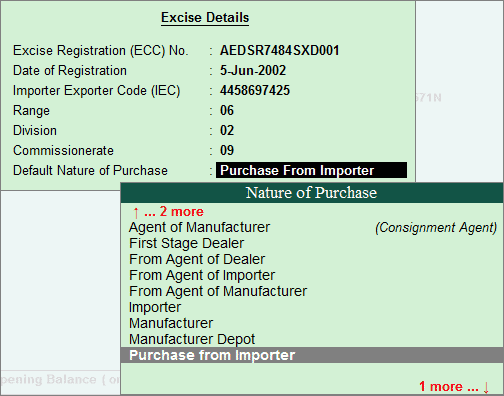
Enable Set/Alter Excise Details to Yes to display the Excise Details screen.
In Excise Details screen enter the details as shown below
Press Enter to save.
Go to Gateway of Tally > Inventory Info. > Stock Item > Create
In Stock Item Creation screen enter the Name of the item, select the appropriate Group & Unit of Measurement
Select the Tariff Classification & set the option Set/Alter Excise Details to Yes to provide the Excise Details.
In Excise Duty Details screen specify the duty details as shown
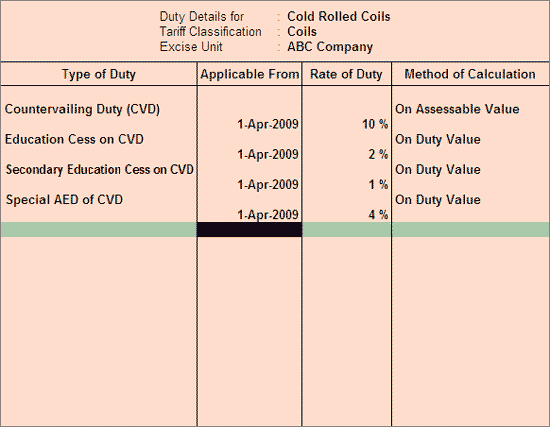
Note: On imported goods Countervailing Duty is applicable. Hence while creating the item appropriate excise Duty classifications are selected. To account the additional duty Special AED of CVD is selected. In Tally.ERP 9 the Additional Duty @ 4% will not get calculated automatically, it has to be calculated manually & specified in Excise Details screen.
To know the Duty calculation on Imported Items refer the topic - Full Clearance of Imported Goods
Go to Gateway of Tally > Accounting Vouchers > F9: Purchase
Select the Excise - Purchase as the Voucher Type from the list of types.
Select Alt + I: Item Invoice if it is in Acct Invoice mode
Press F2 and enter the date as 10-5-2009
Enter the Supplier Invoice No. as MS/7584 and Date as 10-5-2009
By Default Tally.ERP 9 displays the Excise Unit as ABC Company as defined during voucher type creation.
Select the Party’s A/c Name from the list of Ledger Accounts e.g. Magnetic Steels
The Supplier’s Details sub-form will appear. Supplier’s Details will include the supplier contact details, Sales Tax number and the Excise registration details. The details will appear automatically if they are provided during the Supplier Ledger Creation. If the supplier of the goods is not the Importer, specify the details of the manufacturer of the goods in the Manufacturer/Importer details section.
If the supplier of the goods is not the importer, specify the details of the importer of the goods in the Manufacturer / Importer details section
By default the Nature of Purchase will be displayed as Purchase from Importer as defined in the party ledger. This field defines the Supplier’s Role in selling the product.
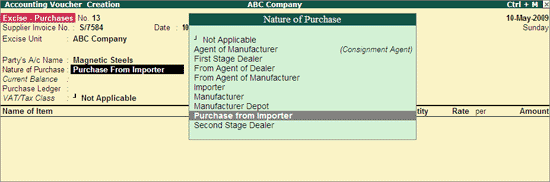
In Purchase Ledger field select Purchases @ 4% from the list of Ledger Accounts. VAT/Tax Class will be defaulted to Purchases @ 4%
In Name of Item field select Cold Rolled Coils form List of Excise Stock Items
In Quantity field enter 500 and Rate as 325. Amount will be calculated and displayed. and press Enter to view Excise Details screen
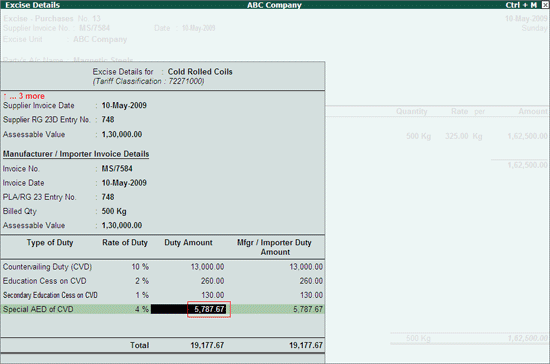
In Excise Details screen
In RG 23D Entry No field enter the RG 23D entry number of this purchase in your books
Supplier Invoice Details: In this section specify the supplier invoice details
Supplier Invoice Number will be captured form the Supplier Invoice No. field if entered. Other wise enter the supplier Invoice number
By default the voucher date is displayed as the Supplier Invoice Date
In PLA/ RG 23D Entry no. field enter the PLA number where the reference of duty paid on the goods sold are entered.
Enter the Assessable Value (it is the amount on which the Excise Duty is calculated by the manufacturer) on which the Excise Duty is calculated. Enter Rs. 1,30,000
Duty Amount will be calculated and displayed automatically.
Manufacturer/Importer Invoice Details: In this section specify the Importer Invoice Details
Note: When the Nature of Purchase - Purchase From Importer is selected in Excise Details screen Tally.ERP 9 gives the provision to specify both Supplier and Importer invoice details. Separate Supplier & importer invoice details section will be useful when the sales are made by the agent of the Importer where we need to enter the invoice details of Two parties (Importer & Agent of Importer).
In this case Magnetic Steels is the Importer & Supplier of goods to ABC Company. Hence specify the same invoice details as enter under Supplier Invoice Details section.
Countervailing Duty, Education Cess on CVD & Secondary Education Cess on CVD will be calculated & displayed automatically. For Special AED of CVD specify the additional Duty Amount - Rs. 5787.67
Select Input VAT ledger - Input VAT @ 4% to account the VAT amount
The completed purchase voucher is displayed as shown
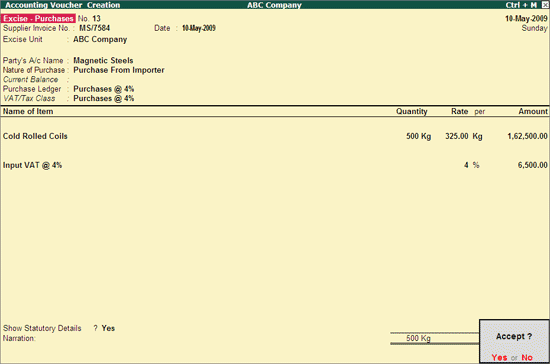
Press Enter to accept.
On selling the goods Purchased form Importer in Rule 11 invoice the print title will be First Stage Dealer
Record the Sales in Excise - Sales as shown
In Excise - Sales Invoice select the party as Decora Equipments
Select the sales ledger
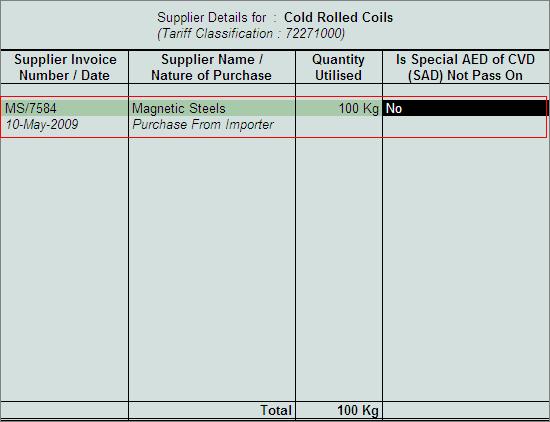
In Name of Item field select Cold Rolled Coils and in Supplier Details screen select the purchase bill of purchases made from Importer and in Quantity field enter the quantity sold. Here 100 Kg is sold. In Is Special AED of CVD (SAD)Not Pass on retain NO, as ABC Company is passing on the Additional Duty paid on Imports to the dealer.
select the out put VAT ledger - Output VAT @ 4% to account VAT on the sale
Completed Sales Voucher appears as shown