
Print Invoices with Party Details
With TallyPrime, you can easily include party contact and address details in your invoices for clear and complete communication.
Print Invoices with Party Contact Details
- Ensure that the party ledger used in the invoice has the required contact details.
- Record a sales transaction using the same party ledger, and press Ctrl+P > C (Configure).
- In the Add/Remove Field screen, set Show Contact details to Yes.
If you are using TallyPrime Release 7.0 or earlier versions, the option will appear in the Print Configuration screen. - Press P (Print) to print the invoice.
Print Invoices with Party Address
You can print invoices with your party address. If you have multiple addresses set for your party, you can select to print a particular address in the invoice as your Party Address.
Print party address from party ledger
- Ensure that you have the party address updated in the party ledger.
- Record a sales transaction using the same party ledger, and press Ctrl+P > C (Configure).
- In the Add/Remove Field screen, set Show Name and Address from Party Master to Yes.
If you are using TallyPrime Release 7.0 or earlier versions, the option will appear in the Print Configuration screen. - Press P (Print) to print the invoice.
Print party address from the invoice
- Ensure that you have entered the correct party address in the Party Details screen while recording the invoice.
- Record a sales transaction using the same party ledger, and press Ctrl+P > C (Configure).
- In the Add/Remove Field screen, set Show Name and Address from Party Master to No.
The party address from the invoice is automatically considered for printing.
If you are using TallyPrime Release 7.0 or earlier versions, the option will appear in the Print Configuration screen. - Press P (Print) to print the invoice.
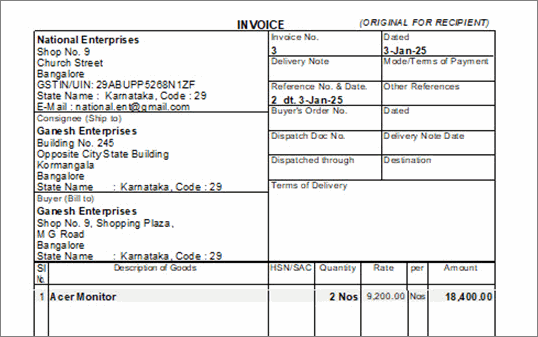
Print the party and consignee address from the invoice
- Record a sales transaction and ensure that the Buyer (Bill to) and Consignee (Ship to) addresses are correct in the Party Details screen.
- Press Ctrl+P > C (Configure) and in the Add/Remove Field screen, configure the Buyer (Bill to) and Consignee (Ship to) addresses.
If you are using TallyPrime Release 7.0 or earlier versions, the option will appear in the Print Configuration screen.
- Set Show Consignee details to Yes.
- Set Show Name and Address from Party Master to No.
The party and the consignee addresses from the invoice are automatically considered for printing.
- Press P (Print) to print the invoice.
Is this information useful?
YesNo


