Here are the pros and cons of moving item level tax configuration to stock group level (through Enforce Tariff/Rate option)
Pros
● It allows to define tariff/rate for set of items in a group at a single location.
● It automatically clears any tax details from items or sub-groups under the group eliminating the need to delete the details manually.
● It allows to update the tariff/rate for items from a single location.
Cons
● It is not advised to use enforce option if group contains items with different tax rates, as a single rate is applied by enforce option.
● It is not advised to use the enforce option when items contain history with multiple rates for different periods.
To move the stock item level tax configurations to stock group level
1. Go to Gateway of Tally > Inventory Info. > Tax Rate Setup > VAT/Excise > F4: Stock Group .
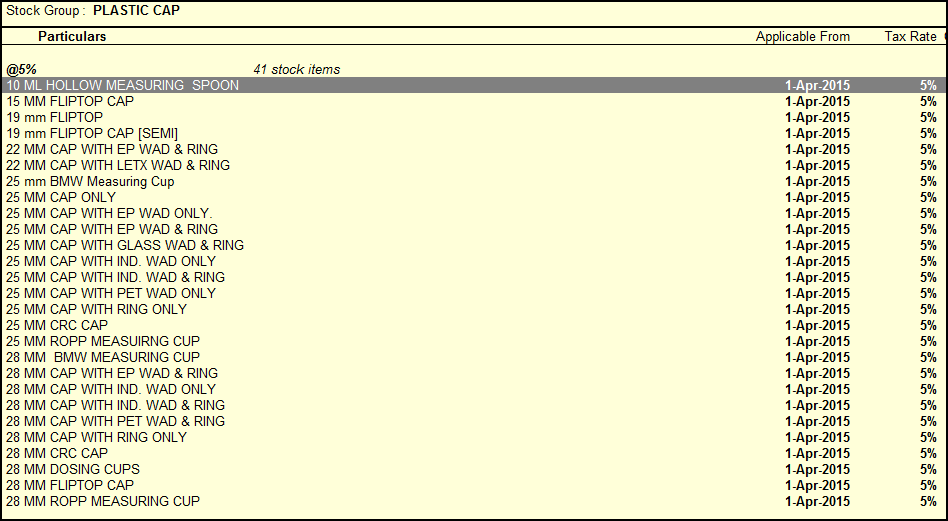
2. Select a group and press Enter to know the last tax details updated in each stock item as shown below:
3. Press Esc and select the group ( for example , PLASTIC CAP) > F : Force rate .

4. Provide all the tax details manually as shown below:
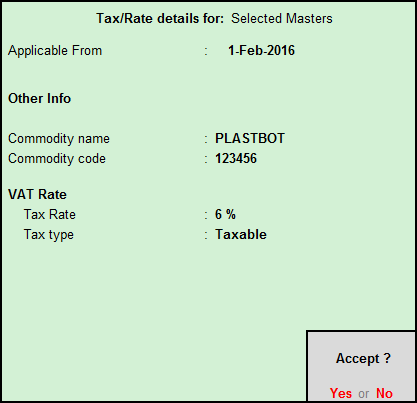
5. Press Enter . The warning message appears as shown below:
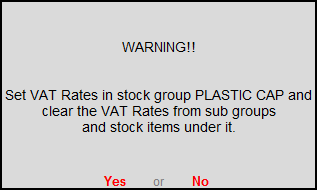
6. Press Enter . Tax configuration starts updating in group level and tax configuration in item gets erased.
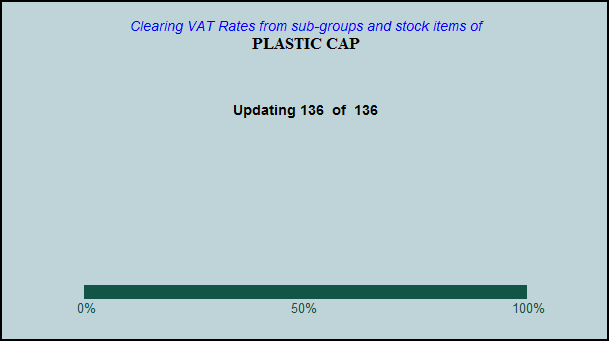
7. Now you can see the tax configuration is upgraded in stock group level ( for example , PLASTIC CAP).
