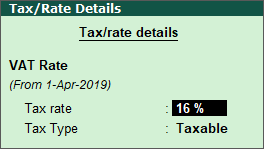
The Tax Laws (Amendment) Bill, 2020, has amended the general tax rate of 16% and changed it to 14%, applicable from 1st Apr 2020. The first VAT returns for the financial year 20-21, April 20, is due for filing on 20th May 2020.
You can file the returns using Tally.ERP 9 rel 6.6.1 or earlier versions, in which VAT Form-3 is supported. You have to however record the details of transactions with 14% tax rate manually in the returns template. The remaining details are exported from the VAT Form-3 report in Tally.ERP 9. In release 6.6.2, filing returns with new tax rate - 14% is inherently supported. Follow the instructions in this document to file the returns with new tax rate using current versions of Tally.ERP 9.
On this page
Transactions with New Tax Rate
File Returns with New Tax Rate
You can update the tax rate from 16% to 14% by altering masters where tax rate is configured. Alternatively, you can use the Tax Rate Setup to alter the tax rate of all items or ledgers.
In case you have configured the VAT rate at the company master level, alter the same in the Company Operations Alteration .
1. Go to F11: Features > F3: Statutory .
2. Set the option Set/alter tax/rate details? to Yes . The Tax/Rate Details screen appears.
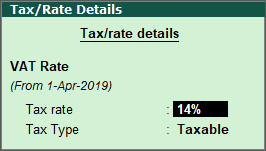
3. Change the Tax rate from 16% to 14% . You are required to enter the revised applicable date for the update tax rate.
4. Enter the Applicable from date as 1-April-2020.
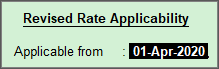
5. Press Enter to save the applicable date and tax rate.
6. Save the Company Operations Alteration screen.
Update the tax rate in item masters
1. Go to Inventory Info. > Stock Item > Alter (under Single Stock Item ).
2. Select the stock item with 16% tax rate.
3. Set the option Set/alter VAT details? to Yes . The VAT Details screen appears.
4. Change the Tax rate from 16% to 14% . You are required to enter the revised applicable date for the update tax rate.
5. Enter the Applicable from date as 1-April-2020 .
6. Press Enter to save the applicable date and tax rate.
7. Save the Stock Item Alteration screen.
You can use the VAT Tax Setup option to view all the goods with 16% tax rate and change the rate to 14% for all the such goods.
1. Go to Gateway of Tally > Inventory Info. > Tax Rate Setup > VAT or, Go to Gateway of Tally > Display > Statutory Reports > VAT > Tax Rate Setup .
2. Click F5: Tax Rate-wise . All the goods are grouped tax rate-wise.
3. Drill down from 16% tax rate to view all the stock items with that rate.
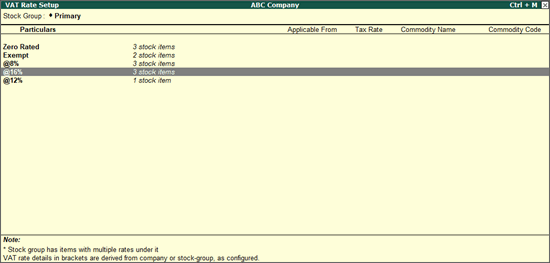
4. Select any or all rows using Shift+Spacebar keys.
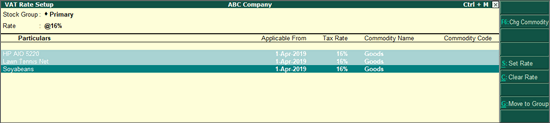
5. Click S : Set Rate to alter the tax rate.
6. In the Set VAT Details screen, enter the Applicable From date as 01-04-2020 .
7. Change the Tax rate to 14% and press Enter .
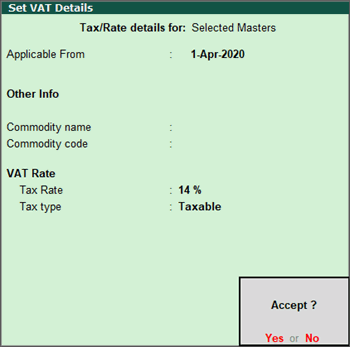
8. Press Enter to save.
When you enter transaction with any item for which tax rate is updated, tax is calculated based on new rate.
Record a sales transaction in new the financial year with new tax rate.
1. Go to Gateway of Tally > Accounting Vouchers > Sales .
2. Select the buyer and sales account ledgers.
3. Select any item for which tax rate has been updated as 14% applicable from 1st Apr 2020.
4. Enter the Quantity and Rate of the item.
5. Select the VAT ledger. The VAT amount is calculated automatically based on the sales amount and VAT rate.
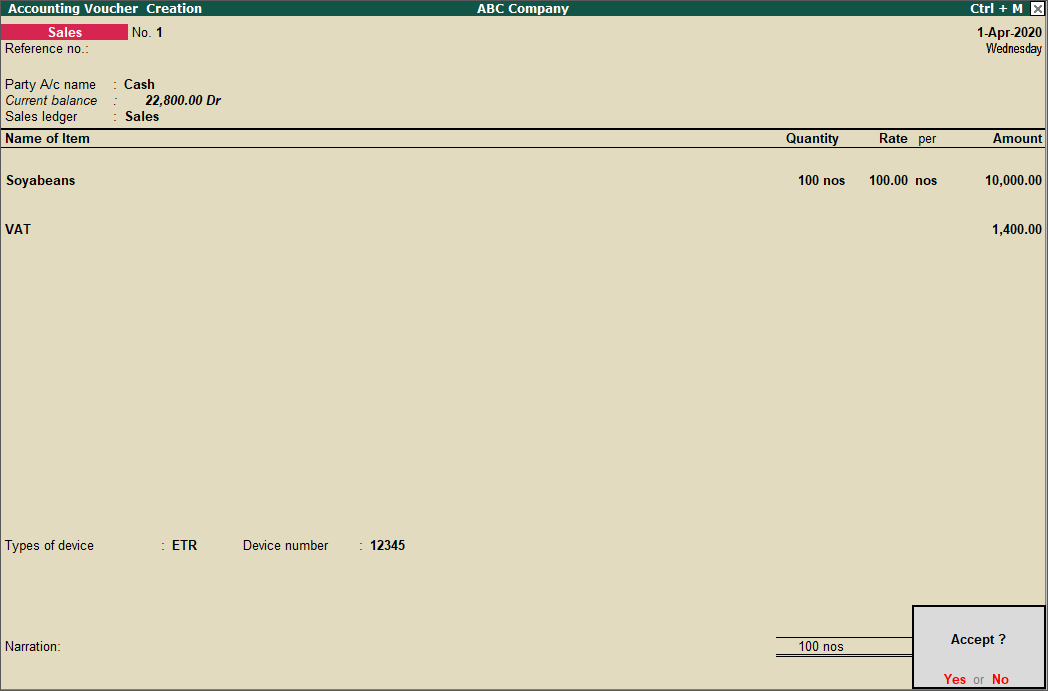
6. Press Enter to save the transaction.
Before you export the returns from Tally.ERP 9, ensure the latest version of the e-return excel template is copied to the export location. Remember that in Tally.ERP 9 Release 6.6.1 and earlier versions, the details of goods with 14% tax rate are not exported to the return template, you have to manually record these details after exporting the returns.
1. Go to Display > Statutory Reports > VAT > VAT Form-3 .
2. Click F2: Period to set the reporting period as 1-04-2020 to 30-04-2020.
3. Clear all exceptions shown in Incomplete/mismatch in information (to be resolved).
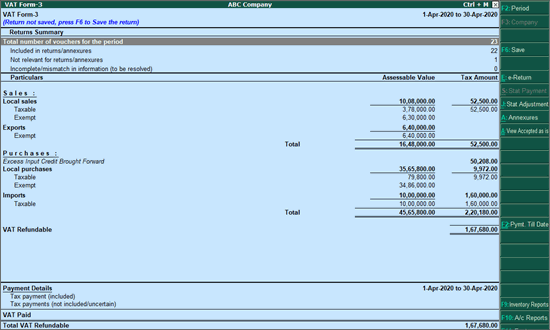
4. Click F6: Save to save the return. In case any updates are made to the data in this period after saving the returns, you will get a alert at the top of the report to revise the returns.
5. Press Ctrl+E to export the e-Return.
6. To set the number of rows required in each sheet of the template, set the option Show Number of Rows to Add to Yes .
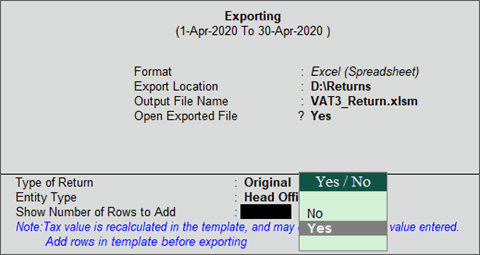
7. Enter the number of rows for each sheet in the table displayed and accept.
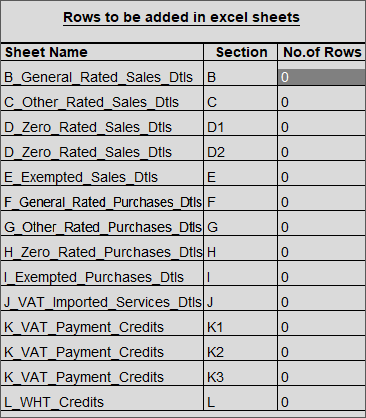
8. Press Enter to accept the no. of rows details.
9. Press Enter to export the returns to e-return template.
Note : The template re-calculates the tax values based on the taxable value exported and tax rates configured in the template. Therefore the tax amount in the template may differ from the tax value in the invoices.
10. To manually enter the sales invoices of goods with 14% tax rate, click F1: Detailed in the VAT Form-3 report.
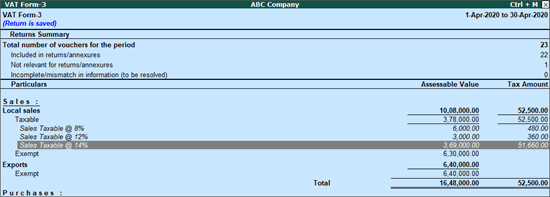
11. Select Sales Taxable @ 14% under Local Sales and press Enter to drill down to Voucher Register .
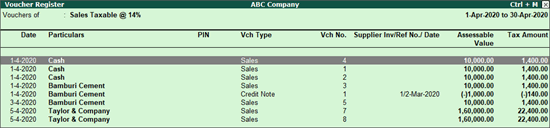
12. Click E : Export to export the Voucher Register in excel format.
13. In the Export Report screen, select Excel (Spreadsheet) in the Format field.
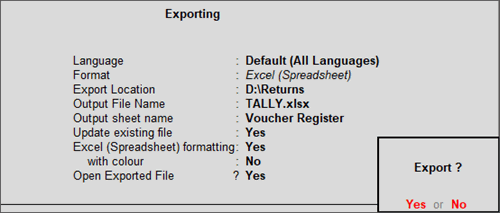
14. Export the details.
15. Open the excel file with sales invoices for 14%.
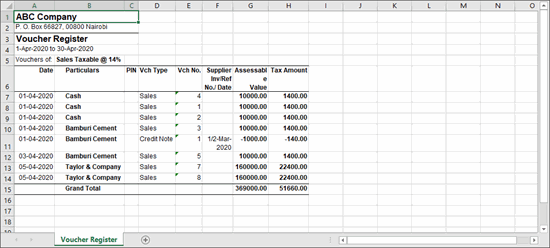
16. Open the B_General_Rated_Sales_Dtls sheet in the template and enter the invoice-wise details from the excel file with sales invoice for 14% tax rate.
17. Similarly, export the details Purchase Taxable @ 14% under Local Purchases and enter the invoice wise details in F_General_Rated_Purchases_Dtls sheet.
18. Save the excel template after entering the sales and purchase invoices information for 14% tax rate goods.
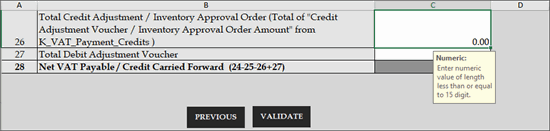
19. Click Validate in the O_VAT_Due sheet .
20. The template validates the information and displays errors in case and discrepancy. If there are no errors, a message is displayed to generate a xml file. Click Ok to generate.
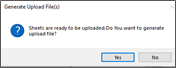
21. Upload the .zip file containing the xml returns file KRA website -https://www.kra.go.ke/en/.