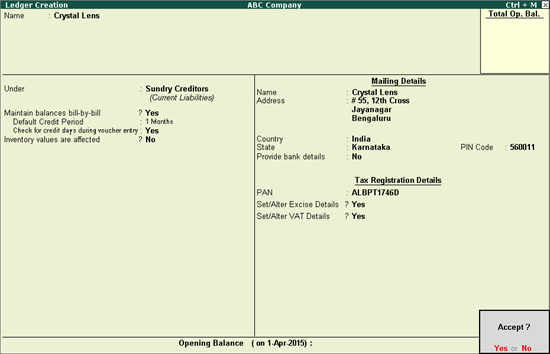
You can create a party ledger by entering the excise details.
1. Go to Gateway of Tally > Accounts Info. > Ledgers > Create .
2. Enter the Name of the supplier ledger.
3. Group it under Sundry Creditors .
4. Set Maintain balances bill-by-bill to Yes .
5. Enter the Default Credit Period if any.
6. Set Check for credit days during voucher entry to Yes if required.
7. Enter the Mailing Details .
8. Select the required Country .
9. Select the State if India is selected as the country. If India is not selected as the Country , cursor will skip the State option.
Note : Dadra & Nagar Haveli and Daman & Diu is listed in the State field in Release 6.6.3 and later versions.
10. Enter the PIN Code . If India is not selected as the Country , cursor will skip the PIN Code option.
11. Provide Bank Details if required.
12. Enter the PAN .
13. Enable the option Set/Alter Excise Details to view the Excise Details screen.
Note:
♦ The option Set/Alter Excise Details will be displayed when the ledger is grouped under Sundry Creditors and Sundry Debtors or any user defined group created under these predefined groups.
♦ Ladakh is listed in the State field in Release 6.5.5 and later versions.
14. Enter the relevant details in Excise Details screen.
● Select the Default Nature of Purchase .
Note: While recording an invoice, if any other Nature of Purchase has to be selected, it can be done from Party Details screen of the invoice.
● Under Registration Info. section, provide details as given below:
o Enter the ECC No. , IEC number , Range , Division and Commissionerate as per requirement .
Note: In the Configuration screen of Excise Details screen, the option Enable Importers ECC No . is provided. If the same unit is registered under dealer and importer registrations, enable this option to provide both the registration numbers.
o Select the Notification Type as Tariff or Non Tariff . To provide notification details, click F12: Configure and set the option Enable notification details to Yes . The Notification Details section will appear in Excise Details screen.
o Enter the applicable Notification Number and Notification Serial Number .
15. Enable Set/Alter VAT Details option to view the VAT Details screen and provide the relevant details. The ledger appears as shown below:
16. Accept the Ledger Creation screen.
Similarly, create the party ledger grouped under Sundry Debtors.