A registered dealer needs to issue/receive declarations like C, E1, E2, F, H, and I in prescribed forms to buyers/sellers depending on the nature of interstate transactions.
1. Enable Statutory Info.
● Go to Gateway of Tally > F11: Features > Statutory and Taxation .
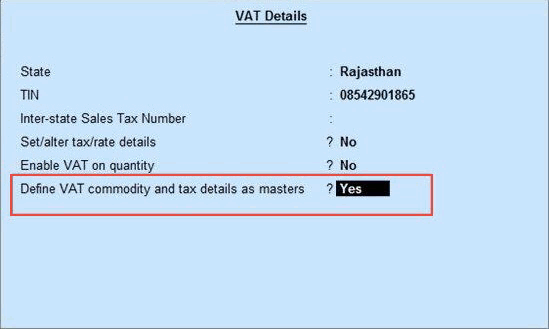
● Enable the option Set/alter VAT Details to view the Company VAT Details screen.
● Enable the option Define VAT commodity and tax details as masters as shown below:
The Statutory Info. option is now available in the Accounts Info. menu.
Note : In case of Ladakh TIN (prior to 1-Jan-2020) and Interstate sales tax number (prior to 1-Jan-2020) will also appear under VAT Details . For Jammu & Kashmir, you can enable the option Show TIN/CST No. (prior to 1-Jan-2020) for Jammu & Kashmir option under F12: Configure to record the TIN (prior to 1-Jan-2020) and Interstate sales tax number (prior to 1-Jan-2020) .
2. Create Classification.
● Go to Gateway of Tally > Accounts Info. > Statutory Info. > VAT Classifications > Create .
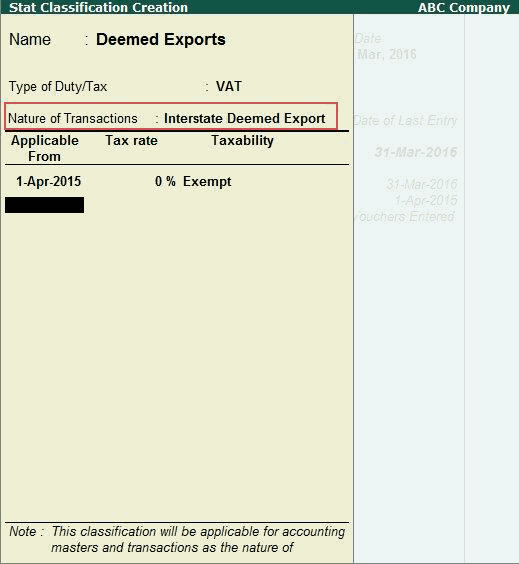
● Enter the Name of the new classification.
● Enter the applicability dates with the corresponding tax rates in Applicable From and Tax rate columns, respectively.
● Select the Taxability , as required. The Stat Classification screen appears as shown below:
● Press Enter to save.
Note: Based on the options configured, the options in the Stat Classification screen may vary. Press F12: Configure to enable Type of Goods , Commodity Details , and Schedule Details .
The stat classification created can now be assigned to sales/purchase ledgers.
3. Assign the classification to sales/purchase ledgers.
● Go to Gateway of Tally > Accounts Info. > Ledgers > Create .
● Enter the Name of the sales ledger.
● Select Sales Accounts in the Under field.
● Set Inventory values are affected? to Yes .
● Set Is VAT/CST Applicable? to Applicable .
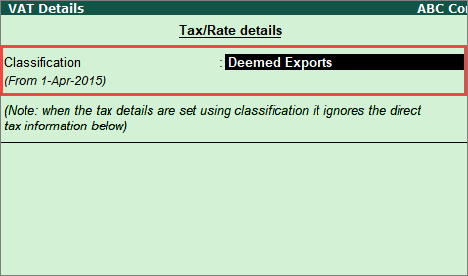
● Enable the option Set/Alter VAT Details to view the VAT Details screen.
● Select the Classification .
● Press Enter to go to the Ledger Creation screen.
● Press Ctrl+A to accept.
4. Record sales invoice.
● Go to Gateway of Tally > Accounting Vouchers > F8: Sales .
● Enter Ref. number, if required .
● Select the party ledger in the field Party's A/c Name .
● Select the sales ledger for which the classification Deemed Exports is assigned in the VAT Details screen.
● Select the required stock items.
● Enter Quantity , and Rate .
● Press Enter .
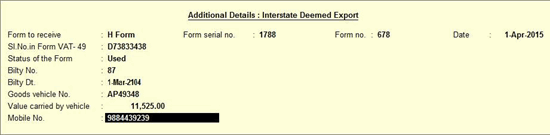
● Enable the option Provide VAT Details to view the Statutory Details screen.
o Enter the Form serial no. , Form no. , and Date .
o Enter the Sl.No.in Form VAT-49 .
o Select the Status of the Form .
o Enter the Bilty No. , Bilty Dt , Goods Vehicle No. , Value carried by vehicle , and Mobile No..
o Press Enter to return to the Accounting Voucher Creation screen.
● Press Enter to save.
5. Print the sales invoice with H Form details.
● Go to Gateway of Tally > Accounting Vouchers > F8: Sales .
● Press Page Up to view the Accounting Voucher Alteration screen.
● Click P : Print .
● Press Enter to print. The printed invoice appears as shown below:
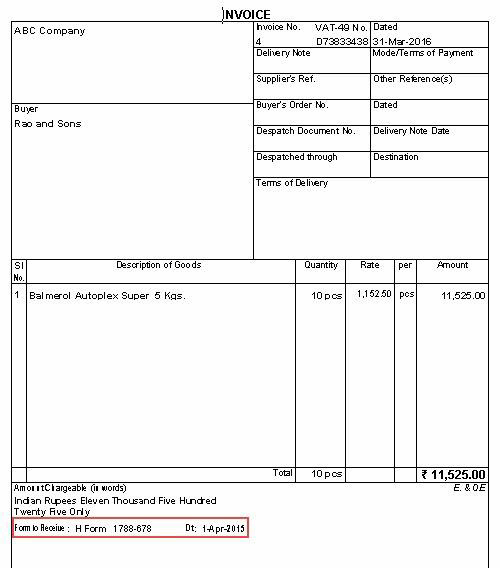
The Form H details are printed in the sales invoice.
Similarly, classifications can be created for consignment/branch transfers (Form F) and assigned to sales and purchase ledgers. When the ledgers are used in transactions, you can record the details of Form F.