(Valid from Release 5.3 onwards) In order to facilitate availing credit for purchase tax and displaying the details in Annexure II, a provision is made in sales transaction to capture purchase value, rate of tax and tax paid details. Input credit for purchase tax paid is allowed for all sales Nature of transactions excluding Interstate Branch Transfer Outward , Interstate Consignment Transfer Outward , Interstate Sales - Against Form C , and Interstate Sales – Taxable , on tax amount charged during sales.
The purchase information are recorded in the Purchase Details screen of the sales invoice. This screen appears only when Allow entry of purchase tax details is enabled in Voucher Configuration screen of the invoice.
To enter purchase tax details in a sales transaction
1. Go to Gateway of Tally > Accounting Vouchers > F8: Sales .
2. Click F12: Configure .
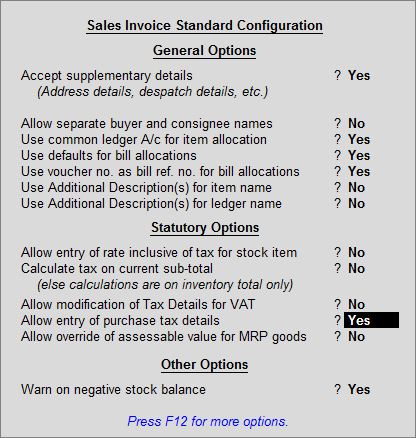
3. Enable the option Allow entry of purchase tax details? .
The Voucher Configuration screen appears as shown below:
4. Press Ctrl+A to return to invoice screen.
5. Select the buyer ledger in the field Party’s A/c Name .
6. Select the sales ledger with Nature of transaction other than Interstate Branch Transfer Outward , Interstate Consignment Transfer Outward , Interstate Sales - Against Form C , and Interstate Sales – Taxable .
7. Select the stock item being sold and enter the Quantity and Rate .
8. Press Enter in the Amount field to open Purchase Details screen.
9. Enter the Purchase Value for the quantity being sold and Rate of Tax . Input Tax Paid appears automatically in the Purchase Details screen as shown below:
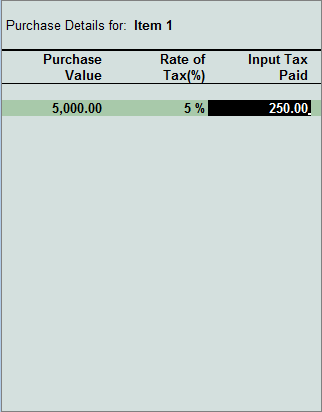
10. Press Enter to save and return to invoice screen.
11. Select the VAT/CST ledger as required. The tax amount appears automatically.
12. Enable the option Provide VAT Details? and enter required details in Statutory Details screen.
The sales invoice appears as shown below:
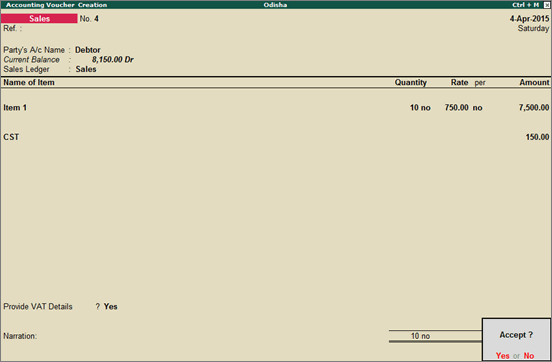
13. Press Enter to save.
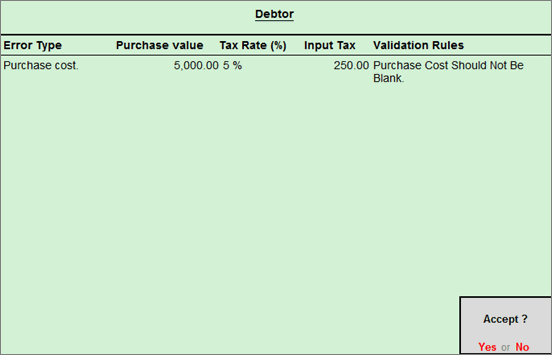
Note: When purchase tax details is not recorded during voucher entry, the transaction will appear in Annexure II as voucher with errors. Drill down to record the missing details in the Annexure Error(s) screen as shown below.