Form 231 is the monthly return filed by registered dealers. Tally.ERP 9 exports the return details to the excel template provided by the department. The excel template validates the information exported to the Sales Annexure and Purchase Annexure sheets and automatically creates Form 231 and Form IIIE .
The number of rows provided in return form sheet generated in excel template for rate-wise turnover is limited. Hence, if you are dealing with multiple tax rates, provide rate-wise turnover in 11 rows. Beyond the 11th row, calculate the weighted average of remaining rates and total assessable value of those rates and enter in Rate column and Turnover column, respectively.
To view Form 231
1. Go to Gateway of Tally > Display > Statutory Reports > VAT > Form 231 .
2. Press Ctrl+E to export the e-return details to excel template provided by the department.
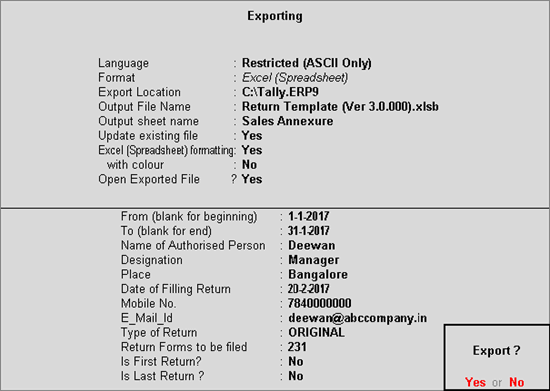
3. Enter required details in the Export Report screen. The Export Report screen appears as shown below:
4. Press Enter to export. Return details are exported to excel template.
5. Open and click the Validate sheet.
6. Click Validate and preview return . Form 231 sheet is created and return details can be viewed.
7. Click Create file for uploading in the Validate sheet to create the text file with return details.
8. Log in to the department website, and upload the file.
In the data migrated from earlier releases of 4.9x to 5.x, the transactions recorded by selecting unregistered party ledgers with TIN were displayed as exceptions. From Release 5.4x, as the annexures are not party-wise or TIN-wise, such party ledgers will be considered as registered dealers as TIN is defined.
To remove the TIN and consider such vouchers as transactions made with unregistered dealers
1. Go to the Ledger Alteration screen of unregistered party ledger which has TIN.
2. Change the Type of Dealer to Regular in VAT Details screen.
3. Remove the TIN .
4. Press Backspace and select the Type of Dealer as Unregistered .
5. Press Enter to accept.