
Works contract sales transaction can be recorded using predefined nature of works contract or user defined nature of works contract
● Predefined nature of works contract
Or
● User defined nature of works contract
To record a works contract transaction with predefined nature of works contract
1. Go to Gateway of Tally > Accounting Vouchers > F8: Sales .
2. Select party ledger in the field Party's A/c Name .
3. Select sales ledger with Sales - Works Contract as the Classification / Nature .
Note: If common ledger is being used, click F12: Configure in the invoice and set the option Allow Modification of Tax Details for VAT? to Yes . Select Sales - Works Contract in the VAT Classification Details screen displayed on selecting the common sales ledger.
4. Select stock item and enter the Quantity and Rate .
5. Select Nature of Contract from the predefined List of Nature of Works Contract .
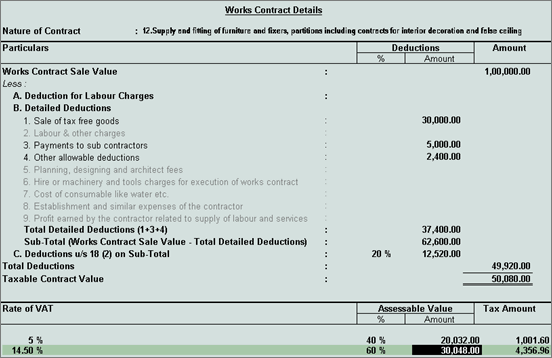
6. Enter amount for Deductions , as required.
7. Define Assessable Value for VAT rate and amount. The completed Works Contract Details screen appears as shown below:
8. Press Enter to save and return to the Accounting Voucher Creation screen.
9. Select the VAT ledger.
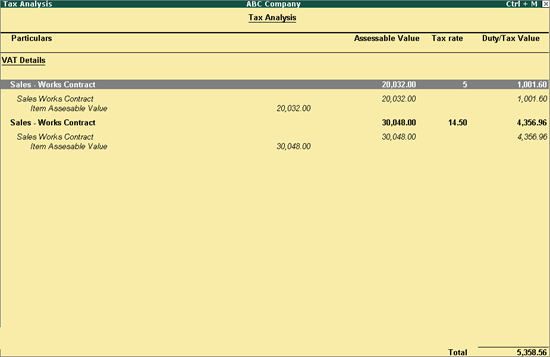
10. Click A : Tax Analysis to display the Tax Analysis screen.
o Click F1 : Detailed to view the stock items. The Tax Analysis screen appears as shown below:
o Press Esc .
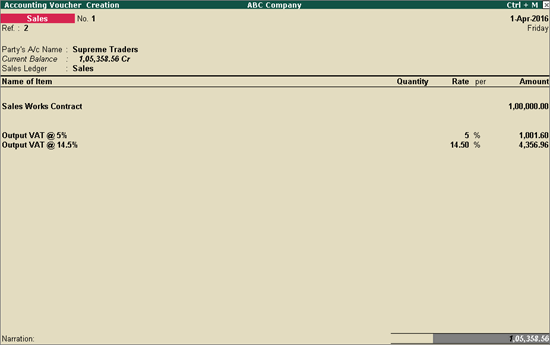
11. The sales invoice appears as shown below:
12. Press Enter to save the invoice.
To record a works contract transaction with user defined nature of works contract
1. Go to Gateway of Tally > Accounting Vouchers > F8: Sales .
2. Select the party ledger in field Party's A/c Name .
3. Select the sales ledger with Sales - Works Contract as the Classification / Nature .
Note: If common ledger is being used, click F12: Configure in the invoice and set the option Allow Modification of Tax Details for VAT? to Yes . Select Sales - Works Contract in the VAT Classification Details screen displayed on selecting the common sales ledger.
4. Select the stock item and enter the Quantity and Rate .
5. Select New Nature of Works Contract from the List of Nature for Works Contract .
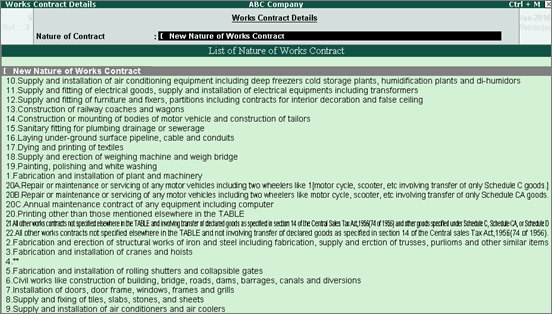
6. Enter the name for the New Nature of Works Contract .
7. Enter the rate and amount for Deduction of Labour Charges .
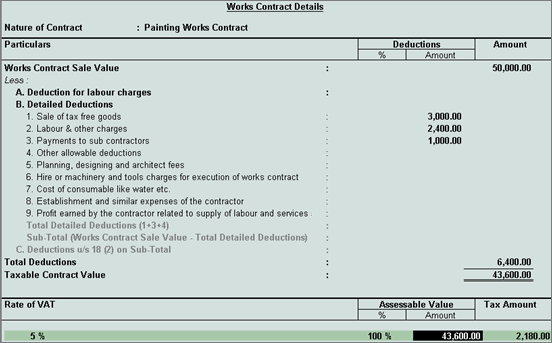
8. Define the Rate of VAT and Assessable Value , as required. The completed Works Contract Details screen appears as shown below:
9. Press Enter to save and return to the Accounting Voucher Creation screen.
10. Select the VAT ledger.
11. Click A : Tax Analysis to display the Tax Analysis screen.
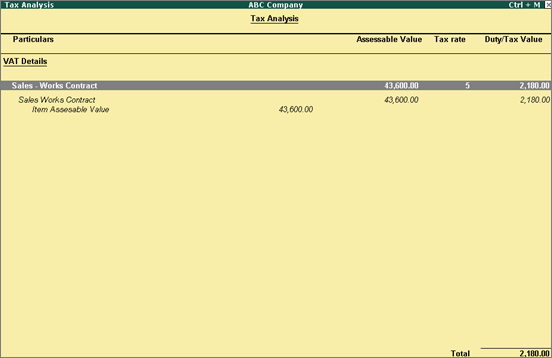
o Click F1 : Detailed to view the stock items. The Tax Analysis screen appears as shown below:
o Press Esc .
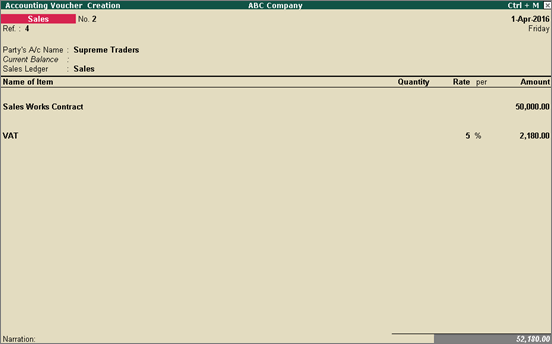
12. The sales invoice appears as shown below:
13. Press Enter to save the invoice.