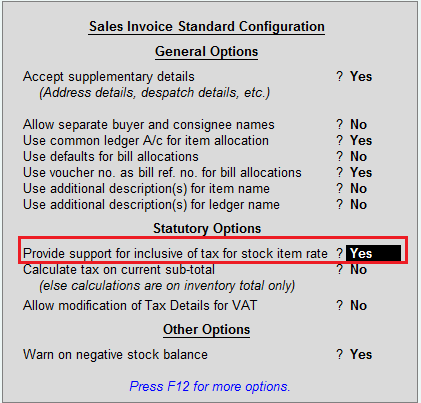
To specify rate inclusive of VAT, in the sales/purchase voucher, click F12: Configure and enable Provide support for inclusive of tax for stock item rate.
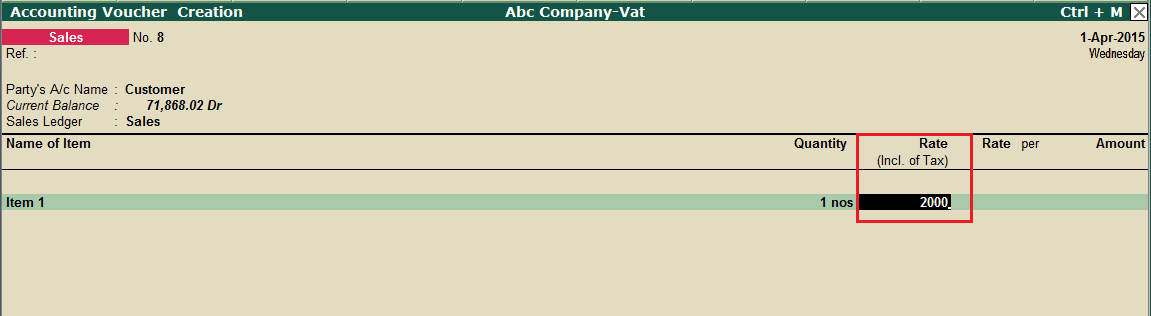
In the Rate (Incl. of tax) column, specify the rate inclusive of VAT.
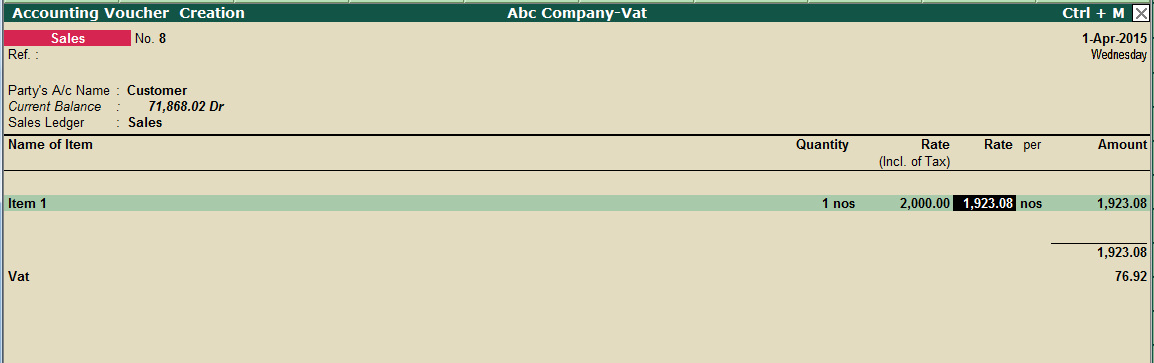
Tally.ERP 9 automatically bifurcates the assessable value and the VAT amount based on the VAT rate applicable for the item.
Select the VAT ledger to automatically capture the VAT amount.
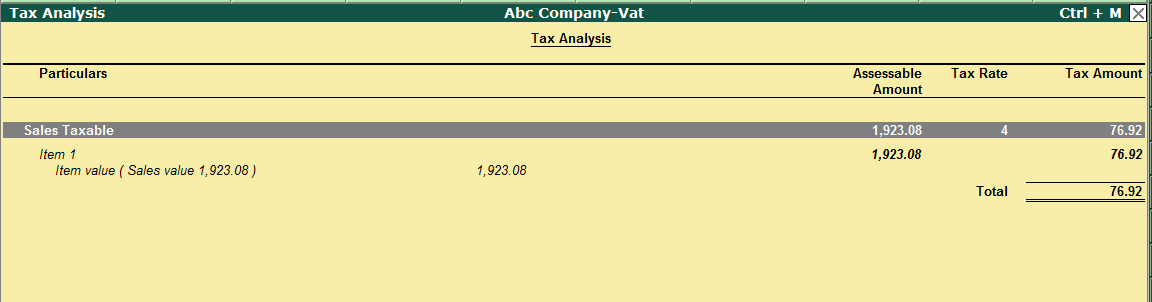
To check the tax details, click A: Tax Analysis. The tax details applied are shown as below: