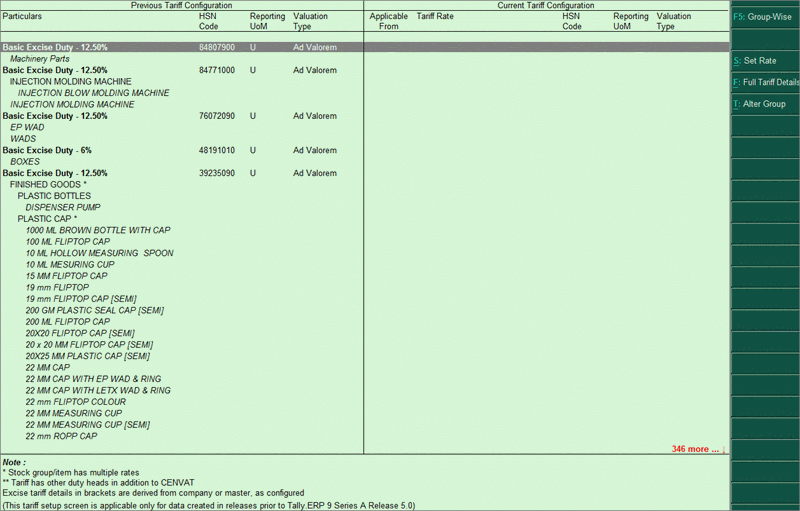
The Tax Rate Setup tool is used after migration of data from releases prior to 5.0 to Tally.ERP 9 release 5.x. This tool helps to configure tax rates and excise tariffs of all stock groups and items in release 5.x. If there are multiple stock items, this tool makes it very easy to configure rates and tariffs for all from one screen.
To configure Tariff Rates
1. Go to Gateway of Tally > Inventory Info. > Tax Rate Setup > Excise or,
2. Go to Gateway of Tally > Display > Statutory Reports > Excise Reports > Tax Rate Setup. The Excise Tariff Setup screen appears as shown below:
3. Click F5: Tariff wise or group wise to view the report tariff wise or group wise.
Note: Tariff rates can be configured at stock group or stock item level.
4. Select the stock group or stock item using spacebar. You can also select multiple stock groups or stock items in the same way.
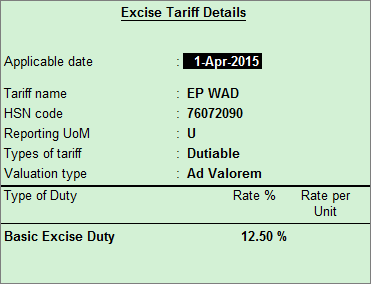
5. Press Alt+S to set the rate. The completed Tax rate details screen appears as shown below:
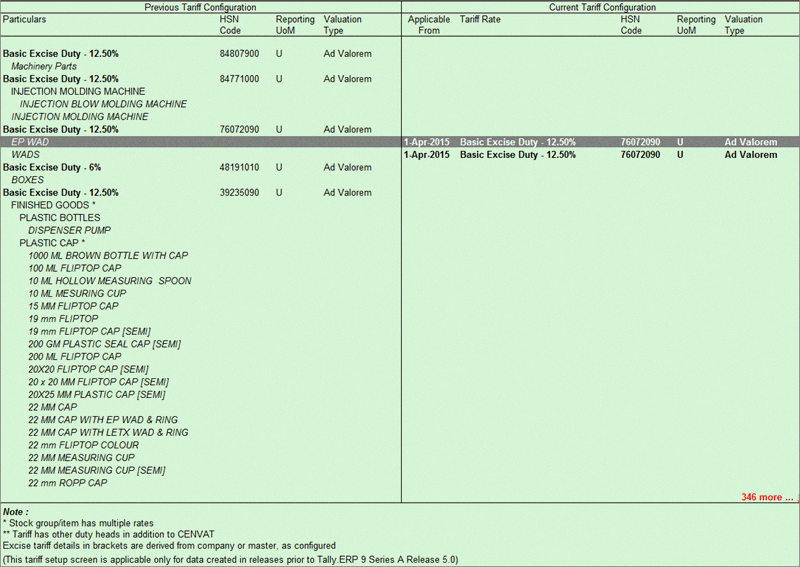
6. Press Ctrl+A to accept. The details appear in the Current Tariff Configuration section as shown below:
7. Click T: Alter Group to alter the stock group of a stock item after selecting the stock item(s). To create a new stock group, place the cursor on any stock group and press Alt+C.
Note: A tariff rate can be shown multiple times when:
♦ HSN code is different
♦ Reporting UOM is different
♦ Valuation Type is different
♦ Duties are configured in a different order.
For example, in the Excise Tariff Setup screen shown above, the Basic Excise Duty of 12.5% has been shown multiple times with respective stock groups or items as the HSN code in each is different.