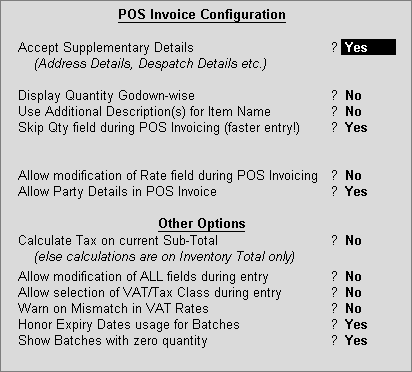
In a PoS invoice, you can view the quantity of stock item available godown-wise for effectively choosing the stock for sale. You can make decisions based on the availability of the stock item.
To record a POS transaction
1. Go to Gateway of Tally > Accounting Vouchers > F8: Sales to view the Change Voucher Type screen.
2. Select POS Invoice as the Voucher type.
3. Select the Godown, as required.
4. Select the Party's A/c Name, as required.
5. Select the Sales Ledger, as required.
6. Select the Name of Item or create a new stock item.
7. Set the Rate of the item, as required.
8. Select VAT/Tax ledger from the list of Ledger Accounts.
9. Click F12: Configure to set the POS Invoice Configuration, as required. The configuration screen opens as shown below:
o Set the option Display Quantity Godown-wise? to Yes.
o Press Ctrl+A to save.
10. Press Enter to save.