Authentication Failed
This error message may appear in the following two scenarios:
This error message appears when the user name, the password, or both are incorrect.
● Enter the correct user name and password during authentication.
● Ensure that the Caps Lock key is used correctly.
This error message may appear even when the authentication details are entered correctly.
This error occurs when 2-step verification has been enabled in the Gmail account from which the mail has to be sent.
Disable 2-step verification in Gmail.
If you want to retain 2-step verification in Gmail, you have to generate and enter an application-specific password while authenticating mailing details.
To disable 2-step verification in Gmail
● Go to Gmail > Settings > Accounts and Import > Other Google Account Settings > Turn on Access for less secure apps.
To generate an application-specific password for Gmail account
1. Go to Gmail > My Account > Sign-in & security > 2-Step Verification > App-specific passwords > Manage application-specific passwords.
2. Click Other (Custom name) in the Select app field.
3. Enter a name for the application.
4. Click GENERATE.
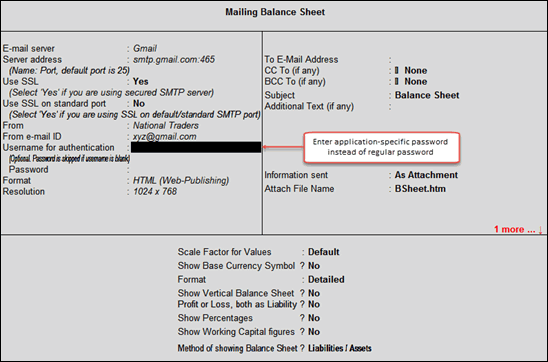
Gmail generates and displays an application-specific password for your account. The password shown on the screen has to be entered during authentication (instead of the password of your Gmail account), as shown below:
A mail can now be sent successfully from Tally ERP 9 even when 2-step verification is turned on.