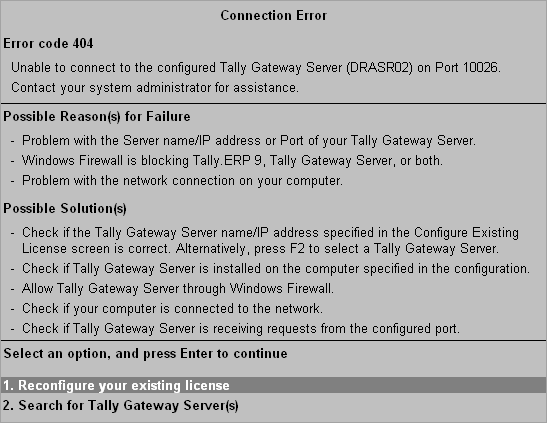
Error Code 404
This error occurs when Tally.ERP 9 is unable to connect to the configured Tally Gateway Server and Port.
This error may occur if,
● The Server name/IP address or Port of your Tally Gateway Server specified is incorrect.
● Tally Gateway Server is not installed on the computer specified in the Configure Existing License screen.
● Windows Firewall is blocking Tally.ERP 9, Tally Gateway Server, or both. Click here, to know how to allow any application through Windows Firewall.
● There is a problem with the LAN connection on your computer.
● Your Tally Gateway Server is not receiving requests from the specified port.
● Check if the Server name/IP address specified in the Configure Existing License screen is correct.
● Alternatively, press F2 in the Configure Existing License screen to select a Tally Gateway Server.
● Check if the Tally Gateway Server is installed on the computer specified in the configuration.
● Allow Tally.ERP 9 and Tally Gateway Server through Windows Firewall. Click here, to know how to allow any application through Windows Firewall.
● Go to Control Panel and check if the LAN connection is enabled or disabled on your computer. If the connection is disabled, enable it.
● Check if your LAN cable is connected to both your computer and the network wall socket.
● Open Command Prompt on the computer where the Tally Gateway Server is installed and run the command netstat -a. If the specified port gets listed with the State as Listening, then the Tally Gateway Server is receiving requests from the port.
After you have resolved the issue you can:
● Reconfigure your existing license, or
● Press F2 in the Configure Existing License screen to search for Tally Gateway Servers.