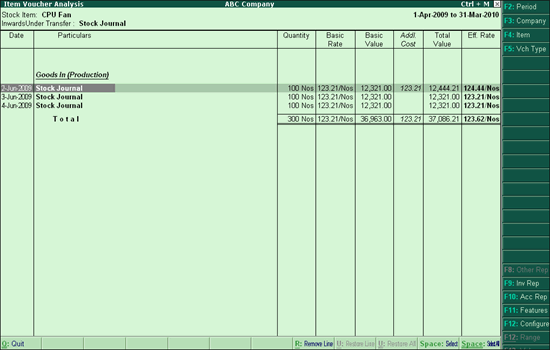
To view stock item movement analysis report configuration screen
● Go to Gateway of Tally > Display > Inventory Books > Movement Analysis > Stock Item Analysis.
● Select the item from the List of Stock Items. The Item Movement Analysis screen appears.
● Select the supplier, buyer or stock journal name and press Enter. The Item Voucher Analysis screen appears as shown below:
● Press F12: Configure. The Configuration screen appears as shown below:
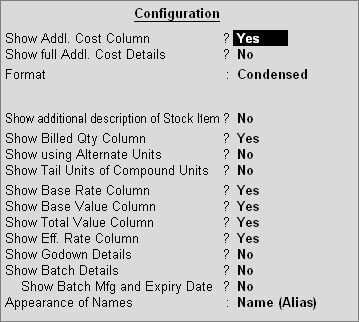
Show Addl. Cost Column
Set this option to Yes to display additional cost details of the item (if recorded during voucher entry).
Show Full Addl. Cost Details
Set this option to Yes to display the bifurcation of additional cost (if recorded during voucher entry).
Format
Select the format in which the report has to be displayed. The report can be viewed in Condensed or Detailed mode.
Show Narrations
This option is available only in Detailed mode. Set this option to Yes to display the narration of the vouchers.
Show additional description of Stock Item
Set this option to Yes to display the additional description of stock item.
Show Billed Qty Column
Set this option to Yes to display the billed quantity (billed quantity can differ from actual quantity in some cases).
Show using Alternate Units
Set this option to Yes to display the alternate units of the stock item in the Alt. Units column (if the stock item has alternate units defined).
Show Tail Units of Compound Units
Set this option to Yes to display the second unit of the compound units of the stock item (if the stock item has compound units defined).
Show Base Rate Column and Show Base Value Column
Set these option to Yes to display the Base Rate column and Base Value column in the report respectively.
Show Total Value
Set this option to Yes to display the Total Value column in the report (Total Value = Basic Value + Addl Cost).
Show Eff.Rate Column
Set this option to Yes to display the Eff. Rate column in the report (Eff. Rate = Total Value / Quantity).
Show Godown Details
Set this option to Yes to display the Godown column in the report. The godown selected in the voucher is displayed here.
Show Batch Details
Set this option to Yes to display the Batch column in the report. The batch recorded in the voucher is displayed here.
Show Batch Mfg. and Expiry Date
This option is enabled only if Show Batch Details is set to Yes. Set this option to Yes to display the batch’s manufacturing date and expiry date.
Buttons |
Shortcut Keys |
Description and Use |
F4:Item |
F4 |
To navigate to other stock item from the report which is open. |
F5:Ledger F: Vch Type |
F5 |
To navigate to other voucher types or ledgers from the report which is open. If drilled down from Suppliers or Buyers then F5:Ledger is displayed. If drilled down Transfers Inward or Transfers Outward then F5:Vch Type is displayed. |
Stock Item Movement Analysis Report
Configuring Stock Item Movement Analysis Report