In business scenario a manufacturer who wants to delegate the manufacturing Job to an external manufacturer (Job Worker), first identifies the Job workers who have specialisation in the Job which needs to be delegated. Then compares the cost of manufacture by different Job Workers and finally decides on the Job Worker to whom the job to be delegated based on cost of Manufacture, Quantity of Manufacturer etc.
After deciding the Job Worker Principal manufacturer raises the Job Work Out Order by specifying the details of Finished Goods to be manufactured and expected Quantity of Finished Goods, Raw material to be supplied by the Principal Manufacturer, Date of Delivery of Raw Materials (if delivered in installments) etc.
In Tally.ERP 9 users can record Job Work Out Orders using Job Work Out Order voucher.
under this we will learn to record a Job Work Out Order for a stock item for which Bill of Material (BOM) is not created and all the material required will be delivered at once.
Example: On 4-12-2010, ABC Company delegated the Job of Manufacture of 500 nos of 12Litre Cooker to Mega Manufacturers. To manufacture of 12 Litre Cookers following Raw Materials will be supplied by ABC Company.
Raw Materials |
Quantity |
Bottom Plate-12Ltr |
500 (Nos) |
Lid Aluminium Plate-12 Ltr |
500 (Nos) |
Handle (8 Ltr |
1000 (Nos) |
Packing Box (12 Ltr) |
500 (Nos) |
Hand Book |
500 (Nos) |
The following scrap produced will be returned to the Principal Manufacturer
Scrap |
Quantity |
Aluminium Scrap |
25000 (GM) |
1. Record the Transaction in Job Work Out Order
To record the Job Work Out Order
Go to Gateway of Tally > Order Vouchers > J: Job Work Out Order
Enter the Date as 4-12-2010
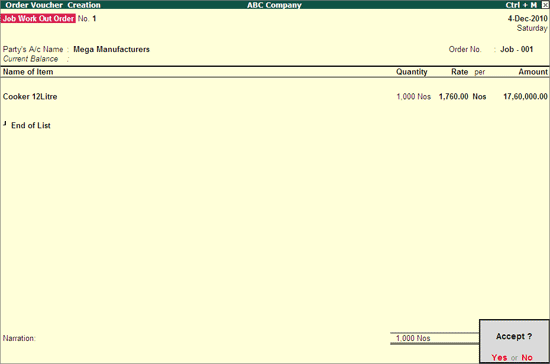
Party A/C Name: In this field select the Job Worker ledger on whom the Job Work Out Order is raised. E.g. Mega Manufacturers.
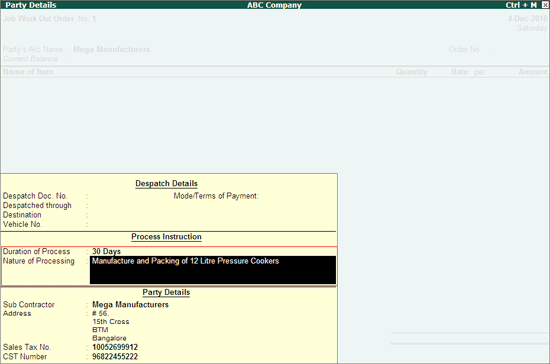
In Party Details screen, under Process Instruction section specify the duration of Process and Nature of Process to be carried out.
Duration of Process: In this field enter the duration of the manufacture of finished goods. i.e. within how many days/months etc. the process to be completed and goods to be delivered.
Nature of Processing: In this field specify the details of nature of process (process Instruction) to be carried out to manufacture the expected finished goods.
Note:
1. The Party Details screen will be displayed while recording Job Work Order only if the option Accept Supplementary Details option is set to Yes in Job Work Out Order Configuration.
2. Providing details in Duration Of Process and Nature of Processing in Job Work Out Order is not Mandatory. However while transferring the goods to the Job Worker it is must to define the Nature of Processing. When material transfer out are recorded by tracking the Job work Out Order then Duration and Nature of Processing details will get captured automatically.
Press Enter to accept the Party Details screen.
Order No: In this field enter the Job Work Out Order Number. E.g. Job - 001

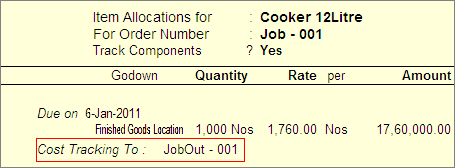
Name of Item: In this field select the stock Item i.e. Finished Goods to be manufactured by the Job Worker. E.g. Cooker 12 Litre. Press Enter to view Stock Item Allocations screen
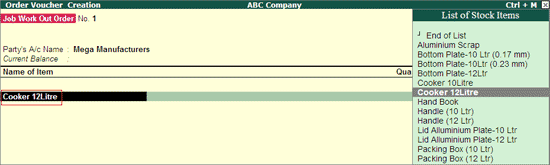
In Stock Item Allocation screen
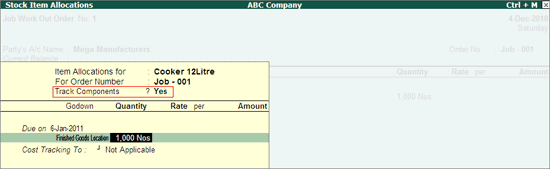
Item Allocation for: By default the stock Item selected in the Job Work Out Order will be displayed, indicating that the item allocation is for the selected item.
For Order Number: By default the Job order specified in the Job Work Out Order will be displayed indicating that the item allocation is for the job order specified.
Track Components: By default this field will be set to Yes. If the Principal Manufacturer wants to track the raw materials used in the manufacture of finished goods retain the Setting as Yes.
Note: In case the Manufacturer does not want to track the Raw materials then set the option Track Components to No. When this option is set to No, Tally.ERP 9 will not display the Component Allocation Screen.
Due On: In this specify the Date on which the delivery of Finished Goods is due. In this case ABC Company has accepted the manufacturing Duration of 30 Days (from the day of delivery of raw materials). Hence the 200 Nos of Cooker 8 Litre will be due on 6-1-2011
Note: If the Principal Manufacturer has agreed for the delivery of finished goods in Installments the user can define multiple Due on date with Quantity of delivery.
Example: 500 Nos on 20-12-2010 and 500 Nos on 6-1-2011
Godown: In this field select the Godown where the finished goods will be stored on Receipt of the same from the job Worker. E.g. Finished Goods Location
Quantity: Specify the Quantity of finished goods to be received from the Job Worker.
Press enter from Quantity field to view Components Allocation screen
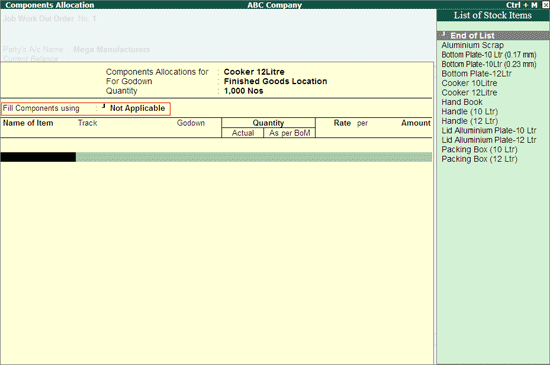
In Components Allocation Screen
Note:
1. Component Allocation screen will be displayed only when the option Track Components is set to Yes in Stock Item Allocation screen.
2. The Finished goods for which Job Work order is raised does not have the Bill of Material (BOM) then in Component Allocation screen, Tally.ERP 9 will skip Fill Component using field and cursor will be displayed in Name of Item field indicating that the Raw Materials required for the manufacture of Finished goods has to be selected from the List of Stock Items.
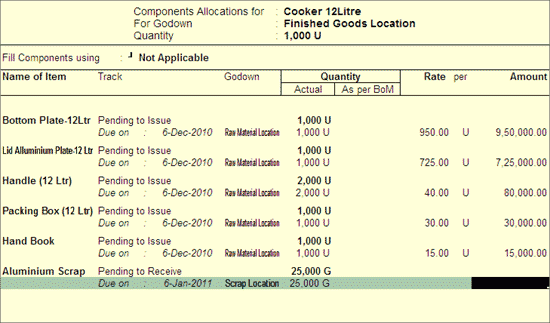
Name of Item: Select the Raw materials required to manufacture the finished Goods. E.g. Bottom Plate-12Ltr
Track: In this field select Pending to Issue from the Type of Component list as the Raw materials are pending for issue to the Job Worker.
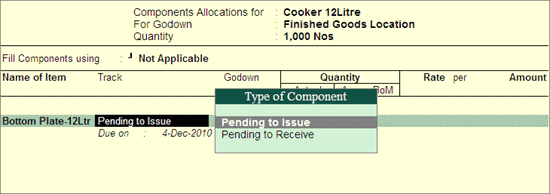
Note: Based on the Job Work Order Tally.ERP will highlight the appropriate Type of Component.
* For Job Work Out Order - Pending to Issue will be highlighted
Due on: In this field specify the date on which the Raw materials will be delivered to the Job Worker Location. By default the Voucher Date will be displayed in this field. if the Delivery Date is different than the voucher date specify the correct Due on date. Here, ABC Company is delivering the Raw materials on 6-12-2010.
Note: If the Job Worker has agreed for the delivery of raw materials in Installments then user can define multiple Due on date with Quantity of delivery.
Example: 100 Nos on 6-12-2010 and 900 Nos on 7-12-2010
Godown: In this field select the godown from where the Raw materials will be delivered to the Job Worker.
Quantity (Actual): In this section specify the Quantity of Raw material to be issued.
Note: Cursor will not move to As per BOM field when the BOM is not selected in Fill Component using field.
Rate: In this field specify the Rate of Raw material consumed for the manufacture of finished goods.
Similarly, select all the Raw materials to be issued towards the Job work Out Order.
In the process of Manufacture of Cooker 12Litre, Aluminium Scrap is produced. Under Name of Item select Aluminium Scrap and in Track field select Pending to Receive as the scrap has to be received form the Job Worker along with the Finished goods.
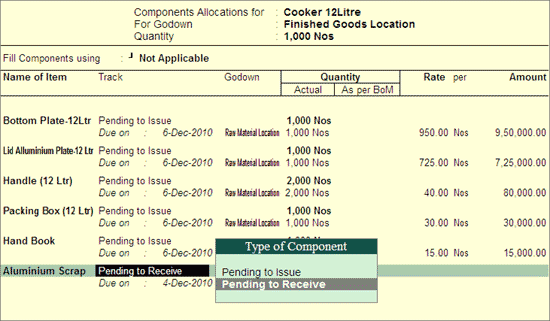
Note: While recording the Job Work Out Order users can also track the Scrap, By-Products or Co-products produced during the manufacture of Finished Goods.
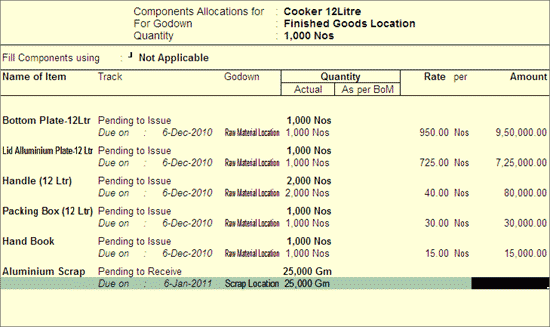
In Due On field specify the Date on which the scrap will be received, Here, principal manufacturer is receiving the scrap along with the Finished Goods on 6-1-2011.
In Godown field select the Godown where the scrap will be stored. E.g Scrap Location
In Quantity (Actual) field specify the Quantity of scrap to be received. e.g. 25,000 Gm
The completed Components Allocation screen is displayed as shown
Press Enter to accept the Component Allocation screen and to view Stock Item Allocation screen
In Stock item Allocation screen
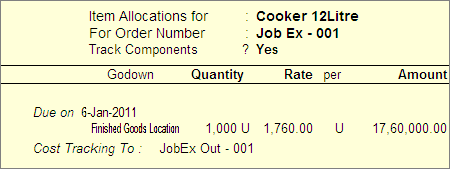
Rate: In this field specify the Rate of Finished goods. E.g. 1760 (based on the raw materials supplied to the job worker)
Amount: Will be calculated and displayed automatically.
Cost Tracking To: In this field select New Number and specify the Cost Tracking Number
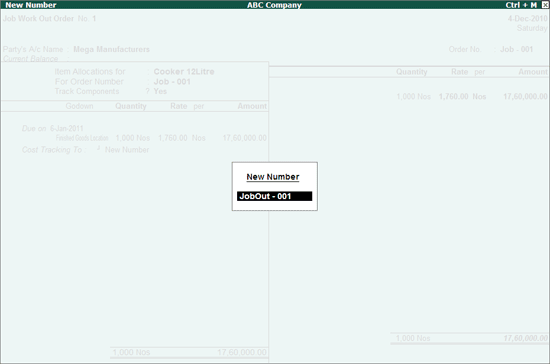
Note: ABC Company wants to track the total cost incurred for the manufacture of 12 liter Cooker for the Job -001 delegated to Mega Manufacturer.
The completed Stock Item Allocation screen is displayed as shown
Press Enter to save the Item Allocation screen.
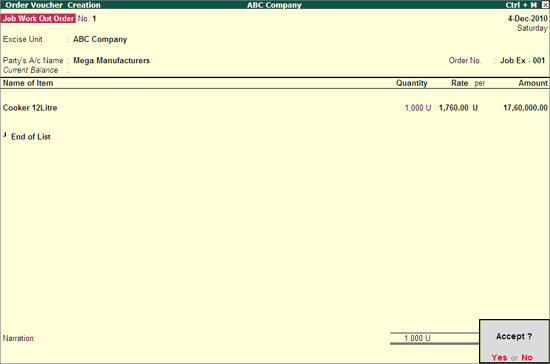
The completed Job Work Out Order is displayed as shown
Press Enter to save.
The details of Job Work Out Order details can be viewed in
Job Work Out Orders Book
Order Outstandings
To view the Job Work Out Orders Book
Go to Gateway of Tally > Display > Job Work Out Reports > Job Work Registers > Job Work Out Orders Book

When the Job work order of excise stock items are given, to capture the transaction details in excise reports the Job work out orders have to be recorded in excise voucher types.
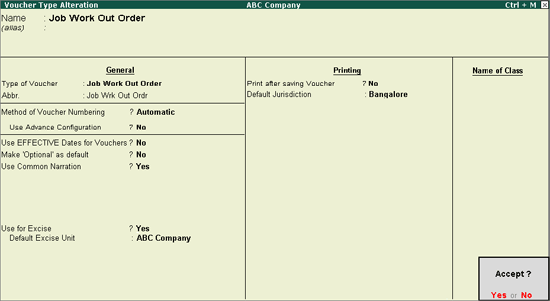
Step 1: Alter Job Work Out Order Voucher Type
Go to Gateway of Tally > Accounting Info. > Voucher Types > Alter > Job Work Out Order
Tab Down to Use for Excise field and set this option to Yes
In Default Excise Unit field select ABC Company from the List of Excise Units
Step 2: Record the Transaction in Job Work Out Order (We will record the transaction for the example given above)
Go to Gateway of Tally > Order Vouchers > J: Job Work Out Order
Enter the Date, Select the Job Worker ledger and in Party Details screen specify the Process Instruction - Duration of Process and Nature of Processing
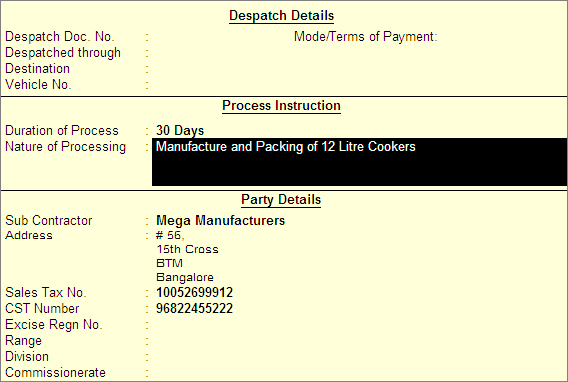
Note: Providing details in Duration Of Process and Nature of Processing in Job Work Out Order is not Mandatory. However while transferring the goods to the Job Worker it is must to define the Duration of Process and Nature of Processing.
When material transfer out are recorded by tracking the Job work Out Order then Duration and Nature of Processing details will get captured automatically.
Enter the Job Order Number - Job Ex - 001. Under Name of Item, select the Finished Goods to be manufactured by the Job Worker. E.g. Cooker 12 Litre.
In Stock Item Allocation screen
Set Track Components to Yes
Due On: In this specify the Date on which the delivery of Finished Goods is due. Example 6-1-2011
Godown: In this field select the Godown where the finished goods will be stored on Receipt of the same from the job Worker. E.g. Finished Goods Location
Quantity: Specify the Quantity of finished goods to be received from the Job Worker. E.g. 1000 U. Press enter from Quantity field to view Components Allocation screen
In Components Allocation Screen, select the Raw materials to be issued and Scrap to be received.
In Stock item Allocation screen, specify the Rate Rs.1760 Amount will be calculated and displayed automatically.
Cost Tracking To: In this field select New Number and specify the tracking Number - JobEx Out - 001
The completed Job Work Out Order is displayed as shown
Press Enter to save.