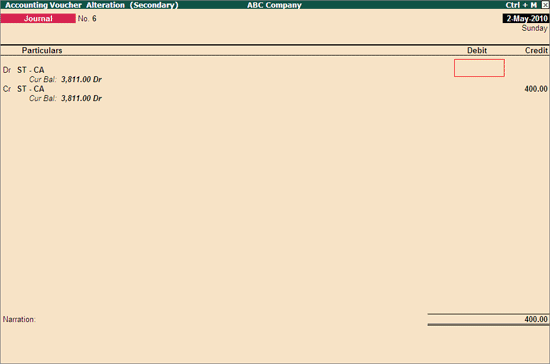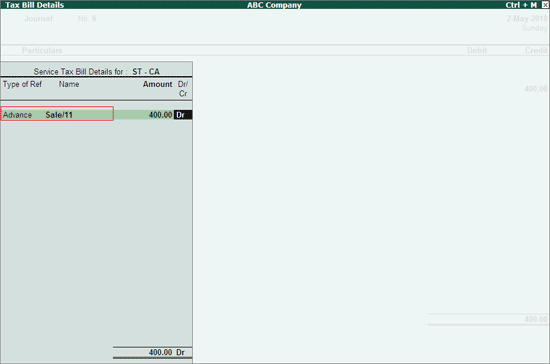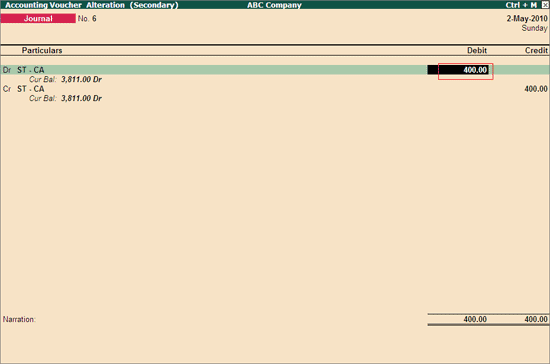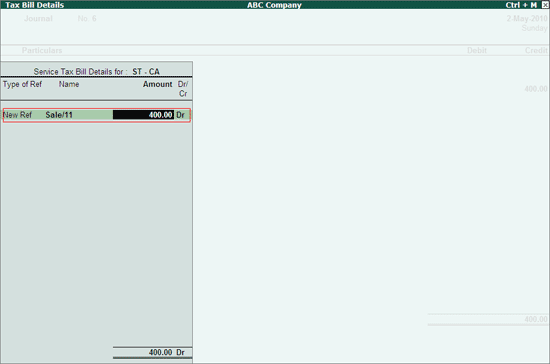
The enhanced capabilities in Tally.ERP 9 allows you to handle transactions related to service tax data better. Further, migrating service tax data from Tally 9 to Tally.ERP 9 helps in arranging the data in a compatible folder structure supported by Tally.ERP 9.
How to Migrate Service Tax Data?
How to Migrate Tally.ERP 9 (Release 1.0 to 1.61) Data?
Why is Migrating Service Tax Data Required?
How is Service Tax Data Migrated?
How to Migrate Failed Vouchers?
How to Rectify Un-Migrated Vouchers?
To migrate service tax data
Load the company in Tally.ERP 9.
A confirmation message Rewrite Version? is displayed. Click Yes to rewrite version.
Press Enter to accept.
A confirmation message Backup before rewriting? is displayed. Press Enter or Y to take backup. If backup before rewrite is selected, the backup companies on the disk is displayed.
After backup, a rewrite of the data takes place. Data rewrite occurs in three phases.
On rewriting the data, the statutory masters are imported.
After import of statutory masters, Tally 9 data gets migrated to Tally.ERP 9 data structure.
Note:While migrating the service tax transaction, an error message Function: 'STX FetchTaxObjValues' LABLE: : Could not find object 'TaxObjects' is displayed. This message can be ignored.
If there are any errors during the steps, a warning message is displayed. After migration of data, if the service tax migration is not completed, a warning message along with the steps to migrate failed service tax vouchers are displayed.
On loading the Tally.ERP 9 data of any release lower than Release 1.8, the statutory masters is imported first. The service tax vouchers then gets migrated. If the migration is not successful, a warning message is displayed.
Service Tax data needs to be migrated because:
In Tally 9, options such as booking GTA transactions, booking multiple services in single voucher, cash based transactions, money equivalent adjustments and tax billing for professionals were not available.
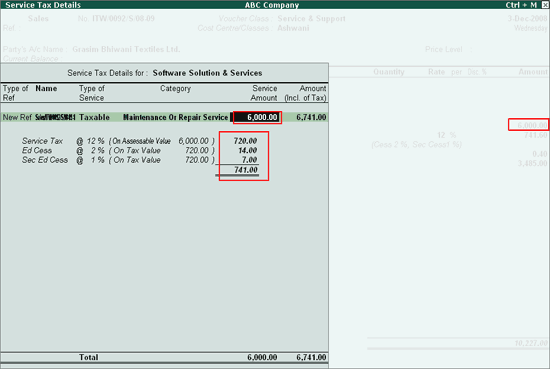
The data structure in Tally 9 and Tally.ERP 9 are different because of the variation in recording transactions. To change the data structure of the transactions entered in Tally 9 to Tally.ERP 9, migration is required.
In Tally.ERP 9, service tax data migration depends on the service tax bills. During the service tax migration:
Service tax bills are checked.
All the vouchers are checked for the service tax bills.
The purchase, sales, income and expenses transactions are migrated first. Service tax payments and adjustment transactions are migrated next.
Note: In the process of migration, if any error is found, the transaction is skipped and migration continues for the rest of the transactions.
To migrate the failed service tax vouchers, two exception reports are provided in Tally.ERP 9.
Un-Migrated Vouchers
Un-Migrated Bills
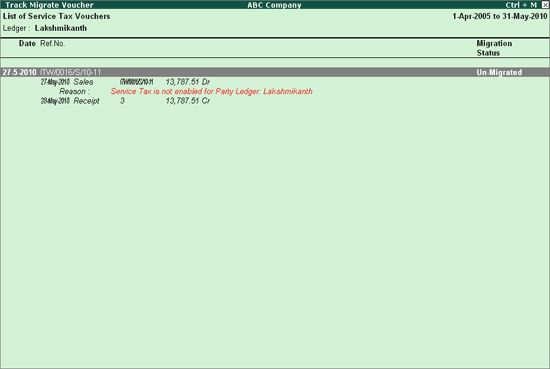
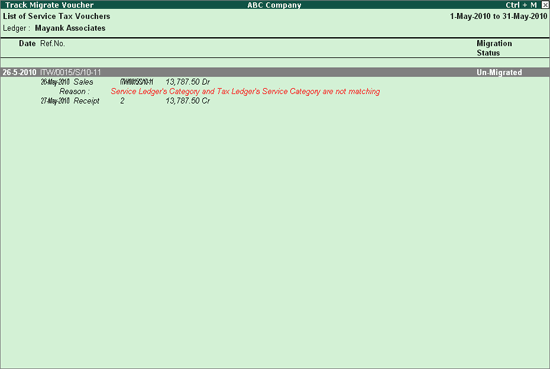
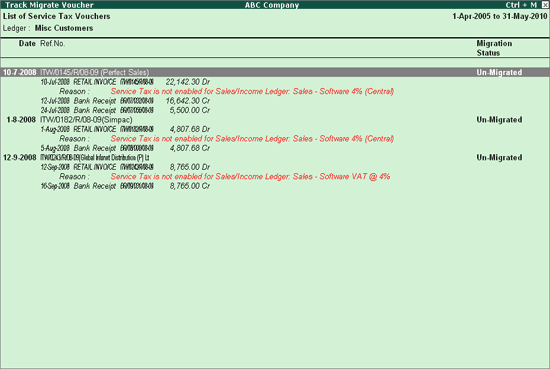
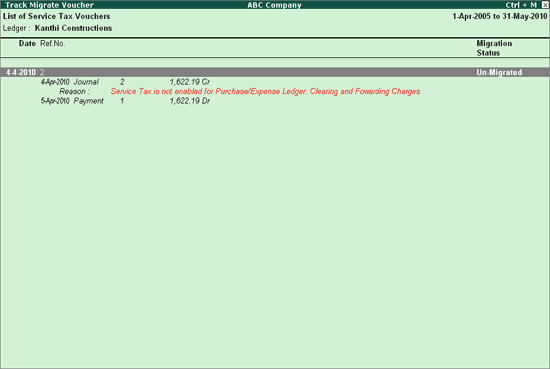
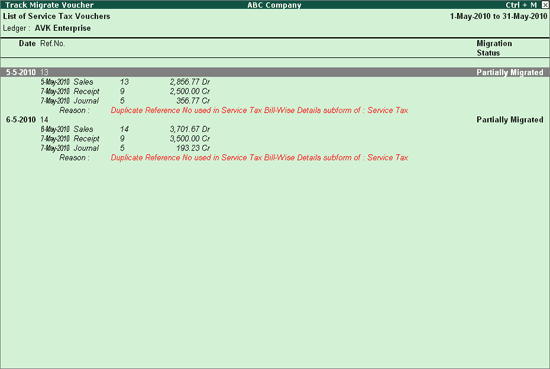
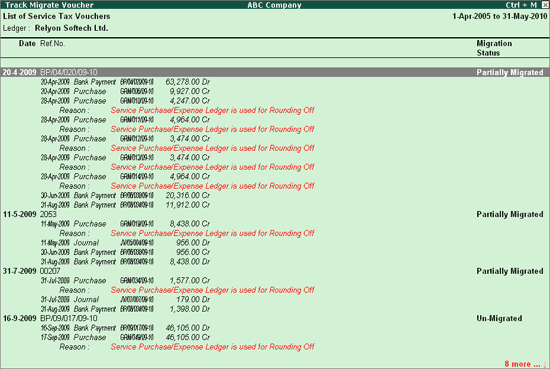
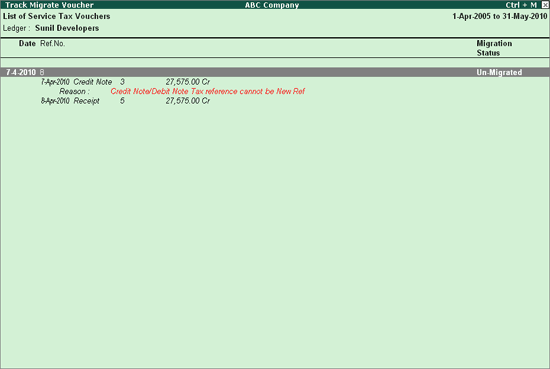
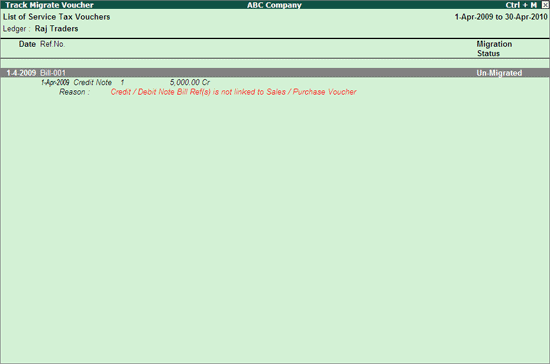
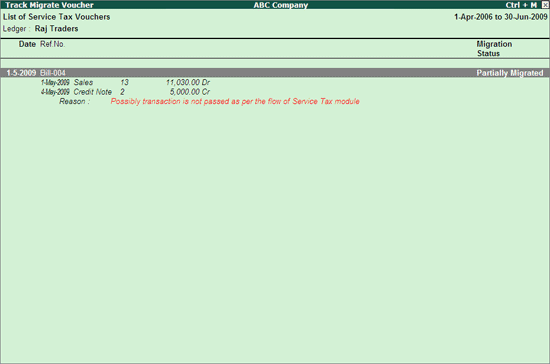
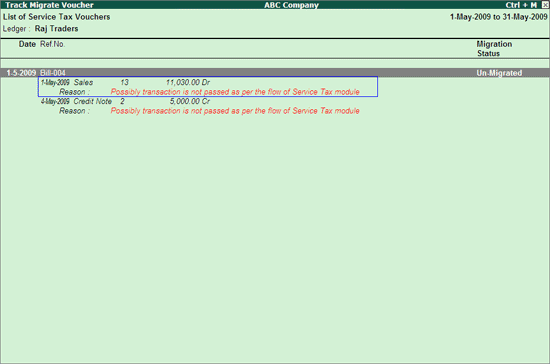
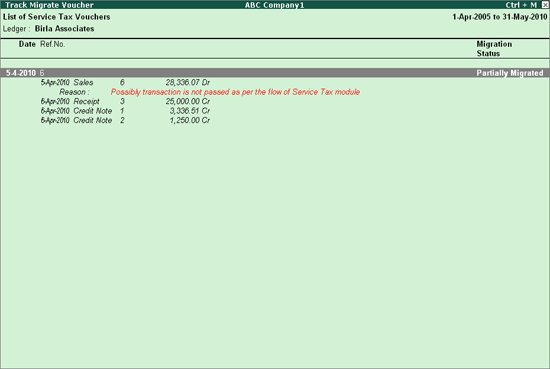
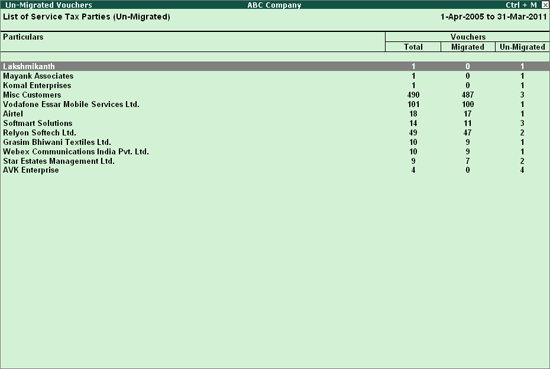
Un-Migrated voucher report displays service tax party-wise total, migrated and un-migrated voucher details. On selecting a party from this report, the un-migrated and partially migrated service tax sales, purchase, credit note, Debit Note, Journal, Receipts and Payments Vouchers with reasons for non-migration are displayed.
To view the Un-Migrated Vouchers report
Go to Gateway of Tally > Display > Statutory Reports > Service Tax Reports > Exception Reports > Un-Migrated Vouchers.
Select the party from the List of Service Tax Parties.
Check the reasons for non-migration and correct the vouchers to migrate.
Press Enter after selecting the party.
Select the service tax vouchers to correct and migrate from the Track Migrate Voucher screen.
Correct the vouchers as per the details.
Migrate the corrected vouchers by clicking F7: Migrate on the Track Migrate Voucher screen.
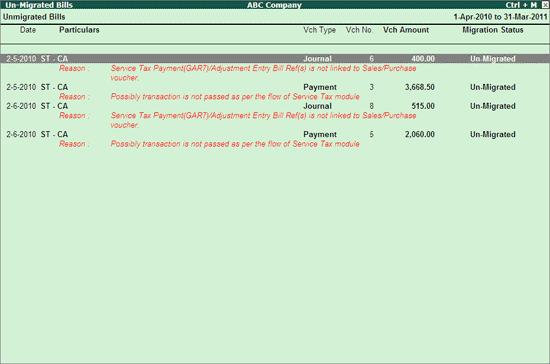
Un-migrated bills report displays the un-migrated service tax payments and input credit adjustment payment or journal vouchers.
To view the Un-migrated bills report
Go to Gateway of Tally > Display > Statutory Reports > Service Tax Reports > Exception Reports > Un-Migrated Bills
To correct the un-migrated service tax vouchers that are:
Un–Migrated Vouchers Report,
Select all the Partially Migrated vouchers.
Click F7: Migrate to migrate the vouchers.
Correct the un-migrated vouchers by finding the reason. See Reasons for non-migration.
Click F7: Migrate to migrate the vouchers.
Un-Migrated Bills Report,
Migrate the un-migrated vouchers without reason displayed in Un-migrated Bills report by clicking F7: Migrate.
Note:The un-migrated vouchers can be migrated only when all the vouchers in un-migrated vouchers report are corrected and migrated. If not, migrating the vouchers displayed in un-migrated bills report will not be allowed.
Correct the un-migrated bills based on the reasons displayed below the voucher. See Reasons for non-migration.
After correction, click F7: Migrate to migrate the vouchers.
Reasons for Un-Migrated Vouchers
Case 1: Service tax is not enabled for party ledger.
Case 2: Service ledger’s category and tax ledger’s service category does not match.
Case 3: Service tax is not enabled for Sales/Income Ledger.
Case 4: Service tax is not enabled for Purchase/Expense Ledger.
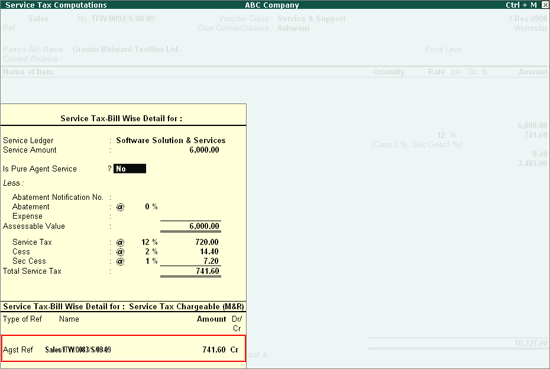
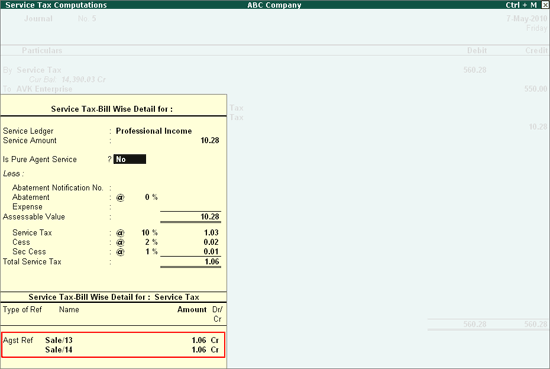
Case 5: Duplicate reference no. used in service tax bill-wise details subform.
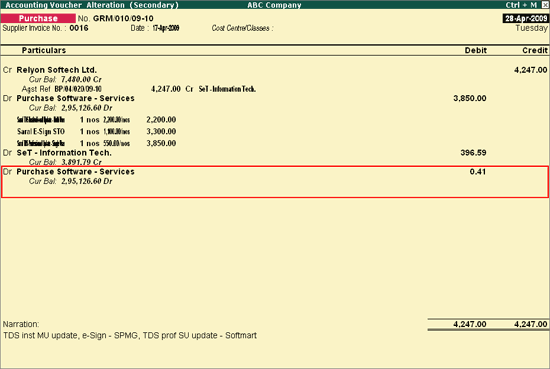
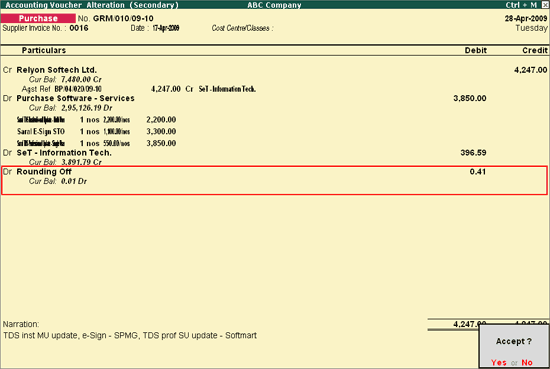
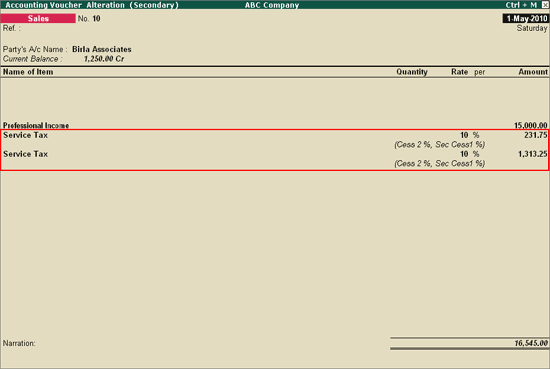
Case 6: Service Purchase/Sales Ledger is used as rounding off ledger (to adjust the decimals).
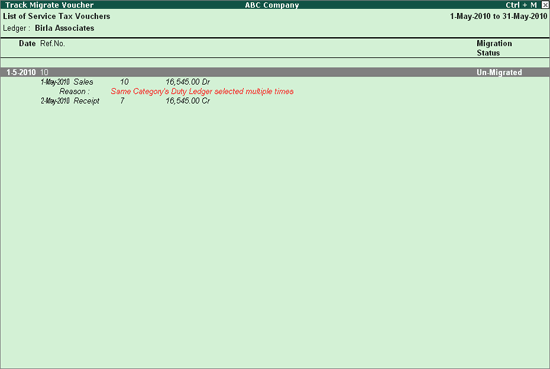
Case 7: Same category’s duty ledger selected multiple times.
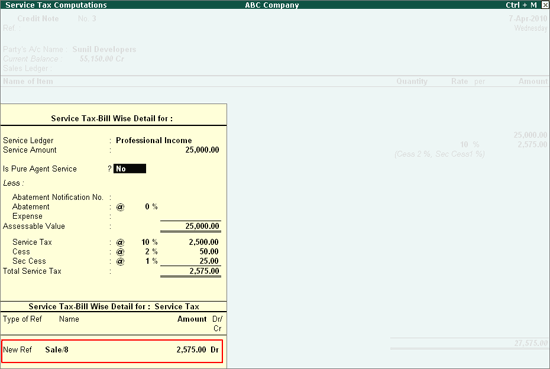
Case 8: Credit Note/Debit Note tax reference cannot be new ref.
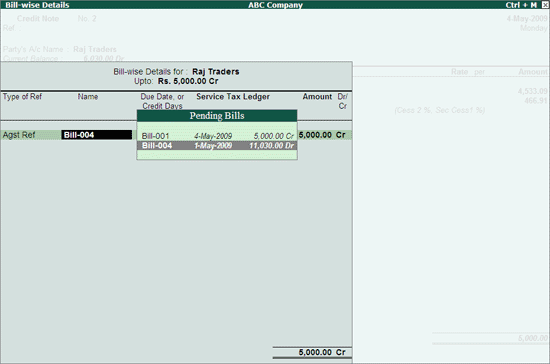
Case 9: Credit/Debit Note Bill Ref (s) is not linked to sales/purchase voucher.
Case 10: Transaction is not passed as per the flow of service tax module.
Reasons for Un-Migrated Bills
Case 1: Service tax payment (GAR7)/Adjustment Entry Bill Ref(s) is not linked to sales/purchase voucher.
Case 2: Transaction is not passed as per the flow of service tax module.
Click on the links to view the reasons for un-migrated voucher and how to rectify them:
Reasons for Un-Migrated Vouchers
Case 2: Service Ledger's Category and Tax Ledger's Service Category are not matching.
Case 4: Service Tax is not enabled for Purchase/Expense Ledger.
Case 5: Duplicate Reference No used in Service Tax Bill-wise Details subform.
Case 6: Service Purchase/Sales Ledger is used for Rounding Off.
Case 7: Same Category's Duty Ledgers selected multiple times.
Case 8: Credit Note/Debit Note Tax reference cannot be New Ref.
Case 9: Credit/Debit Note Bill Ref (s) is not linked to Sales / Purchase Voucher.
Case 10: Possibly transaction is not passed as per the flow of Service Tax Module.
Reasons for Un-Migrated Bills