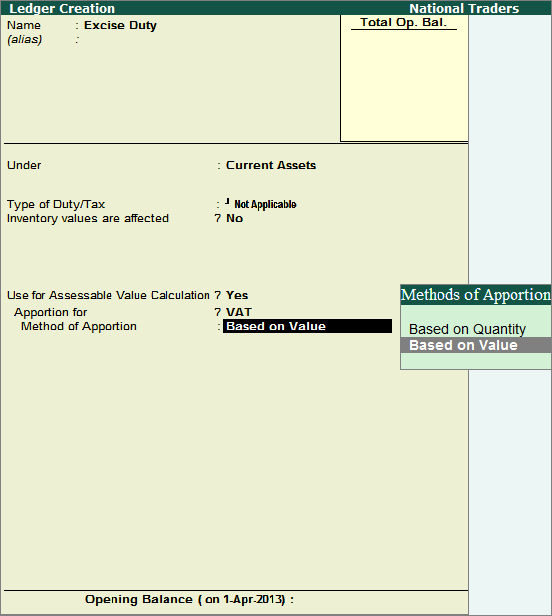
In excise and VAT enabled Company, if the excise ledger is grouped under Current Assets, the field - Type of Duty/Tax will be displayed. On selecting CENVAT as the Type of Duty/Tax, the ledger values entered in purchase entry gets apportioned to purchase cost. VAT will be calculated on the apportioned assessable value.
In Current Asset ledger master, if the Type of Duty/Tax is set to Not Applicable in Excise and VAT enabled Company, the field - Use for Assessable Value Calculation will be displayed. On enabling it, the fields - Apportion for and Method of Apportion gets enabled. Select VAT in Apportion for field and set the Method of Apportion to either Based on Quantity / Based on Value. This will apportion the excise duty to purchase cost for calculation of VAT on the apportioned assessable amount of purchases based on quantity/value as selected in ledger master.
In the Ledger creation screen of Excise and VAT enabled Company,
Enter the Name as Excise Duty
Select Current Assets as the group name in the Under field
Set the option Use for Assessable Value Calculation to Yes. On enabling this option, the additional fields - Apportion for and Method of Apportion will be displayed.
In the Apportion for field select VAT and set the Method of Apportion to Based on Quantity. The value entered for this ledger while recording entries will be apportioned to the assessable value as per the method selected for apportionment.
Accept the ledger creation screen.
To create a ledger for Packing materials,
Go to Gateway of Tally > Accounts Info > Ledgers > Create
Enter the Name as Packing Material
Select Direct/Indirect Expenses as the group name in the Under field
The option Inventory values are affected is set to No by default
Set the Type of Ledger field to Not Applicable.
Set the option Used in VAT Returns to No as the ledger is an additional ledger and not being used in lieu of purchase ledger.
Set the option Use for Assessable Value Calculation to Yes. On enabling this option, the additional fields - Apportion for and Method of Apportion will be displayed. The value entered for this ledger while recording entries will be apportioned to the assessable value as per the method selected for apportionment.
In the Apportion for field select VAT and set the Method of Apportion to Based on Quantity
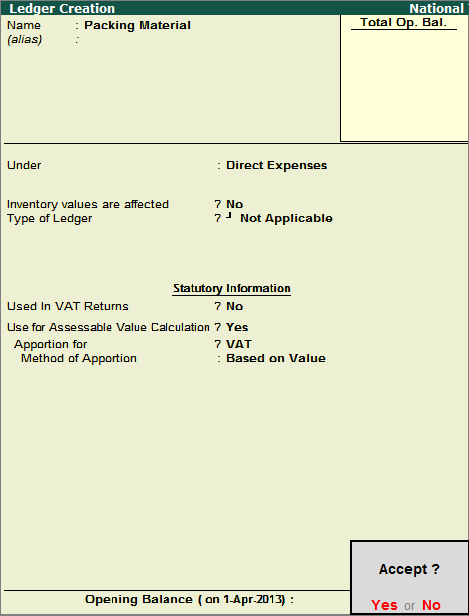
Press Y or Enter to accept and save.
Inorder to determine the correct assessable value of an item for VAT and Excise calculation, the option Use for Assessable Value Calculation has been introduced. Using this option, the expenses/income ledgers can be apportioned for a particular type of tax calculation. These ledgers can be marked for calculation of VAT or both Excise & VAT (when VAT and Excise features are enabled) on the apportioned assessable values of items invoiced. For example, to consider the additional ledger value only for VAT calculation, VAT has to be selected in the Apportion for field. This ledger will not be considered for calculation of Excise duty amounts.
In the expenses/income ledger master, the option - Used in VAT Returns needs to be enabled only when the same is grouped under Direct Expense/Income and Indirect Expense/Income instead of Purchase Accounts and Sales Accounts. On enabling this option The VAT/Tax class provided for the State selected for VAT Compliance will be displayed.
It is recommended NOT to enable both Used in VAT Returns and Use for Assessable Value Calculation fields as:
Used for VAT Returns is provided for selecting VAT/Tax class and usage of the ledger for recording sales/purchase entries.
Use for Assessable Value Calculation is provided for apportioning the additional expense/income/current asset/current liability amount to the assessable value.