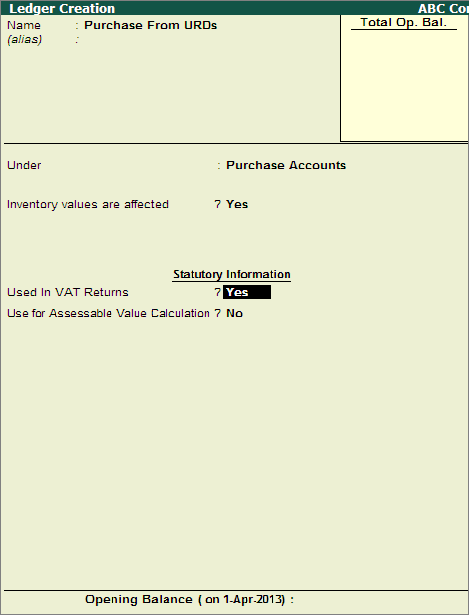
To create a Purchase Ledger,
Go to Gateway of Tally > Accounts Info. > Ledgers > Create
Enter the Name of the Purchase Ledger
In the Under field, select Purchase Accounts from the List of Groups
Set the field Inventory values are affected to Yes
Set the field Used in VAT Returns to Yes
Select the VAT/Tax Class from the list displayed.
Note: The VAT/Tax Classifications pertaining to purchases will be displayed for selection based on the State and the Type of Dealer pre-defined in the F3: Statutory & Taxation Features. The VAT/Tax classifications displayed for purchases in this example pertains to Karnataka State.
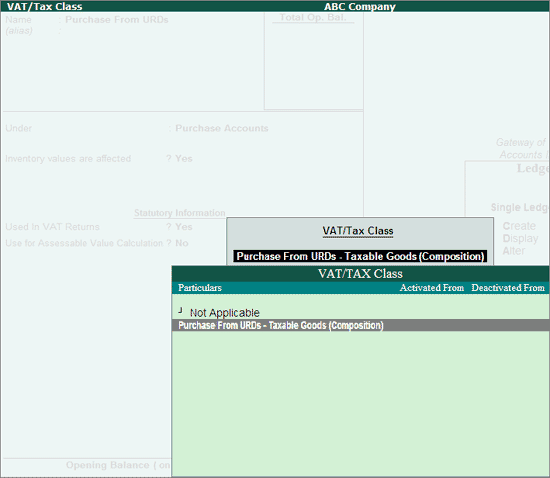
Accept the purchase ledger.
For Karnataka State, the VAT/Tax class - Purchase from URDs - Taxable Goods (Composition) can be used for recording purchases made at different tax rates from unregistered dealer. To create ledgers for different tax rates, follow the steps given below:
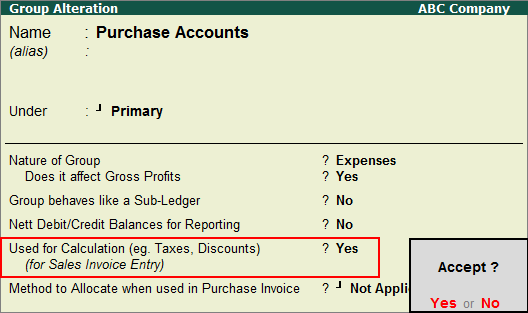
Go to Gateway of Tally > Accounts Info. > Group
Select Purchase Account and set the option - Use for Calculation (e.g. Taxes, Discounts) to Yes and accept the group alteration screen.
In the Purchase Ledger creation screen,
Select the group as Purchase Accounts
Enter the required tax rate in Percentage of Calculation field
Select On Total Sales as the Method of Calculation
Set Used in VAT Returns to Yes and select the VAT/Tax Class - Purchase From URDs - Taxable Goods (Composition)
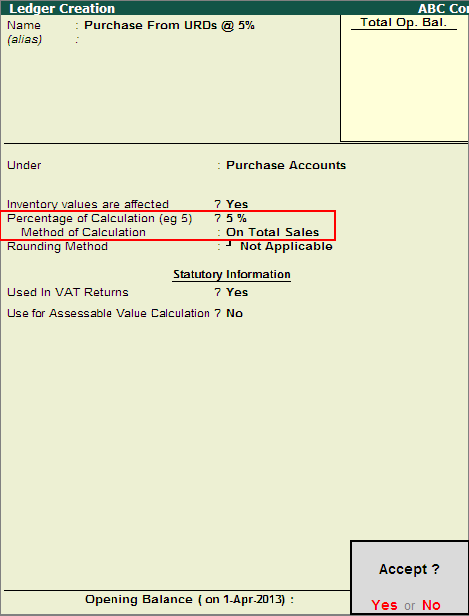
Accept the Ledger creation screen.