In Dealer Excise Purchase Invoice you can select the same item multiple times. Tally.ERP 9 allows the user to select the items with different assessable value, different rate of Duty and even the stock items purchased against different invoices (from manufacturer)
Example: On 5-9-2008 ABC Company purchased Hot Rolled Coils from Globus Steel Industries vide invoice no- GSI/025/08-09. The details are as follows
Stock Item |
Quantity |
Purchase Cost |
Assessable value |
Rate of Duty |
Manufacturers Invoice against which the stock Item is purchased |
Hot Rolled Coils |
1000 Kg |
15,00,000 |
12,00,000 |
16% |
SSI/785/08-09, dated 15-6-2008 |
Hot Rolled Coils |
500 Kg |
8,00,000 |
6,50,000 |
8% |
SSI/785/08-09, dated 15-6-2008 |
Hot Rolled Coils |
750 Kg |
13,00,000 |
11,50,000 |
16% |
SSI/650/08-09, dated 20-5-2008 |
Go to Gateway of Tally > Accounting Vouchers > F9: Purchase
Select the Excise - Purchase as the Voucher Type from the list of types.
Select Alt + I: Item Invoice if it is in Acct Invoice mode
Enter the Supplier Invoice No. as GSI/025/08-09 and Date as 5-9-2008
By default Tally.ERP 9 displays the Excise Unit as ABC Company as defined during voucher type creation.
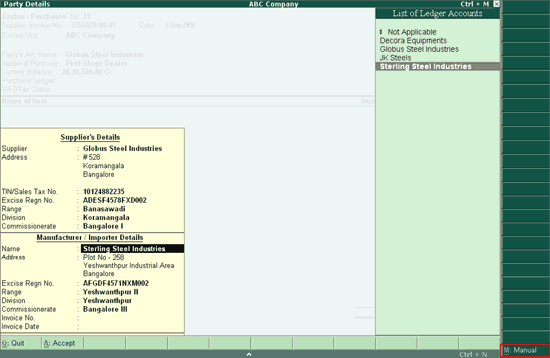
Select the Party’s A/c Name from the list of Ledger Accounts e.g. Globus Steel Industries
Supplier’s Details will include the Supplier and Manufacturer/Importer Details like, contact details, Sales Tax number and the Excise registration details. The details will appear automatically if they are provided during the Supplier Ledger Creation.
If the supplier of the goods is not the manufacturer, specify the details of the manufacturer of the goods in the Manufacturer / Importer Details section
Note: In the Supplier’s Details by using Alt+M key or by clicking on the M: Manual button in the buttons bar, Manufacturer /Importer details can be entered manually or you can select the Manufacturer ledger from the List of Ledger Accounts if the Manufacturer ledger is created and available.
Select the Nature of Purchase from the list of Nature of Purchase. This field defines the Supplier’s role in selling the product. E.g. First Stage Dealer
Note: By default the Nature of Purchase selected in the Party Ledger appears in the Nature of Purchase field which can be changed.
Select the Purchase Ledger from the list of ledger accounts. E.g. Purchases @ 4%
Select the VAT/Tax Class from the list of VAT/Tax Class. E.g. Purchases @ 4%
Note: By default the VAT/Tax Class selected in the Purchase Ledger appears in the above field which can be changed.
Select the Stock Item e.g. Hot Rolled Coils from the List of Excise Stock Items
Note: The List of Excise Stock Items displays only those stock items for which the Excise is enabled.
Enter Quantity as 1000
In the Amount field enter the purchase Cost of Rs. 15,00,000 to view Excise Details screen
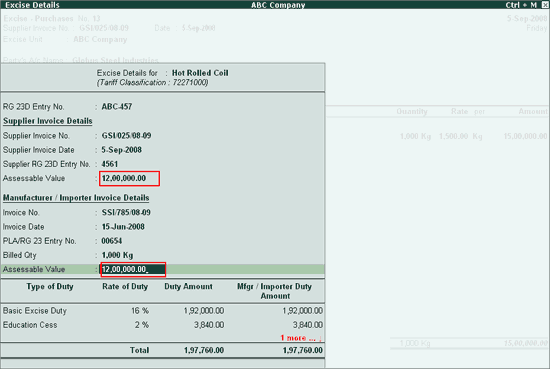
In the Excise Details screen
In RG 23D Entry No. field enter your RG 23D entry No. – ABC-457
In Supplier Invoice Details section
Supplier Invoice No: by default displays the Invoice No. details provided in the supplier Invoice No. field in the voucher entry screen. However, it is an editable field.
Note: The Supplier Invoice No. is mandatory and can be alphanumeric. If the Supplier Invoice No. is not entered in the Voucher creation screen, then the Supplier Invoice No. field by Default will appear as Not Applicable and the cursor remains in that field until a valid number is entered.
Supplier Invoice Date: by default displays the voucher date.
Note: The Supplier Invoice Date is mandatory. The date has to be same or lesser than the Voucher date. Ensure that the Supplier Invoice Date is same as the Excise Purchase Invoice date.
Specify the RG 23D Entry No. as 4561. This Number represents the suppliers RG 23D entry no, where the details of the particular transaction is available.
Enter the Assessable Value – Rs. 12,00,000 on which the Excise Duty to be calculated. The amount specified in this amount should the amount on which the Excise Duty is calculated by the manufacturer.
In Manufacturer/Importer Invoice Details section
Invoice Number: Specify the manufacturers Invoice Number as SSI/785/08-09
Invoice Date: Specify the manufacturers invoice date as 15-6-2008
RG 23 D Entry No: Enter the RG 23 Entry Number of the Manufacturer-00654
Billed Quantity: Enter the actual Billed Quantity sold to the First Stage Dealer
Assessable Value: Enter the actual Assessable Value i.e. 12,00,000 of the stock item
Duty Details: Duty Details displays the Duty Amount calculated for, First stage Dealer and Manufacturer/Importer.
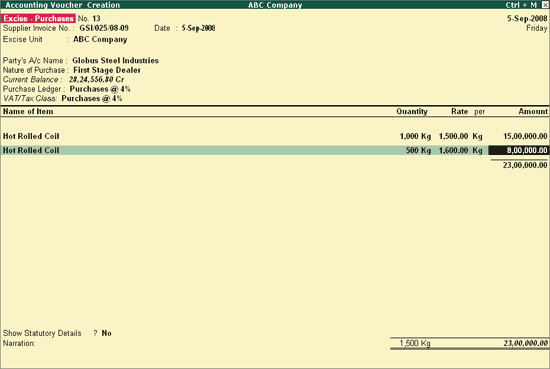
In Name of Item field select Hot Rolled Coils again as second line Item
Enter 500 in Quantity field and Rs. 8,00,000 in Amount field
In the Excise Details screen
In RG 23D Entry No. field enter your RG 23D entry No. – ABC-457
• In Supplier Invoice Details section
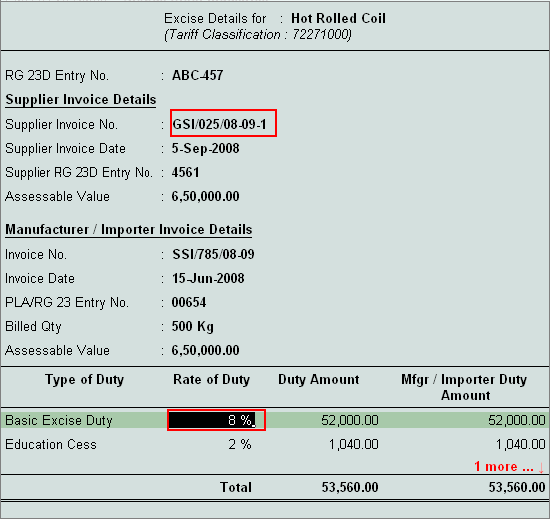
Supplier Invoice No: By default, the Invoice No. details, provided in the supplier Invoice No. field in the voucher entry screen, will be hyphenated with a 1, for the same item selected the second time - GSI/025/08-09-1.
Note: The Invoice Number is altered in order to identify the Invoice Number for the Stock Item – Hot Rolled Coils selected as a second line item.
Even though you alter the Invoice number for the second line item, in all the reports the Invoice number entered in the Supplier Invoice No. field will be displayed.
Supplier Invoice Date: by default displays the voucher date.
Specify the RG 23D Entry No. -4561. This Number represents the suppliers RG 23D entry no, where the details of the particular transaction is available.
Enter the Assessable Value – Rs. 6,50,000 on which the Excise Duty to be calculated. The amount specified in this amount should the amount on which the Excise Duty is calculated by the manufacturer.
In Manufacturer/Importer Invoice Details section
Invoice Number: Specify the manufacturers Invoice Number as SSI/785/08-09
Invoice Date: Specify the manufacturers invoice date as 15-6-2008
RG 23 D Entry No: Enter the RG 23 Entry Number of the Manufacturer-00654
Billed Quantity: Enter the actual Billed Quantity sold to the First Stage Dealer
Assessable Value: Enter the actual Assessable Value i.e. 6,50,000 of the stock item
Duty Details: In Duty Details section, for Basic Excise Duty Type change the Rate of Duty as 8%. Duty amount will be calculated and displayed based on the rate of duty specified.
Note: For the second Line Item selected, the rate of duty applicable is 8%.
In Name of Item field select Hot Rolled Coils again as third line Item
Enter 750 in Quantity field and Rs. 13,00,000 in Amount field
In the Excise Details screen
In RG 23D Entry No. field enter your RG 23D entry No. – ABC-457
In Supplier Invoice Details section
Supplier Invoice No: By default, the Invoice No. details, provided in the supplier Invoice No. field in the voucher entry screen, will be hyphenated with a 2, for the same item selected the third time - GSI/025/08-09-2.
Note: The Invoice Number is altered in order to identify the Invoice Number for the Stock Item – Hot Rolled Coils selected as a third line item.
Even though you alter the Invoice number for the second line item, in all the reports the Invoice number entered in the Supplier Invoice No. field will be displayed.
Supplier Invoice Date: by default displays the voucher date.
Specify the RG 23D Entry No. -4366. This Number represents the suppliers RG 23D entry no, where the details of the particular transaction is available.
Note: the Quantity of 750 is purchased under the Invoice no- SSI/650/08-09 which is different from the earlier Invoice Number. So appropriate RG 23D entry no, corresponding the purchase invoice is specified.
o Enter the Assessable Value – Rs. 11,50,000 on which the Excise Duty to be calculated. The amount specified in this amount should the amount on which the Excise Duty is calculated by the manufacturer.
In Manufacturer/Importer Invoice Details section
Invoice Number: Specify the manufacturers Invoice Number as SSI/650/08-09
Invoice Date: Specify the manufacturers invoice date as 20-5-2008
RG 23 D Entry No: Enter the RG 23 Entry Number of the Manufacturer-00581
Billed Quantity: Enter the actual Billed Quantity sold to the First Stage Dealer
Assessable Value: Enter the actual Assessable Value i.e. 11,50,000 of the stock item
Duty Details: Duty Details displays the Duty Amount calculated for, First Stage Dealer and Manufacturer/Importer.
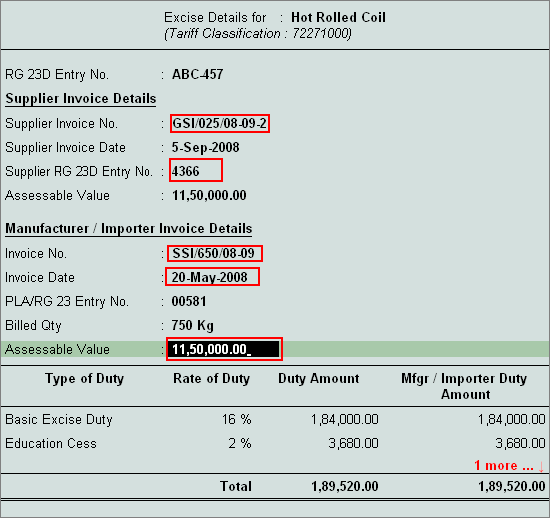
Note: Tally. ERP 9 allows you to select the Stock items purchased under different invoices from the same party.
In the above case Supplier is selling the goods purchased under invoice no- SSI/650/08-09 which is different from the invoice selected earlier for Quantity 1000 and 500.
Select the applicable Input VAT ledger and press Enter, VAT Rate and amount is defaulted automatically
Set Show Statutory Details to Yes to view Statutory Details screen
In Bill-wise details screen select Type of Ref as New Ref and retain all the other default details.
Enter Narration, if required.
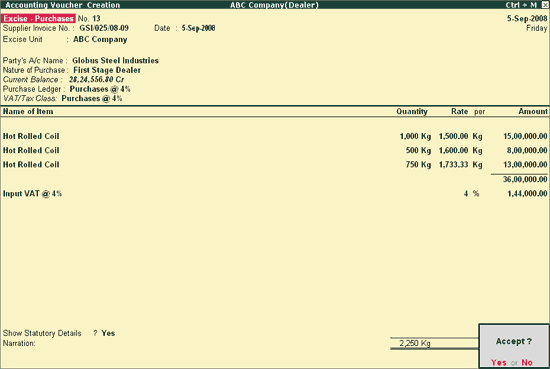
Press Enter to Save.
You can verify the Excise Stock Register report for details on the above purchase voucher
Go to Gateway of Tally> Display > Statutory Reports > Excise Reports> Dealer > Excise Stock Register
Excise Stock Register as on 5-9-2008 is displayed as shown
In all the reports the stock items selected multiple times in a purchase invoice will be displayed one by one based on the selection in the purchase Invoice.
Observe, in the Invoice No/Date column the Invoice Number as specified in Supplier Invoice No. field in voucher entry screen is displays irrespective of alteration done (as GSI/025/08-09-1 and GSI/025/08-09-2) in the Excise Details screen for the second and third line items.
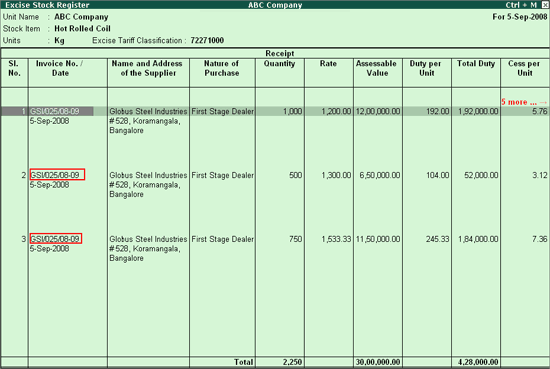
Similarly you can verify all the reports.